A VPN (Virtual Private Network) is a service that encrypts your internet connection and hides your online activity from hackers, ISPs, and other third parties.
Setting up a VPN involves installing an app on your device or manually configuring your network settings to route traffic through secure VPN servers. While the process might seem technical, this guide will explain it to you in minutes.
Quick overview: app vs. manual setup
Here’s how the two primary VPN setup methods compare:
|
|
VPN app
|
Manual setup
|
|
Time
|
2-5 minutes
|
10-15 minutes
|
|
Technical skills
|
None required
|
Basic networking
|
|
Best for
|
Most users, beginners
|
Advanced users, specific protocols
|
Method 1: VPN app setup (recommended)
The easiest and most secure way to set up a VPN is by using a dedicated app from a reputable provider like Surfshark. Doing so allows for:
- Automatic security feature configuration;
- Easy server switching and protocol selection;
- Built-in kill switch and leak protection;
- Customer support integration;
- Regular security updates.
Step 1: Choose and subscribe to a VPN service
- Look for resources that compare the best VPNs;
- Select providers known for strong security features;
- Consider factors like server locations, supported devices, and pricing;
- Reliable VPNs typically cost around $2–3/month with long-term plans;
- Avoid free VPNs due to potential privacy risks.
Step 2: Download and install the VPN app
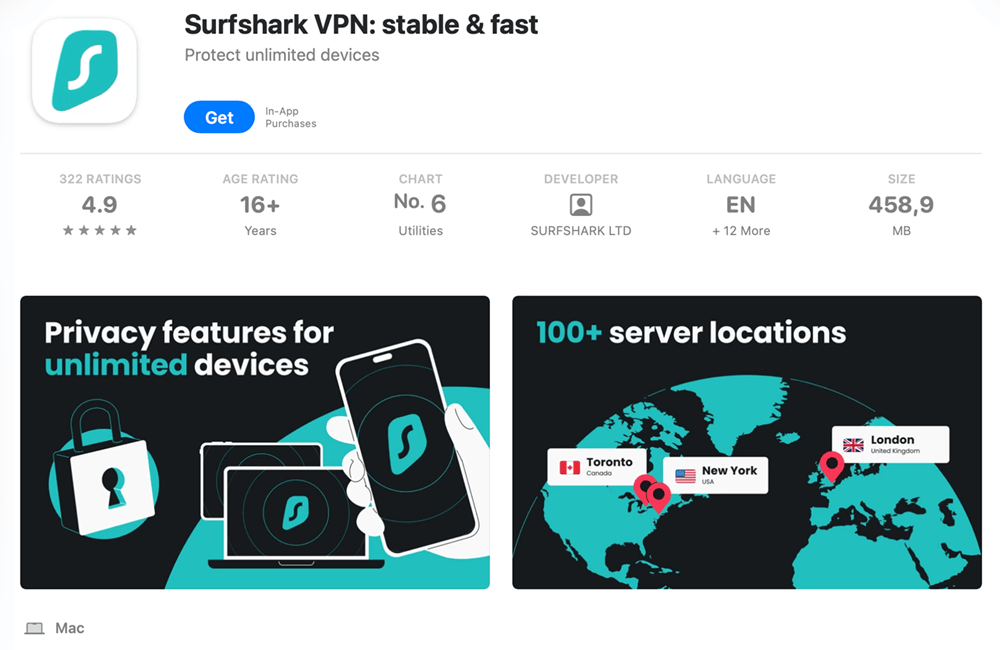
- Download a VPN app from the official website or an authorized app store;
- Surfshark has dedicated apps for Windows, macOS, iOS, Android, and other major platforms;
- Typical installation time is under 2 minutes; no technical skills required.
Step 3: Launch the app and log in to your account
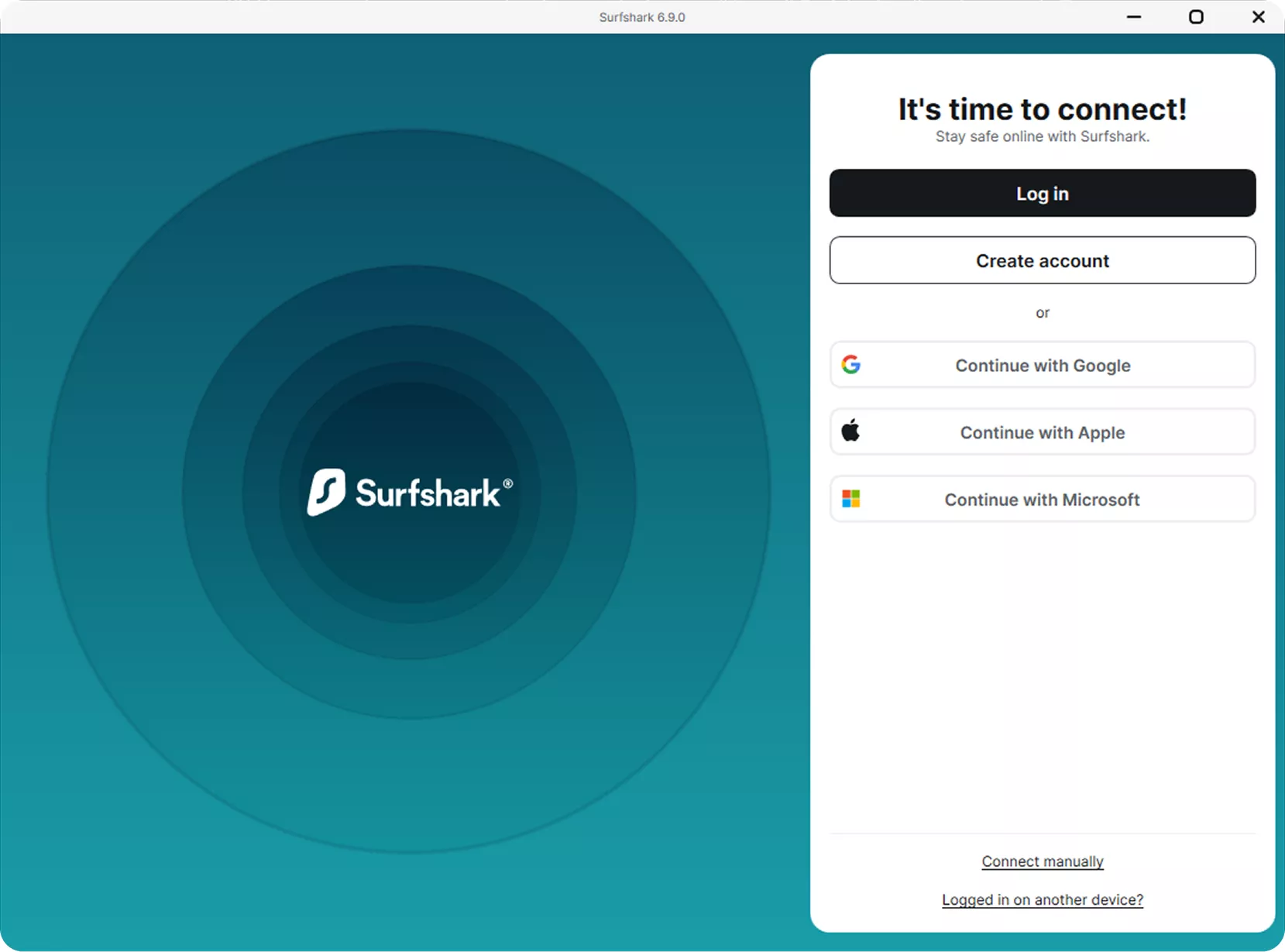
- Open the installed VPN app;
- Log in using your account credentials;
- Surfshark offers several login methods, including using your email and password, a code from another device, or your Google or Apple account;
- For additional security, enable two-factor authentication.
Step 4: Connect to a VPN server
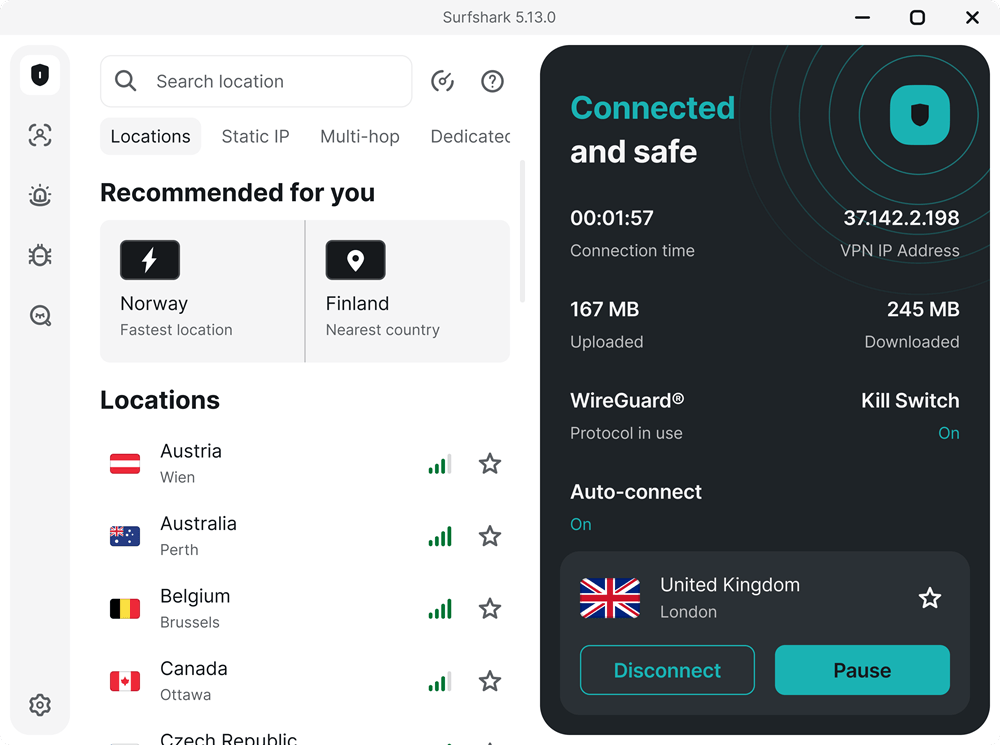
- VPN connections are typically established within seconds;
- If you’re using Surfshark, use the quick connect feature to select the fastest available server;
- Alternatively, you can manually choose from Surfshark’s 4,500+ servers in 100 countries.
Method 2: Manual VPN setup
Manual setup gives you more control over your VPN configuration. It’s also useful when no VPN apps are available for your device.
Before you begin:
- Get a VPN service subscription (you still need one, even for manual setup).
- Get VPN server details from your provider (server address, credentials, protocol type).
- Make sure you can access your device’s network settings.
- For advanced setup advice, consult our dedicated guides:
- For Windows: WireGuard and OpenVPN;
- For macOS: WireGuard, OpenVPN, and IKEv2;
- For iOS: WireGuard, OpenVPN, and IKEv2;
- For Android: WireGuard, OpenVPN, and IKEv2.
Windows manual setup
Most VPN services provide a Windows VPN app, but here’s how to manually set up a VPN on a PC if you prefer to handle things yourself:
- Open Settings → Network & internet → VPN.
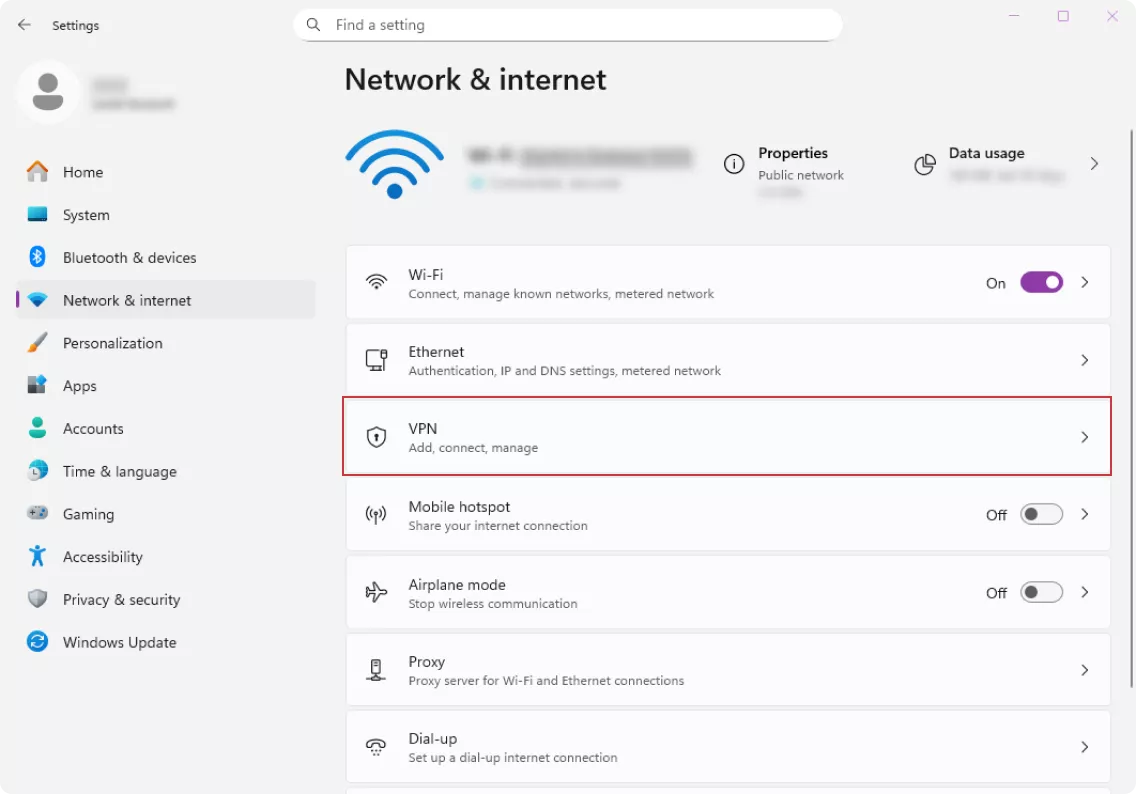
- Click Add VPN.
- Fill in:
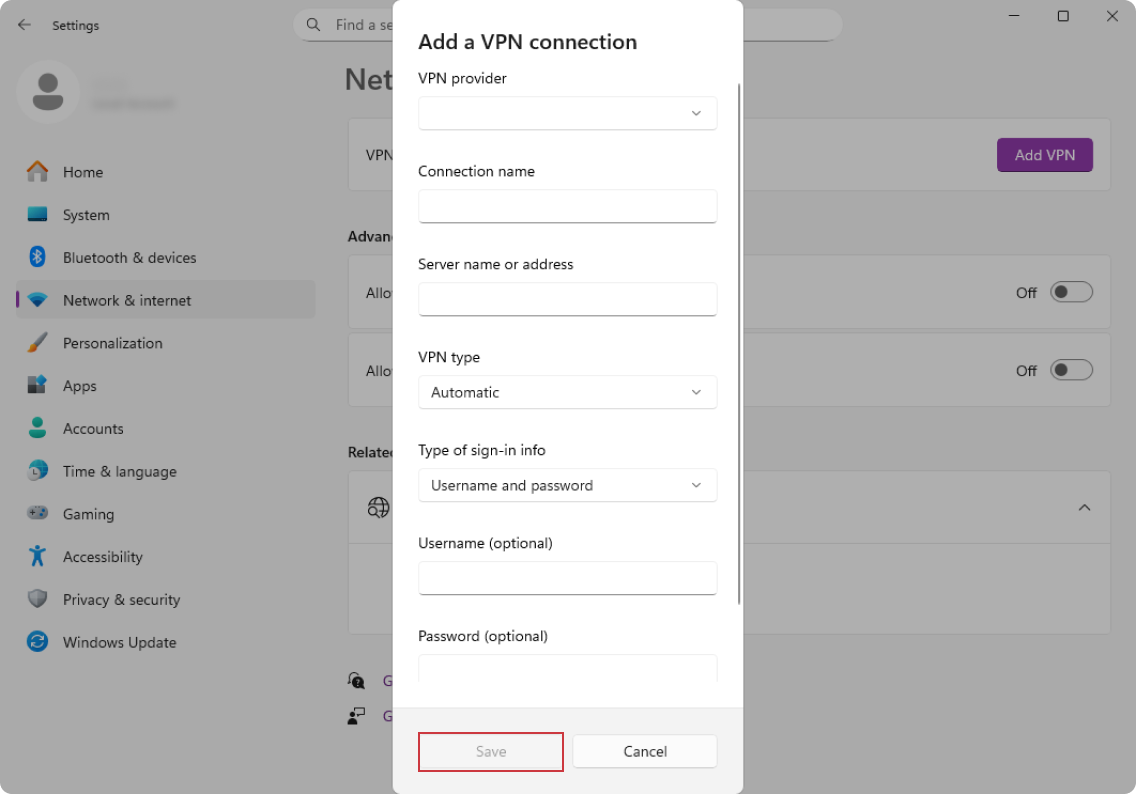
- VPN provider: choose Windows (built-in);
- Connection name: any name you want this connection to appear as;
- Server name or address: the information you got from your VPN provider;
- Type of sign-in info: choose User name and password;
- Sign-in info: the username and password you registered with on your VPN provider’s website.
- Select Save.
- Go back to the VPN list and click Connect.
macOS manual setup
If your VPN provider doesn’t offer a dedicated Mac app, follow these steps:
- Open System Settings from the Apple menu.
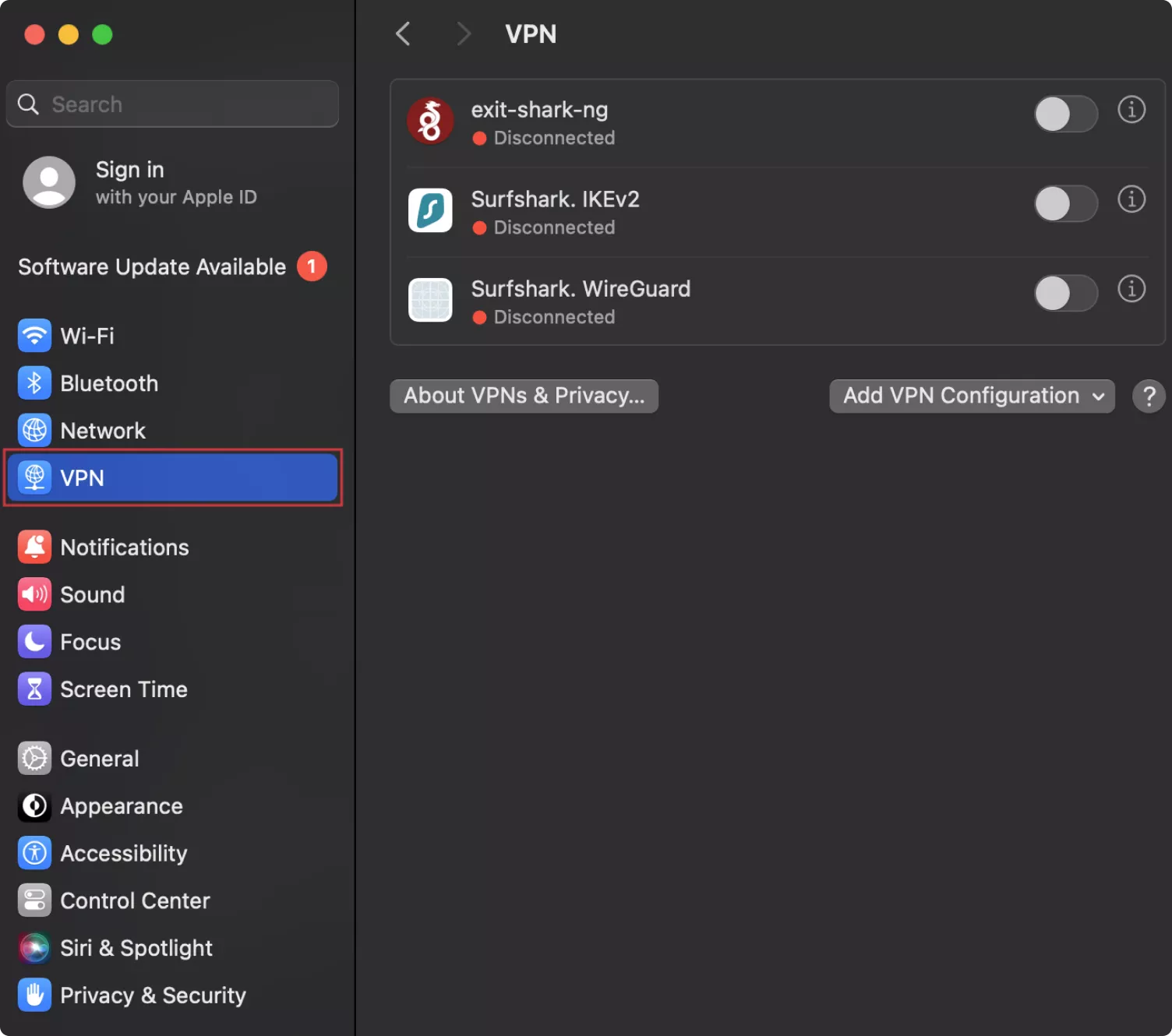
- Select VPN from the sidebar and click Add VPN Configuration.
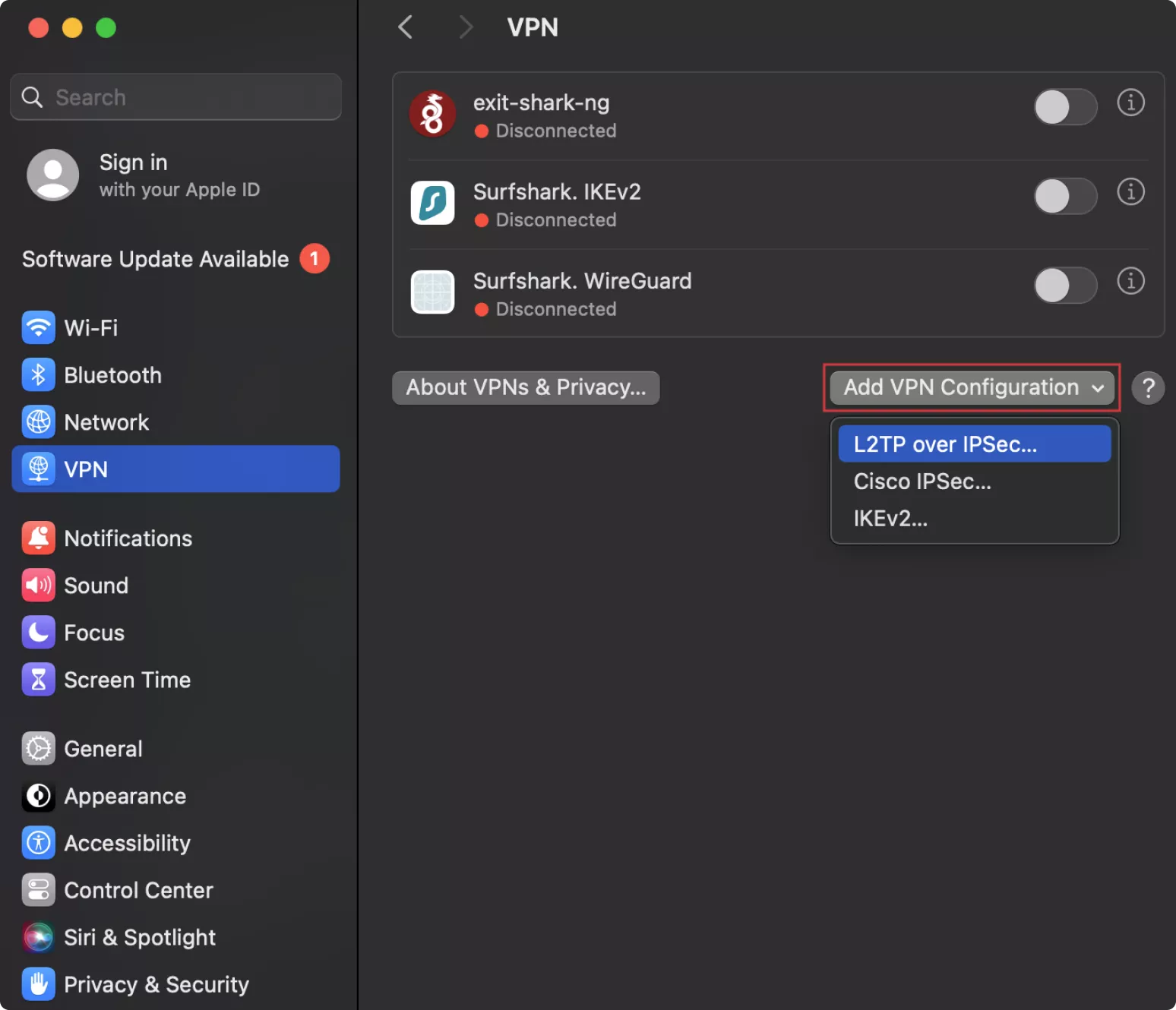
- Choose your VPN type.
- Enter:
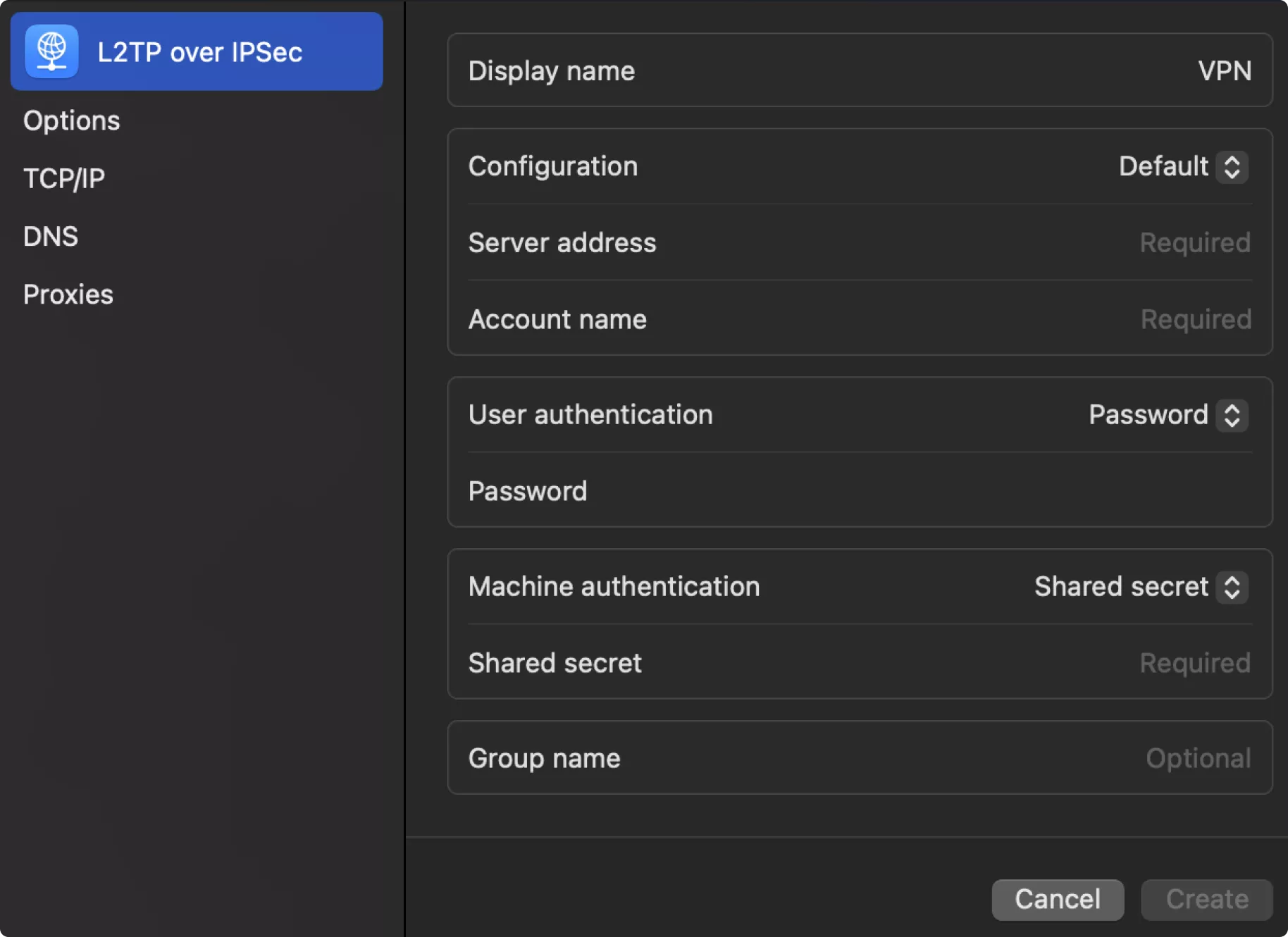
- Server address: the information you got from your VPN provider;
- Sign-in info: the username and password you registered with on your VPN provider’s website;
- Shared secret (if required).
- Click Create, then toggle the VPN to connect.
iOS manual setup
You can typically get a VPN for your iPhone as an app, but in case you prefer a hands-on approach:
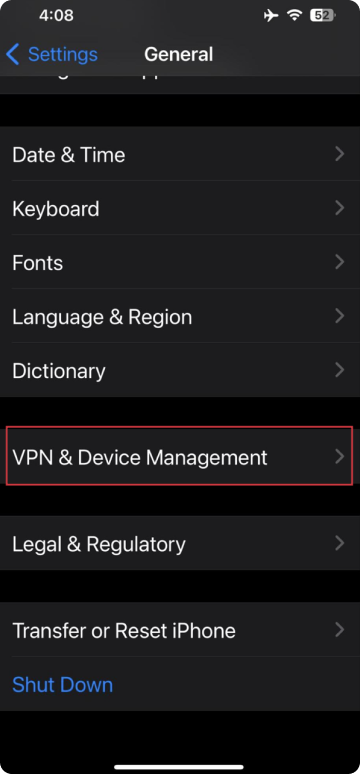
- Open Settings → General → VPN & Device Management.
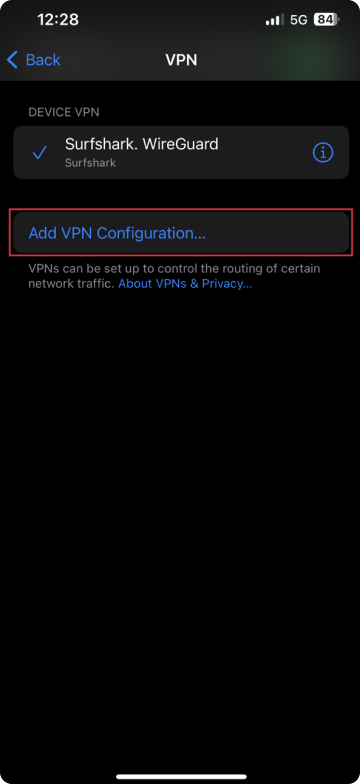
- Tap VPN → Add VPN Configuration.
- Choose the VPN type.
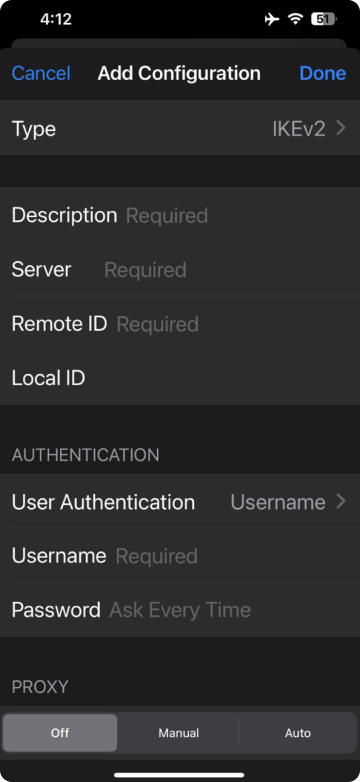
- Fill in:
- Type: the name of the protocol you’re installing (WireGuard, OpenVPN, and IKEv2);
- Description: any name you want this connection to appear as;
- Server address: the information you got from your VPN provider;
- Remote ID (often the same as server);
- Sign-in info: the username and password you registered with on your VPN provider’s website.
- Tap Done, then toggle the VPN switch to connect.
Android manual setup
You can easily set up a VPN on an Android with an app, but if you’re looking to do it manually, here’s how:
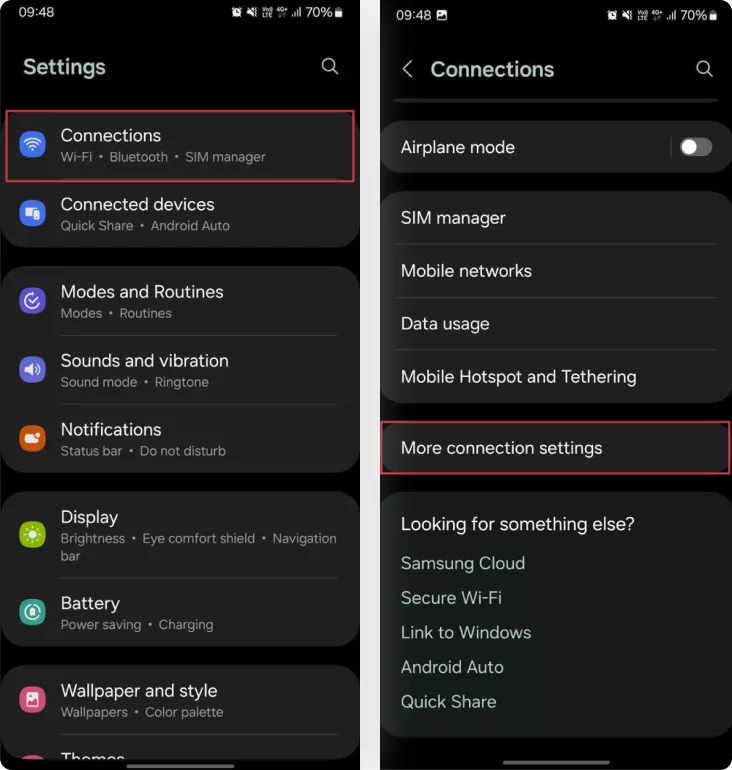
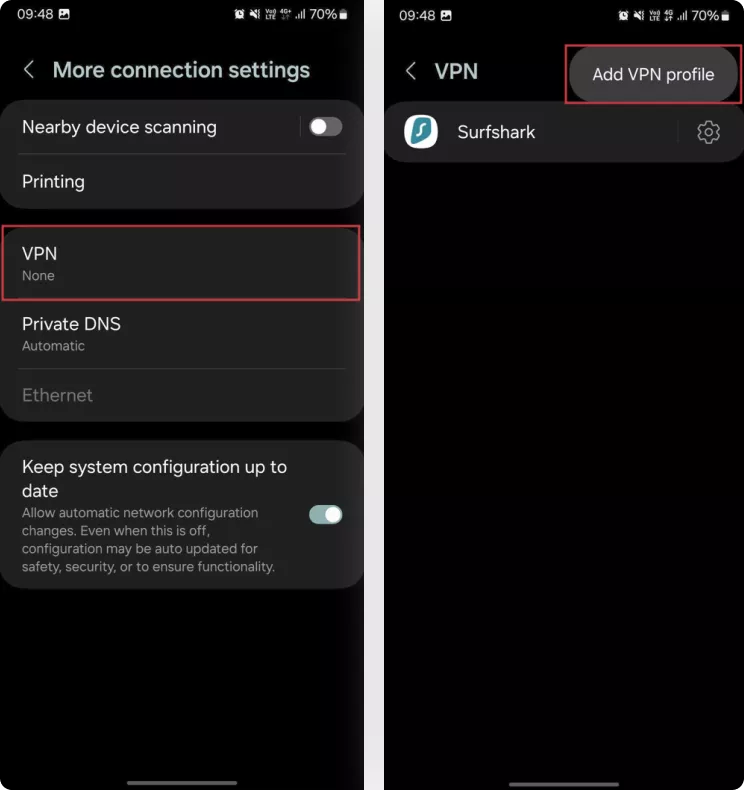
- Open Settings → Connections → More Connection Settings → VPN.
- Tap Add VPN Profile.
- Fill in:
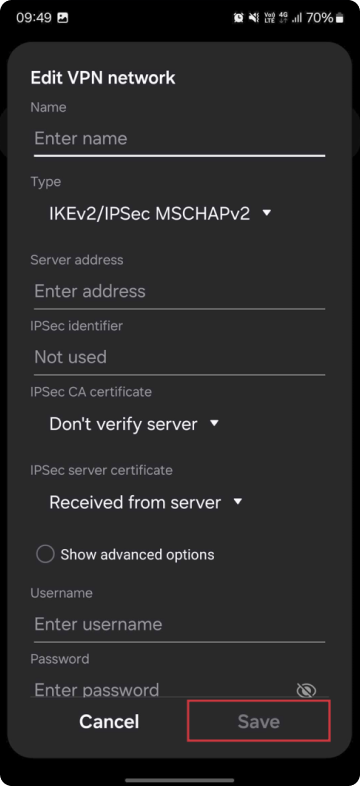
- Name: any name you want this connection to appear as;
- Server address: the information you got from your VPN provider;
- Sign-in info: the username and password you registered with on your VPN provider’s website.
- Tap Save, then select the VPN and hit Connect.
Linux manual setup
Don’t have a Linux VPN app? No problem.
- Download Linux configuration files from your provider.
- Move files to the correct system directories and ensure correct permissions.
- Use terminal commands to start the VPN connection. For more information, see our Linux guides for OpenVPN and WireGuard.
Router VPN setup
Even the best home VPN needs to be installed on each device to work — unless you set it up on your router.
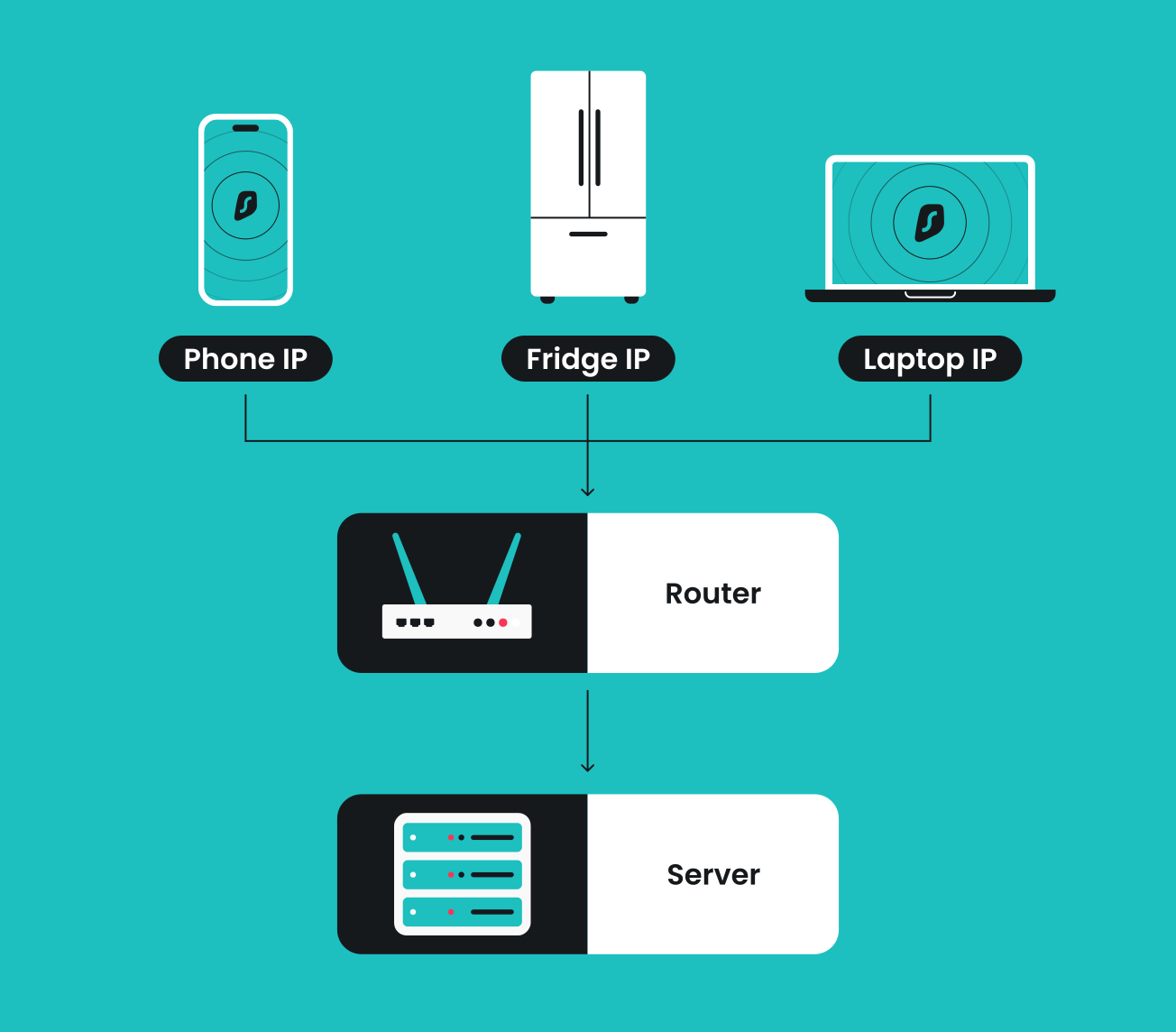
- Check if your VPN provider supports your router model.
- Open a browser and enter your router’s IP address (usually 192.168.0.1 or 192.168.1.1).
- Log in with your router’s username and password.
- Configure the router’s VPN settings. If you’re using Surfshark, follow a guide for your router model:
- Connect to your home network.
Note: This process can differ depending on the type of VPN router you’re using. For more help, use our dedicated guide on setting up a VPN on a router.
If you’re using a Synology NAS as part of your home network, see our dedicated guide on setting up a VPN on Synology.
Troubleshooting common VPN setup issues
When the VPN setup doesn’t go as planned, these solutions address the most frequent problems:
- Cannot connect to a VPN server: verify the internet connection and VPN credentials → try different server locations → restart your device and try again;
- VPN connects, but there’s no internet access: check DNS settings → temporarily disable IPv6 → try different protocols (WireGuard/OpenVPN) → contact provider;
- Slow VPN speeds: choose a geographically closer server → switch to WireGuard protocol → close bandwidth-heavy background apps;
- Frequent disconnections: enable automatic reconnection → switch to IKEv2 (for mobile) → check for firewall/antivirus interference → update the app;
- VPN not working on mobile device: disable battery optimization → allow background app refreshing → check data/Wi-Fi connection → reset network settings;
- Router VPN configuration fails: confirm router protocol support → update router firmware → factory reset and reconfigure → use a dedicated VPN router;
- Invalid credentials error: check spelling and caps lock → reset password through provider → contact customer support for account verification;
- Manual setup configuration problems: verify provider server details → check device protocol compatibility → ensure firewall isn’t blocking VPN ports.
Best practices for maintaining a stable VPN connection
Proper VPN setup goes beyond basic configuration — follow these practices for maximum security:
- Enable kill switch protection: blocks internet access if the VPN connection drops to prevent accidental data leaks;
- Activate DNS leak protection: ensures all DNS queries route through the VPN, preventing your ISP from seeing your browsing activity;
- Use strong authentication: protect your account with 2FA, complex passwords, and a secure password manager;
- Verify VPN connection: frequently check for IP changes, test for DNS leaks, and confirm your virtual location;
- Regular security maintenance: keep apps updated, monitor provider security alerts, and periodically review connection logs.
What to look for in paid VPN services
While manual setup is possible, paid VPN services offer significant advantages over free solutions. Here’s what to look for in a VPN service:
Comprehensive security features:
- Advanced encryption protocols and security audits;
- Built-in leak protection and kill switches;
- Regular security updates and vulnerability patches.
Global server networks:
- A vast selection of server locations worldwide;
- Optimized servers for speed and reliability;
- Specialized servers for streaming, gaming, or security.
Customer support:
- 24/7 technical assistance for setup issues;
- Detailed setup guides and troubleshooting resources;
- Expert help with complex configuration requirements.
What makes Surfshark stand out:
- Unlimited simultaneous device connections;
- No-logs policy verified by independent audits;
- Clean Web ad and malware blocker;
- Double VPN for an extra layer of privacy;
- Split-tunneling for full control over your traffic;
- Fast VPN connection speeds;
- 30-day money-back guarantee for risk-free testing.
Final thoughts: should you set up a virtual private network?
Manual VPN setup is a good option for users who want more control over their devices and don’t mind tinkering with their system preferences. For most users, though, an app from a reliable service is all that’s needed for a simple VPN installation.
A tool like Surfshark makes VPN configuration a breeze, even on multiple devices. You likely won’t need to worry about manual setup, but if a problem ever pops up, Surfshark has a 24/7 customer care crew to assist you.
If you’re looking for an easy VPN setup, save yourself the hassle and go with Surfshark to enjoy greater online privacy today.
FAQ
How do I set up a VPN on streaming devices?
Setting up a VPN on streaming devices is easy, since Surfshark is available for Android TV, Apple TV, and Fire TV Stick. Just install the app, log in, and connect to a server.
Disclaimer: Please note that using Surfshark services for any illegal activities is strictly forbidden and violates our Terms of Service. Make sure that any use of Surfshark services for your particular activities conforms to all relevant laws and regulations, including those of any service providers and websites you access using Surfshark.
Can I set up a VPN for free?
Although you can find free VPN services, they often have limited features, slower speeds, and weaker security. A paid VPN like Surfshark offers better protection and performance.
What is the easiest way to set up a VPN?
The easiest method is to use a VPN app. Surfshark makes this process quick and user-friendly.
Can I create my own VPN?
You can create your own VPN using a server or router, but it’s complex and time-consuming. It’s much easier and safer to use a service like Surfshark.
How long does it take to set up a VPN?
Setting up a VPN app typically takes 2–5 minutes. Manual configuration may take 5–15 minutes, depending on your device and technical comfort level. Connecting to the VPN afterward takes just seconds.
Do I need technical skills to set up a VPN?
No technical skills are required for app-based VPN setup. Simply download the app, create an account, and connect. Manual setup is straightforward, with step-by-step instructions provided.
Can I set up a VPN on multiple devices?
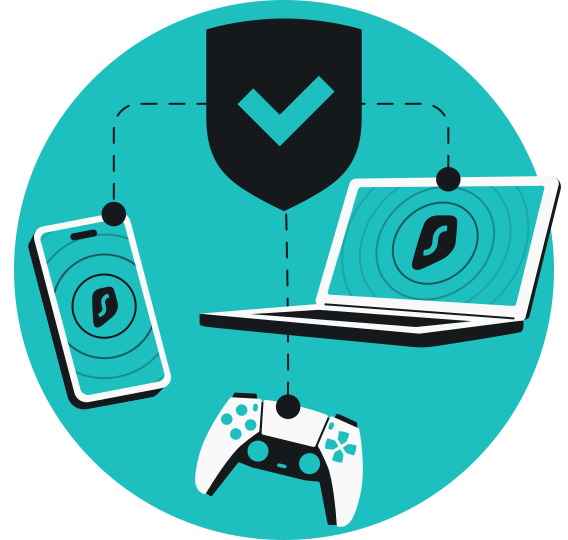
Yes, Surfshark supports unlimited simultaneous connections. You can install the VPN app on each device individually or set up the VPN on your router for network-wide coverage.
Will setting up a VPN slow down my internet?
Quality VPNs may reduce your internet speed by 10–15% due to encryption overhead. For faster speeds on Surfshark, use the Dausos or WireGuard protocols and select servers closer to your location.
Is it better to use a VPN app or manual setup?
For most users, VPN apps offer the best balance of security and ease. A manual setup provides greater control but requires some technical familiarity. Beginners should start with apps.
Which VPN protocol should I choose?
If you are on macOS and want ultra-high speeds with innovative post-quantum security, select Surfshark’s Dausos protocol. For overall balance of speed, efficiency, and security, WireGuard is your top choice for general and mobile use. Choose IKEv2 if you are a mobile user who needs a stable connection while frequently switching between Wi-Fi and cellular networks. Finally, OpenVPN is a reliable alternative for maximum device compatibility and high security when the other protocols aren’t available.
What is the best way to set up a home VPN?
The easiest method is to download a dedicated VPN app directly onto your devices, like your laptop, smartphone, or smart TV. However, if you want to protect your entire home network at once (including smart home gadgets that don’t support VPN apps), the best way is to configure the VPN on your Wi-Fi router.
Since Surfshark offers unlimited simultaneous connections, you can easily use either method to keep your whole household secure.