You wake up and decide to scroll a little. After a while, your phone gets really hot. Then you notice a new app you don’t remember installing. These are just two signs of phone hacking. Read on and learn the signs that your phone has been hacked, short codes and apps to check it, and some tips on how to protect yourself from it happening in the future.
Signs your phone has been hacked
If you’re not entirely digitally unplugged, your smartphone probably stores a significant amount of your personal and financial information. So, if it gets hacked, the consequences can be dire, and spotting the warning signs of a hack early is crucial.
And it doesn’t matter which phone you use — Android devices are usually seen as more vulnerable, but iPhones aren’t entirely safe either. Stay on the lookout for the signs below:
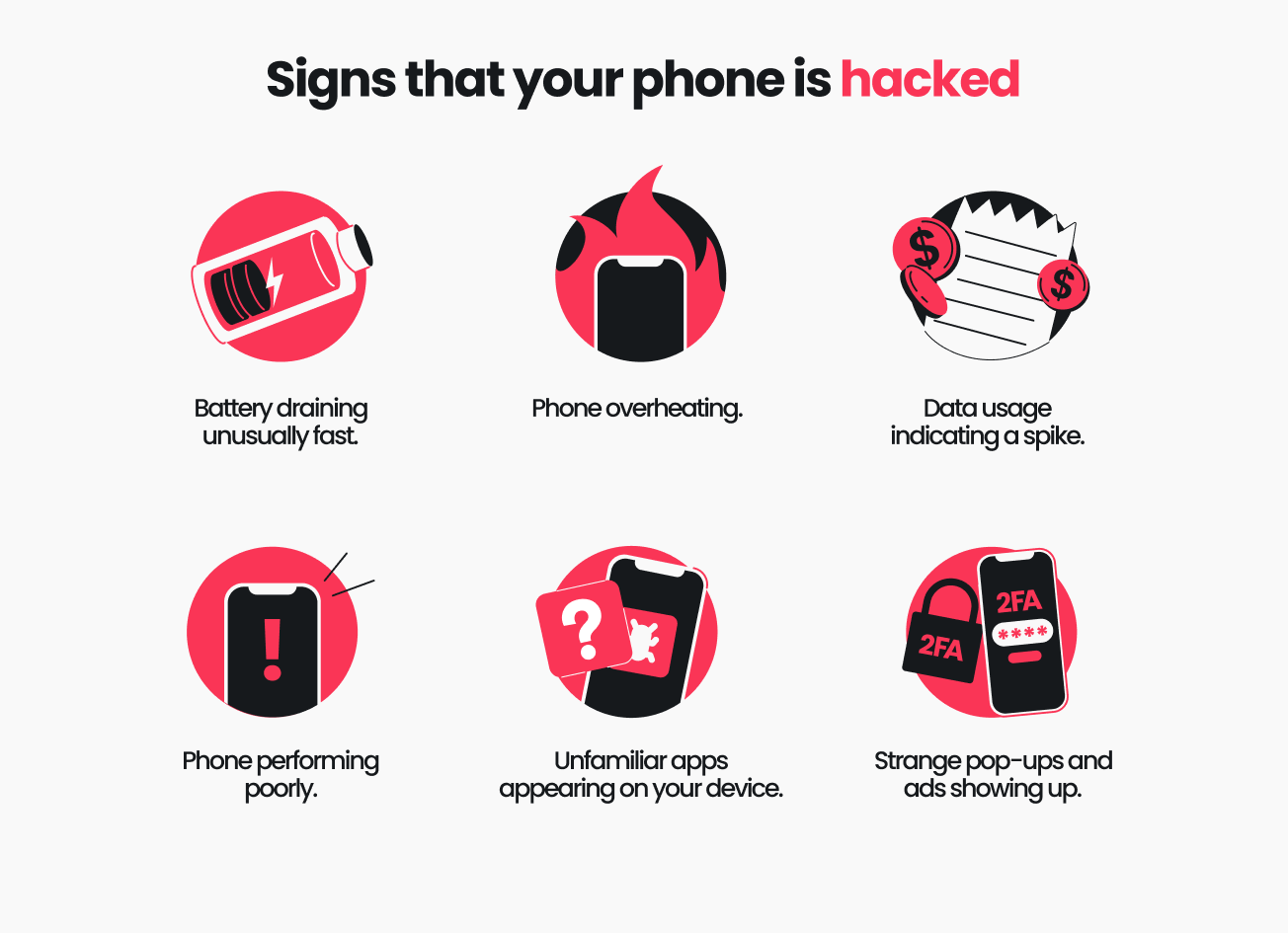
- Battery draining unusually fast. There are several reasons why your phone’s battery may be dying rapidly, including running power-consuming apps or a faulty or old battery. However, a sudden change in the battery’s life might be a sign of malware using up its juice;
- Phone overheating. Your mobile phone becoming hot to the touch might be the result of power-intensive activities like using streaming apps or gaming. However, if you’re not using any such applications and your phone still heats up, it can indicate spyware or other malicious software running in the background;
- Unfamiliar apps appearing on your device. Finding suspicious apps you’ve not downloaded most likely means somebody has installed spyware or malware on your phone that lets them gain unauthorized access to your mobile phone remotely;
- Strange pop-ups and ads showing up. An influx of unusual pop-ups — be it unrequested 2FA (Two-factor Authentication) code notifications, strange ads, or other pop-ups on the home screen or while browsing — is a strong indication your phone might be compromised. Be cautious, as clicking on such pop-ups can redirect you to unsafe websites or install malware on your device;
- Data usage indicating a spike. If you notice an unexpected increase in mobile data usage — either in your phone’s settings menu or reflected in your monthly phone bill — it could mean that your mobile device has been hacked and some malware is running in the background, using up more data;
- Phone performing poorly. Your phone rebooting without a reason, working slowly, shutting down, or changing its settings could be minor software errors, but they may also be signs that your phone is hacked.
Dial codes to check if your phone is hacked
*#21# — unconditional call forwarding check
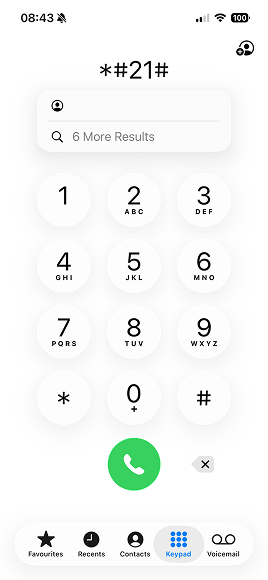
Dialing *#21# is a quick way to see if your calls and messages are being forwarded to another number without you knowing. This process — called unconditional call forwarding — redirects every incoming call, even when your phone is on and available.
If hackers manage to set unconditional call forwarding on your number, they can intercept your incoming calls or capture sensitive info like 2FA codes.
If you spot suspicious forwarding after dialing *#21#, you can usually turn this feature off by entering ##21#.
*#61#, *#62#, and **#67* — conditional call forwarding check
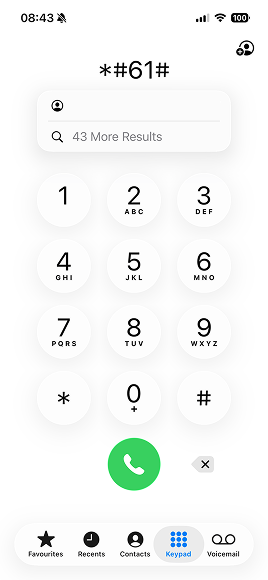
Unlike unconditional call forwarding, conditional call forwarding is a feature that only kicks in if you’re out of reach or busy. It’s often used legitimately for voicemail, and forwards your calls and messages to a set number:
- When your phone is out of range, turned off, in airplane mode;
- When you’re on another line or reject the call;
- When you don’t answer the incoming call.
However, hackers might also exploit this feature and secretly redirect your calls to another number to intercept information.
- Dialing *#61# shows where calls are forwarded when you don’t answer. You can set a time delay after which your calls are forwarded to voicemail if you don’t pick up. However, hackers can set it up for such a short time that you might not even notice an incoming call. You can disable this feature by dialing ##61#;
- Dialing *#62# lets you check where your calls and messages are being forwarded when your phone is out of reach — for instance, out of service, turned off, or in airplane mode. If you notice an unfamiliar number linked to your forwarding settings, you can disable it by dialing ##62#;
- Dialing *#67# reveals the number your calls are forwarded to when you’re on another line or reject an incoming call. If the displayed number looks unfamiliar, you can turn off this setting by dialing ##67#.
*#06# — IMEI display
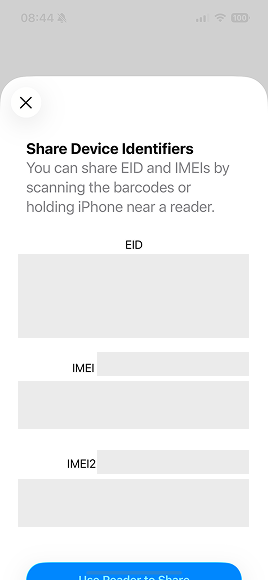
Every phone has a unique, 15-digit identification number called IMEI (International Mobile Equipment Identity). It helps verify your device’s authenticity and track it if it’s ever lost, stolen, or compromised. You can easily find it by dialing *#06#.
The IMEI code itself won’t tell you if your phone is hacked. However, knowing your device’s IMEI can help your service provider or law enforcement block unauthorized access and protect your data if you suspect your phone has been compromised.

Think your phone is hacked?
Surfshark One protects your phone with Antivirus, VPN, and data leak alerts — all in one app
Get Surfshark OneBest apps to check if your phone is hacked
If you suspect your phone has been compromised, there are also some apps that can help you scan your device for malware, spyware, and other suspicious activity.
Antivirus
A reputable antivirus app can run in-depth scans on your phone to detect malicious apps and files that standard phone settings might miss. For example, Surfshark Antivirus is a great all-in-one option for Android phones. It provides real-time protection, blocks known threats, and helps safeguard your personal data — on your Android and across four other compatible devices.
Google Play Protect (Android)
On your Android, you can also use Google Play Protect to automatically scan your installed apps for harmful behavior. To run a manual check:
- Open the Google Play Store.
- Tap your profile icon and select Play Protect.
- Select Scan to check for potentially malicious apps or security issues.
iOS Safety Check (iPhone)
Apple users can take advantage of the built-in feature, iOS Safety Check. To use it:
- Go to Settings > Privacy & Security > Safety Check.
- Select Manage Sharing & Access.
- Review which people, apps, or devices have access to your data and permissions.
- Revoke or reset access if anything looks suspicious.
What to do if your phone is hacked
If your phone gets compromised, there are some immediate steps you should take to prevent as much damage as possible. So, if you suspect your phone’s been hacked, here’s what you should do:
1. Disconnect from the internet
First off, cut your Wi-Fi connection, switch off mobile data on your mobile device, and disable Bluetooth. Disabling internet access can prevent hackers from sending and receiving any further information from your phone.
2. Delete suspicious apps
Inspect the app list on your phone, looking for suspicious or unknown applications. If you found any apps you haven’t downloaded yourself, delete them immediately. Restart your phone and look again to make sure they were successfully deleted.
3. Run an antivirus scan
Next, scan your phone with an antivirus app — the antivirus software will scan your device, recognize malware, and notify you about it or delete it.
If you don’t have an antivirus on your phone yet, install one and then run the check. For Android phones, you could use Surfshark Antivirus.
Once the malicious files or apps are deleted, restart your phone and double-check that they’re gone.
Note: Surfshark offers Antivirus for Windows, Android, and macOS.
4. Change passwords
You should also update your passwords as soon as possible. Start with the most sensitive accounts — like banking, email, cloud storage, and social media — and then the rest of the apps and websites connected to the compromised phone. Also, consider using another device that’s uncompromised for this process. Make sure your new passwords are strong and have never been used before.
5. Reset factory settings if needed
If nothing works and your phone still shows signs of malware, you should try resetting your device to factory settings. A factory reset deletes data on your mobile device and returns the settings to the factory baseline, wiping all malware in the process.
Tip: Before resetting factory settings, make sure to back up important files, contacts, and media, as they will be deleted in the process.
Factory reset on iPhone
Here’s how to perform a factory reset on iPhone:
- Open Settings.
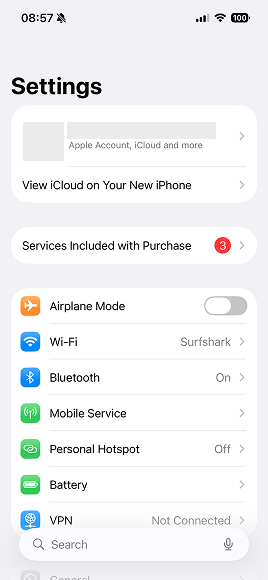
- Select General.
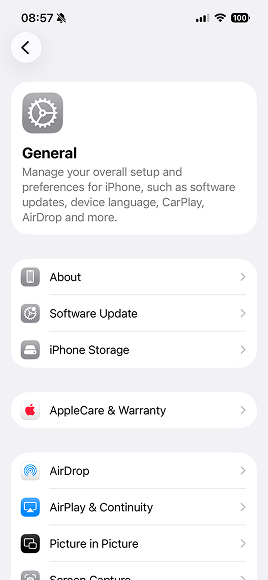
- Scroll down to Transfer or Reset iPhone.
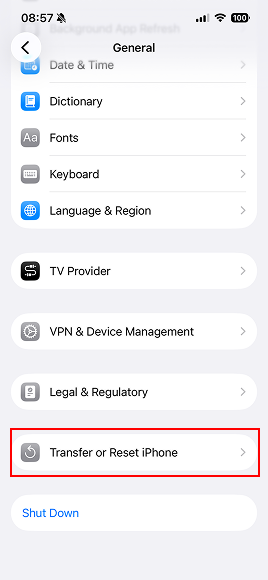
- Tap Erase All Content and Settings.
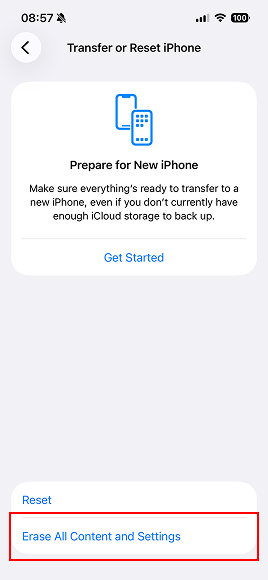
For a more detailed guide, read Apple’s support page on restoring your Apple device to factory settings.
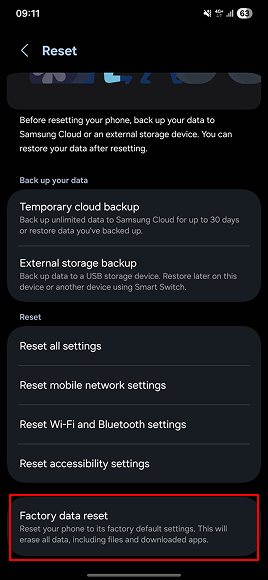
Factory reset on Android
Resetting factory settings for Android users will differ depending on the manufacturer, but the general steps are as follows:
- Open Settings.
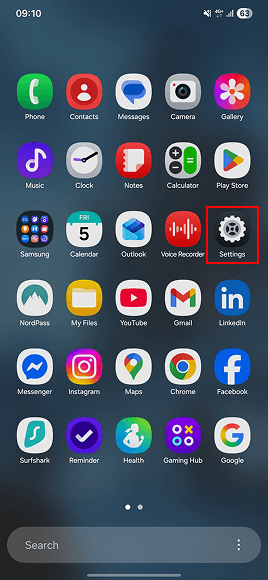
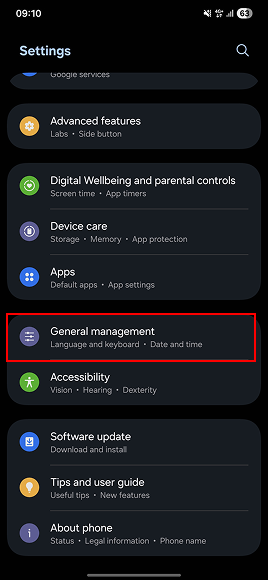
- Tap General management.
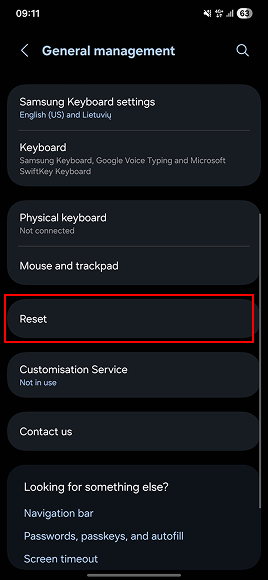
- Choose Reset.
- Select Factory data reset.
- Tap Reset.
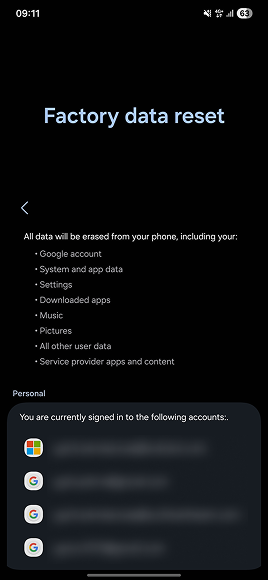
Since many Android manufacturers exist, remember to check their websites for more direct guides.
6. Inform your contacts
Malicious code can be transferred through a message or an email sent from your device. To prevent anyone from clicking on malicious links and infecting their devices, too, inform your contacts that your phone has been hacked and tell them to ignore any suspicious messages received from you.
How hackers get into your phone
There are quite a few ways to hack a phone. Here are some of the most common phone hacking techniques:
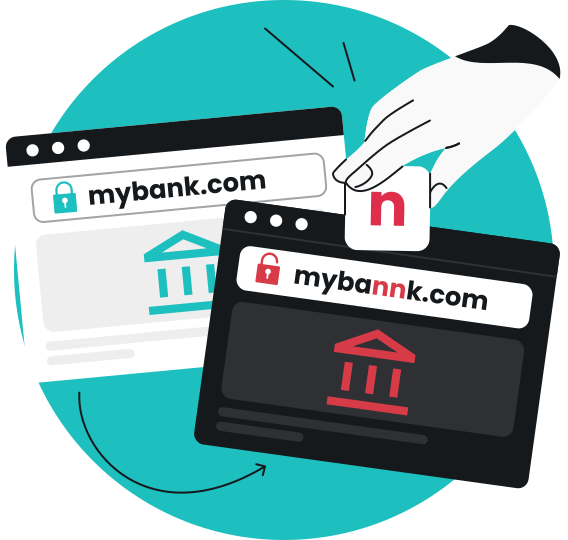
- Social engineering. Phishing is one of the most common social engineering techniques used by hackers. Hackers send legit-looking emails or messages — similar in concept to bluejacking, but usually more dangerous — and try to trick people into clicking on a malicious link and downloading malicious software.
- Fake apps. Cybercriminals can publish malicious apps that look like legitimate ones. Once you install one, it can request excessive permissions, steal sensitive data, or install additional malware. Fake apps usually can be downloaded from unofficial app stores or links, so stick to official sources.
- Public Wi-Fi snooping. Your device can get infected with malware by connecting to fake Wi-Fi networks, also referred to as evil twin networks, that redirect you to malicious websites.
- Spyware. Some spyware could be easily installed on your phone if someone has direct access to your device. This doesn’t require advanced IT knowledge, and your phone could be remotely monitored or managed.
How can I protect my phone from hackers?
Now that you know the signs of being hacked, how do you prevent this from happening in the first place? Here are some safety tips:
- Use strong passwords. Set up unique, complex passwords that include a mix of letters, numbers, and symbols. Also, avoid reusing the same password across accounts;
- Enable MFA. To safeguard your accounts even further, enable MFA (Multi-factor Authentication) wherever possible. By adding an extra verification step or a few, MFA makes it much harder for hackers to access your phone or online accounts even if they manage to steal your password;
- Update your OS and apps regularly. To ensure device security, update your mobile’s OS (Operating System) and apps on a regular basis. These software updates usually include known vulnerability fixes and the latest security patches;
- Avoid suspicious links and downloads. If a file or link looks suspicious, it probably is. Some malware spreads automatically, so strange links in messages from your friends or weird attachments in emails might contain a virus that will compromise your device. Knowing that, don’t open those files or links, and inform the person it came from;
- Install antivirus software. Routine use of antivirus apps can defeat common threats. However, they have to be regularly updated, just like any other app, as those updates often include additions of recently uncovered security issues;
- Use a VPN. A VPN on your phone is a mobile security app. Connecting to a VPN encrypts your internet traffic, so if hackers try to steal your data and intercept your phone by using, say, unsecured public Wi-Fi networks, they wouldn’t get anything useful;
- Download apps from official stores. Official app stores are less likely to include malicious apps. Although some privacy risks may still exist, they can be avoided by being selective.
You should also periodically review your apps. This will help you notice any suspicious apps you haven’t installed yourself, hopefully before they cause damage to your device, accounts, and personal information.
Stay protected with Surfshark One
When it comes to keeping your devices secure, Surfshark One is the ultimate all-in-one protection suite. With a single One subscription, you get extensive online protection across unlimited devices with multiple privacy and security tools, as well as Antivirus protection on up to five devices.
Here’s what’s included in Surfshark One:
- VPN — encrypts your internet traffic and helps keep your data safe on public Wi-Fi networks, preventing hackers and snoops from intercepting your connection;
- Antivirus — scans your device for malware, spyware, and other threats, removing anything suspicious before it can do damage;
- Alert — monitors your personal information for data leaks and alerts you if your credentials, email addresses, or passwords appear online;
With Surfshark One, you get a powerful cybersecurity package — safeguard multiple devices and enjoy ultimate peace of mind.
In conclusion: don’t sleep on your phone’s security
By now, you know how to tell if your phone has been hacked and what warning signs to look for. But prevention is just as important as detection. Using tools that strengthen your privacy and security can help reduce the risk of hackers and malware getting in to begin with. A cybersecurity suite like Surfshark One, packed with essential security features and tools, can help keep your data and devices safe.
Stop hackers before they stop you
With a VPN, Antivirus, and more — all under one subscription
Get Surfshark OneFAQ
Can someone hack my phone remotely?
Yes, it’s possible to hack your phone remotely — but you can make it much harder for hackers to do so. To prevent your phone from being mirrored or accessed remotely, keep your software up to date, use 2FA, and check your phone for suspicious apps that you didn’t install yourself.
You should also avoid jailbreaking your iPhone or rooting your Android, as both can remove important built-in security protections and expose your phone to security risks.
Can hackers access my camera?
Yes, hackers can access your phone camera through spyware or malicious apps. To protect yourself, check app permissions, uninstall suspicious apps, and keep your phone updated. Covering your camera when not in use adds extra privacy.
Are dial codes reliable?
Dial codes like *#21# or *#62# help check call forwarding settings, but they can’t confirm if your phone is hacked. They’re useful for spotting suspicious redirections, but use trusted antivirus apps for reliable threat detection.
Does VPN protect against phone hacking?
A VPN encrypts your internet traffic and hides your public IP, improving your privacy and security, especially on public Wi-Fi. However, it can’t stop all types of hacks. Combine it with antivirus software, strong passwords, and regular operating system and app updates for comprehensive protection.