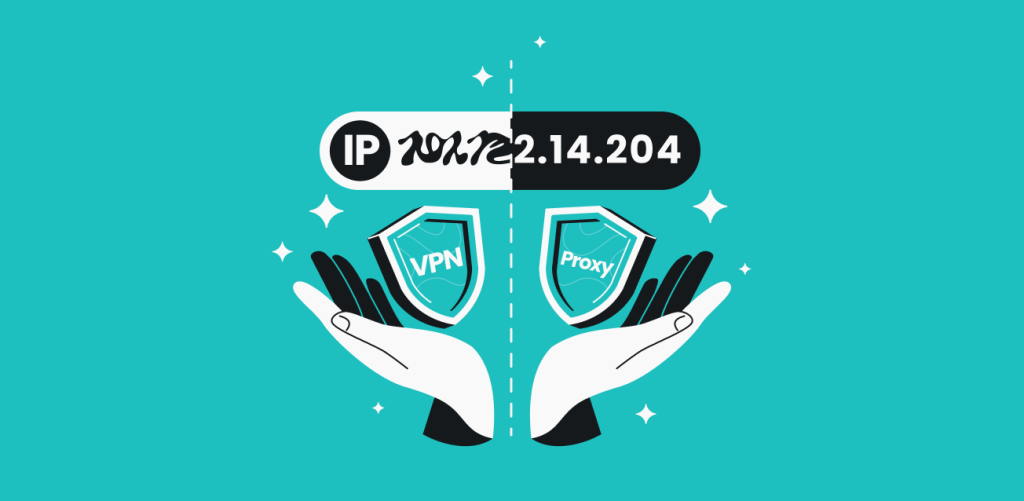
A VPN (Virtual Private Network) encrypts your internet traffic, sending it through a secure tunnel that protects you from snoops and prying eyes online. VPN services like Surfshark make it easy to enjoy online protection without the need for a manual setup.
Follow along to learn how to use a VPN and why you should do it.
How to use a VPN in 4 quick steps
To use a VPN app, you simply subscribe to a provider, download and install their app, launch and log in, and connect to a VPN server.
For step-by-step instructions for Surfshark, follow this short guide on how to use a VPN for beginners:
Step 1: Choose and subscribe to a VPN service
- Look for resources that compare the best VPNs;
- Select providers known for strong security features;
- Consider factors like server locations, supported devices, and pricing;
- Reliable VPNs typically cost around $2–3/mo with long-term plans;
- Avoid free VPNs due to potential privacy risks.
Step 2: Download and install the VPN app
- Download a VPN app from the provider’s official website or an authorized app store;
- Surfshark has dedicated apps for Windows, macOS, iOS, Android, and other major platforms;
- The typical installation time is under 2 minutes with no technical skills required.
Step 3: Launch the app and log in to your account
- Open the installed VPN app;
- Log in using your account credentials;
- Surfshark offers several login methods, including using your email and password, a code from another device, or your Google or Apple account;
- For additional security, enable 2FA (Two-factor Authentication).
Step 4: Connect to a VPN server
- VPN connections are usually established within seconds;
- If you’re using Surfshark, use the quick connect feature to select the fastest available server;
- Alternatively, you can manually choose from Surfshark’s 4,500+ servers in 100 countries;
- Your VPN can now do what it’s designed to do — securely encrypt your traffic and keep your IP address masked.
Pro tip: Want more VPN basics? Check out our beginner’s guide on what a VPN is for more vital information.
How to choose a VPN
There are several factors to consider when choosing a VPN provider. Use this simple guide to find the best VPN for you:
|
Security
|
Look for a VPN that uses modern security standards to protect your data. Surfshark uses the industry-leading AES-256 and ChaCha20 encryption algorithms to keep your data secure.
|
|
Reputation
|
Choose a trustworthy VPN with a positive reputation. Surfshark has multiple independent audits that verify its strict no-logs policy and user privacy protections.
|
|
Servers
|
An extensive server network is important for maintaining consistent performance and providing global access. With over 4,500 servers in 100 countries, Surfshark makes it easier to find a fast, uncrowded connection.
|
|
Price
|
Surfshark offers a reliable paid VPN starting at just $2.49/mo for a two-year subscription plan.
|
|
Advanced features
|
The best VPNs offer more than just basic protection. Surfshark comes with a kill switch, double VPN, ad blocker, and more to provide extra layers of privacy.
|
|
Platform support
|
You want your VPN to work seamlessly across all your devices. Surfshark has native apps for all major platforms and extensions for the top browsers. You can also view our manual setup guides to get Surfshark on other devices or set up Surfshark on a router to protect your entire household.
|
|
Money-back guarantee
|
Make sure you can request a full refund from a VPN provider in case you’re not completely satisfied with their service. Surfshark’s 30-day money-back guarantee lets you try our VPN risk-free.
|
|
User reviews
|
Look at personal experiences and reviews from existing VPN users. You can check our own Surfshark review or consider reviews from Reddit users.
|
|
Bundled products
|
Some providers offer a standalone VPN and not much else. Surfshark’s plans bundle VPN protection together with tools like an alternative online ID generator, antivirus software, data leak monitoring, and more.
|
Using a VPN on different devices
Figuring out how to use a VPN app on your device may seem complicated at first. However, modern tools make using a VPN very easy.
Here’s how you can use Surfshark on all major operating systems, even as a VPN beginner:
Use a VPN on Windows
- Open the Windows download page and download the installation file.
- Open the install file and follow any on-screen prompts to install the app in the default directory.
- After installation, the app will start automatically. Log in (and potentially enter your 2FA code) and connect to one of 4,500+ servers in 100 countries.
Use a VPN on macOS
- Get the Surfshark app from the App Store or download the macOS app from the Surfshark website and install it on your device.
- Open the app and log in.
- Click Quick-connect to connect to the nearest or fastest server. To connect to another server, locate the one you prefer in the Locations tab and click on it.
Use a VPN on Android
- Download the app from the Google Play Store or download the .APK file directly from Surfshark.
- Install the app and log in.
- Tap Quick-connect to connect to the fastest VPN server nearby, or select from a list of servers to connect to.
- Your smartphone will prompt you to approve the connection request — select OK to complete the connection.
Use a VPN on iOS
- Download the Surfshark app from the App Store.
- Install the app and open it.
- Log in to your Surfshark account.
- Tap Quick-connect to connect to the fastest server or manually choose from the list of available servers.
Use a VPN for browser extensions
- Get the Surfshark extension on Chrome, Firefox, or Edge.
- Click Add or Get and follow the on-screen prompts to install the extension.
- Once the extension is installed, click on the Surfshark logo in the toolbar (usually in the upper right corner) and log in.
- Click Quick-connect to connect to the fastest server or find a server in the Locations tab to connect to. Your VPN for Chrome, Firefox, or Edge should be up and running.
Use a VPN on an Android smart TV
- For Android smart TVs, download the Surfshark app on the Google Play Store.
- Install the app, launch it, and log in.
- Click Quick-connect to connect to the fastest server, or select a server from the list in the Locations tab to connect to.
How to set up a VPN on different devices
If you need more in-depth guides on how to use a VPN on your devices, we’ve got you covered. Select the links below to find easy-to-follow setup guides.
You can also follow our general guide on how to use a VPN on any device.
Pro tip: Many VPN providers limit the number of devices you can use at the same time. But that isn’t the case with Surfshark. It offers unlimited simultaneous connections, which means you can keep all your devices protected with a single account.
How to set up a VPN manually
Sometimes, setting up a VPN may require a hands-on approach. This is often the case if your operating system doesn’t support VPN apps or you’re on a restrictive network that blocks regular VPN connections.
Here are our detailed guides for setting up a VPN manually on various popular platforms:
How to use advanced VPN features
If you get a VPN but never use all of its advanced features, you’re missing out. Here are some Surfshark features you should know about to use your VPN app to its full potential.
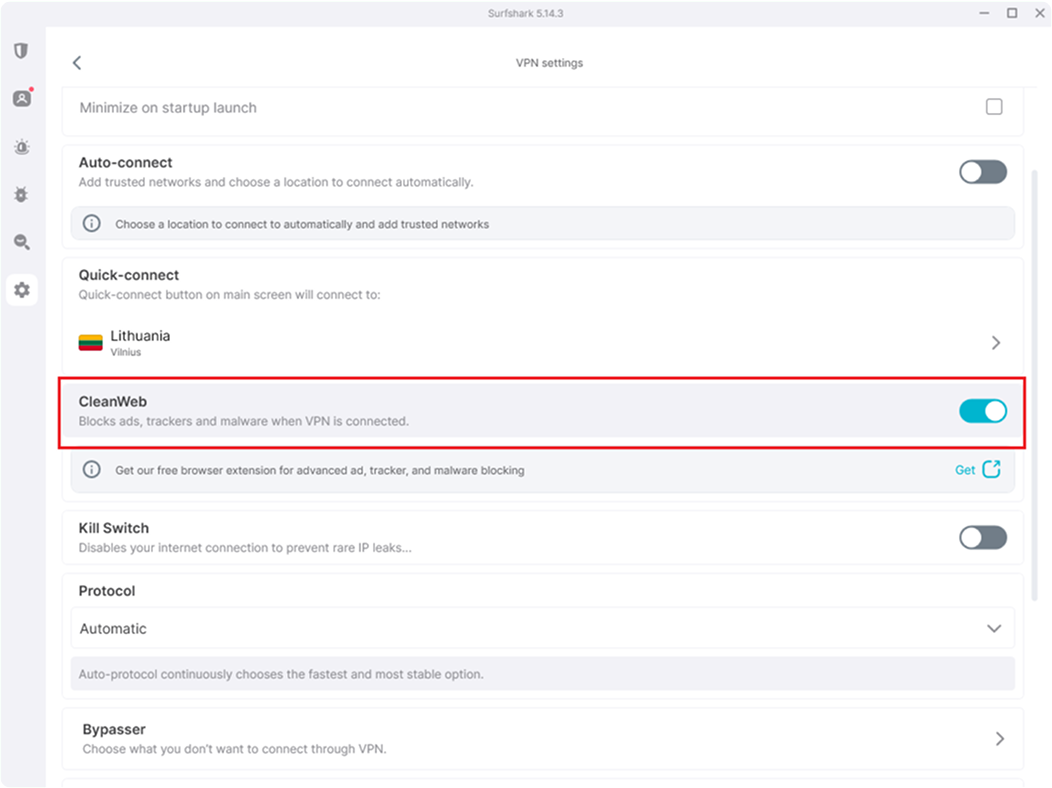
Clean Web
Clean Web is a feature designed to clean up your web surfing experience. It blocks intrusive ads, pop-ups, and potential malware threats as you browse.
You can find it under Settings → VPN settings → CleanWeb.
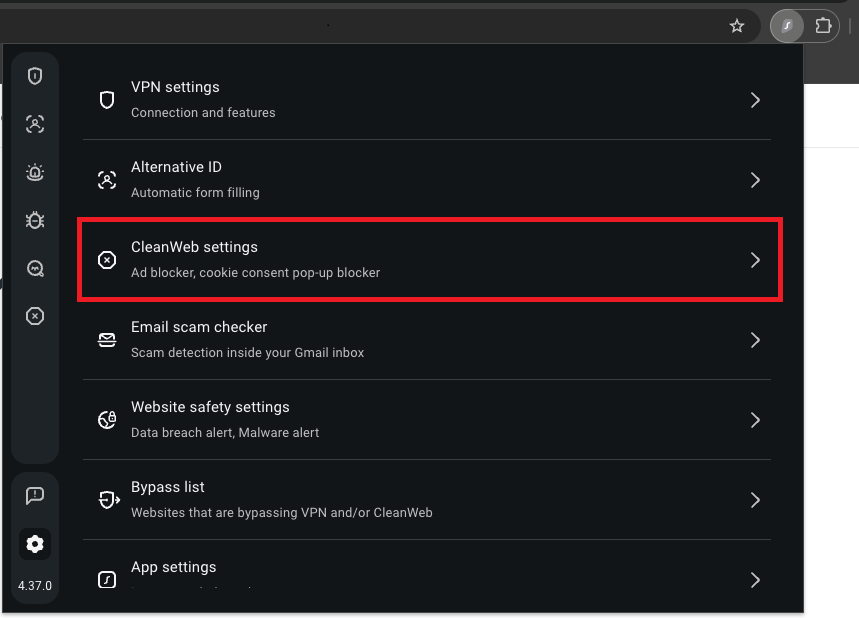
To access the feature using our browser extension, go to Settings → CleanWeb settings.
Bypasser
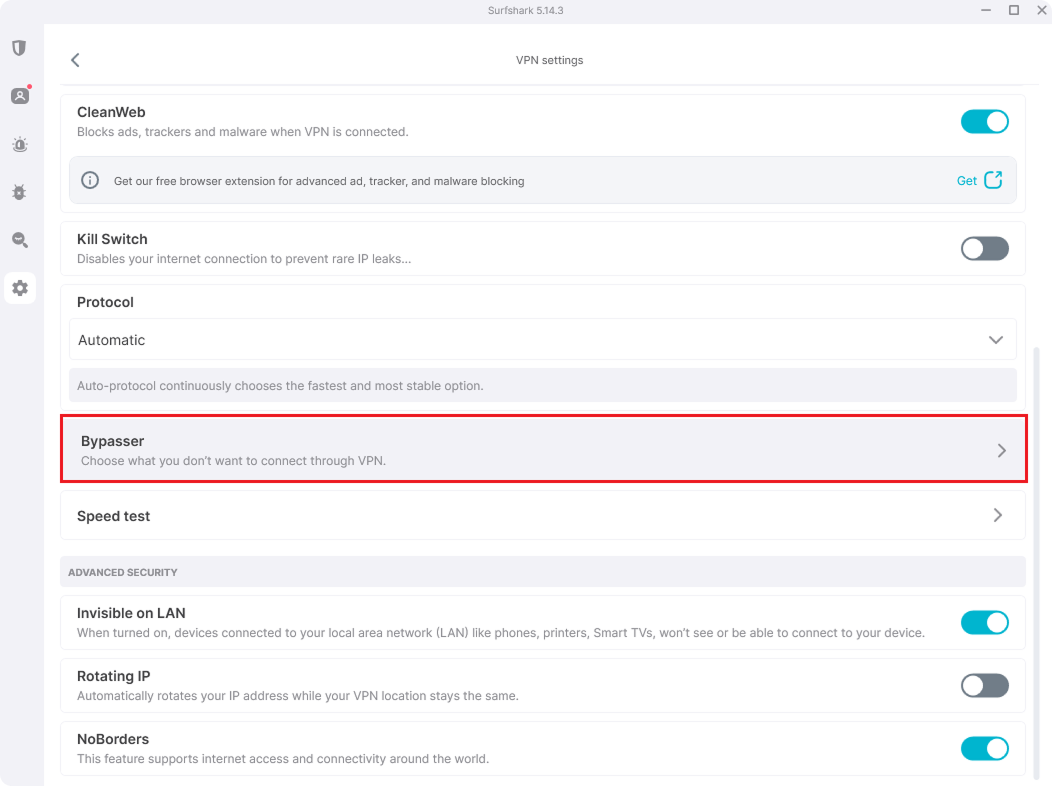
You may want to disable the VPN to access location-sensitive apps or LAN (Local Area Network) devices. Surfshark’s Bypasser split-tunneling feature allows you to do just that by excluding specific apps or websites from the VPN tunnel.
You can find it under Settings → VPN settings → Bypasser.
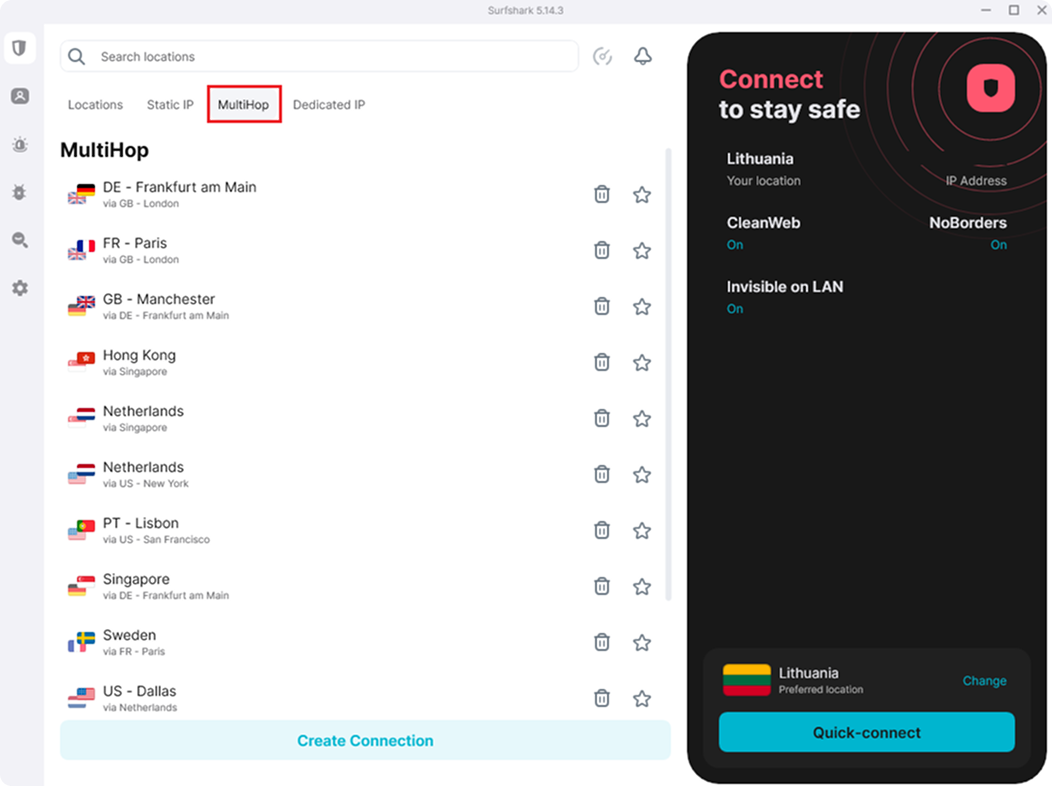
Multi Hop
Multi Hop is Surfshark’s double VPN solution that connects you to the internet via two VPN servers instead of one. It’s a great tool for moments when you need an extra layer of security. The feature lets you use preset server pairs or create your very own.
You can find it under the MultiHop tab in the main Surfshark app window.
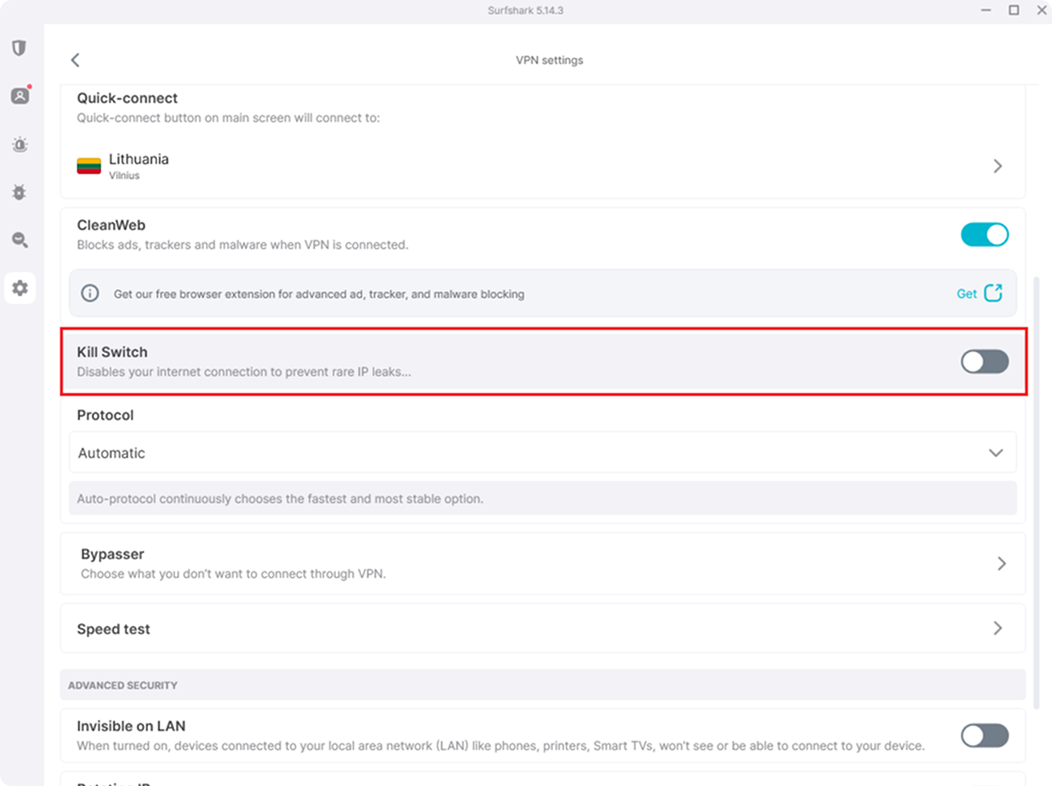
Kill Switch
A kill switch disconnects you from the internet if your VPN connection accidentally drops. By doing so, it prevents you from leaking information online. As soon as your VPN connection is restored, you are reconnected to the internet.
You can find it under Settings → VPN settings → Kill Switch.
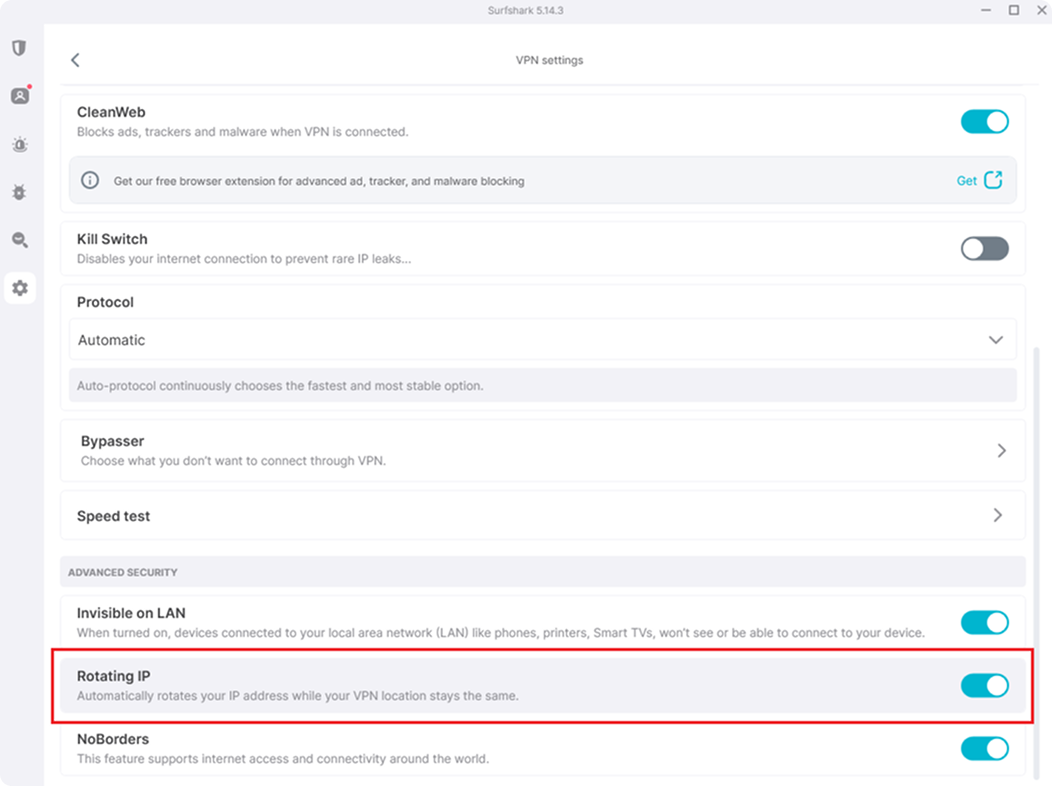
Rotating IP
Rotating IP changes your IP address every once in a while without disconnecting you from the VPN. This feature makes your online activity even harder to track since it can’t be traced to a single IP address. macOS users can even choose to rotate IPs on a city, national, regional, or global level.
You can find it under Settings → VPN settings → Advanced settings → Rotating IP.
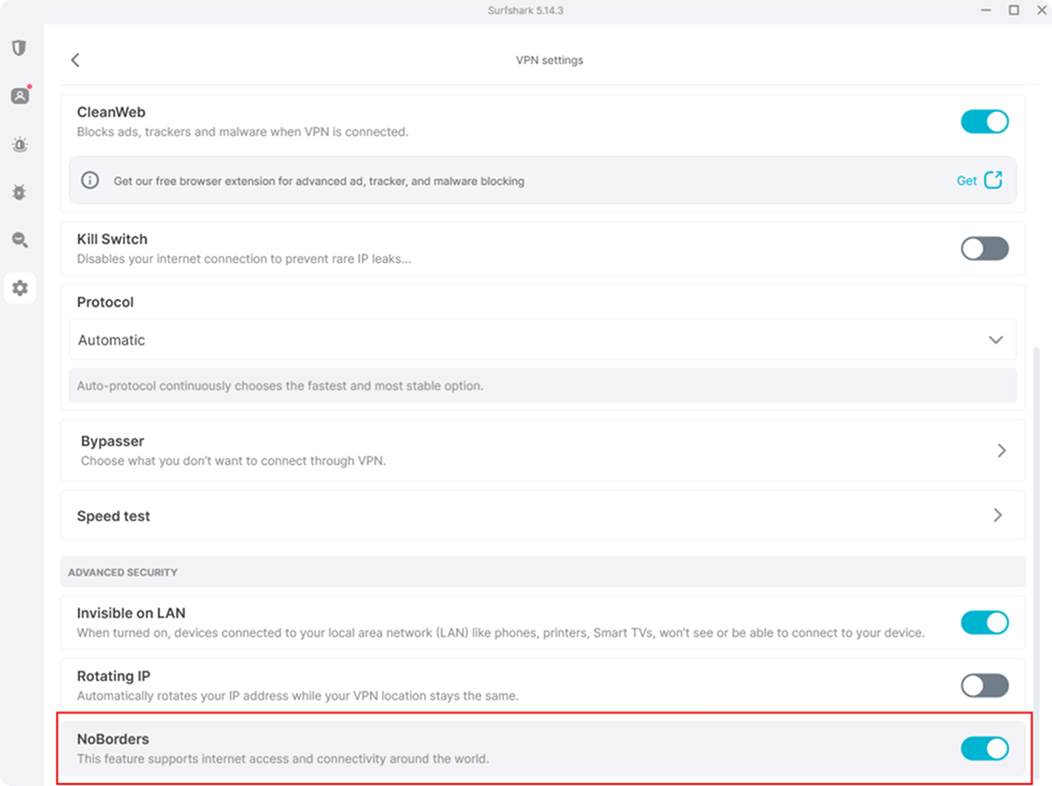
No Borders
No Borders allows users to access the internet securely, even in regions where VPN use is heavily restricted.
You can find it under Settings → VPN settings → Advanced settings → NoBorders.
What can I do with a VPN?
Here’s how using a VPN can improve your everyday life:
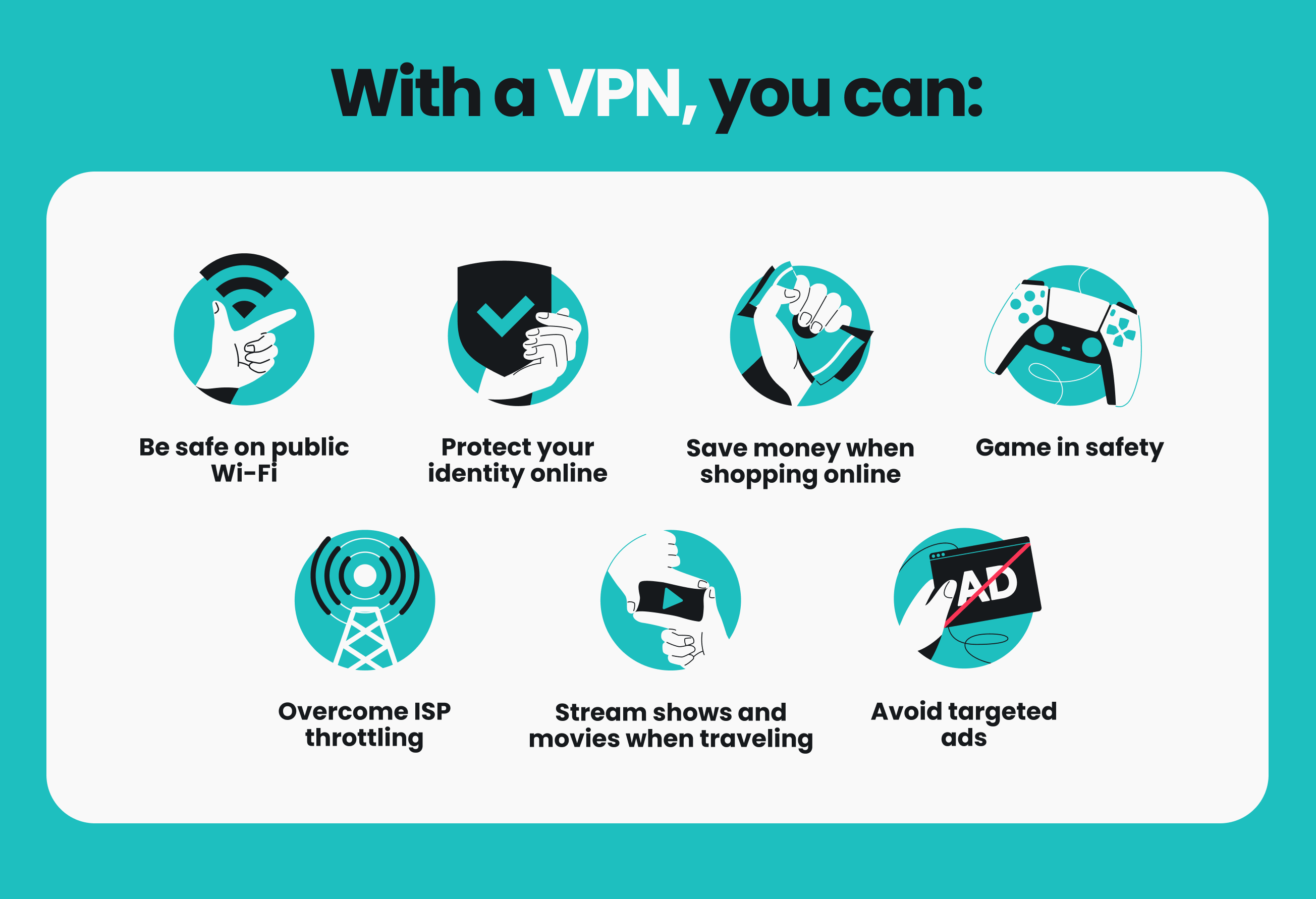
Be safe on public Wi-Fi
VPNs use encryption to shield your internet activities from prying eyes. That’s why VPNs can be vital in keeping your login data secure from MITM (Man-in-the-Middle) attacks on public Wi-Fi.
Using a VPN can give you more protection from hackers, even while traveling. And, fun fact, a VPN doesn’t drain your battery much while offering this increased security.
Protect your identity online
Don’t want to leave digital breadcrumbs that reveal your online activities? By connecting to a VPN server, you’ll hide your IP address and mask your activities from your ISP (Internet Service Provider) and third parties.
Save money when shopping online
By learning how to use a VPN, you can potentially save money when shopping online, especially on flights and accommodation. Prices for these things often change depending on your location and prior online activity. A VPN hides your actual location and encrypts your traffic, which can lead to sizable discounts when shopping online.
Game in safety
Online games can expose you to unwanted attention, including harassment, DDoS (Distributed Denial of Service) attacks, or even swatting. A VPN helps protect you by masking your IP address, making it extremely difficult for bad actors to launch attacks or pin your location down.
Overcome ISP bandwidth throttling
Streaming and online gaming use up a lot of bandwidth, and ISPs may throttle connections that take part in data-heavy activities. A VPN encrypts your traffic and hides your activity from the ISP, making it much less likely that your ISP will slow your connection based on your online activities.
Stream content from home while traveling
You can use a VPN to access your favorite content and streaming services while traveling abroad. Hotel and airport networks might have data caps that limit speed, but connecting to a VPN can help you get the smooth, buffer-free performance you’re used to back home.
Avoid targeted ads
To serve you targeted ads, marketers track your online activity using cookies, search history, and even data from ISPs. A VPN hides your IP address, making it harder for advertisers to track you across sites.
Disclaimer: Please note that using Surfshark services for any illegal activities is strictly forbidden and violates our Terms of Service. Make sure that any use of Surfshark services for your particular activities conforms to all relevant laws and regulations, including those of any service providers and websites you access using Surfshark.
What are the advantages and disadvantages of a VPN?
Like any tool, even the best VPN service can have strengths and weaknesses. Here’s a quick look at the pros and cons of using a VPN:
|
VPN pros
|
VPN cons
|
|
Masks your IP address
|
Can slightly reduce internet speed
|
|
Keeps your data safe on public Wi-Fi
|
Some websites may block VPN traffic
|
|
Helps avoid online price discrimination
|
May require occasional troubleshooting or server switching
|
|
Adds a layer of privacy to your browsing
|
Not all VPN providers are equally trustworthy
|
|
May help prevent activity-based ISP throttling
|
Reliable services usually require a subscription fee
|
In short, a VPN like Surfshark gives you more control over your online privacy and security — especially in everyday situations like traveling, using public Wi-Fi, or trying to avoid annoying trackers.
Remember that the best VPNs offer user-friendly apps that even beginners can access, so you don’t have to settle for a clunky, complicated tool.
Key takeaway: choose a simple, intuitive VPN
Now that you know how to use a VPN and the benefits it provides, you’re only a few steps away from increasing your online privacy and security.
If you’re looking for a VPN app that’s reliable, easy to use, and packed with advanced security features, Surfshark is an excellent choice.
Stay protected online with a VPN
Set up Surfshark in minutes and browse safely with ease
Get SurfsharkFAQ
Is it legal to use a VPN?
Using a VPN is legal in most countries, including the US, UK, Canada, and EU member states. However, countries like China, Russia, and the UAE restrict VPN usage. Always verify local laws when traveling.
Is there a free VPN I can use?
Yes, free VPNs are available, but using one of them isn’t recommended. These often offer a small number of congested servers and lack advanced security features. You might also run into issues if you choose a free VPN, as such VPNs have been linked to a concerning number of data leaks and other user security issues.
Should I leave a VPN on all the time?
Yes, keeping your VPN active at all times is a good idea because it ensures maximum privacy. However, you can always momentarily turn off your VPN when maximum connection speed is required or when accessing local services.
Will using a VPN slow down my internet?
A quality VPN may slightly slow down your internet speed due to encryption overhead. For optimal speeds, connect to servers near your physical location and use modern protocols, such as WireGuard.
Do I need a VPN on my iPhone?
Yes, setting up a VPN on your iPhone is essential to enhance online privacy. It helps protect your data from hackers, hides your online activity, and ensures a secure connection when traveling abroad.
Does using a VPN hide your location?
Yes, a VPN can hide your real location by masking your IP address and routing your internet traffic through an encrypted remote server. This enhances your online privacy and security, helping to prevent websites, advertisers, and even your internet service provider from tracking your geographical location.
How do I use a VPN on Windows 10?
To use a VPN like Surfshark on Windows 10, simply download and install the Surfshark app. Once installed, log in and hit Quick-connect — no manual setup required.
How do I use a VPN from another country?
To use a VPN when you’re in another country, sign up with a VPN provider and install their app. Open the app, log in, and select a server located in your home country (or any other available location).
Once connected, your internet traffic will be routed through that country.
Can I use a VPN for TikTok?
Yes, you can use a VPN while on TikTok. By connecting to a VPN server, you can enjoy a more private connection while on TikTok. A VPN also helps you access content as if you were still at home when traveling abroad.
Make sure to follow TikTok’s terms of service and all local laws while using a VPN for TikTok.