If you ever get a flashing Apple Security Alert pop-up on your Mac or iPhone, you can probably take a breath. Your device is almost certainly fine, and that alert is just a scam.
Apple security alert scams are one of the most common attacks targeting Apple users today. In this guide, you’ll learn exactly how Apple security alert scams work, how to tell a fake warning from a real one, and how to remove these alerts from your device for good.
What is the Apple security alert scam?
The Apple security alert scam is a type of fraud that uses fake notifications that appear to be official Apple security messages. These warnings falsely claim that your Apple device is infected with a virus, that your Apple Account (formerly Apple ID) has been compromised, or that a hacker is tracking your activity.
Scammers copy Apple’s fonts, colors, and logos to trick you into taking immediate action. They typically want you to:
- Click a malicious link;
- Install harmful software;
- Call a fake support number;
- Pay for tech support you don’t need;
- Hand over remote access to your device;
- Enter your Apple ID credentials or payment details into a fraudulent web page.
Similar to fake virus alerts, the goal behind this scam is to steal sensitive data, install dangerous software, or trick you into paying for something.
Here are the most common forms the scam takes:
Fake pop-ups in your browser
False pop-up alerts are the most common version of this scam.
While browsing in Safari or Chrome, you see a pop-up or full-screen alert claiming that your Apple device is compromised. The page may loop repeatedly, play audio warnings, or display a countdown timer to prevent you from thinking clearly.
These pop-ups usually appear after visiting a compromised web page or clicking a deceptive ad.
Phishing emails pretending to be Apple
In this version of the scam, you receive an email that looks like it’s from Apple. It warns you about suspicious activity on your iCloud account, an unauthorized Apple Pay charge, or a locked Apple ID.
A phishing email tries to trick you into clicking a link to verify or restore access to your account. In reality, this link leads to a fraudulent website designed to capture your Apple ID credentials and financial information.
Scam text messages
Also known as smishing attacks, phishing messages sent over SMS are another form of the Apple security alert scam. These texts pretend to be from Apple security and often claim that your Apple ID has been suspended or that unauthorized charges need your attention.
Smishing messages ask you to tap a link to resolve the specified problem. The links lead to fake Apple sign-in pages built to steal your login details.
Fake Apple Support phone calls
This type of attack involves scammers calling you directly, claiming to be Apple Support technicians. They may spoof a legitimate-looking phone number and reference your name or device type to sound convincing.
Their goal is to walk you through steps that grant them remote access to your device or trick you into sharing verification codes, Apple Account passwords, or payment details.
How to spot a fake Apple security alert
Once you know the red flags, fake Apple security warnings are easy to identify. If one or more of the following signs apply to a message, treat the alert as a scam.
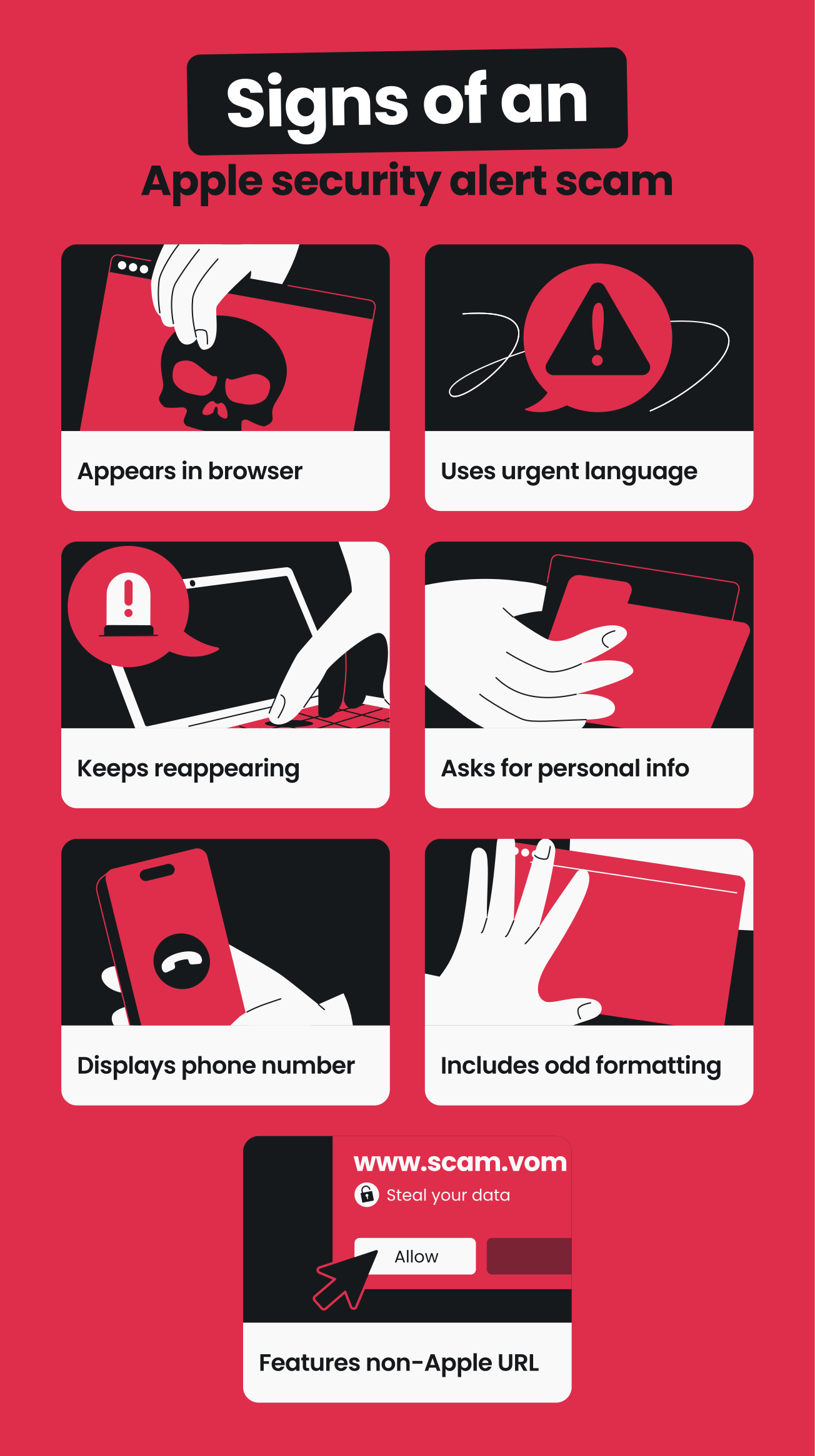
Appears in your browser
This is the most reliable test. Legitimate Apple alerts only appear within iOS or macOS system settings or official Apple apps. These messages are never in web page pop-ups, browser redirects, or full-screen Safari warnings.
If you see a security alert inside a browser window, it’s fake.
Uses urgent language
Messages featuring scare tactics aren’t from Apple. If you see statements like “your device will be locked,” “your photos will be deleted,” or “act immediately,” the alert is likely a scam.
Apple’s actual communications are informational, measured, and free of threatening language, countdown timers, or flashing banners.
Keeps reappearing
Scam pop-ups are designed to trap you, so they probably won’t close very easily. They may reload the page, disable the close button, or open new tabs to keep you engaged long enough to panic and follow their instructions.
If a security alert won’t let you leave the page, that’s another sign that the message isn’t from Apple.
Asks for personal information
Apple will never ask for your Apple ID password, credit card number, or verification codes through a pop-up, email, or phone call. Any alert requesting personal details, payment for services like virus removal, or gift card purchases is a scam.
Displays a phone number
Real Apple security alerts never include phone numbers.
Scam pop-ups frequently display a toll-free Apple Support number. Nevertheless, the person who answers any calls to this number is a scammer ready to request remote access to your device or walk you through steps that compromise your account.
Includes odd formatting
While modern scams have improved in areas like grammar, many fraudulent messages still contain spelling errors, unusual phrasing, or slightly off-brand design elements.
Compare the alert in question to any previous message you’ve genuinely received from Apple. Any differences are often easy to detect.
Features a non-Apple URL
Check the address bar if you receive an alert on a website.
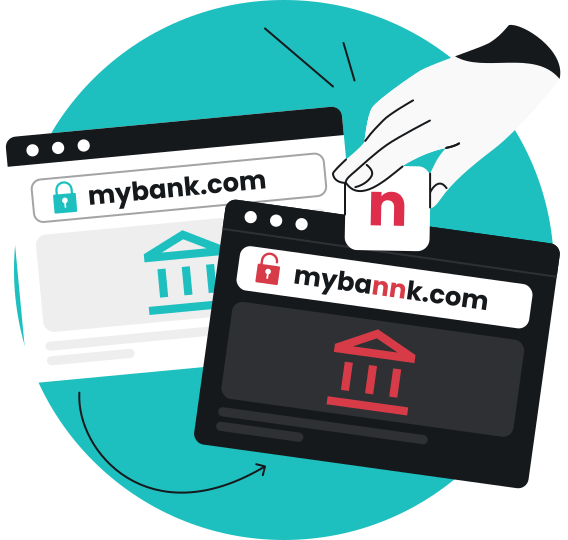
Legitimate Apple pages are hosted on domains like apple.com or icloud.com. In contrast, scam pages use lookalike URLs with extra words, numbers, or unfamiliar extensions.
Quick decision guide: Is your Apple security alert real or fake?
Ask yourself these three questions:
- Where did the message appear? Be careful if it’s inside your browser or web page.
- What does it want you to do? Watch out if it asks you to call a number, click a link, share a password, or pay for something.
- How does it make you feel? If it’s creating fear, panic, or a sense of urgency, that’s a deliberate manipulation tactic.
If the answer to any of these raises a red flag, the alert is a scam. Close it without interacting and follow the removal steps below.
How to remove the Apple security alert scam
If you’re seeing a fake Apple security alert, follow these steps to remove it from your device and prevent it from coming back.
For iPhones and iPads
- Force quit your browser
If a scam pop-up is stuck on your screen and won’t close, swipe up from the bottom of your screen (or double-tap the Home button on older models) to open the App Switcher. Find Safari (or whichever browser displayed the alert) and swipe it away.
- Clear browser history and website data
Scam pages store cookies and scripts that can trigger repeat pop-ups. Using Safari as an example, you can remove this data by going to Settings > Apps > Safari > Clear History and Website Data.
Select All History and tap Clear History. This removes cached data from the scam page so it can’t reload.
- Check for suspicious apps
If fake alerts keep appearing after clearing Safari data, a malicious app may be the cause. Go to Settings > General > iPhone Storage and review your installed apps. Delete anything you don’t recognize or didn’t intentionally install.
- Restart your device
A restart clears temporary browser sessions and background processes. Go to Settings > General > Shut Down and drag the slider. After the device powers off, hold the side button until the Apple logo appears.
If your iPhone or iPad is unresponsive, force restart by quickly pressing and releasing the volume up button, then the volume down button, and finally holding the side button until the Apple logo appears.
For Mac computers
- Force quit your browser
Press Command + Q to close your browser. If that doesn’t work, press Option + Command + Esc to force quit the application.
- Remove suspicious browser extensions
Malicious extensions can inject fake security alerts into normal browsing. In Safari, go to Safari > Safari Extensions > Extensions and uninstall anything unfamiliar.
In Chrome, click the Extensions icon next to the address bar, select Manage Extensions, and remove unknown add-ons.
- Check for rogue configuration profiles
Some adware installs configuration profiles on macOS that change browser settings or force redirects. To check if you have these, go to the Apple menu > System Settings > General > Device Management.
If you see unknown profiles, select them and click the minus button to remove them.
- Clear your browser cache
In Safari, go to Safari > Clear History and select All History.
In Chrome, go to Settings > Privacy and Security > Clear Browsing Data.
- Run a security scan
Use trusted antivirus software to scan your Mac for any remaining malicious software, adware, or scripts.
How to protect yourself from Apple security alert scams
Removing a fake alert solves the immediate problem, but the following habits help you avoid encountering these fraudulent messages in the future.
Keep iOS and macOS updated
System updates include security fixes that patch the vulnerabilities scam pages usually rely on. Check for these updates regularly.
On iOS, go to Settings > General > Software Update. On Mac, go to System Settings > General > Software Update.
Turn on automatic updates so your device stays covered by the latest protections.
Turn on 2FA (Two-factor Authentication)
If it’s not already active on your Apple Account, turn on 2FA immediately. This adds a second verification step when signing in.
Even if a scammer gets your Apple ID password from a phishing page, they can’t access your account without the code sent to your trusted device.
Turn on Safari’s built-in protections
Safari includes a fraudulent website warning that flags known phishing and scam pages.
To activate it on iOS, go to Settings > Apps > Safari and confirm that Block Pop-ups is turned on.
On macOS, go to Safari > Settings > Security and check Warn when visiting a fraudulent website. Then head to the Privacy tab and check the Prevent cross-site tracking option.
Verify alerts through official Apple channels
If you ever receive a message that claims to be from Apple and you’re unsure whether it’s legitimate, don’t click any link or button.
Instead, sign in directly to your Apple Account at account.apple.com to check for any real notifications. You can also contact Apple Support through the company’s official website.
Be cautious with links, downloads, and unsolicited calls
Don’t click or tap on links in unexpected emails or text messages, even if they look like they’re from Apple. In addition, only download apps from the official App Store or verified developer sites.
If someone calls claiming to be from Apple Support, hang up and contact Apple directly through their website. They’ll confirm whether or not there are any actual problems with your device.
Use tools that reduce your exposure to scam sites
You can turn to a variety of cybersecurity tools to make it more difficult for scammers to exploit you via Apple security alerts:
- Ad blocker: stops malicious ads from loading in the first place, cutting off one of the most common delivery methods for fake security warnings;
- Web content blocker: lets you filter entire categories of harmful sites, including pages flagged for fraud, malware, and phishing. If you accidentally click a link that leads to a known scam domain, a web content blocker can prevent the page from loading before you ever see the fake alert;
- Email scam checker: scans incoming messages for signs of fraud and flags them before you interact with them;
- Antivirus: scans files before you open them, flags known malware, and quarantines threats before they change your device’s behavior;
- Data leak monitoring: alerts you when your personal data is leaked online and helps you act quickly before scammers use these credentials in targeted phishing attacks.
Pro tip: The good news is that you don’t need to hunt down different providers for each of these tools. For instance, the Surfshark One bundle includes the Clean Web ad blocker, web content blocker, email scam checker, Antivirus, and Alert features — along with VPN (Virtual Private Network) protection — all in a single app.
It’s worth noting that no tool can make you completely immune to every type of scam. Phishing emails, fake support calls, and social engineering attacks exploit human behavior, not just technical vulnerabilities. Security software works best as one layer in a broader set of safe online habits.
What happens if you fall for an Apple security alert scam?
If you interacted with a fake Apple security alert — including clicking a link, calling a number, entering your Apple ID, or sharing financial information — take these steps right away:
- Change your Apple Account password and turn on 2FA.
- Review your account for unauthorized changes. Check your trusted devices, email addresses, and phone numbers.
- Contact your bank if you shared payment details or authorized any transactions. Request a card block or chargeback if money was transferred.
- Delete suspicious apps or profiles that may have been installed during the interaction.
- Report the scam to the FTC (Federal Trade Commission) at reportfraud.ftc.gov. Forward phishing emails to Apple using the address reportphishing@apple.com.
Even though iPhones rarely get viruses in the traditional sense, installing a malicious app or handing over your credentials can still lead to identity theft, account takeover, and unauthorized charges. Acting quickly can limit this damage.
Does Apple ever send real security alerts?
Yes, Apple can send genuine security alerts when they’re needed, but they look nothing like the scam versions. The key difference is that real Apple alerts provide information and point you to official channels and never request payment, ask for your credentials, or demand that you click an unfamiliar link.
Apple has two types of security communications:
1. Account notifications
If Apple detects a sign-in from a new device or a password change, you’ll receive a notification through your iOS/macOS system settings or an email from an official @apple.com address.
These notifications are informational and give you steps to secure your account if you didn’t authorize the change.
2. Threat notifications for targeted attacks
In rare cases, the company sends personalized Apple threat notification messages to individuals whose devices have been targeted by advanced spyware that typically targets groups like journalists, activists, or government officials.
These notifications appear at the top of your Apple Account page. If you receive one, Apple advises contacting a cybersecurity expert and turning on Lockdown Mode.
Closing thoughts: don’t fall for Apple security alert scams
The Apple security alert scam works by hijacking the trust you place in Apple’s brand and replacing clear thinking with panic. But now that you know the formula, these scams lose their power the moment you recognize them.
Real Apple security notifications are calm, factual, and never demand immediate action. Anything that deviates from that pattern deserves suspicion, not compliance.
Close the window, clear your data, and verify through official channels. That’s all it takes.
FAQ
Is the Apple security alert real?
In most cases, Apple security alert messages aren’t real. If the alert appeared as a pop-up in your browser, asked you to call a phone number, or demanded personal information, it’s a scam.
How do I know if a message from Apple is genuine?
Apple only sends genuine security notifications through system settings, official apps, or emails from verified @apple.com addresses. The message should never ask for your password or verification codes, and it shouldn’t include links to sign in.
You can always confirm by signing in to your Apple Account or contacting Apple Support rather than responding to the message.
Does Apple security notify you if you’ve been hacked?
Apple doesn’t send proactive messages saying your device has been hacked through pop-ups, browser alerts, or unsolicited phone calls. In rare cases, they send personalized Apple threat notification messages via email and iMessage with a matching notification visible in your Apple Account page. These never ask for payment, passwords, or software installs.
What do fake security alerts look like?
Fake Apple security alerts typically appear as browser pop-ups with alarming headlines like “Your iPhone has been compromised.” They often include countdown timers, fake support phone numbers, requests for immediate payment, and scare tactics designed to prevent you from thinking clearly. The alert may also stop you from closing the tab or navigating away.
Why does Apple security keep popping up?
If you keep seeing fake Apple security warnings, the likely causes are cached website data from a previous scam page, a malicious browser extension, or a suspicious app installed on your device.
Clear your browser history and website data, review any unfamiliar extensions and apps, and restart your device. If the issue persists after these steps, running a security scan with a trusted antivirus tool can identify any remaining malicious software.