
Setting up a VPN on a TP-Link router allows you to protect every device on your network with a single encrypted connection.
This guide explains how VPNs work on TP-Link routers, which models support VPN client mode, and how to configure a VPN using either the router’s web interface or the TP-Link Deco app.
TP-Link VPN setup overview: compatibility, modes, and requirements
TP-Link routers support both VPN client and VPN server modes, but availability depends on the model and firmware. For Surfshark (or any commercial VPN), you’ll be setting up VPN client mode, which lets you encrypt and reroute your entire home network.
Supported VPN protocols
Most modern TP-Link routers support WireGuard and OpenVPN, which offer the best balance of security, speed, and reliability for whole-network VPN protection.
Some older models also include PPTP or L2TP/IPSec, but these are generally outdated and should only be used if no other option is available.
Which TP-Link routers support VPN client mode?
VPN support varies across product lines:
- Archer routers (mid/high-end models) typically support both WireGuard and OpenVPN;
- Deco systems offer VPN client features through the Deco app on newer models and firmware versions;
- Omada and business routers often include advanced VPN options for multiple remote tunnels.
Always confirm compatibility on TP-Link’s support page, as not all hardware includes VPN client mode. Also, check out our VPN routers guide for a list of recommended routers.
TP-Link performance limitations
VPN performance on TP-Link routers depends largely on hardware capabilities, with entry-level models experiencing greater speed reductions than newer routers optimized for encryption.
Connection limits and available features also vary by firmware version — it’s important to regularly check for updates.
What you need before setting up a VPN on a TP-Link router
Before setting up a VPN on a router, ensure that your TP-Link or Deco system is up to date, accessible, and ready with the necessary VPN account details and configuration files.
Updated firmware
Your router or Deco unit should be running the latest firmware, since VPN client features — especially WireGuard — are only available on newer updates.
Admin panel access
You must be able to log in to your router at tplinkwifi.net or via its local IP address (usually 192.168.0.1 or 192.168.1.1). Deco users will manage everything through the Deco app instead.
VPN account and configuration files
Download your Surfshark WireGuard (.conf) or OpenVPN (.ovpn) configuration files. These are required to import your VPN profile into the router.
Active internet or DDNS (if needed)
Your internet connection must be stable. If you plan to use the VPN server mode or the remote access features, a DDNS (Dynamic Domain Name System) address may also be required — but it’s not necessary for standard Surfshark client setup.
How to set up a VPN on a TP-Link router (web interface method)
For Archer and other non-Deco TP-Link routers, VPN configuration is done through the router’s web-based admin panel, where you can add and manage VPN client profiles manually.
Log in to the TP-Link router admin panel
Open a browser and go to tplinkwifi.net (or your router’s IP address), then sign in with your admin password.
Open VPN client settings of your TP-Link router
Once logged in, navigate to Advanced → VPN client to locate the VPN client options.
If you only see VPN server, your model may not support client mode — check for a firmware update.
Add a new VPN client profile
Creating a new VPN client profile allows your router to establish a secure tunnel using the selected VPN protocol.
Click Add and choose the protocol your router supports — for most users, we recommend WireGuard.
Import WireGuard or OpenVPN configuration files
Upload the appropriate configuration files provided by your VPN service to define server, encryption, and routing settings.
Click Import config and upload the Surfshark server file you downloaded before:
- For WireGuard, use the .conf file;
- For OpenVpn, use the .ovpn file and enter your Surfshark credentials if requested.
For more information, refer to our support pages: TP-Link WireGuard and TP-Link OpenVPN.
Enable and apply the VPN connection
Save your profile, then toggle the VPN connection on. Your router should show a Connected or Running status once the tunnel is active.
If your router supports it, you can also assign which devices should use the VPN — useful if you want only specific devices routed through Surfshark.
How to set up a VPN on a TP-Link Deco router (mobile app)
ITP-Link Deco routers support VPN client setup directly through the Deco mobile app, offering a simpler and more visual configuration process than the web interface.
Open the TP-Link Deco app and VPN settings
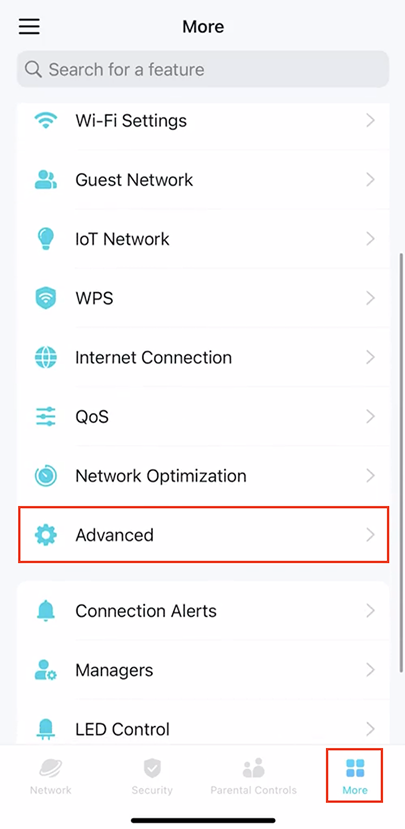
Launch the Deco app on your phone and select the network you want to configure. Then go to More → Advanced → VPN. On the next screen, tap Add VPN Server.
Choose a VPN protocol (WireGuard or OpenVPN)
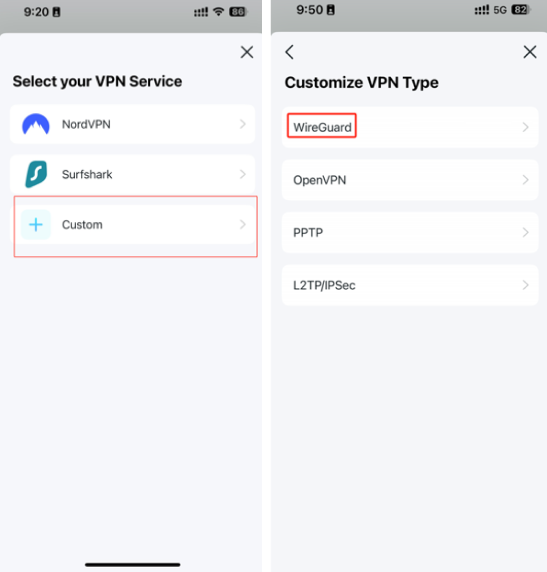
Tap Custom, and choose the protocol your router supports — for most users, we recommend WireGuard.
For more information, refer to our Deco app WireGuard support page.
Import your VPN configuration into the Deco app
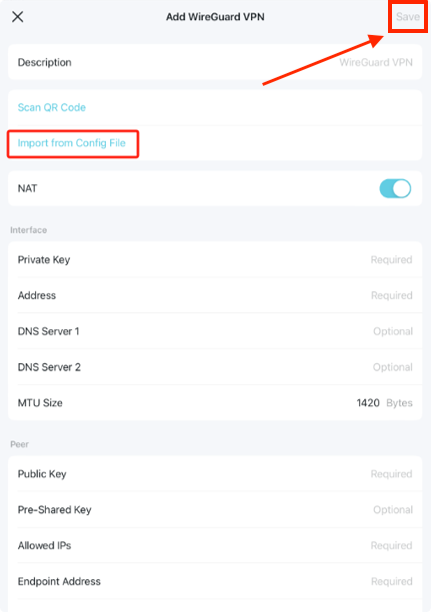
Upload the WireGuard (.conf) or OpenVPN (.ovpn) file. Some Deco models allow scanning a QR code or pasting configuration details manually.
Connect and manage the VPN on your Deco network
Tap Save and enable the VPN connection. Once connected, the app should show the tunnel as active.
If supported, you can also decide which devices in your Deco network should use the VPN, giving you flexible, per-device control.
How to check if your TP-Link VPN connection is working
After completing the setup, it’s important to verify that your VPN is active and properly routing traffic through the encrypted connection.
Check your IP address
On any connected device, visit an IP-checking site (e.g., What is my IP) and ensure it shows the VPN’s location instead of your home address.
Test for DNS leaks
Run a quick DNS leak test to confirm that all DNS requests are being routed through the VPN and not your ISP.
Check the router or Deco status
In the TP-Link admin panel or Deco app, the VPN client should show Connected, Running, or Active.
Confirm in Surfshark
Check the Surfshark app for unusual connection errors and login or authentication issues. If your account is working normally and your router reports an active VPN connection, your setup is functioning correctly.
TP-Link VPN not working? Common problems and fixes
If your TP-Link VPN connection fails or behaves unexpectedly, these common issues and troubleshooting steps can help restore connectivity.
VPN connects but there is no internet access
This usually indicates a routing or DNS conflict.
- Try switching DNS to automatic or to a public DNS (e.g., Cloudflare or Google);
- Reimport the VPN configuration file to ensure routing rules are correct;
- If using OpenVPN, make sure the .ovpn file includes the necessary redirect-gateway settings.
TP-Link router does not support VPN client mode
Some TP-Link models only support VPN server mode.
- Update your firmware to the latest version;
- Check TP-Link’s compatibility list;
- If unsupported, install the VPN on individual devices instead (or upgrade your router).
Slow VPN speeds on TP-Link routers
Router CPU limitations are the main cause.
- Use WireGuard instead of OpenVPN whenever available;
- Disable QoS or bandwidth controls that may throttle the VPN;
- Choose a closer Surfshark server location.
VPN login or configuration file errors
If the router won’t authenticate or import your profile:
- Re-download the Surfshark .conf or .ovpn file;
- Make sure your Surfshark username/password (for OpenVPN) is correct;
- Delete and recreate the VPN profile in the router.
Conclusion: why install a VPN on your TP-Link router?
Installing a VPN on your TP-Link router protects all connected devices through a single encrypted connection, without needing to install apps individually. This setup is ideal for smart TVs, consoles, and other devices that don’t support VPN software, while also providing always-on privacy and centralized control for your entire network.

One VPN setup. Whole-network protection.
Secure all connected devices through your TP-Link router with a single configuration
Get SurfsharkFAQ
Does TP-Link have a built-in VPN?
Yes, many TP-Link routers include built-in VPN features, but support depends on the model and firmware version. Some offer both VPN client and server modes, while others include only basic or legacy protocols.
Is it worth putting a VPN on a router?
Yes, installing a VPN on your router is worth it if you want automatic, whole-network encryption. It secures every device at once — including those without VPN apps — and lets you maintain privacy and safely access your home network when you’re abroad.
Which TP-Link routers support VPN client mode?
Only certain TP-Link routers support VPN client mode, mainly mid-range and high-end Archer models and newer firmware releases. Budget models often support VPN server mode only, resulting in varying levels of compatibility.
Does TP-Link Deco support VPN client mode?
Some Deco models support VPN client mode, but many older units only include VPN server features or no VPN functionality at all. Support also depends on firmware, as TP-Link continues adding WireGuard and OpenVPN to more Deco systems.
Should I use OpenVPN or WireGuard on my TP-Link router?
WireGuard is usually the better choice because it offers faster speeds and more efficient encryption. OpenVPN remains widely supported, but it can be slower on routers with limited CPU power.
Can I choose which devices use the VPN on a TP-Link router or Deco?
Yes, some TP-Link routers and Deco units allow you to assign specific devices to use the VPN, while others utilize your regular internet connection. This split-tunneling feature isn’t available on all models, so it depends on the hardware and firmware.
Does a VPN slow down a TP-Link router?
Yes, a VPN can reduce speeds because the router must encrypt all traffic to protect it. Lower-end routers experience the biggest drop in performance, while modern models running WireGuard can maintain significantly faster speeds.
Why is my TP-Link VPN not working?
Most VPN issues come from incompatible models, outdated firmware, or incorrect configuration files. Fixes usually involve updating the router, reimporting the VPN file, or adjusting DNS/routing settings.
Is Surfshark compatible with TP-Link routers?
Yes, Surfshark works with many TP-Link routers that support OpenVPN or WireGuard client mode. You simply import the Surfshark configuration file into the router to enable encrypted, network-wide protection.