
If your iPhone isn’t turning on, don’t panic. In most cases, it’s not dead: it may be frozen, out of battery, stuck during startup, or not charging properly. The fixes below are ordered from quickest to most complex, so you can rule out the easy explanations first.
Quick fixes to start with
These are the most likely fixes for an iPhone not turning on, and most take under 10 minutes.
1. Force restart your iPhone
If your iPhone is technically on but frozen, the screen has gone black, or the touchscreen has stopped responding, a force restart is usually the fastest fix. It won’t erase your data, and it takes less than a minute once you know the button sequence.
Use the button combo that matches your model:
- iPhone 8, iPhone X, 11, 12, 13, 14, 15, 16, and newer, as well as iPhone SE (2nd & 3rd generation): quickly press and release Volume up, quickly press and release Volume down, then press and hold the Side button until the Apple logo appears.
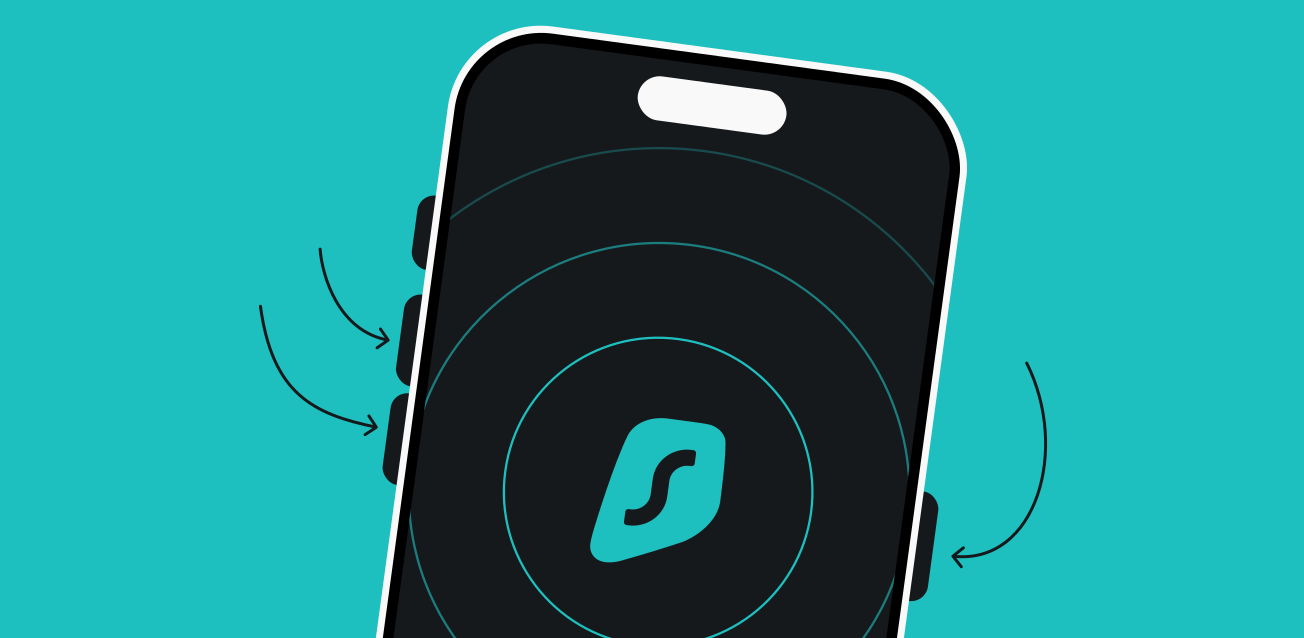
- iPhone 7 and iPhone 7 Plus: press and hold the Volume down and Side buttons together until the Apple logo appears.
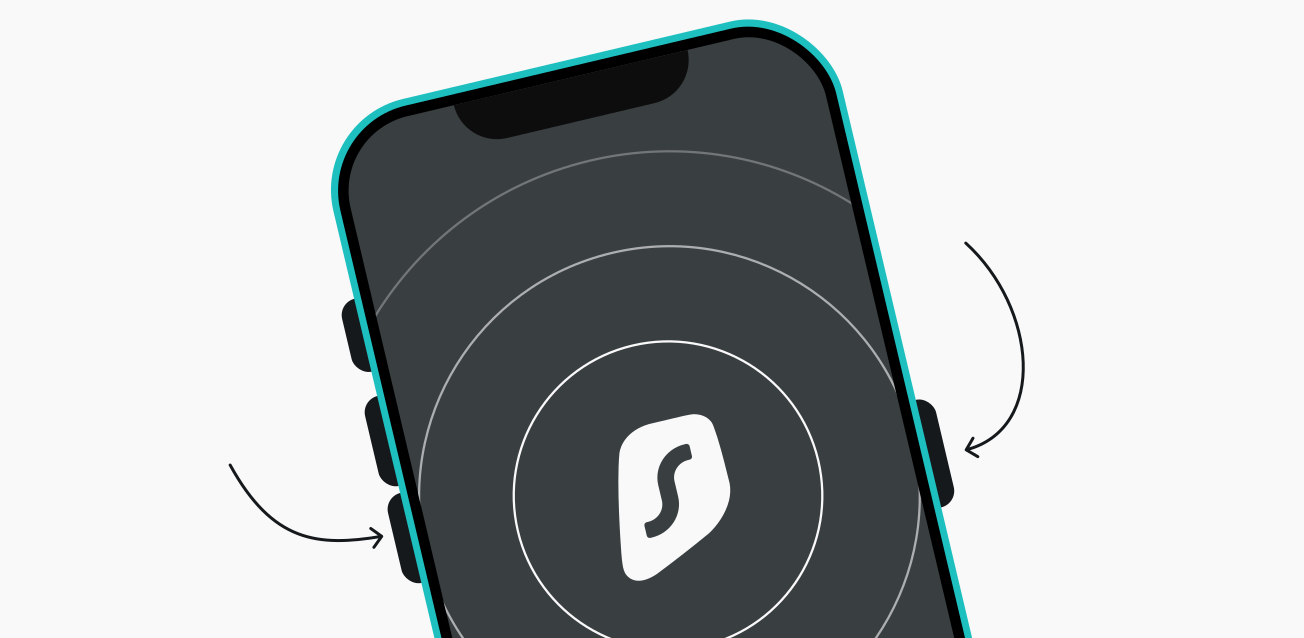
- iPhone 6s, iPhone SE, and earlier: press and hold the Home and Top or Side buttons together until the Apple logo appears.
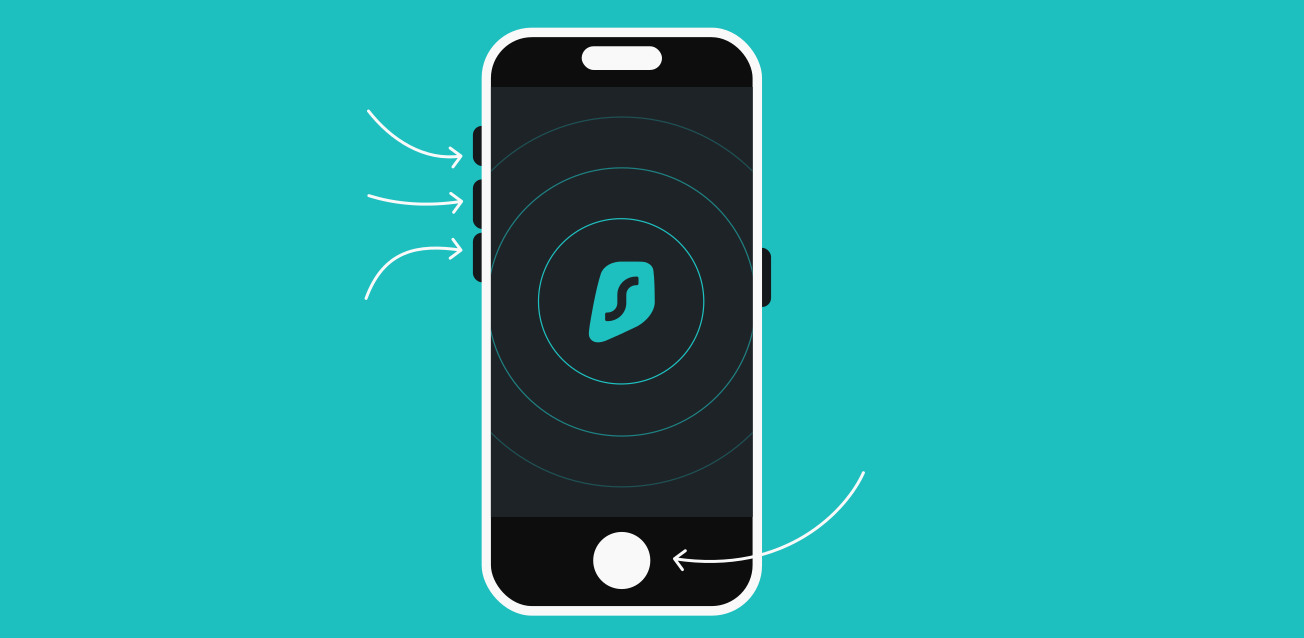
Tip: Hold the final button longer than feels natural. It can take 10 to 15 seconds for the Apple logo to appear, and letting go too early means starting over.
2. Charge for 30-60 minutes
If the force restart doesn’t work, the battery may be fully drained, which is especially common when an iPhone is not turning on after dying. Plug the phone into a wall outlet and leave it alone for 30 to 60 minutes. When the battery is fully drained, the charging symbol can take a while to appear, which is often mistaken for a broken phone rather than a slow recharge.
For best results, use a cable and adapter you know work, plug directly into a wall outlet, skip wireless charging at this stage, and try the force restart again once the phone has had time to charge. This matters even if you’re dealing with an iPhone charging but not turning on situation: a device can pull in some power but still fail to boot if the battery is too low or unstable.
3. Try a different cable and outlet
A faulty cable, a damaged adapter, or a dead wall outlet can make it seem like your iPhone won’t turn on when it’s simply not charging.
Test a different charging cable, power adapter, and wall outlet, ideally ones you know work with another device. Use an Apple or certified replacement accessory where possible, since frayed cables, loose connectors, and weak adapters can quietly prevent the phone from getting enough power to start. Faulty charging gear is one of the most overlooked reasons behind “my iPhone is not turning on.”
4. Remove lint from the charging port
If none of the above worked, look inside the charging port. Pocket lint and dust build up over time and can block the connection, especially if the cable no longer clicks in firmly.
If you see buildup, gently remove it with a dry toothpick or another non-metal tool. Avoid anything sharp or conductive, such as a pin, needle, or paper clip, since that can damage the contacts. A blocked port can also cause an iPhone screen not turning on despite active charging, a loose-feeling cable, or a battery icon that only appears at certain angles. If cleaning the port fixes the connection, let the phone charge for a while before trying to turn it on again.
Why is your iPhone not turning on
Whether the quick fixes didn’t work or you’re just curious what’s going on under the hood, here are the most common reasons an iPhone won’t turn on.
Dead or failing battery
A fully drained battery is the simplest explanation, covered above. But if your phone keeps dying suddenly, shuts down at high battery percentages, or won’t boot even after a full charge, the battery itself may be degraded or failing.
Watch for warning signs like the phone getting very hot while charging, shutting down randomly before reaching 0%, turning on only while plugged in, or charging very slowly or not at all. Older iPhones are more likely to show battery wear, but the issue can affect newer models too. If this sounds familiar, a battery replacement is likely enough, without the need for a new phone.
Faulty charging accessories
As covered above, a bad cable, adapter, or outlet can leave your iPhone looking dead when it’s simply not charging. If the problem goes unnoticed for long enough, the battery drains completely, and the phone stops responding altogether.
That’s why it’s worth testing the full chain, cable, adapter, outlet, and port, rather than assuming just one piece is at fault. Swap the faulty part, and the problem is usually solved.
Software glitch or a failed update
Sometimes the iPhone powers on internally, but iOS gets stuck during startup. This can happen after an update, during an app crash, or after the system freezes outright. Common signs include the Apple logo appearing and then disappearing, a black screen accompanied by vibrations or sounds, or a computer detecting the device while the screen remains unresponsive.
Software glitches can stem from corrupted updates, buggy apps, or, rarely, malicious software. Keeping iOS updated and avoiding untrusted links helps reduce that risk. Surfshark for iOS can add an extra layer of protection against phishing or malicious websites. If your phone was acting oddly before it froze, it’s worth learning how to check for viruses on an iPhone and how to know if your phone is hacked. A force restart or recovery mode clears this up in most cases.
Physical damage
If your iPhone was dropped, exposed to liquid, bent, or crushed, hardware damage could prevent it from starting up, even if nothing looks broken on the outside. The display, battery, charging port, internal connectors, and logic board can all be affected.
In some cases, the iPhone is actually on, but the display itself is dead. That means the phone may still vibrate, ring, or connect to a computer even though the screen stays black. If this is your situation, it’s time to let a professional take a look.
Overheating
An overheated iPhone may temporarily refuse to turn on until it cools down. This can happen after heavy gaming, long exposure to direct sunlight, charging in a hot room, or using a damaged charger, and it’s worth keeping in mind during extreme summer heatwaves. If the phone feels hot, unplug it, move it to a cooler spot, and let it rest before trying again. Don’t put it in a fridge or freezer, since sudden temperature changes can make things worse.
Jailbreaking or unsupported modifications
If the device has been jailbroken or modified in unsupported ways, startup failures become more likely. Changes to the operating system can create conflicts, boot loops, and instability after updates or app installs. If that applies to your phone, recovery mode may be the only realistic next step before professional repair.
What to do if your iPhone still won’t turn on
If nothing above worked, move to deeper recovery steps.
Use recovery mode
Connect your iPhone to a Mac or Windows PC with a cable, then repeat the force restart sequence: quickly press Volume up, quickly press Volume down, then hold the Side button. This puts the device into recovery mode, which some iPhones enter more reliably through a computer than through a wall charger.
Once it’s in recovery mode, you’ll see a computer or cable icon on the screen. This step is especially useful if your iPhone isn’t turning on because of a startup failure rather than a charging issue.
From there, your computer will show two options: Update or Restore. Update reinstalls iOS without erasing your data, while Restore erases the device and reinstalls iOS from scratch. Try Update first, and only move to Restore if it fails. Unlike the other steps in this guide, Restore can erase your data if you don’t have a backup.
Recovery mode is one of the best ways to answer “why is my iPhone not turning on” when the cause is software-related. If it still doesn’t solve the problem, check whether the display, not the whole phone, is at fault: hearing notifications, feeling the phone vibrate, or having a computer recognize it when connected all suggest the iPhone is on even though the screen isn’t working, which points to hardware damage instead.
Visit Apple Support
If your iPhone still won’t turn on after charging, force restarting, swapping accessories, and trying recovery mode, it’s time to bring in the professionals. Apple Support or an authorized repair provider can help if the phone has liquid or impact damage, overheats repeatedly, won’t charge at all, is stuck in a boot loop, or the screen stays black no matter what you try.
Bring your iPhone, your charging cable, an adapter if you suspect an accessory issue, proof of purchase, and your Apple ID details for service verification. Coverage depends on your warranty status, AppleCare+, and what actually caused the problem.
Conclusion: your iPhone can likely be saved
If your iPhone won’t turn on, start with the simplest explanation first: it’s likely frozen, deeply discharged, or not charging properly, not permanently broken. A force restart, 30 to 60 minutes of charging, and a quick check of the cable and charging port solve most cases.
If those basic fixes don’t work, recovery mode and professional support are the next logical steps. A black screen doesn’t automatically mean the worst; it usually just means the cause is a bit deeper than a quick fix can reach.

Keep your iPhone protected
Get more safety, privacy, and freedom online with Surfshark
Get SurfsharkFAQ
How do I fix black death on my iPhone?
The so-called “black screen of death” on an iPhone usually means the display is black and the device is unresponsive, but a force restart resolves it in most cases. If that doesn’t work, charge the phone for 30 to 60 minutes, try a different cable and outlet, and check the charging port before moving to recovery mode.
Why is my iPhone 17 not turning on?
If your iPhone 17 is not turning on, the most likely causes are a drained battery, a frozen system, a charging issue, overheating, or a software failure. Start with a force restart: quickly press Volume up, quickly press Volume down, then hold the Side button until the Apple logo appears.
Why is my iPhone 17 Pro Max not turning on?
An iPhone 17 Pro Max not turning on can be caused by the same issues as other recent iPhones: battery drain, charging problems, software glitches, or hardware damage. The first fix to try is the force restart sequence for Face ID models, followed by a full 30 to 60 minutes of wired charging.
How do I force an iPhone to turn on?
You can force an iPhone to turn on using a force restart, which works on most models regardless of the cause. On iPhone 8 and newer, quickly press and release Volume up, quickly press and release Volume down, then press and hold the Side button until the Apple logo appears.
Why won’t my iPhone turn on after dying?
If your iPhone is not turning on after dying, the battery may be fully drained and need time to show signs of charging. Leave it plugged into a working wall charger for 30 to 60 minutes, then try a force restart while it’s still connected.
What if my iPhone is charging but not turning on?
If your iPhone is charging but not turning on, the problem may be a frozen system, a degraded battery, a failed startup, or a damaged display. Try a force restart first, then test a different cable and adapter, and use recovery mode if the phone still won’t boot.