Camera indicator lights turning on unexpectedly, battery running out faster than usual, and unknown photos or videos appearing in your album can all be signs your phone camera has been hacked. Some of these red flags can be subtle and easy to overlook, while others are harder to miss. Either way, they’re usually the first clue that something isn’t quite right.
The sooner you spot these signs, the easier it is to minimize potential damage. Let’s go through the warning signs, next steps, and ways to prevent future attacks.
Can your phone camera be hacked?
Yes, your phone camera can be hacked, whether you’re using an iPhone or an Android device. Neither platform is completely immune.
That said, contrary to what you may have seen in spy films, bad actors don’t usually hack your phone camera itself. In reality, they’re usually targeting your device as a whole.
Hackers typically do this by tricking you into installing malicious software or exploiting security vulnerabilities in your phone’s operating system or apps.
This can happen when you:
- Click a phishing link or open a harmful attachment that installs malware;
- Download a fake or malicious app that abuses its permissions;
- Install software from an unofficial source, where downloads may contain hidden threats;
- Use a device or app with an unpatched security flaw that attackers can exploit to gain unauthorized access.
Once your phone is compromised, attackers may be able to access your camera and microphone, as well as files, photos, messages, and other sensitive information.
Warning signs your phone camera has been hacked
A hacked phone camera doesn’t always show obvious signs that it’s, indeed, hacked. Instead, more often than not, the clues are sneaky enough that you can easily dismiss them as just normal phone issues.
That’s why it’s important to know which changes shouldn’t be shrugged off. Here are some of them:
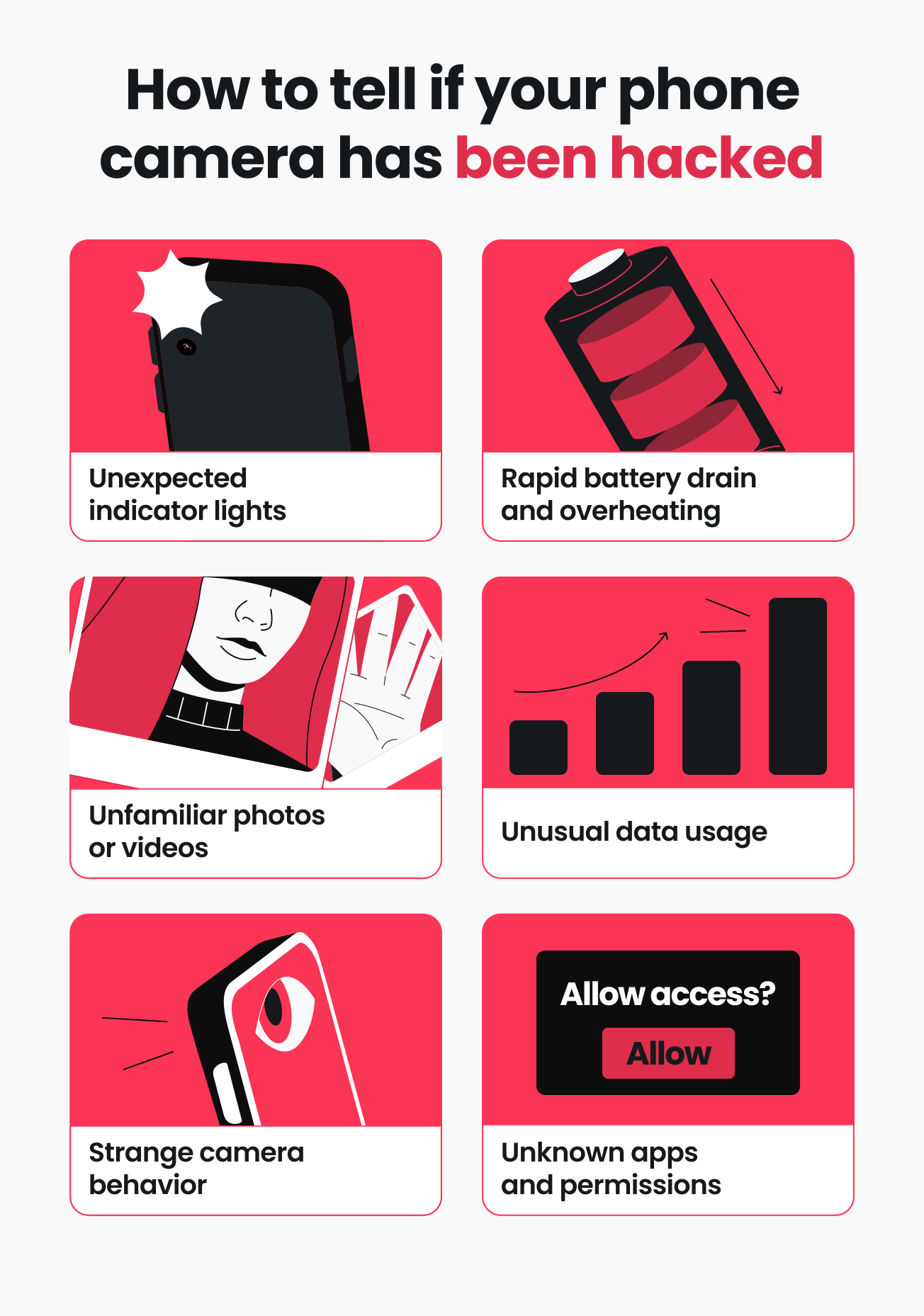
Unexpected indicator lights
Modern smartphones have built-in privacy indicators that let you know when an app is using your camera or microphone. On iPhones, a green dot means an app is accessing your camera, while an orange dot means it’s using your microphone. On Android devices, a green dot usually appears for both camera and mic use, though this may vary by device.
These indicators are completely normal if you’re actually taking photos, making calls, or recording audio. However, you may want to look into it if they show up when you aren’t using any camera or voice features, keep popping up at random times, or stay on even after you’ve closed the app you were using.
Rapid battery drain and overheating
If your phone battery drains faster than usual or your device feels warmer than normal, this could be a tip-off that your phone has been compromised. This can happen when malware or spyware continuously uses your phone’s resources to capture photos, record audio, or communicate with remote servers to upload stolen data.
That said, hacking isn’t always the culprit behind battery issues. Aging batteries, software updates, weak signal strength, extreme temperatures, high screen brightness, and resource-hogging apps can all cause similar symptoms, too.
Unfamiliar photos or videos
A quick look through your gallery can sometimes reveal something unexpected. No, not your fit checks. Instead, look out for unfamiliar photos or videos that could indicate someone has accessed your camera without your permission.
Spyware and malicious apps sometimes secretly capture images or recordings and save them to your device before uploading them elsewhere.
Watch for:
- Photos you don’t remember taking;
- Videos recorded at unusual times;
- Images showing odd locations or angles;
- Screenshots or recordings you don’t recognize;
- Media files with strange timestamps.
Unusual data usage
Sudden spikes in mobile data usage, increased Wi-Fi activity even while your phone is idle, and unknown apps eating up significant background data could be signs of malware or spyware activity.
You can usually check which apps are consuming the most data through your phone settings.
If you’re using an iPhone:
- Go to Settings.
- Tap Cellular or Mobile Service, depending on your device.
- Scroll down to Mobile Data and tap Show All.
- Select SORT BY USAGE to see which apps use the most data, from highest to lowest.
On an Android phone:
- Go to Settings.
- Tap Network & internet or Connections, depending on your device.
- Tap Data usage or Mobile data usage.
- Review app activity to see which apps are using large amounts of data.
Strange camera behavior
Occasional glitches can happen. But persistent, unusual camera behavior could be a sign that someone has compromised your phone camera.
Look out for unusual camera activity, such as:
- The camera app launching unexpectedly;
- The camera app taking longer than usual to load;
- Significant delays when switching between the front and rear cameras;
- The flash going off when you aren’t taking a photo.
That said, odd camera behavior alone isn’t definitive proof of a hack. It could also be caused by bugs, storage issues, or outdated apps.
Unknown apps and permissions
Finding unknown apps on your phone could signal that unwanted software has made its way onto your device. These apps may show up on your phone suddenly, even though you don’t remember downloading them.
Often, they have generic names like Service, System Update, Android Service, File Manager, Assistant, or Settings to blend in with your other legitimate apps. It’s also not unusual for these questionable apps to request permissions for features and tools they don’t need to function.
These include access to:
- Camera;
- Microphone;
- Contacts;
- Location;
- Photos and files;
- Accessibility settings.
More signs your phone camera has been hacked
Just like with a hacked webcam, a compromised phone camera doesn’t always look the same for everyone. Some warning signs may be glaringly obvious, while others fly under the radar.
So here are some additional clues worth keeping an eye out for:
- Password reset emails that you didn’t request;
- New devices connected to your online accounts;
- Security features deactivated without your say-so;
- Unknown apps gaining accessibility permissions;
- Messages sent from your accounts without your knowledge.
How to check if your phone camera is hacked
If you’ve seen signs that your phone camera may have been compromised, the next step is to review your camera permissions and recent activity to see if anything looks unusual. The process varies slightly depending on whether you use an iPhone or an Android device.
On iPhone
Step 1: Check camera permissions
- Open Settings.
- Tap Privacy & Security > Camera.
- Go through the list of apps with camera access.
- Turn off camera access for any app you don’t recognize or that doesn’t need to use your camera.
Step 2: Review app privacy report
- Open Settings.
- Select Privacy & Security.
- Scroll down to Transparency Logs and tap App Privacy Report.
- Review the apps listed under Data & Sensor Access, which shows when they accessed your camera and microphone, among other things.
On Android
Step 1: Check camera permissions
- Open Settings.
- Tap Privacy and Safety or Security & Privacy, depending on your device.
- Select Permission Manager > Camera.
- Review the list of apps and revoke access for the ones you don’t recognize or that don’t need to use your camera.
Step 2: Check Privacy Dashboard
- Open Settings.
- Tap Privacy and Safety or Security & Privacy, depending on your device.
- Tap Privacy Dashboard.
- Select Camera to view a timeline of when apps last accessed your camera.
Pro tip: Checking your privacy settings may tell you which apps have camera access and when they’ve used it, but that’s just the start. Running a security scan with a reliable antivirus solution like Surfshark Antivirus can help detect malware, spyware, or suspicious apps that may be misusing camera permissions or accessing your camera without your knowledge.
What to do if your phone camera has been hacked
If your phone camera has been hacked, there are a few steps you should take quickly to help limit any damage. Here are the main ones:
Turn on Airplane Mode
Your first order of business is to disconnect your phone from the internet. You can either turn off Wi-Fi and mobile data or switch on Airplane Mode. This can help stop malware from communicating with remote servers and sending stolen sensitive data — such as captured photos or video files — while you deal with the issue.
For added peace of mind, you can also put a camera cover over your lens or use a small piece of tape to block visibility.
Delete suspicious apps
Go through your installed apps and check for anything you don’t recognize or don’t remember installing. Pay particular attention to apps that showed up around the time you noticed unusual camera activity, as well as those requesting unnecessary camera or microphone permissions.
Remove any apps that seem suspicious or that you no longer use. While you’re at it, revoke camera and microphone access for apps that don’t need them.
Run a security scan (Android phone only)
Whether it’s for peace of mind or because you simply can’t shake the feeling that someone is spying on your phone, use a trusted antivirus solution like Surfshark Antivirus to scan your device. On Android devices, this can help detect malware, spyware, and other threats that may be running in the background.
Here’s how:
- Get Surfshark Antivirus by subscribing to Surfshark One or Surfshark One+.
- Download and install the Surfshark app on your device.
- Set up Antivirus and click Full scan to start a complete system check.
Change passwords
If you’re seeing signs that your phone may have been hacked, your camera may not be the only thing at risk. Take a few minutes to secure your accounts by updating your passwords from a separate, trusted device. Start with your high-stakes accounts like email, banking, and cloud storage, then go from there.
As you change your passwords, make each one strong and unique. Use a mix of upper and lowercase letters, numbers, and special characters. Whenever available, turn on 2FA (Two-factor Authentication) to add an extra layer of security.
Reset phone
If the issue doesn’t go away even after you’ve removed suspicious apps and run security checks, you may need to resort to a factory reset. This wipes all apps, settings, and personal data from your phone, which can help clear any malware that may still be lingering around.
On iPhone, go to Settings > General > Transfer or Reset iPhone > Erase All Content and Settings.
If you’re on Android, the exact steps depend on your device. Typically, you can find the option under Settings > General Management > Reset > Factory data reset.
How to protect your phone camera from being hacked
Small steps now can save you a whole lot of headaches down the line. Here are some practical tips to help protect your phone camera from being hacked:
- Download apps only from official app stores like Google Play Store and Apple’s App Store to minimize the risk of installing apps that may contain hidden malware;
- Review app permissions regularly and revoke camera and microphone access from apps that don’t need it;
- Keep your operating system and apps updated to get the latest bug fixes and security patches for vulnerabilities that bad actors could exploit;
- Avoid clicking suspicious links in texts, messaging apps, emails, or social media posts, especially those from people or accounts you don’t recognize;
- Use security tools like antivirus software to scan for threats and a VPN (Virtual Private Network) to encrypt your internet traffic when using unsecured public networks;
- Turn on security features like 2FA and biometric authentication for extra protection against unauthorized access.
Spot the signs early
It’s not always easy to tell when your phone camera has been hacked. However, if you’ve noticed red flags like unexpected camera indicator lights, rapid battery drain, strange apps on your phone, and unfamiliar photos and videos in your gallery, it’s time to check if your device has been compromised.
That said, it’s always better to take precautions now than to pick up the pieces after a hack. So download apps only from trusted sources, review app permissions regularly, and keep your phone and apps up to date. For extra protection, use Surfshark Antivirus, which is included in the Surfshark One bundle.

FAQ
Can you tell if someone is watching you through your camera?
No, you usually can’t know for certain if someone is watching you through your camera. That said, certain signs can clue you in that your phone camera may have been compromised. Look out for red flags like unexpected camera indicator lights, unexplained battery drain, unfamiliar apps on your phone, and unknown photos and videos in your gallery.
Can websites access your phone camera?
Yes, websites can access your phone camera, but legitimate access usually requires your explicit permission first. Modern mobile browsers usually ask before allowing a site to use your camera.
Can your phone’s microphone be hacked?
Yes, your phone’s microphone can be hacked if an attacker gains access to your device.
If you notice warning signs like the microphone indicator light appearing when you aren’t using it or unknown apps on your phone with microphone permissions, it may be worth investigating further. Start by reviewing and revoking unnecessary microphone permissions, deleting suspicious apps, and running a security scan.
Can hackers access your phone camera through public Wi-Fi?
No, hackers can’t access your phone camera simply because you’re connected to public Wi-Fi. That said, using unsecured public networks can expose your device to phishing attacks, malware, or security vulnerabilities that attackers can exploit to gain unauthorized camera access.
If you have to use public Wi-Fi networks, minimize the risk by using a VPN, keeping your phone and apps up to date, and avoiding sensitive transactions.