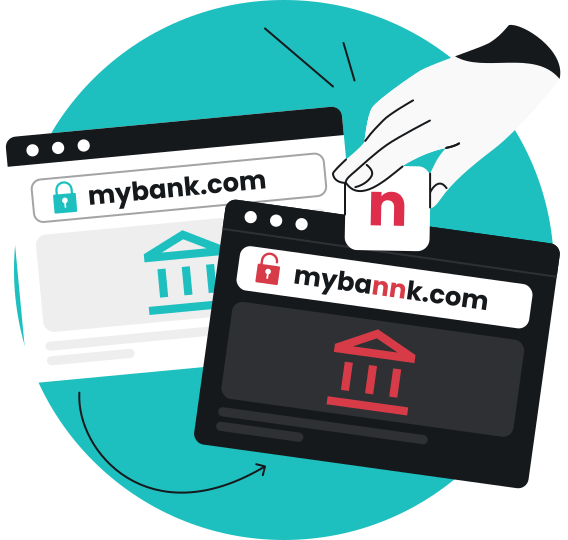

Unfortunately, there is no single button that blocks all inappropriate content online. So, how do you do it? Different situations will require different solutions: search engine filters, social media platform settings, category-based web content blockers, etc.
In this article, you’ll find easy step-by-step guides available for your devices and popular platforms that will help you block unwanted content.
What is inappropriate content?
Inappropriate content isn’t a single type of media. It’s an umbrella term for anything harmful or unsuitable for a specific age group or audience. Knowing what type of content you want to block makes it easier to choose the right tool and approach.
Here are the most common types of inappropriate content online:
- Adult and explicit content: pornography, sexually suggestive images, and graphic adult media;
- Gambling platforms: online casinos, betting apps, and sports gambling sites that pose financial or behavioral risks;
- Violence and gore: videos or images depicting real-world violence, bodily injury, or cruelty;
- Hate speech and profanity: discriminatory content and offensive language found in forums, comments, and social media feeds;
- Misinformation and disinformation: spreading of misleading, false information through media;
- Scams and harmful websites: deceptive websites and malicious domains hosting malware or spyware, designed to steal login credentials, personal info, or payment details.
Why block inappropriate content?
Filtering out unwanted parts of the web isn’t just about censoring what you see. It’s about taking active control over your online environment. Here are some of the main reasons you may want to filter your internet access:
- Protecting children. Kids are naturally curious, but they don’t have the digital literacy yet to judge online risks. Blocking explicit sites keeps age-inappropriate material out of their reach.
- Reducing accidental exposure. Autoplay feeds, pop-up ads, and misleading link previews can expose anyone to adult material unexpectedly.
- Building healthier browsing habits. Limiting access to addictive platforms like online gambling or explicit sites helps maintain better focus and mental wellbeing.
- Cutting down distractions. Blocking time-wasting or graphic content makes it easier to stay productive.
- Creating a safer household experience. Enabling default filters on shared devices like smart TVs, family PCs, and tablets allows everyone in the household to browse safely.
How to block inappropriate content on different devices
Major operating systems come with native safeguards that allow you to restrict access to unsafe apps and websites. Here is how to configure them across your smartphones, tablets, and computers:
Android
If you want to learn how to block inappropriate content on Android, there are a few options, depending on whether the phone is used by an adult or a child:
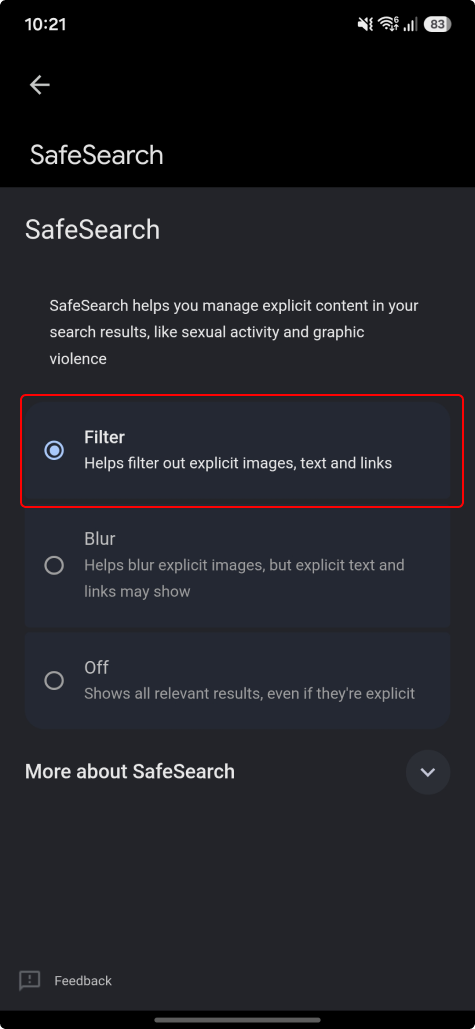
- Turn on Google SafeSearch in the Google app:
- Open your Google app;
- Tap your profile icon in the top right corner;
- Go to Settings > SafeSearch;
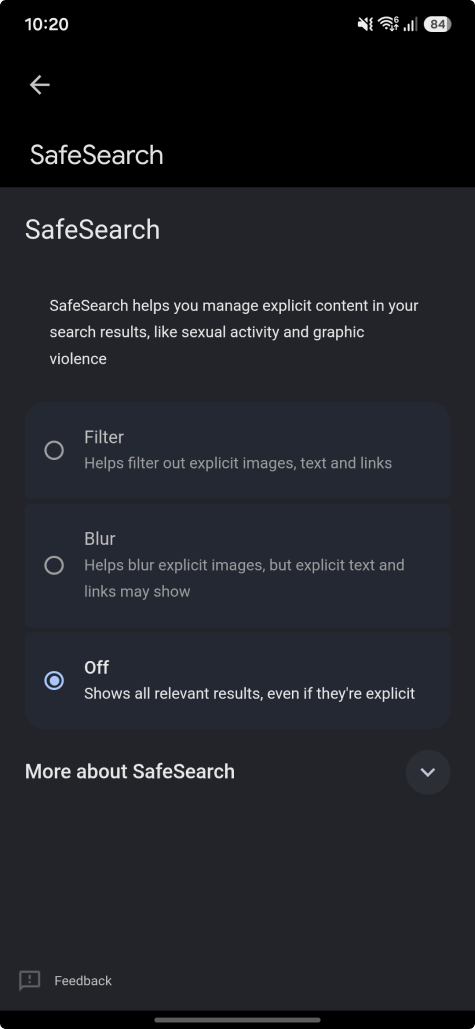
- Select Filter to block explicit images, text, and links in your search results.
- Enable Google Family Link for child accounts:
- Download the Family Link app on your device;
- Sign in to your Google account;
- Create or add your child’s Google account;
- On your child’s device, navigate to Parental controls;
- Follow prompts to start setting up parental controls;
- Link your child’s Google account to your own;
- Manage your child’s apps, filters, and settings;
- Review controls and set limits on your child’s account from either device.
- Configure secure Private DNS:
- Choose a secure DNS provider to filter out explicit or malicious domains across every app on the device;
- Go to Settings > Connections or Network & Internet, depending on your or your child’s Android device;
- Select More connection settings > Private DNS;
- Select Private DNS provider hostname;
- Type in a chosen DNS address and tap Save.
Windows/PC
There are a few ways to block inappropriate content on a PC, which is essential for family computers and home offices:
- Set up Microsoft Family Safety:
- Sign in to your Microsoft account;
- Select Family Safety in the menu on the left;
- Select your family member’s profile > three-dot menu > Go to overview;
- In the Windows tab:
- Select Apps and games to show all installed apps;
- Select the three-dot menu next to the app you want to block for that member > Block app;
- In the Edge tab;
- Toggle on Filter inappropriate websites and searches;
- Under Blocked sites or Allowed sites, add URLs of specific sites you want to block or add;
- Toggle on Only use allowed websites or Always allow educational websites to limit access to specific sites only.
- Configure secure DNS filtering:
- Choose a secure DNS provider to filter out explicit or malicious domains;
- Open the Settings app;
- Go to Network & Internet > your current network;
- Navigate to DNS server assignment and click Edit;
- In the pop-up window, choose Manual from the drop-down menu;
- Toggle on IPv4 and/or IPv6;
- Type in your chosen DNS address and click Save.
iPhone & iPad
- Adjust content restrictions:
- Open Settings on your iPhone or iPad;
- Tap Screen Time and turn it on if it isn’t active already;
- Select Content & Privacy Restrictions and toggle on the switch at the top;
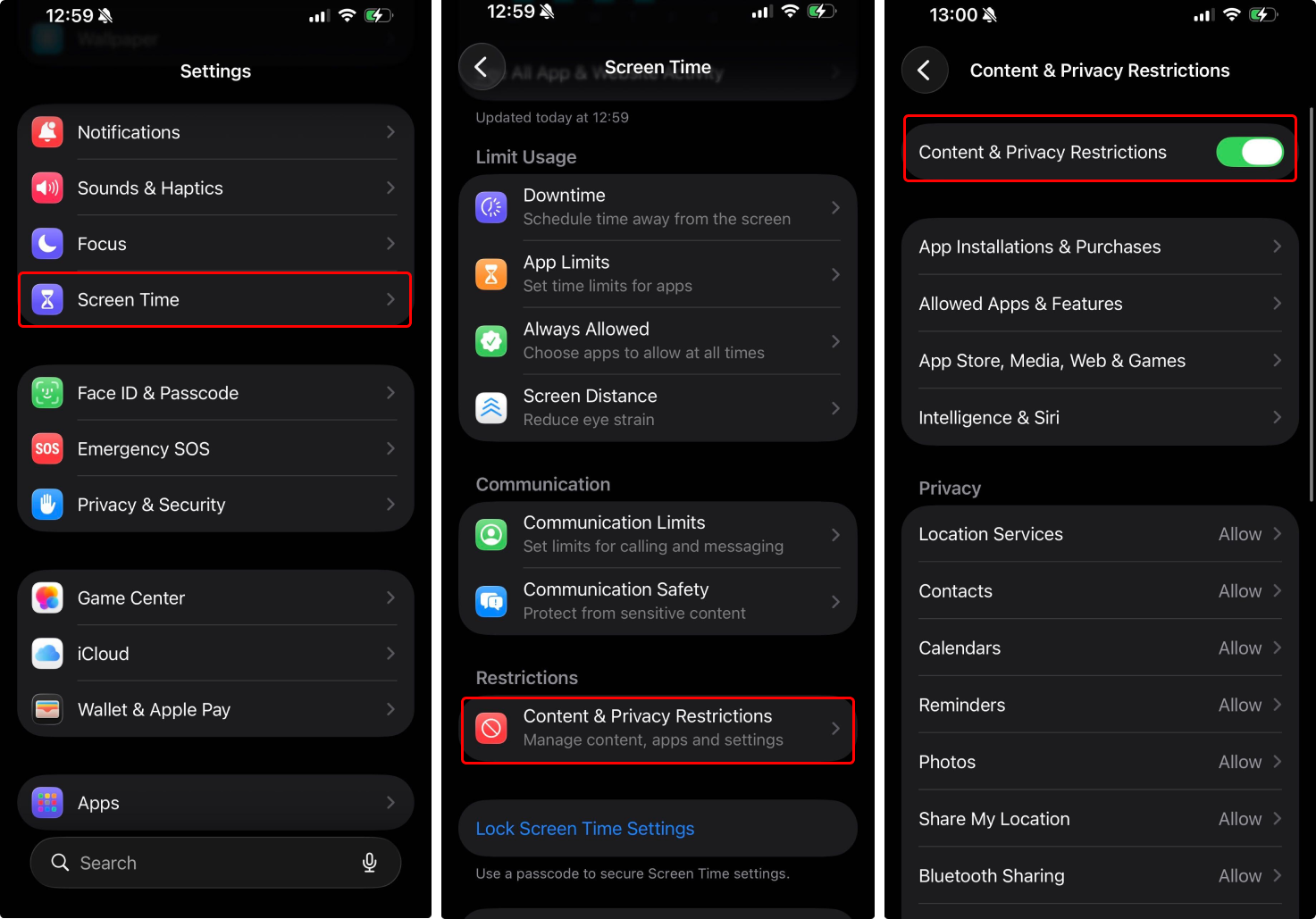
- Tap App Store, Media, Web & Games > Web Content;
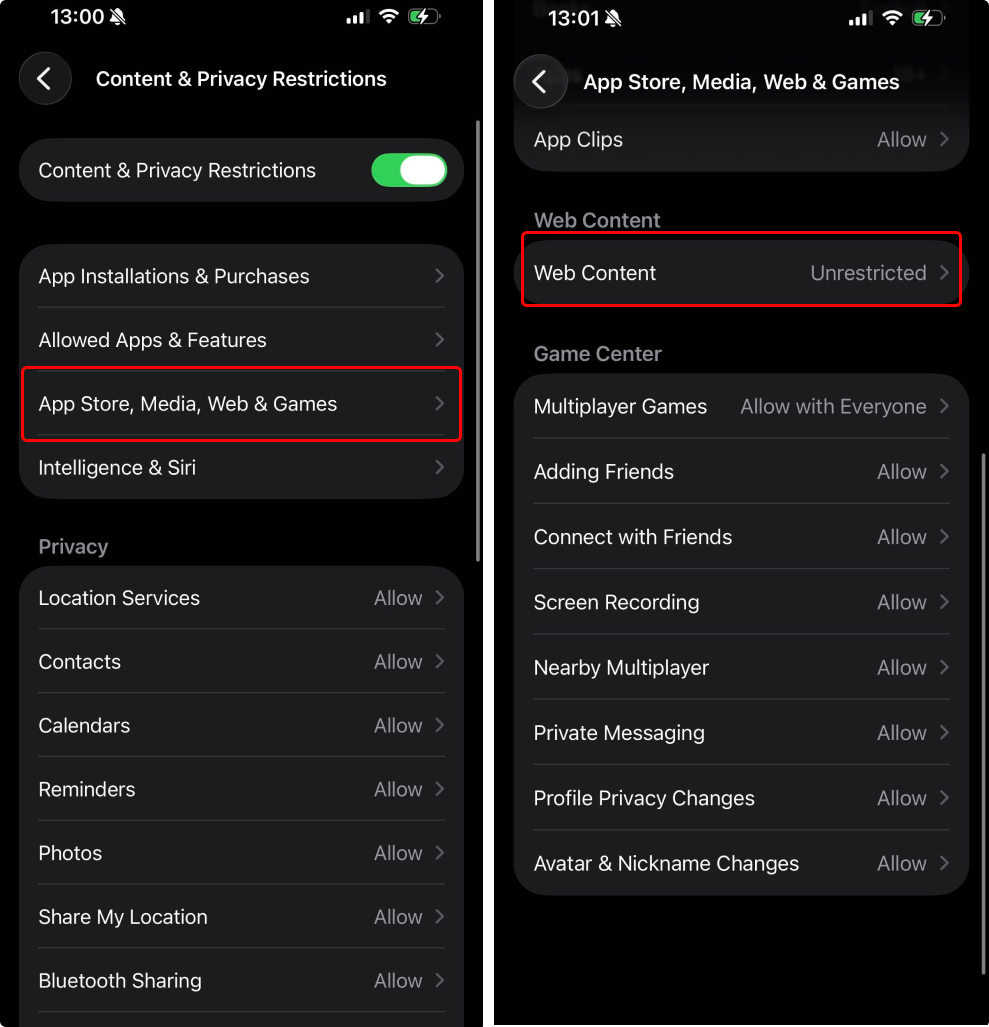
- Select Limit Adult Websites;
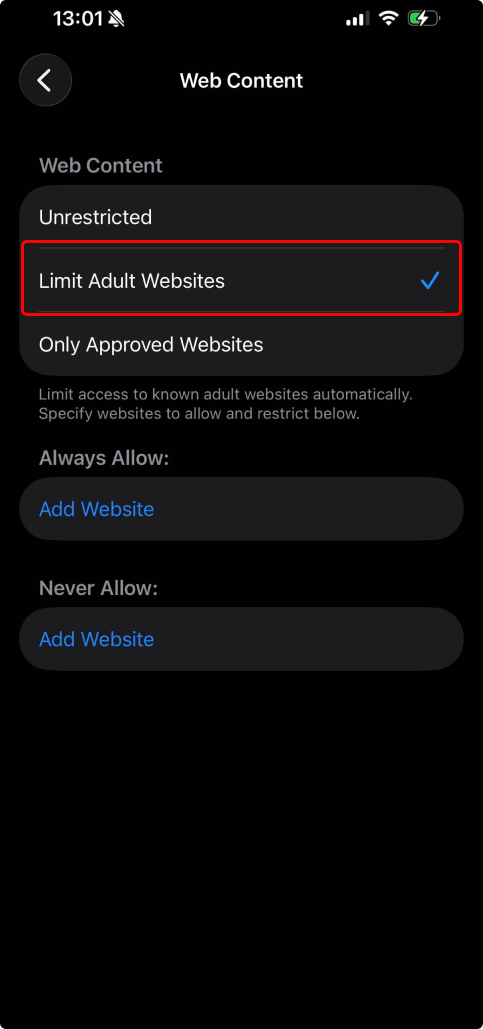
- Optional: Tap Add Website under Never Allow to enter specific domain URLs manually;
- Return to the main Screen Time menu and select Lock Screen Time Settings to create a 4-digit passcode so others cannot undo your rules.
- Configure secure DNS filtering:
- Choose a secure DNS provider to filter out explicit or malicious domains
- Go to Settings > Wi-Fi;
- Tap the blue i icon next to your connected network;
- Scroll down and select Configure DNS;
- Select Manual;
- Tap Add Server and type in your chosen safe DNS addresses;
- Tap Save.
How to block inappropriate content on popular platforms
Device settings can help control overall access, but browsers, social networks, and media platforms have their own internal algorithms and settings. Here is how to clean up content on apps you probably use every day:
Chrome
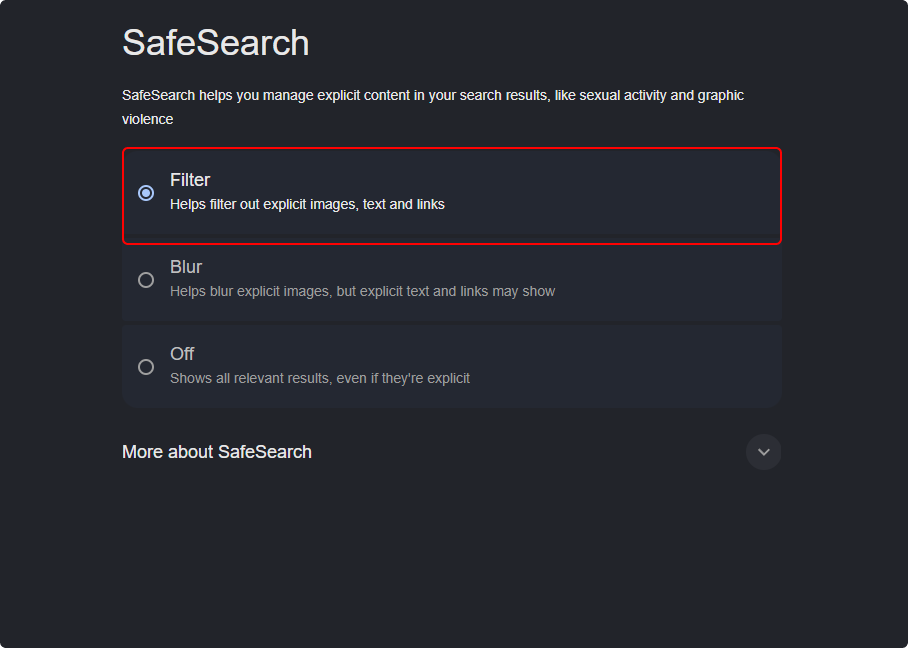
- Enable SafeSearch:
- Open Chrome and go to google.com;
- Select Settings in the bottom left corner and choose Search settings in the pop-up menu;
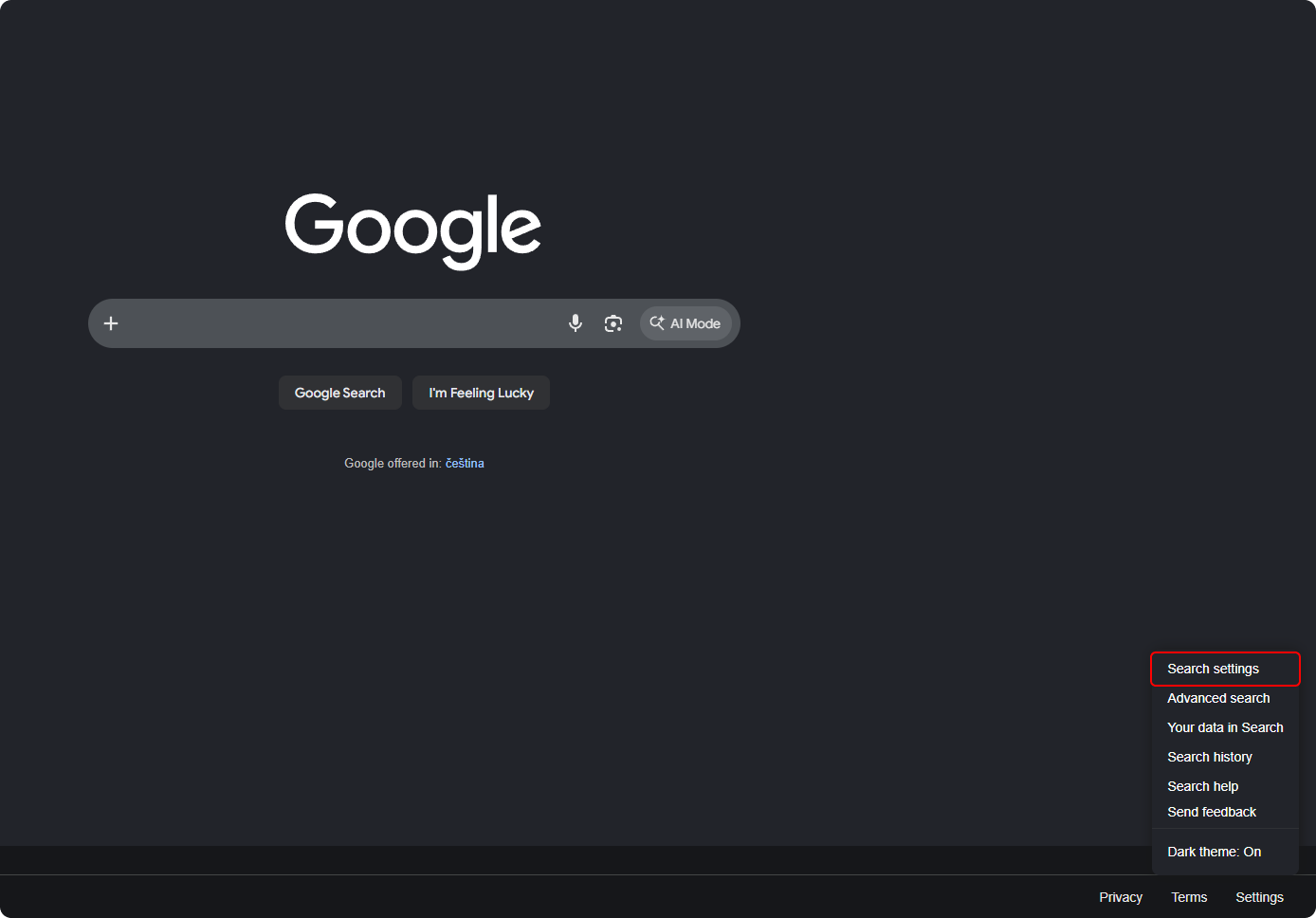
- Select SafeSearch;
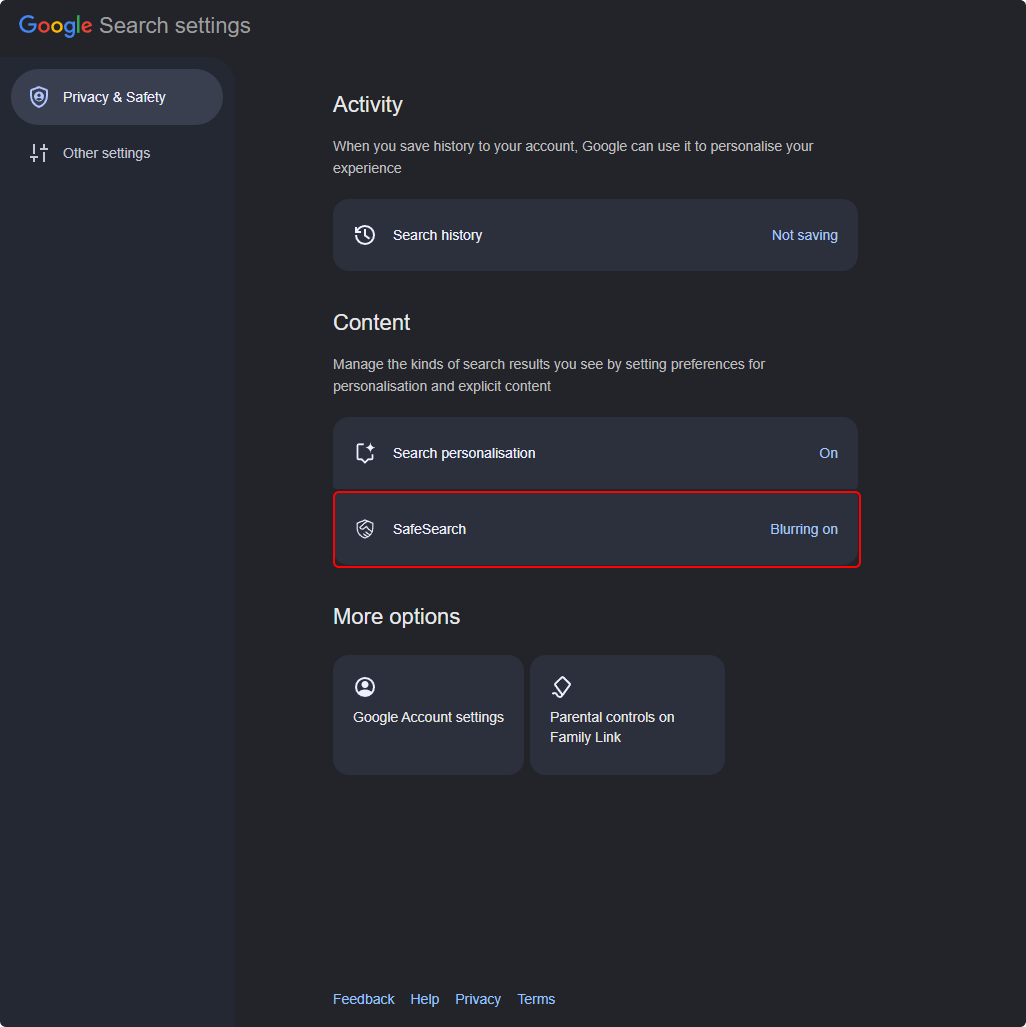
- Select Filter to block explicit images, text, and links in your search results.
- Turn on secure DNS:
- Choose a secure DNS provider;
- Open the Chrome browser;
- Navigate to Settings through the pop-up menu in the top right corner;
- Select Privacy and security in the left-side menu;
- Select Security;
- Find the Use secure DNS section and switch the toggle on;
- Select With Custom and enter your chosen DNS address.
- Add an extension:
- Open the Chrome browser;
- Go to the Chrome Web Store and look for an extension that blocks specific URLs, keywords, or distractors;
- Install the extension by clicking Add to Chrome > Add extension;
- Select the extension in the toolbar;
- Enter URLs you want to block and save changes.
YouTube
Knowing how to block inappropriate content on YouTube starts with Restricted Mode:
- Open the YouTube website or mobile app;
- Select your profile icon;
- Select Settings > General (on mobile devices) > Restricted Mode;
- Toggle on Restricted Mode.
Note on YouTube limitations: Restricted Mode uses automated signals like video titles, descriptions, metadata, and age restrictions to hide mature content. It works well as a basic filter, but it is not 100% foolproof and applies only to the specific device and browser you turn it on for.
If you’re wondering how to block inappropriate content on Facebook, Meta lets you adjust content preferences to control what appears in your main Feed, Reels, and suggested content:
- On the Facebook app or website, navigate to Settings & Privacy;
- Select Settings > Content Preferences;
- Select Sensitive content and choose Show less;
- Save the changes.
How to block inappropriate websites
Two main site-blocking methods include manual URL blocking and automatic category filtering:
|
Individual website blocking
|
Category-based filtering
|
|
Requires manually adding individual URLs
|
Blocks whole topics
|
|
Fails when new explicit domains launch
|
Updates automatically
|
|
High maintenance for household admins
|
Set-and-forget setup
|
Manually entering individual web addresses into a blocklist can get overwhelming fast. Thousands of new adult and malicious domains go live every single day. Trying to type them out one by one is an endless job.
This is where automated category filtering comes in. Instead of having to deal with individual site names, category filters automatically block entire content types, such as adult entertainment, online gambling, weapons, or scam domains.
For example, Surfshark’s web content blocker allows you to filter unwanted website categories across supported household devices without snooping on what your family members are reading or watching.
Surfshark’s web content blocker advantages:
- Category-based filtering: choose exactly what to block, from adult domains and gambling to scams and high-risk categories;
- Privacy-first architecture: filter out harmful content without keeping logs or recording private browsing activity;
- Multi-device support: easily apply and lock safety rules across supported Android, iOS, Windows, and macOS devices;
- Part of a comprehensive suite: web content blocker comes included with Surfshark One, combining content filtering with an industry-leading VPN, Antivirus, identity protection and data leak monitoring tools, and more.
Website filtering vs. parental controls
People often use the terms website filtering and parental controls interchangeably, but they serve different purposes:
|
|
Website filtering
|
Parental controls
|
|
Primary focus
|
Blocking specific content categories and explicit sites
|
Monitoring usage, managing screen time, and app approvals
|
|
User privacy
|
High — blocks categories without tracking activity
|
Low to moderate — monitors logs, search histories, and app usage
|
|
Setup complexity
|
Low — toggle categories on or off
|
Moderate to high — requires account linking and constant management
|
|
Best for
|
Households, adults, and shared family devices
|
Young children who need direct parental oversight
|
|
Main function
|
Prevents explicit domains from loading
|
Sets app limits, downtime schedules, content restrictions, and location tracking
|
Which solution is right for you?
Because no single feature solves every problem, use this decision table to quickly find the best method for your specific goal:
|
Your goal
|
Best option
|
|
Hide explicit images and sites from Google search results
|
Enable Google SafeSearch
|
|
Manage a child’s device (app downloads, screen time, etc.)
|
Use native Parental Controls on your child’s device
|
|
Block web content categories (adult, gambling, scams, etc.)
|
Use Surfshark’s web content blocker
|
|
Filter video recommendations on YouTube
|
Enable Restricted Mode on YouTube
|
|
Safer, more private browsing across multiple devices
|
Surfshark One cybersecurity suite
|
Creating a safer online experience
While setting up filters on your devices and platforms is a powerful shield, relying on technology alone is not enough to create a safe online environment. For that, you need to combine three main principles: technology, open conversations, and digital education:
1. Technology
Using the right tools for the right purpose is key. Use SafeSearch to block harmful content from search results, native device restrictions and parental controls for stronger protection of your children’s devices, and category-based web filtering to block explicit websites automatically.
2. Conversations
If you’re caring for children, teens, or elderly, less tech-savvy people in your family, talk to them openly about online safety, distraction management, and health. Explain why certain filters and device supervision are needed. In age-appropriate terms, have a conversation about dangers online and the importance of digital boundaries.
3. Education
Filters likely won’t catch 100% of inappropriate content. That’s why digital education should fill the gaps that technology misses. Teach family members to recognize phishing scams and protect their personal information, exit graphic pages safely, and report offensive content on platforms like Facebook and YouTube.
Conclusion: a safer online experience starts with the right approach
Browsers, apps, and operating systems deal with content differently, so there is no single switch that blocks all harmful material on the internet. The secret to a safer online environment is combining search engine filters, app settings, and dedicated website filtering, along with education and open conversations, into a single online safety approach.
Browse safely with Surfshark One
Block unwanted websites and help reduce exposure to inappropriate content
Explore Surfshark OneFAQ
How do I stop seeing inappropriate content online?
To stop seeing inappropriate content, combine multiple layers of protection: turn on Google SafeSearch in your browser, turn on Restricted Mode on apps like YouTube, adjust Content Preferences on social platforms like Facebook, and use a category-based web content blocker to stop explicit websites from loading.
How do I block inappropriate websites on Google?
You can filter explicit websites from Google Search results by going to google.com/safesearch and setting the toggle to Filter. This hides explicit images, text, and direct links. To block the actual websites from loading if someone types in the URL directly, you will need browser-level or network-level content filtering.
Can I block adult websites on my phone?
Yes. On iOS, go to Settings > Screen Time > Content & Privacy Restrictions > Web Content and choose Limit Adult Websites. On Android, set up Google Family Link or configure a secure Private DNS host in your network settings. You can also install multi-device security software like Surfshark to manage website categories easily on mobile.
Is SafeSearch enough to block explicit content?
No, SafeSearch is not enough on its own. SafeSearch only filters results on Google search pages — it does not prevent someone from visiting an explicit domain directly by typing its address into the browser bar, clicking a link in an email, or encountering graphic content inside social media apps.
Can I block inappropriate websites without installing software?
Yes. You can block explicit sites without installing extra apps by changing your device or router’s DNS settings to a family-safe DNS provider or by using built-in operating system tools like Apple Screen Time.
Can I filter websites across multiple devices?
Yes, you can manage website filtering across multiple devices by applying network-level DNS settings on your home router or by using a solution like Surfshark web content blocker, which lets you manage filtering rules across supported Android, iOS, Windows, and macOS devices under one account.
What’s the easiest way to manage website filtering?
The easiest approach is category-based filtering. Instead of typing in individual website URLs to block them one by one, category filtering lets you toggle off whole site types, such as adult content, gambling, or malware, in a few clicks.