Malvertising is malicious code hidden inside real online ads — the same ads that show up right alongside normal, legitimate ones on reputable websites you visit every day. That’s what makes malicious advertising dangerous: some malicious ads infect your device the moment they load, before you click anything. The good news is that a handful of simple habits, plus the right browser and security tools, can dramatically reduce that risk.
What is malvertising?
Malvertising (the combination of “malicious” and “advertising”) is the practice of incorporating malicious code into legitimate online advertising networks. Instead of building a scam website and hoping people find it, attackers pay to have their malicious ad served on trusted, high-traffic sites. It can be anywhere: news outlets, shopping sites, even search engine results pages. That’s the core malvertising definition worth remembering: the ad itself is the threat, not just whatever malicious site it might lead to. That’s also what makes malvertising different from a typical scam: the website hosting the ad is real and often reputable.
Most ad networks do run automated screening to catch obviously malicious ads. But they can’t manually review every one of the thousands of ads auctioned and placed automatically within milliseconds of a page loading, and code swapped in after an ad already passed review often slips through entirely. That speed and screening gap is exactly what malvertising exploits. On top of getting past reviews, malicious ads are built to look just like the sponsored content around them: the same fonts, the same “Sponsored” or “Ad” label, sometimes even spoofed logos of brands you already trust.
How does malvertising work?
A malvertising attack usually plays out in three stages: distribution, interaction, and delivery.
Step 1 — Attackers distribute malicious advertisements
Attackers get their ad into circulation by:
- Setting up a fake advertiser account and submitting a “clean” ad that passes reviews, then swapping it with malicious code afterward;
- Buying legitimate ad space directly and exploiting the fact that most ad platforms handle enormous volume with automated, not manual, checks;
- Compromising an existing, trusted ad platform account and distributing malicious code through it.
According to GeoEdge’s 2025 report, malicious extensions and add-ons rose from 9% to 19% quarter over quarter — the fastest-growing malvertising method tracked. Auto-redirects remained the most common overall, accounting for 68% of all tracked malvertising campaigns.
Step 2 — Users interact with the advertisement
Sometimes clicking on the ad triggers the attack, as with a fake “Download now” button. Other times, no click is needed at all, and simply allowing the ad to load is enough. In a drive-by download, malicious code hidden in the ad’s script runs automatically as soon as the page loads, silently redirecting the browser or installing malware in the background.
Step 3 — Malware or scams are delivered
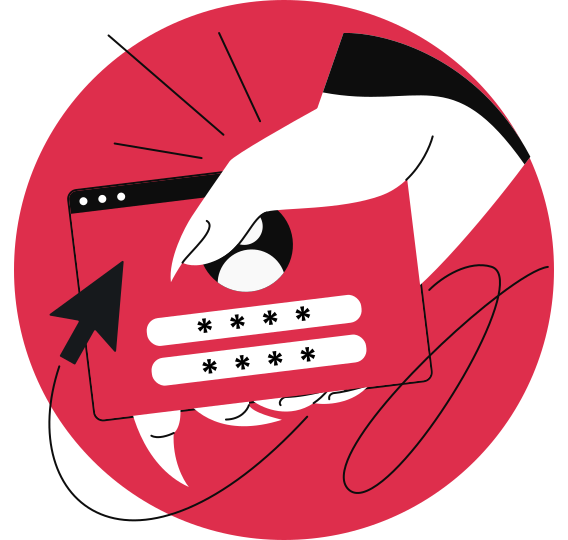
The final stage depends on what the attacker is after. Some ads install malware directly onto the device. Others route victims to phishing pages or fake login screens built to harvest passwords. Ransomware, credential theft, and fake antivirus alerts that trick people into installing more malware are all common outcomes at this stage.
Real-world examples of malvertising attacks
To put things into perspective, here are some real malvertising examples:
- Fake software downloads: in a widely reported campaign, attackers spoofed download pages for at least 11 popular free tools, sometimes outbidding the real developers for top ad placement. One widely covered case saw a crypto influencer’s social and wallet accounts compromised after downloading what looked like OBS streaming software;
- Fake AI tool ads: in one campaign uncovered by security researchers, a fake site advertised through Google Ads impersonated the DeepSeek AI platform, bundling malware that reconfigures the victim’s browser to route traffic through attacker-controlled servers;
- Fake tools for IT admins: in May 2024, a ransomware campaign spoofed search ads for “download winscp” and “download putty,” two utilities system administrators use daily, showing malvertising doesn’t only target casual, non-technical searches;
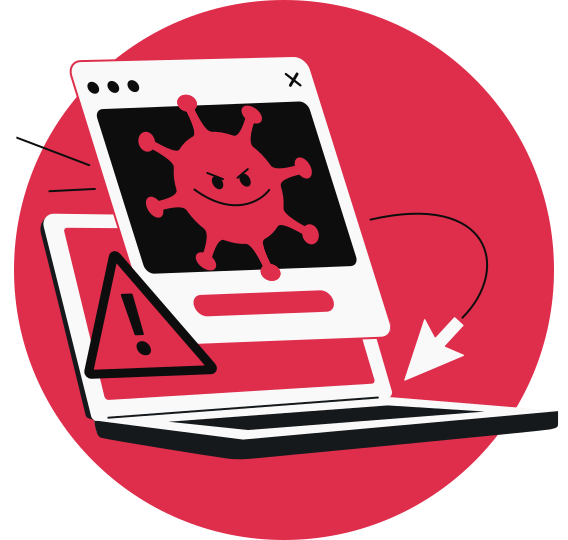
- Fake antivirus warnings: pop-ups claiming “Your device is infected — click to scan now” are a classic malvertising format, often designed to install the very malware they claim to remove;
- Browser pop-ups and fake updates: ads disguised as “Your Flash Player is out of date” or “Update required” notices continue to circulate, prompting users to install malicious software disguised as a routine update;
- Sponsored search ads impersonating real companies: attackers buy ad placement for brand-name searches — banks, software companies, even government services — so their fake link appears above the real one in search results;
- Hijacked advertiser accounts: in one large-scale campaign, hackers ran ads impersonating Google Ads itself, tricking advertisers into entering their login details on a malicious website so the attackers could take over the account and run malicious campaigns from it, inheriting the trust and ad history of an established, verified advertiser.

How to protect yourself from malvertising
Recognizing malvertising is half the battle; the other half is closing off the ways it reaches you in the first place. Here’s how to avoid malicious ads with consistent habits and the right tools.
Block malicious advertisements before they load
The most direct defense is stopping malicious ads before they load. Surfshark’s ad blocker blocks ads, trackers, and malware in the app when the VPN is connected, while the browser extension helps block ads, trackers, and cookie pop-ups. This way, a malicious ad often never gets the chance to render in your browser in the first place.

“Trackers and ads may seem harmless, but they build a detailed profile of your habits, interests, and vulnerabilities.
On shady websites, these mechanisms can be weaponized for malvertising — delivering phishing attempts, malware, or redirects to dangerous domains, and increasing the risk of fraud or identity theft.
That’s why browsing safely can’t rely on caution alone. Tools like Surfshark’s ad blocker block ads, limit trackers, and reduce exposure to scams, intrusive advertising, and malware.”
– Miguel Fornes, Information Security Manager at Surfshark
Keep your browser and software updated
Malvertising doesn’t only rely on getting a bad ad past ad-network review — it also depends on your browser or software having a vulnerability left to exploit once that ad loads. Updates aim to fix the security gaps that malicious ads exploit, so turning on automatic updates closes one of the easiest routes attackers use. Google’s security team has repeatedly flagged unpatched browser vulnerabilities as a preferred entry point for drive-by malware, which is why version updates so often ship as “security fixes” rather than feature releases.
Avoid clicking sponsored ads for sensitive services
When you’re heading to a bank, a government portal, or a password manager, type the URL directly instead of clicking a sponsored search result. Attackers target these searches because the payoff — stolen credentials or financial access — is high.
Watch for fake websites
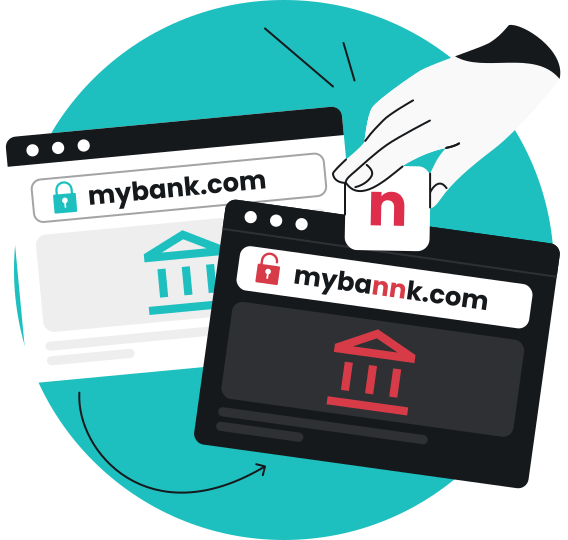
Malicious ads often lead to fake login pages or typosquatted domains (URLs that look almost identical to the real thing, e.g., “paypa1.com”). Before entering any information, check the URL carefully and look for HTTPS.
Checking the URL closely isn’t foolproof, though, because a URL can be built from look-alike international characters — to appear character-for-character identical to the real site in the browser’s address bar. No amount of careful reading can catch this kind of mimicking, which is why relying on link-checking tools matters as much as checking the URL yourself. Web content blocker blocks access to specific website categories that you select from the provided list, including known phishing and malware domains, before you can land on one. While Clean Web works by filtering ads, trackers, and malicious domains as you browse. Together, they cover both ends of a malvertising attempt: one blocks the destination a fake ad might send you to, the other blocks a lot of the fake ads themselves.
Protect your device against malware
Even careful users can encounter a malicious ad that slips through every other precaution. Malware delivered this way may try to inject malicious code the moment the page loads, without any obvious download prompt or warning.
This matters most if you’re on Windows: Surfshark’s own research found that 92% of malware detections in 2026 occurred on Windows devices, which faced nearly six times as many threats per user as macOS. Surfshark Antivirus scans for and blocks malware in real time, adding a layer of protection if malicious code does reach your device.
Stay ahead of scams
Malvertising doesn’t always stop at malware injection — plenty of campaigns are designed to end at a phishing page instead, built to steal your passwords or financial details. Surfshark Scam text protection and Email scam checker help catch the follow-up phishing attempts that often accompany malvertising, so a bad click doesn’t compound into a bigger problem.
Protect your connection
A VPN (Virtual Private Network) can’t stop a malicious ad from loading, but it does encrypt your internet traffic. That matters most on public Wi-Fi, where attackers on the same network can intercept unencrypted data — including anything exchanged if a malvertising redirect does land you on a compromised page. Surfshark VPN adds that layer of encryption wherever you connect.
What should you do if you clicked on a malicious ad?
If you suspect you’ve clicked a malicious ad, work through this checklist right away:
- Disconnect from the suspicious website or close the tab immediately;
- Run a full malware scan on your device;
- Update your software and operating system if you haven’t already;
- Change your passwords if you entered any credentials on the fake page;
- Monitor your financial accounts for unfamiliar transactions;
- Watch for follow-up phishing emails referencing the site you visited.
None of these steps require technical expertise, but taken together they close off most of the ways a single bad click can turn into a bigger problem. If credentials or personal details were exposed, Surfshark Alert can notify you whether that data has already surfaced in a breach, and Alternative ID gives you a way to keep sensitive accounts separate from your real identity in the future.
Conclusion: should you worry every time you see an ad?
Malvertising uses the same ad networks that power legitimate websites, which is exactly why it’s so effective — the ads look real because they were served through real infrastructure. Malicious ads can appear on sites you already trust, and in some cases, you don’t even need to click on one to cause harm.
However, not all ads want to trick users. Combining safe browsing habits with ad blocking, scam protection, malware protection, and regular software updates is the most effective way to minimize the risk of malvertising, without turning browsing into a chore.
Make browsing safer with Surfshark
Surfshark One protects your browsing, device, and online accounts.
Get SurfsharkFAQ
What is malvertising?
Malvertising is malicious code delivered through what appears to be a normal, paid ad slot on a legitimate website. Unlike most malware delivery methods, it doesn’t require you to visit a shady site — the malicious element rides along inside advertising you’d expect to see anywhere.
How does malvertising work?
It plays out in three stages: an attacker gets a malicious ad into an ad network, and the ad then reaches your browser through a normal, paid placement. From there, it installs malware or redirects you to a scam page — sometimes without any click needed.
Can you get malware without clicking an ad?
Yes, in a drive-by download, the malicious code runs as soon as the ad loads, with no click required. This is why simply viewing a page with a malicious ad can be enough to become infected.
Can an ad blocker stop malvertising?
Yes, in most cases, since ad blockers prevent ads — including malicious ones — from loading at all. They’re not foolproof against every attack method, but they remove a large share of the risk by default.
What is the difference between malvertising and adware?
Malvertising is malicious code delivered through an ad, usually without the user installing anything themselves. Adware is unwanted software already installed on a device that generates its own intrusive ads, often after being bundled with a free download.
How can I recognize a malicious advertisement?
Sometimes it’s almost impossible to, since well-made malicious ads look identical to real ones. Warning signs include urgent language (“Your device is infected”), unfamiliar or misspelled URLs, and offers that seem too good to be true for the platform you’re on.
What should I do if I clicked on a malicious ad?
Disconnect from the site and run a malware scan immediately. Then update your software, change any exposed passwords, and keep an eye on your financial accounts for a few weeks afterward.
Can malvertising infect mobile devices?
Yes, and mobile is currently the most targeted platform. GeoEdge’s Q1 2025 data found that 73% of malvertising incidents targeted mobile devices, often through redirects to fake app stores or scam pages.