
No, you can’t get hacked simply by replying to a text — even if it’s a malicious message. That said, responding to one can still put you at risk by making you a target of various online security threats.
Read on to find out how interacting with certain texts can lead to hacks, scams, and other security concerns. You’ll learn how to recognize a malicious message, what to do if you’ve replied to one, and how to protect yourself from similar attacks in the future.
How text messages can lead to hacking
Text messages on their own are usually harmless — they don’t automatically steal your personal data, install malware on your phone, or take over your account. However, the way attackers use them — with deceptive links, tricks, and tactics — can lead to real security risks.
Social engineering techniques
Bad actors often rely on human psychology rather than technical exploits to carry out their attacks. That’s why many malicious or scam text messages use social engineering to stir up urgency, fear, or curiosity — essentially, any emotion that pushes you to react without too much thought.
Common social engineering tactics include:
- Impersonation: pretending to be a bank, delivery service, or even law enforcement to earn your trust;
- Fear-based manipulation: threatening account closures, service terminations, fines and penalties, or court actions to pressure you into acting immediately;
- Enticement: dangling tempting prizes, huge refunds, or exclusive job offers to get your attention;
- Information grabs: asking you to verify login credentials, one-time codes, or other sensitive personal details.
Malicious links and attachments
Some hackers also use text messages to send harmful links and attachments that can compromise your phone or accounts.
Interacting with these messages can expose you to a variety of security threats, including:
- Bogus websites: many links lead to phishing websites that steal personal or financial information through fake forms, phony payment screens, and more;
- Fake login pages: some links redirect you to login pages that mimic real services to capture your login credentials and access your accounts;
- Malware downloads: attachments or linked files can install spyware, keyloggers, or other types of malware that steal data, monitor activity, or take control of your phone.
How to recognize a fake or malicious text
Fake or malicious text messages aren’t always easy to spot, but sometimes little details can give them away. Let’s look at some signs that can help you catch them.
Urgency, panic, or tight deadlines
Malicious actors often try to rush you into making mistakes by playing on your emotions. Texts claiming that your email is about to be suspended, your bank account frozen, or your package returned unless you act immediately are all pressure tactics. Legitimate companies rarely, if ever, use threatening language or demand instant action.
Unknown or suspicious senders
If a message comes from a number, shortcode, or contact name you don’t recognize, be on guard. Hackers and scammers often spoof numbers to make their texts appear legitimate, trying to trick you into trusting them. They may also impersonate a trusted organization, using display names like “Bank Support” or “Delivery Courier.”
Weird or deceptive links
Any link in an unexpected message is always a reason to tread carefully — especially if the URL looks unusual or is hard to verify. Keep an eye out for:
- Shortened links without context, like bit.ly/1Yx4Ay or tinyurl.com/5egWz, where you can’t tell where they lead;
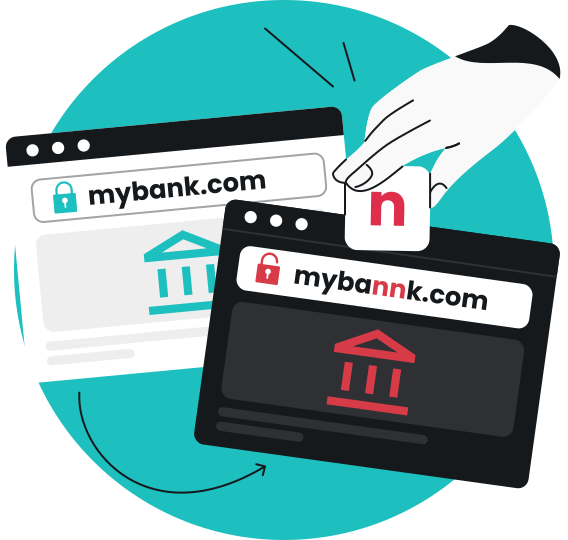
- Look-alike or misspelled URLs meant to mimic real websites such as apple-supp0rt.com or paypa1.com;
- Misleading subdomains like account.secure-login.example.com, which are designed to masquerade as legitimate bank links;
- Lengthy, cluttered URLs that use long strings of words to bury the actual domain, such as update-security-alert.verify-login.user.auth.mail.example.com.
Bad grammar, odd phrasing, or inconsistent tone
Frequent typos, awkward wording, or clumsy literal translations can hint at a scam attempt — especially with generic greetings like “Dear Customer.” Many scams rely on automated translation or recycled templates, making the text feel unnatural. Some scam text messages are well-written, though, so grammar alone isn’t proof. Rather, you should treat it as a warning sign.
Promises of rewards
Bad actors frequently use giveaways, free rewards, mystery prizes, or urgent refunds to lure you into tapping malicious links. These messages count on your curiosity or excitement, often leading to phishing sites or malware installation. Real companies don’t usually hand out gifts via text or charge fees to claim them. If it sounds too good to be true, it probably is.
Requests for sensitive information
Be wary if a random text message asks for personal or sensitive data. Reputable organizations don’t typically request your full password, banking PIN, credit card CVV (Card Verification Value), or verification codes through text. More likely, it’s a malicious actor hoping to capture these details to commit account takeovers or financial fraud.
What to do if I replied to a scam text message
If you replied to a scam text message, act fast to shut down the threat. Here are the steps you should take to contain the damage.
Run a full antivirus scan
One of the first things you should do is run a full system scan using a trusted antivirus like Surfshark Antivirus. Even if you haven’t entered any personal details or noticed anything unusual on your cell phone or online accounts after replying to a scam text, a deep scan can help identify and eliminate hidden threats.
A full scan goes deeper than a quick or partial one, checking layers of the system where malicious code can hide — including system files, installed apps, and permissions. If anything is found, follow the program’s instructions to remove or quarantine it immediately.
Change passwords using a secure device
If you entered any login credentials — say, for your email, bank, or social media — after tapping a sketchy link, assume they’ve been compromised. Use a secure device to change your passwords, not the one that might be affected. Start with high-risk accounts like email, banking, and payment apps, then move on to less critical ones such as social media and forums.
Choose strong, unique passwords — a password manager can help generate and store them securely if needed. Also, enable 2FA (Two-factor Authentication) whenever you can. It adds an extra layer of security by requiring a second verification step to log in. With 2FA enabled, hackers will have a much tougher time accessing your account, even if they have your username and password.
Restore from backup if needed
If your phone is exhibiting signs of compromise — random pop-ups, overheating, or settings changing on their own — after tapping a suspicious link, a restore from backup may be in order. Only do this if you’re confident the backup is clean, so you don’t reintroduce any infected files or apps.
If restoring from backup alone isn’t enough, perform a factory reset first. Then reinstall only from a known-clean backup, made before you tapped the link. Once done, fully update your operating system and apps before logging into any accounts.
Contact your bank or relevant services
If you gave out any financial or personal details — like card numbers, one-time passwords, or other identifiers — or simply want to play it safe, contact your bank, payment services, and other relevant providers right away. Let them know you might have responded to a scam text so they can freeze accounts, monitor for suspicious activity, or block attempted transactions.
It’s also a good idea to contact your mobile carrier to report the incident so they can block the number and warn other customers. If the message came through other platforms, such as WhatsApp or Telegram, file a report there as well.
Take extra precautions
These additional steps might not be essential in every case, but they help strengthen your defenses.
Here’s what you can do to further protect yourself:
- Monitor accounts and credit for the next 60–90 days and check bank statements, credit card bills, email security alerts, and account activity logs for suspicious activity;
- Take screenshots of the text, sender number, date and time, links, and any replies you sent to help your bank, your carrier, and law enforcement investigate;
- Stay alert for more suspicious messages as scammers often try again using different tricks once they know a number responds;
- Block and report scam numbers — something you can quickly do since most modern phones make it easy to stop unwanted messages.
How to protect yourself from future text scams
Whether you’re using an iPhone or an Android phone, no device is completely immune to text scams. That said, you can make yourself a much harder target by adopting a few smart security habits. Below are some of them.
Don’t tap on unknown links
If a message comes from a number you don’t recognize or the link within looks unfamiliar, the safest move is simply not to tap it. Even if it seems legitimate, the message could be a scam pretending to be your family members, banks, couriers, or other service providers. Instead of trusting it, go straight to the source. And if it’s a service, visit its official app or website directly.
Keep your phone updated
Make it a habit to install updates as soon as they’re available so you’re always running the latest security patches — especially for your browser, messaging apps, and mobile operating system. Regular updates help fix bugs, close security gaps, and block known threats. For convenience, turn on auto-updates and let your phone take care of the rest.
Use built-in spam filters
Most modern phones come with native spam-filters that automatically flag, quarantine, or mute suspicious text messages. While these features won’t catch everything, they still help block a huge chunk of low-effort scams before you even see them.
To enable spam filtering on an iPhone:
- Open Settings.
- Select Apps > Messages > Unknown & Spam.
- Toggle on Filter Unknown Senders.
To filter spam messages on an Android phone:
- Open the Messages app.
- Select ⋮ on the top right corner.
- Select Details > App settings.
- Select Spam protection or Spam & blocked, depending on your cell phone model.
- Toggle on Enable spam protection.
Enable text scam protection
While your phone’s built-in spam filters are a great starting point, they can sometimes miss more sophisticated threats. For an added layer of defense, you can use a dedicated text scam protection tool that spots and blocks malicious messages and dangerous senders before you even have a chance to reply.
Consider a VPN
A reliable VPN (Virtual Private Network), like Surfshark VPN, can add an extra layer of security. It hides your real IP (Internet Protocol) address, making it harder for malicious actors to tie your online activity back to your phone number. It also encrypts your traffic, protecting your personal data — especially on public Wi-Fi — so attackers can’t intercept it or use it to craft tailored scam texts.
Use an alternative number
Consider limiting how often and widely you share your primary phone number to cut down on text scams. One easy way to do so is by using Surfshark’s alternative number — a paid add-on feature that gives you a virtual number for receiving phone calls and texts.
With an alternative number, you can:
- Keep your main number off marketing lists and various databases, lowering the chance of it ending up on scammer lists;
- Reduce exposure by limiting how often and with whom you share your regular number, ensuring fewer people, apps, and companies see it in the first place;
- Switch to a fresh number every 30 days to clear out any spam texts, without affecting your primary number.
Stay alert with every message
Generally, you won’t automatically get hacked by replying to a text alone. Still, responding to dodgy text messages can sometimes expose you to scams, hacks, and other threats. So, keep an eye out for warning signs like urgent requests, suspicious links, and promises of unrealistic prizes — all clues that a text could be malicious.
However, even the most careful user can slip up when dealing with tricky text messages. That’s why it’s important to follow a few essential security habits: avoid tapping sketchy links, keep your phone up to date, and make use of your cell’s built-in spam filter. For added protection, consider Surfshark One — which comes with scam protection solutions, Surfshark Antivirus, VPN, and more.
Don’t let malicious or scam text messages trip you up
Add an extra layer of protection
Get SurfsharkFAQ
If you respond to an unknown text, can they track you?
No, responding to an unknown text alone doesn’t let someone track your location. That said, it’s best not to reply to unknown numbers — doing so can confirm your number is active and make you a potential target for scam, spam, or phishing attacks. Always verify the sender before you respond.
Can someone steal your info if you respond to a text?
No, just responding to a text won’t automatically let someone steal your information. However, scammers and other bad actors often use texts to trick you into sharing sensitive data.
They might ask for things like login credentials, credit card numbers, or answers to security questions — all valuable information they can exploit to access your accounts, commit identity theft, and more.
Can you get hacked by replying to a text on WhatsApp?
No, generally, you won’t get hacked simply by replying to a text on WhatsApp. Still, like any messaging platform, scammers and other malicious actors may use WhatsApp to trick users into giving away personal data or tapping harmful links. That’s why it’s important not to tap on unknown links, share sensitive info, or download suspicious files.
Can you get hacked by replying to a text on Instagram?
No, you won’t get hacked by replying to a text on Instagram. However, hackers and scammers sometimes send messages containing links, files, or requests for personal information that could lead to phishing or account compromise.
What happens if you reply to a hacked Facebook account message?
Replying to a message from a hacked Facebook account won’t automatically compromise your account. That said, chances are the message could include malware, phishing links, or other scams and tricks. So, don’t tap on any links, download files, or share personal info. Instead, report the account to Facebook.