You click a link, and instead of loading the page, your browser throws up a full-screen warning:
“Your connection is not private.”
The message may sound alarming, but it just means your browser tried to open a secure, encrypted connection to a website and couldn’t verify its safety. There’s typically no need to be concerned, as it’s a protective measure, not a sign that something bad has happened.
This guide will help you understand exactly what’s going on with this error message, explain why the issue may be on your end or a website’s, and walk you through the most common fixes.
What does “your connection is not private” mean?
The “your connection is not private” error appears when your browser can’t verify a site’s SSL certificate.
You see, when you visit a website that starts with HTTPS, your browser checks the site’s SSL certificate before loading the page. Think of an SSL certificate like an ID badge. It confirms the website is what it claims to be and that the data you send (passwords, payment details, personal info, etc.) will be encrypted during transit.
So if your browser can’t get clear information about this ID badge, an error message will pop up.
This could happen for a number of fairly common reasons. Maybe the certificate expired. Maybe it was issued for a different domain. Maybe it simply doesn’t exist.
Without a valid certificate, the browser can’t guarantee two things:
- You’re talking to the right website. It might be an impostor.
- Your data is encrypted. Third parties between you and the server may be able to read it.
Instead of putting you in a risky situation, your browser will likely block the page and show you a warning. While every major browser does this — including Chrome, Firefox, Safari, and Edge — each displays a slightly different version of the message.
Is the problem on your device or the website?
Before you start troubleshooting, it’s a good idea to spend a few seconds figuring out why you’re seeing a “your connection is not private” error. Use this table to guide you.
|
What you’re seeing
|
Most likely cause
|
What to do
|
|
The warning appears on only one website
|
The website’s SSL certificate is expired, misconfigured, or missing
|
Return to the site later so the owner can fix it, or proceed with caution if you trust the site
|
|
The warning is on every website you visit
|
Your device has an outdated browser, corrupted cache, interfering software, or an incorrect date/time
|
Follow the device-side troubleshooting steps below
|
|
The warning disappears when you switch to mobile data
|
A Wi-Fi or network issue, like a firewall or captive portal
|
Check your router, try a different network, or disconnect from public Wi-Fi
|
|
The warning started after installing new software
|
Something on your device, like a VPN (Virtual Private Network), antivirus program, or browser extension, is interfering with certificate validation
|
Temporarily turn off the recently installed software and try again
|
Why am I seeing a “your connection is not private” error?
Several things can trigger this error. Here’s a range of possible causes, starting with the ones you’re most likely to run into.
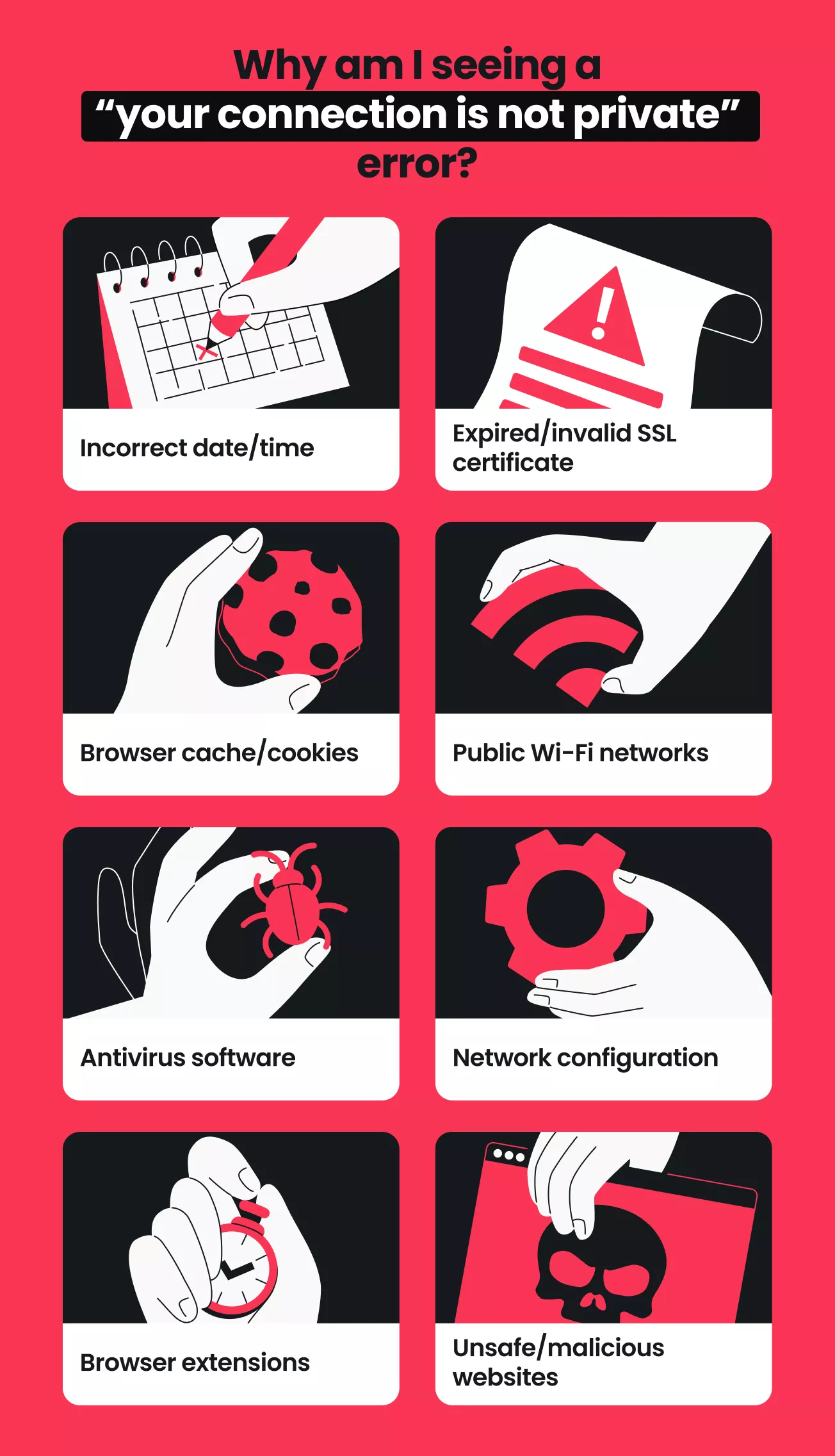
Incorrect date and time
Your computer’s date and time are used to check whether an SSL certificate is valid. If your system clock is wrong, your browser may reject a perfectly valid certificate because it thinks the certificate has expired or isn’t active yet. This can apply if your clock is off by minutes, hours, or even days.
This is a surprisingly common cause, especially after a battery replacement, time zone change, or system reset.
Expired or invalid SSL certificates
Every SSL certificate has an expiration date. When a website owner forgets to renew it, your browser sees an expired ID badge and blocks the connection. There’s nothing to do on your end, as the website owner needs to renew or replace the certificate themselves.
A certificate can also be flagged as invalid if it’s issued for a different domain name, uses outdated encryption standards, or is self-signed. A self-signed SSL certificate is created by the website owner rather than a trusted certificate authority.
Browser cache and cookies
Your browser stores pieces of website data, known as cached files and cookies, to load pages faster on return visits. Sometimes that cached data includes outdated SSL certificate information.
If that’s the case, you may see the error even after the website owner has fixed the problem on their end.
Public Wi-Fi networks
Public Wi-Fi at airports, hotels, and cafés often uses captive portals. These are those login screens that pop up before granting you internet access. Until you authenticate, the network may intercept your HTTPS requests and trigger a “connection is not private” message.
Some public networks also lack proper security configurations, making them more vulnerable to interference.
Antivirus software interference
Many antivirus programs include a feature called HTTPS scanning or SSL inspection. This works by intercepting encrypted traffic between your browser and websites, letting the antivirus scan the content for threats.
Your browser may see the antivirus sitting in the middle of your connection and treat it like a potential attack.
VPN or network configuration issues
A VPN routes your traffic through a different server, which occasionally causes certificate validation to fail. This can happen when a VPN server’s connection to a website doesn’t align with the certificate’s expected configuration, or when a specific VPN server has connectivity issues.
Misconfigured network settings, like a custom proxy or DNS (Domain Name System) server, can also prevent your browser from properly validating certificates.
Browser extensions
Extensions that modify web requests, block ads, or inject scripts into pages can interfere with the SSL handshake. Security-focused extensions and ad blockers are the most common culprits, but any extension that touches network traffic can cause connectivity issues.
Unsafe or malicious websites
Sometimes, the “your connection is not private” error is correctly doing its job and protecting you. The website may genuinely lack a valid SSL certificate because it’s poorly maintained, misconfigured, or deliberately set up to steal your data.
If you don’t recognize the website or if it’s asking for login credentials or payment information, take the warning seriously.
How to fix the “your connection is not private” error
These fixes start with the quickest and most likely to work. Work through them in order.
- Reload the page
The simplest solution is surprisingly effective. To refresh a webpage:
- Windows: hit F5;
- Mac: hit Command + R;
- Android or iOS: tap the circular arrow in the address bar.
SSL errors can occur due to brief server hiccups or interrupted connections. A reload often clears these.
For a hard refresh that bypasses cached data, you can also use:
- Windows: Ctrl + Shift + R;
- Mac: Command + Shift + R;
- Android or iOS: clear the browser cache separately, as no keyboard shortcut exists.
- Check your date and time
Open your device’s date and time settings and make sure they’re correct. On most systems, you can turn on automatic synchronization with an internet time server to prevent future problems:
- Windows: Settings > Time & Language > Date & Time > Toggle on Set time automatically;
- Mac: System Settings > General > Date & Time > Toggle on Set date and time automatically;
- Android: Settings > System > Date & time > Toggle on Automatic date & time;
- iOS: Settings > General > Date & Time > Toggle on Set Automatically.
- Try incognito mode
Open the page in an Incognito window (Chrome), private window (Firefox/Safari), or InPrivate window (Edge). These modes ignore your existing cached data and cookies.
If the page loads without the error in incognito mode, the issue is with your stored browsing data. Clear your cache and cookies to resolve the issue.
- Clear your browser cache and cookies
Clear your browser cache and cookies according to the following:
- Chrome: Settings > Privacy and security > Delete browsing data > Select Cookies and Cached images/files > Delete data;
- Firefox: Settings > Privacy & Security > Cookies and Site Data > Clear Data;
- Safari: Settings > Privacy > Manage Website Data > Remove All;
- Edge: Settings > Privacy, search, and services > Choose what to clear > Select Cookies and other site data and Cached images and files > Clear now.
- Turn extensions off
Turn off all browser extensions, then reload the page. If the error disappears, turn your extensions back on one at a time to identify the one causing the problem.
Ad blockers, privacy extensions, and VPN browser extensions may cause this error.
- Check your antivirus settings
If you use antivirus software with HTTPS scanning or SSL inspection, temporarily turn off that specific feature (not the entire antivirus). Reload the page and see if the error clears.
Look for settings labeled HTTPS scanning, SSL scanning, or Encrypted connection scanning in your antivirus dashboard.
- Check your VPN connection
If you’re using a VPN, disconnect and try loading the same page. If the error disappears, try reconnecting to a different VPN server. Some servers have better routing than others, and switching usually resolves the issue.
If you’re on a network you don’t trust, reconnect the VPN once you’ve confirmed the page loads correctly — don’t browse unprotected.
- Update your browser
Outdated browsers may not support current SSL certificate standards. Here’s how you can check for updates:
- Chrome: select the three vertical dots > Settings > About Chrome;
- Firefox: select the three horizontal lines > Settings > General > Firefox Updates;
- Safari: check for macOS or iOS updates on your Apple device, as Safari updates are bundled into these system updates;
- Edge: select the three horizontal dots > Settings > About Microsoft Edge.
- Update your operating system
An outdated operating system may lack the latest trusted certificate authorities or security patches needed for proper SSL validation. Check for OS updates in your system settings.
- Try another network
If you’re on public Wi-Fi, switch to mobile data or a different network. If the error disappears, the original network was the problem. It could have been using a captive portal or filtering HTTPS traffic.
How to fix the error in Chrome
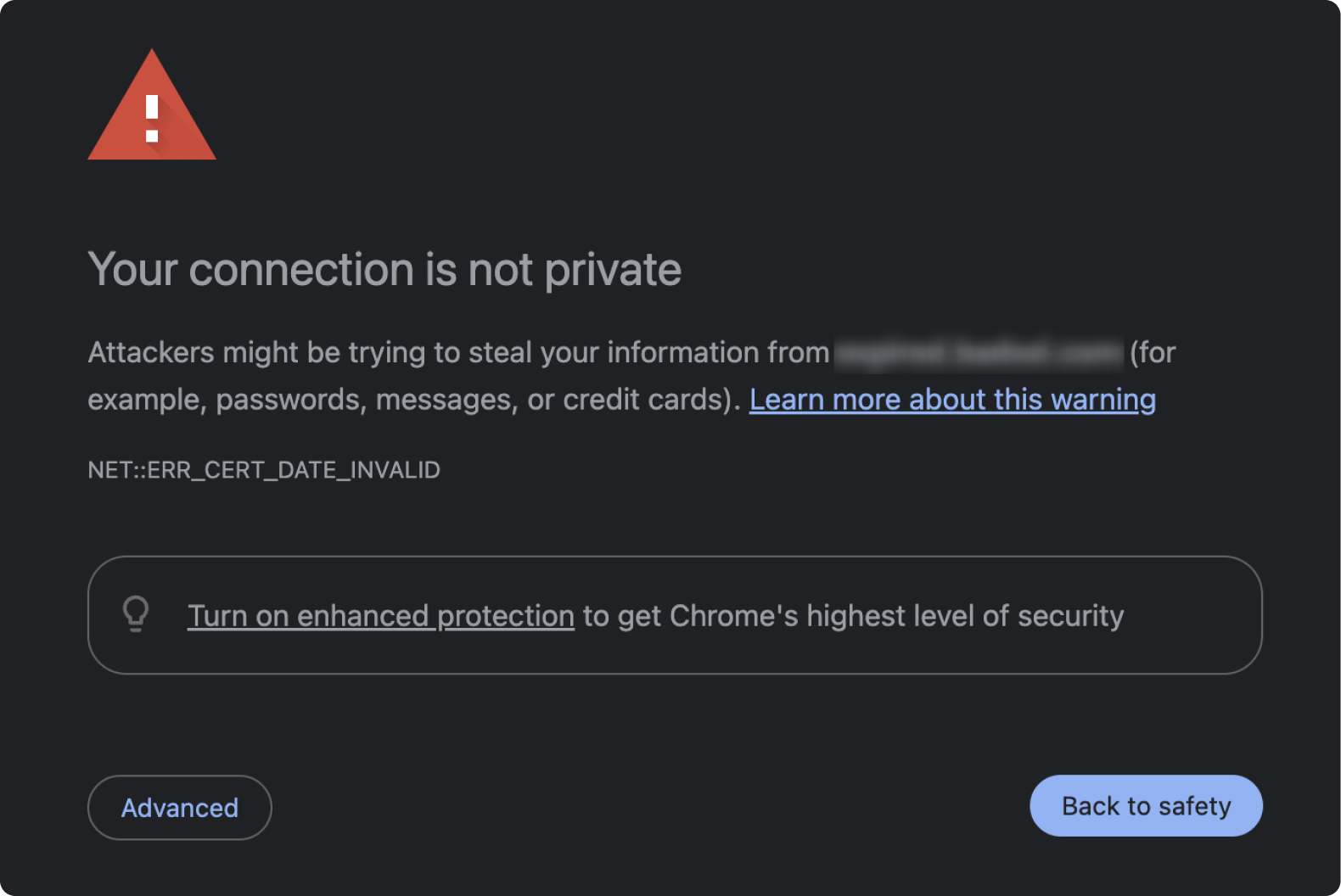
If Google Chrome displays a “Your connection is not private” message along with a red warning icon and a specific error code below it, you can try these steps to fix it:
- Try the general fixes listed above (refresh your browser, check date/time, clear cache, etc.). The specific error code may point you in the right direction. For example, if you see a code like NET::ERR_CERT_DATE_INVALID, check your system clock first.
- Enter chrome://settings/security in your address bar and make sure Standard protection or Enhanced protection is selected.
- If the error persists, go to chrome://flags and search for SSL. If you find any experimental features Enabled, switch them to Default or Disabled.
- As a last resort, you can reset Chrome to its default settings. Go to Settings > Reset settings > Restore settings to their original defaults.
How to fix the error in Firefox
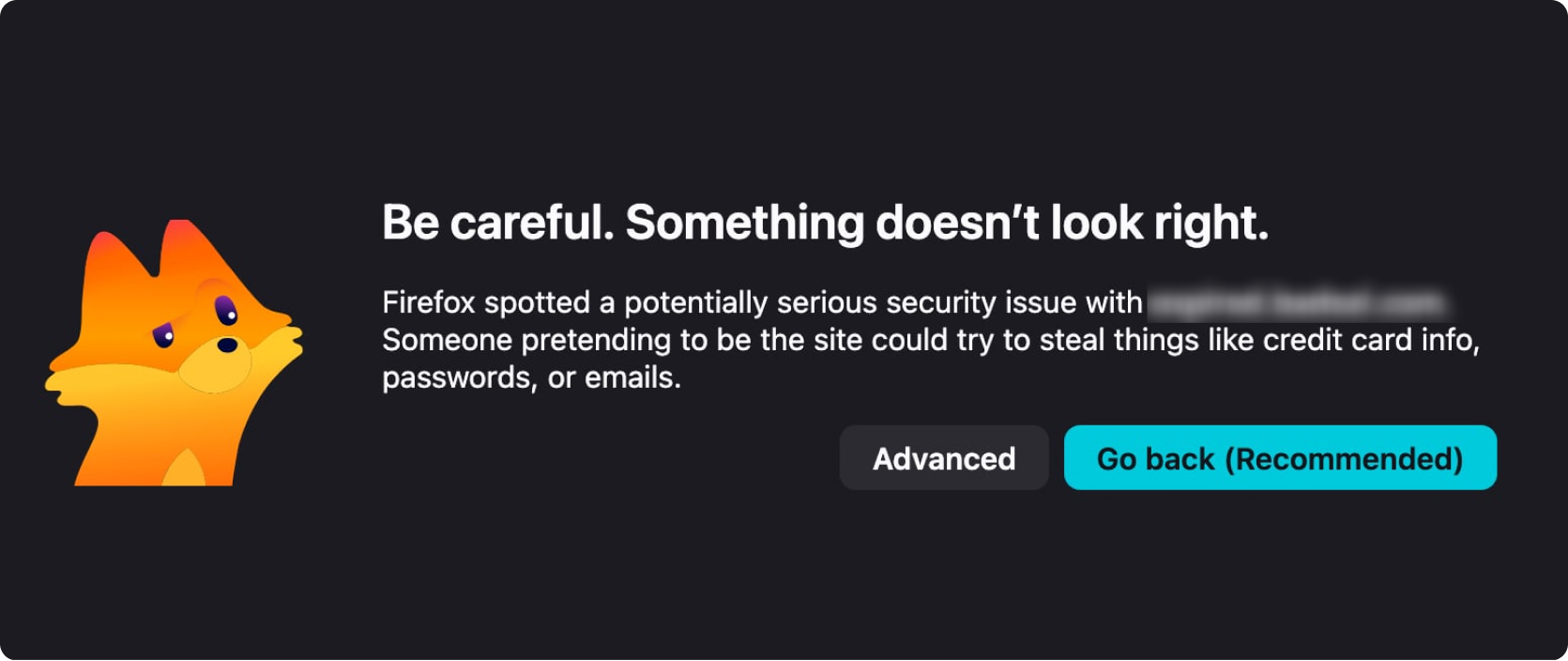
Firefox uses different wording, such as “Be careful. Something doesn’t look right” or “Your connection is not secure.” It also uses its own certificate store, separate from your operating system’s.
To fix the error in Firefox:
- Run through the general fixes: reload the browser, clear your cache, try InPrivate mode, etc.
- Go to Settings > Privacy & Security. Scroll to Certificates and select View Certificates. Under the Authorities tab, check whether any trusted authorities have been removed or set to untrusted.
- In the same Privacy & Security section, check whether Query OCSP responder servers is turned on. Turning this off may cause certificate errors.
How to fix the error in Safari
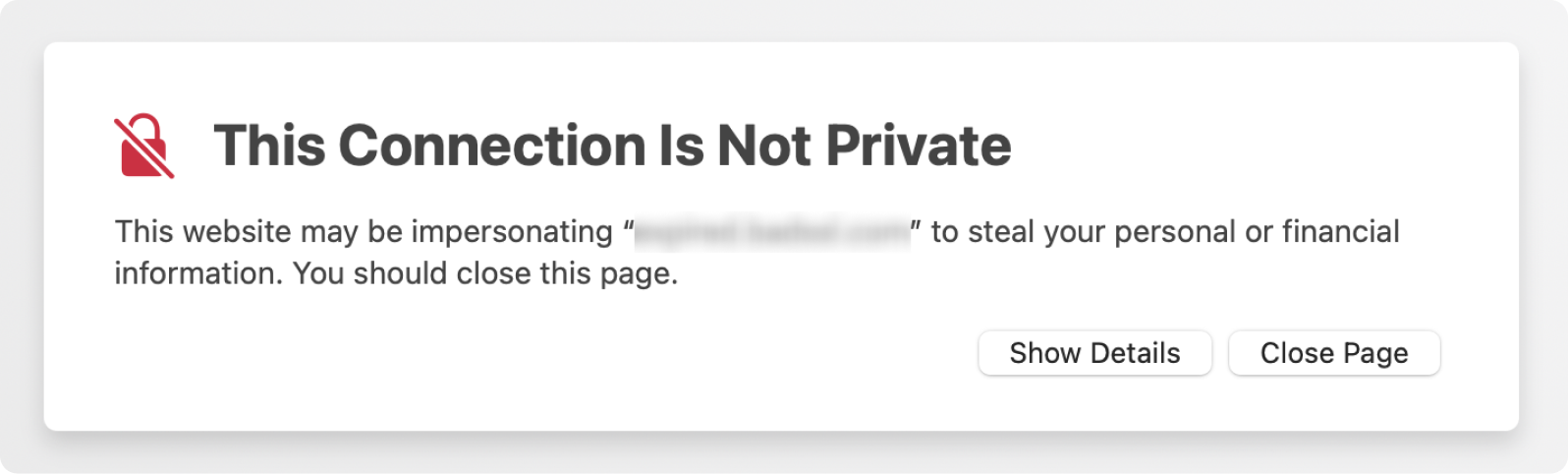
Safari shows the message “This Connection Is Not Private,” using slightly different wording. To fix this error in Safari on your Mac or iPhone, follow these steps:
- Try the general fixes first. For instance, you can make sure your device’s date and time are set to automatic or clear Safari’s website data.
- On a Mac, open Keychain Access (you can search for it in Spotlight). Select System Roots under Keychains and check whether any certificates are marked as Never Trust. If a legitimate certificate authority was accidentally set to Never Trust, change it back to Use System Defaults.
- Update macOS or iOS, as Apple bundles certificate trust store updates with OS releases.
Safari’s “connection is not private” messages are especially common on older macOS versions that haven’t received recent certificate authority updates.
How to fix the error in Microsoft Edge
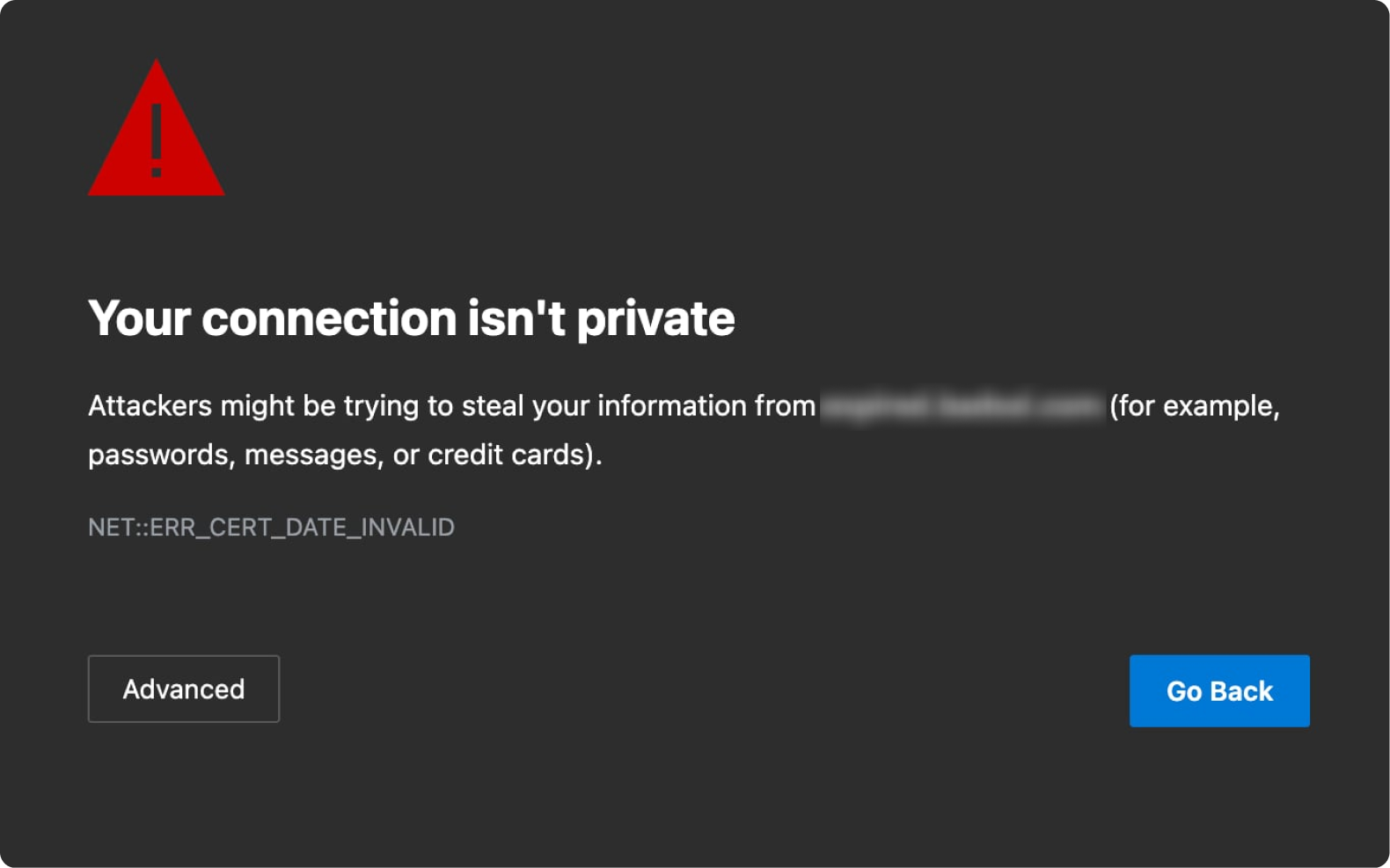
Edge displays “Your connection isn’t private” with error codes similar to Chrome.
To fix this error in Edge:
- Run through the general fixes.
- Enter edge://settings/privacy in the address bar and make sure Enhance your security on the web isn’t set to Strict. This can block legitimate certificates in rare cases.
- Turn off any Edge extensions by going to edge://extensions and toggling them off.
- Check Windows for pending updates, especially security updates that include certificate store refreshes.
What do common certificate error codes mean?
When your browser shows a “connection is not private” error, it usually includes a specific error code. Here’s what the most common codes mean:
|
Error code
|
What it means
|
|
NET::ERR_CERT_DATE_INVALID
|
The SSL certificate has expired, or your computer’s date and time are wrong.
|
|
NET::ERR_CERT_AUTHORITY_INVALID
|
The certificate was issued by an authority your browser doesn’t recognize. This is often a self-signed certificate.
|
|
NET::ERR_CERT_COMMON_NAME_INVALID
|
The domain name on the certificate doesn’t match the URL in the address bar. Try adding or removing www from the URL.
|
|
ERR_SSL_PROTOCOL_ERROR
|
A general SSL connection failure. This could be caused by network settings, browser issues, or server misconfiguration.
|
|
ERR_SSL_VERSION_OR_CIPHER_MISMATCH
|
The website is using an outdated SSL/TLS version or encryption method that your browser no longer supports.
|
|
SEC_ERROR_EXPIRED_CERTIFICATE (only on Firefox)
|
The website’s SSL certificate has expired.
|
|
SEC_ERROR_UNKNOWN_ISSUER (only on Firefox)
|
The certificate authority isn’t recognized. This is common with antivirus HTTPS scanning.
|
Can a VPN cause a “your connection is not private” error?
While it’s uncommon, a VPN can cause this error.
A VPN encrypts your traffic and routes it through a remote server. This is excellent for privacy, especially on public Wi-Fi. Nevertheless, VPN security can interfere with certificate validation in certain situations.
Here’s when it might happen:
- Server-side routing issues: a specific VPN server may have trouble connecting to a website’s certificate verification infrastructure;
- DNS resolution conflicts: if the VPN’s DNS settings don’t align with the website’s certificate configuration, validation can fail;
- Outdated VPN software: older VPN versions may handle SSL/TLS certificates differently than current browsers expect.
You can test whether your VPN is involved with this error via the following steps:
- Disconnect the VPN and reload the page. If the page loads normally, the VPN was likely the cause.
- Reconnect to a different VPN server and try again. This usually resolves the issue.
- If the problem persists across multiple servers, update your VPN app and try once more.
Note: The website’s SSL certificate is almost always the root cause of these errors, not the VPN encryption. If disconnecting the VPN doesn’t fix the error, the issue lies elsewhere.
Should you bypass the warning?
Sometimes it’s safe to bypass these warnings, but you need to know the difference between low-risk and high-risk situations.
It’s generally safe to bypass when you’re:
- On your home router’s admin page: this often uses self-signed certificates and triggers the warning by default;
- Using internal tools or local network devices: printers, storage devices, and development servers commonly lack valid SSL certificates;
- Visiting a trusted website with a temporary certificate issue: if you know and trust the site, and it was working fine recently, the owner may just be in the middle of renewing the certificate.
You should never bypass on:
- Banking or financial websites: if your bank’s website triggers this error, do not proceed. Contact the bank directly;
- Login pages: entering your login credentials on an unverified connection means your username and password could be intercepted;
- Online stores or checkout pages: submitting payment details without an encrypted connection puts your financial data at risk;
- Any website you don’t recognize: if you landed on the site through a link in an email, message, or ad, treat the warning as a legitimate red flag.
When you’re confident it’s safe, you can bypass the warning by selecting Advanced or Show Details on the error page and choosing to proceed to the website. The exact wording varies by browser.
Why does every website say “your connection is not private?”
If the error appears on every website you visit and not just one, the problem is almost certainly on your device or network, not with individual websites.
If that’s the case, here are the top causes:
- Incorrect system clock: even being off by a few hours can cause your browser to reject every SSL certificate it checks against;
- Antivirus HTTPS inspection: some antivirus programs intercept all encrypted traffic for scanning. If the antivirus certificate isn’t properly installed in your browser’s trust store, every HTTPS site will trigger the warning;
- Corrupted certificate store: your operating system maintains a list of trusted certificate authorities. If that list gets corrupted through a failed update, malware, or misconfiguration, no certificate will pass validation;
- Outdated browser or OS: if your browser or operating system is significantly out of date, it may not recognize newer certificate authorities;
- Network-level interference: corporate firewalls, parental controls, and some ISP configurations can intercept HTTPS traffic, causing the error on every site.
To fix this, start by checking your system clock and clearing your browser cache. If those don’t work, check your antivirus settings and make sure your browser and OS are up to date.
How to protect your privacy when browsing online
The “connection is not private” error is a reminder that online security depends on more than just visiting the right websites. Here are practical habits that reduce your exposure to internet threats:
- Keep your browser and operating system updated: updates include security patches and refreshed certificate trust stores;
- Clear your cached data regularly: a stale cache can cause security errors and slow down your browsing;
- Be cautious on public Wi-Fi: open networks are prime targets for online snoops. Using a VPN can help protect your connection on shared networks;
- Check the address bar before entering sensitive information: look for HTTPS and the padlock icon. If they’re not there, the connection isn’t encrypted;
- Run a browser security test: tools that run browser security tests can identify vulnerabilities in your current setup;
- Don’t ignore certificate warnings: they exist for a reason. Treat them as a signal to investigate, not some annoying hurdle to click past.
Key takeaway: don’t fear the error
The “your connection is not private” error just means your browser couldn’t verify a website’s SSL certificate and blocked the page to protect you. Most of the time, the fix is straightforward, but remember to only bypass the warning when you’re certain the website is safe.
While a VPN won’t fix SSL certificate errors, it does help protect your data on unsecured networks — exactly the kind of situation where these warnings tend to appear. Encrypt your internet traffic with a VPN and elevate your online security today.
FAQ
How do you fix “your connection is not private?”
The simplest ways to fix this error are to reload the page, check that your device’s time and date are correct, and try opening the page in incognito or private mode. If those don’t work, clear your browser cache and cookies, turn off extensions, and check whether your antivirus or VPN is interfering. If the error only appears on one website, the issue is likely on the website’s end, not yours.
If the error only appears on one website, the issue is likely on the website’s end, not yours.
Why is Chrome suddenly saying everything is not secure?
The most common cause of this message is an incorrect system clock. If your computer’s date and time are off, Chrome will reject every SSL certificate it checks. Go to your device’s date and time settings and enable automatic synchronization. If that doesn’t fix it, clear your browser cache, turn off HTTPS scanning in your antivirus software, and make sure both Chrome and your operating system are up to date.
If that doesn’t fix it, clear your browser cache, turn off HTTPS scanning in your antivirus software, and make sure both Chrome and your operating system are up to date.
Is it safe to visit a website that says “your connection is not private”?
A “your connection is not private” error is sometimes caused by a harmless user-side issue, such as an incorrect computer clock, but the safety of websites displaying this message varies. Never bypass the warning on banking sites, login pages, online stores, or unfamiliar websites. Without a verified SSL certificate, any data you send could be intercepted.
Without a verified SSL certificate, any data you send could be intercepted.