Slower performance, suspicious pop-ups, and unusual account activity can all be signs your computer has been hacked. Since these indicators can sometimes be subtle, they’re often easy to miss.
Catching them early, though, can make a huge difference in minimizing damage. Let’s go over how to spot the red flags, what to do next, and how to prevent future attacks.
6 signs that your computer has been hacked
If your computer has been compromised, you’ll likely notice a few warning signs — some more obvious than others. Here are several suspicious behaviors to look out for:
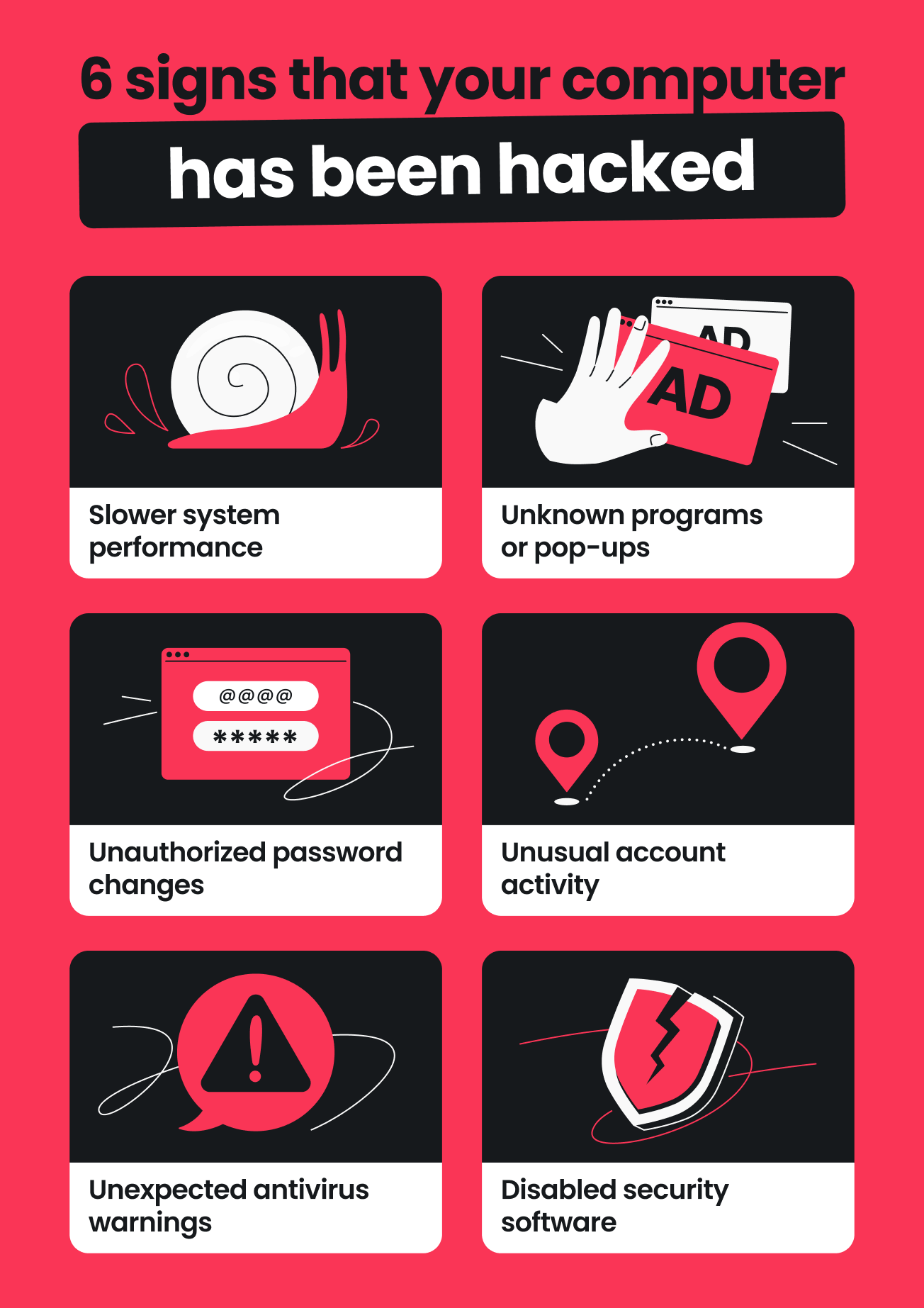
Slower performance
If your computer suddenly feels sluggish, it might be a sign that it’s been hacked. Websites may take much longer to load, files or applications may open slowly, or your computer may even freeze or crash during simple tasks. You might also hear the fan working overtime or notice your browser lagging, even when you’re not doing much.
Slowdowns can happen due to age or clutter, but malware planted by hackers during an attack can also be a culprit. Once inside your operating system, these programs run hidden processes that drain resources like CPU, memory, and bandwidth. Data-harvesting malware, for instance, eats up storage and bandwidth as it scans, copies, and uploads files in the background.
Unknown programs or pop-ups
Finding new apps, browser extensions, or pop-ups you don’t recognize could mean someone’s been tampering with your computer. Hackers often install additional software for different reasons, such as:
- Backdoors or remote access tools that let them sneak back into your device even after you restart it or change passwords;
- Spyware or keyloggers that quietly steal your login credentials, track browsing activity, or copy personal files;
- Worms or other network-based malware that infect other devices connected to the same network.
That’s when you might notice new desktop shortcuts, unfamiliar software in your installed programs list, or background apps that launch automatically when your computer starts. You might also run into fake antivirus messages urging you to “fix errors,” “remove threats,” or “renew your subscription.” Sometimes these appear even when your browser isn’t open.
Sudden password changes
If your usual login credentials no longer work or you’re locked out of your accounts, it can be a major tip-off that your computer’s been compromised. You might receive password reset emails you didn’t request, notice a new recovery email or phone number added to your account, or see login attempts from strange locations or devices.
This can happen when malware infiltrates your computer and steals saved passwords or captures them as you type. Once hackers have those credentials, they can log in, change passwords, and lock you out to take control of your computer remotely. From there, they may use your compromised accounts to steal data, spread malware to others, or even impersonate you in phishing scams.
Unusual account activity
Another sign your computer might be hacked is unexplained activity in your accounts. Because your computer stores sensitive data — like login info, saved payment details, and online account settings — any anomalies in your accounts could signal that someone’s interfering with your computer rather than just the accounts.
Keep an eye out for:
- Emails, messages, or social media posts you didn’t write;
- Logins from IP (Internet Protocol) addresses, devices, or countries you don’t recognize;
- New files appearing or existing ones disappearing;
- Purchases, transfers, or subscription changes you didn’t approve;
- New contacts, friends, or followers popping up unexpectedly.
Unexpected antivirus warnings
Don’t ignore alerts from your computer’s antivirus program — these can be early indicators of malicious activity on your machine. While all alerts should be taken seriously, threats marked as unknown deserve extra caution. They may be new malware strains, malicious software designed for targeted attacks, or PUPs (Potentially Unwanted Programs) that could harm your system.
Additionally, watch closely if the same file or process triggers multiple alerts. And if you keep seeing the same alerts, even after trying to remove the threat, it likely means the infection hasn’t been fully removed. You should also treat alerts that coincide with unusual system behavior — such as slowdowns, crashes, or abnormal network activity — as a red flag worth checking out.
Disabled security software
If your antivirus software, firewall, system updates, or other security tools are turned off — and you didn’t do it yourself — it could suggest your computer has been hacked or compromised. Many types of malware shut down or tamper with security defenses as soon as they install to avoid detection or removal.
Look out for signs such as:
- Deactivated or blocked antivirus software;
- Failed reinstall attempts for security software;
- Changed firewall rules or deactivated firewall service;
- Missing security apps or altered program files;
- Blocked or failed system updates.
Other signs your computer is hacked
Not every computer hack presents the same warning signs. Here are some additional clues to keep an eye on:
- Files missing or showing new extensions like .locked or .encrypted;
- Browser homepage or search engine changing on its own;
- Random ads popping up after you install free software;
- Mouse moving or clicking without your input;
- Laptop battery draining faster than usual.
What should you do if your computer is hacked?
Finding out your computer has been hacked can be frustrating. But staying calm and taking quick action can help limit any damage. Here are a few steps you can take right away:
1. Disconnect from the internet
Unplug your Ethernet cable, turn off Wi-Fi, or enable Airplane Mode immediately. By severing your internet connection, you cut off the hacker’s access, stop malware from communicating with its control server, and prevent an infection from spreading to other connected devices on your network.
2. Change your passwords using a secure device
From a safe device — like a phone, tablet, or another computer — update the passwords for your vital accounts. Start with your email, online banking, and cloud storage. Make each password unique and mix in upper and lowercase letters, numbers, and special characters.
3. Run a full antivirus scan
Use a reliable antivirus to run a full system scan. Full scans take longer than quick or partial scans but cover everything — including files, folders, running processes, and key system settings. If anything suspicious pops up, follow the prompts to remove or quarantine it.
4. Contact your bank and other critical services
If you’ve used the hacked computer for online banking, shopping, or payments, contact your bank, financial institution, or credit card company right away. Ask them to monitor or even temporarily freeze your accounts if needed. Also notify other services that store sensitive information, like your email provider or workplace if it’s a work device.
How to protect your computer from hackers
No security setup is completely foolproof, but you can make it much harder for hackers to break into your computer with the right defenses. Let’s run through some practical tips to help boost your computer security.
Use strong passwords and enable two-factor authentication
Create strong, unique passwords for all your online accounts, particularly for your email, banking, and other sensitive services. Strong passwords combine upper and lowercase letters, numbers, and special characters, making them difficult to guess or crack.
Make sure to also switch on 2FA (Two-Factor Authentication) whenever you can. This adds another layer of verification before you can log in to your account. Even if someone somehow gets your password, they still can’t get into your account without completing the second verification step.
Install a reputable antivirus
Get a reliable antivirus program, like Surfshark Antivirus, since hackers often use viruses and malware to compromise computer security.
Here’s how Surfshark Antivirus can help:
- Real-time protection continuously scans your files, downloads, and activities to intercept and neutralize malware before it can take control of your computer or spread to your other devices;
- Scheduled and on-demand scans catch threats that slip through unnoticed or activate later, such as ransomware or keyloggers, preventing hackers from exploiting them;
- Web protection blocks access to malicious websites and apps before they can deliver harmful malware through fake links, pop-ups, or infected files.
Avoid clicking on suspicious links or downloading unknown files
Many hacks start with just a click — whether it’s a link that looks legit or a file that seems harmless. Malicious actors often use these to sneak malware into your system, giving them access to your confidential data or even control of your computer. You’ll often find these traps in phishing emails, bogus software updates, or fake websites that mimic legitimate ones.
To minimize the risk, be very careful about what you click and download. Check the sender’s address, hover over links to see where they lead, and stick to official or trusted sources when downloading software or attachments. If in doubt, don’t click.
Use a VPN to encrypt your internet traffic
A reliable VPN (Virtual Private Network) like Surfshark VPN encrypts your internet traffic, keeping your online activity private.
Even if someone is spying on your network (say, on public Wi-Fi), a VPN makes it harder for them to read or tamper with your data to capture login details, inject malicious code, or hijack your session — all common ways hackers gain access to your computer.
Additionally, a VPN masks your real IP address. This makes it significantly harder for attackers to identify, locate, or directly target your computer in IP-based attacks such as brute-force attempts.
Other ways to protect your computer from hackers
With hackers getting more and more creative, it’s smart to cover your bases. Here are some basic security protocols you can follow to layer up your defenses:
- Install the latest updates for your operating system, browser, apps, plugins, and other software, as they often contain the latest security patches for vulnerabilities that hackers can exploit;
- Turn on your computer’s firewall to filter incoming and outgoing connections and block unauthorized access;
- Avoid using public Wi-Fi networks without a VPN to keep your data safe from snooping or interception;
- Back up your important data regularly so you don’t lose everything if ransomware or other attacks hit your system.
Stay sharp and keep your computer safe
No one can guarantee that your computer will stay 100% hack-free, which is why it’s important to always keep your wits about you and watch out for red flags. This can include lagging performance, unprompted password changes, or irregular account activity.
It also helps to take basic security measures that reduce the risk of infection. Avoid clicking on suspicious pop-ups or links. Use strong, unique passwords. And for even stronger protection, use Surfshark Antivirus — included in the Surfshark One bundle — to clean up after hacks and block future threats.
Don’t let hackers take over your computer
Stay one step ahead of hacks and other online threats
Get SurfsharkFAQ
Can you tell if someone accessed your computer?
Yes, you can often tell if someone has accessed your computer by looking out for warning signs. This can include sluggish operation, fake antivirus software messages on your desktop or browser, unauthorized password changes, and unusual account activity.
Can a hacker be traced?
Yes, a hacker can be traced in some cases. You can sometimes link an attack to a device, IP range, or country using logs, malware forensics, and assistance from your ISP (Internet Service Provider) or law enforcement.
However, most skilled attackers hide their tracks using proxies, Tor (The Onion Router), or stolen or compromised infrastructure like hijacked servers. So it’s not always easy or possible to pinpoint who’s behind a hack.
What is the first thing you should change if you are hacked?
The first thing you should change if you’re hacked is your passwords. Start with major online accounts, including your email, bank accounts, and payment apps, and other services with sensitive personal or financial information. Then you can move on to less critical ones, like social media sites or community forums.