

Yes, a Wi-Fi owner can usually see some information about the websites you visit on your phone. Modern HTTPS sites hide the specific pages and content you view, but a surprising amount of information, like domain names and connection times, is still visible.
Keep reading for a breakdown of what’s visible, who else can track your internet history, and why a VPN (Virtual Private Network) is a simple way to make your traffic unreadable to the Wi-Fi owner.
What can a Wi-Fi owner see?
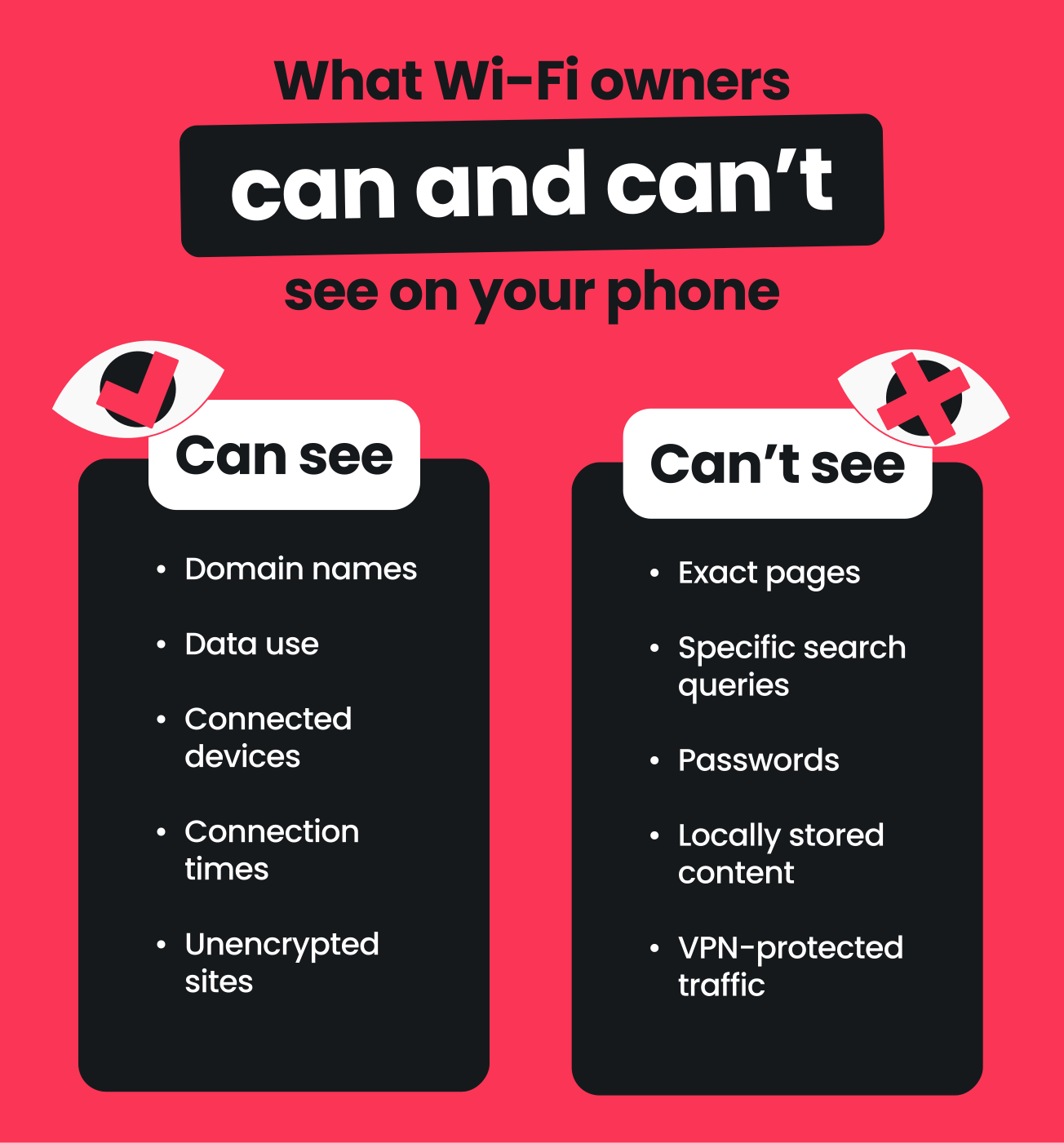
Depending on their tools and skill level, the owner or admin of your Wi-Fi network can see the following when you’re browsing online:
- Domains you visit: the specific pages you visit aren’t visible, but Wi-Fi owners can usually see domain-level web addresses, like surfshark.com;
- How much data you use: total data usage per device is often visible. At times, this can also be broken down by destination or app category;
- Devices connected to the network: many routers let Wi-Fi owners view connected devices in the router’s admin panel. Info like your IP (Internet Protocol) and MAC (Media Access Control) addresses is commonly there, while more specific details like your OS or phone model might be seen as well;
- Connection times: owners can see timestamps for when your device connected to the network, when it accessed a specific site or app, and how long your session lasted;
- IP addresses you contact: the numerical internet addresses your device connects to can be mapped, so others may see the online services you’re visiting or your approximate geographic location;
- Unencrypted websites and apps: if the sites you visit are on HTTP (not HTTPS), the network owner may be able to see the exact pages you’re on, your search queries, and even the actual content you’re viewing.
Note: Public Wi‑Fi networks at cafés, airports, or hotels often use gateway systems that make it even easier for public Wi‑Fi owners or network admins to see the above information.
What can’t a Wi-Fi owner see?
Thanks to encryption on modern HTTPS websites and most mainstream apps, Wi-Fi owners generally can’t see:
- Exact pages: apart from the basic domain names, specific web pages you open and the content on them aren’t visible;
- Specific search queries: your chosen search engine will be visible via its domain, but others won’t see what you’re actually searching for;
- In-app content: messages, photos, and emails in end-to-end encrypted apps can’t be seen;
- Passwords and login credentials: things like your social media passwords, form data, or bank account details aren’t exposed to your wireless router;
- Locally stored content: anything stored on your phone, like files, photos, or passwords, isn’t transmitted over Wi-Fi unless you upload or sync it;
- VPN-protected traffic: if you use a reputable VPN, the Wi-Fi router can’t track your online activity. It mostly sees scrambled, encrypted traffic and the VPN server’s IP address, not your own.
Who else can track my internet history data?
Besides Wi-Fi owners, these actors might be able to access parts of your browsing history and internet activity:
- ISPs (Internet Service Providers): your ISP can log domains, IP addresses, data usage, and timing. In some regions, ISPs are even able to store and share this data;
- Government agencies: depending on local laws, authorities can request access to ISP/router logs and other records;
- Search engines: Google and other search engines can link your search queries to your account or phone when you’re signed in;
- Social media platforms: many social media apps collect behavioral data from users, including what you view or interact with while on their platform;
- Schools and employers: campuses and workplaces often use monitored networks or devices, letting admins enforce usage policies and view network logs;
- Family members: others in your household can learn a lot about your phone activity if they have access to your device. They might see synced browsing data via shared accounts, view search history through shared profiles, or read activity from parental-control apps;
- Cybercriminals: attackers and snoops on your network may use tactics such as rogue hotspots, ARP (Address Resolution Protocol) spoofing, or DNS (Domain Name System) hijacking to intercept your data. Phone data leaks can also expose your browsing history — even if the Wi-Fi owner can’t see it.
How can you protect your internet privacy while using Wi-Fi?
You can protect your browsing activity and sensitive data while using your phone on a Wi-Fi network with these simple steps:
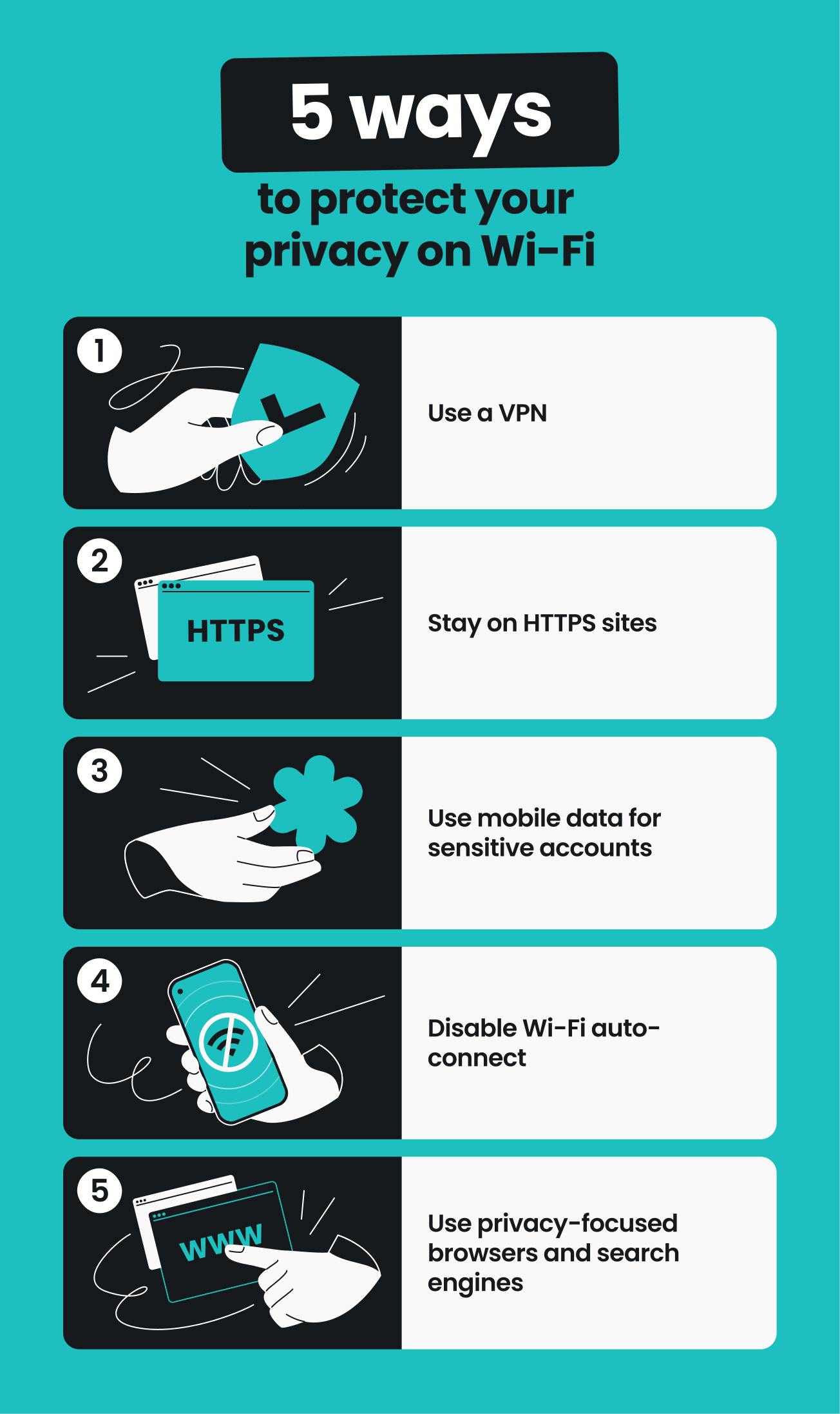
1. Use a VPN
A VPN encrypts your internet traffic before it reaches the Wi-Fi router. As a result, the Wi-Fi owner sees encrypted traffic going to a VPN server, not to the destination websites you ultimately visit.
Thanks to this encryption, a VPN is one of the most reliable ways to hide your browsing history from Wi-Fi owners and stop them from tracking your sessions.
When looking for a reputable VPN, choose one that offers:
- Simple setup;
- Strong encryption;
- High-speed servers;
- A strict no-logs policy;
- And apps for both iPhones and Android devices.
Surfshark ticks all the boxes above.
2. Stay on HTTPS websites
For safer browsing, you should stick to sites that have HTTPS encryption. You can identify these by looking for a lock icon and the letters https in your browser’s address bar. It’s easy to mistake https for the unencrypted http alternative, so look specifically for that all-important s.
HTTPS encryption hides the actual content and specific pages inside a website. Most websites today default to HTTPS, but always double-check when you’re on unfamiliar sites.
3. Use mobile data
Want to get Wi-Fi owners off your back? Stop using Wi-Fi!
For anything highly sensitive, like online banking, consider switching to mobile data. Even if it’s just temporarily, you’ll bypass the Wi-Fi network entirely and won’t have to worry about trusting any network admins.
4. Disable Wi-Fi auto-connect
Android and iOS devices let you auto-connect to known networks you’ve joined before. This may be convenient, but it also means you might automatically hop onto the Starbucks Wi-Fi the moment you walk in for a quick coffee — without you even knowing.
Prevent your phone from latching onto any of these risky free networks by disabling automatic connections and forgetting old networks in your Wi-Fi settings.
5. Use privacy-focused browsers and search engines
Surfing on a privacy-focused browser lets you enjoy features like tracking prevention, automatic data clearing, and secure connections. Designed to protect user data, the best browsers for privacy can help reduce your digital footprint across devices and sessions.
Likewise, private search engines can also reduce your online paper trail. These typically offer safer, more organic searches and don’t log any of your personal details. Unlike data-hungry alternatives such as Google, they don’t show targeted ads or create user profiles.
Is Incognito mode a safe option?
No, Incognito mode or private browsing doesn’t effectively protect your privacy from Wi-Fi owners when you’re browsing on public networks.
On your phone, Incognito mode stops your browser from locally saving browsing history, cookies, and form data after you close your Incognito tabs. This helps keep your device’s browser history clean from anyone else who might be using the same device.
However, Incognito mode doesn’t hide your browsing history from the Wi-Fi network owner, your ISP, or the websites you log in to. Your internet traffic still leaves your phone as it normally would and can appear in router logs and ISP records.
Bottom line: Incognito mode helps if you ever share your phone with another person, but that’s about it.
Key takeaway: limit what Wi-Fi owners can see with a VPN
Wi-Fi owners usually can’t see the exact sites you visit or the content you’re viewing, but they can still see info like domain names and session lengths.
To keep more of your browsing history hidden from Wi-Fi owners and other network admins, a VPN is key.
Use a VPN like Surfshark to encrypt your internet traffic, mask your IP address, and enjoy increased privacy as you surf the web.

FAQ
Does your phone history show up on Wi-Fi?
No, your phone’s local browser history isn’t visible on your Wi-Fi network. The Wi-Fi owner can see domains, timestamps, IP addresses, and data usage based on your network activity, but your private on-device browser history isn’t visible.
Can someone see my phone activity through Wi-Fi?
Other people can technically see what domains you visited, when you connected to them, and how much data you used when using a Wi-Fi network. HTTPS hides specific pages and content, but unencrypted HTTP traffic is fully readable.
How do Wi-Fi owners monitor online activity?
Wi-Fi owners can see some of your online activity via the Wi-Fi router’s admin panel, router logs, DNS logs, or external monitoring tools. Some routers make this process easier, while others require custom firmware or third-party services.
How do I hide my browsing history from a Wi-Fi owner?
To hide your browsing history, encrypt your traffic with a reputable VPN, stick to HTTPS websites, and use mobile data for more sensitive tasks.
Can the Wi-Fi owner see my deleted history?
No, Wi-Fi owners can’t see your deleted browsing history. However, remember that deleting your history only affects your device, so it doesn’t change router logs or ISP records that may have already recorded your internet activity.