Chromebooks have gained a reputation for being close to virus-proof. Unfortunately, close only counts in horseshoes — not cybersecurity.
While ChromeOS blocks most traditional viruses through built-in security features, malware can still slip through via browser extensions, phishing, and compromised apps.
This guide covers how Chromebooks get infected, the top Chromebook security threats, and how you can detect, remove, and prevent malware on ChromeOS.
Can Chromebooks get viruses?
Yes, Chromebooks can get infected with viruses or malware, though it happens far less often than on Windows or macOS computers.
Chromebooks run on ChromeOS, which is designed from the ground up to be resistant to traditional malware. They use web apps, not executable files (think .exe or .dmg), so the kind of viruses that spread through local software can’t easily take hold.
While many Chromebooks can run Android apps from the Google Play Store, most extensions and web-based tools still come from the official Chrome Web Store, helping keep the platform secure.
However, Chromebooks aren’t completely secure against other forms of malware. Threats such as trojans, spyware, adware, and ransomware can compromise your device. Security vulnerabilities, like a rogue browser extension or malicious app, are the most common culprits.
Why ChromeOS is safer than Windows or macOS
ChromeOS takes a different approach to security than traditional operating systems. Instead of waiting to catch threats after they sneak in, ChromeOS prevents most malware from ever gaining a foothold in your device through the following protection layers that work together automatically.
Sandboxing
Every tab and app in your Chromebook runs in its own isolated environment called a sandbox. If malware infects one tab, it can’t spread outside of it to affect other parts of your system or harm other files.
Think of all your Chromebook apps as separate aquarium tanks. Contamination in one of them can’t spread to the others.
This restricted bubble makes it harder for computer viruses to do any widespread damage.
Verified Boot
Each time you start up your Chromebook, it inspects itself for tampering. If this self-check spots any unauthorized changes to core files, the system automatically fixes them using a clean backup copy.
This self-healing feature — called Verified Boot — stops malware from permanently altering your operating system.
Automatic updates
ChromeOS updates itself in the background without interrupting your activity. Thanks to this, security vulnerabilities are often patched before you even notice.
There’s no need to remember to restart your computer and keep your software up to date — ChromeOS automatically repairs everything. As a result, security issues frequently get closed within days of discovery, giving attackers a narrow window to exploit flaws.
Data encryption
Everything stored locally on your Chromebook is encrypted by default.
If malware somehow reaches your storage, important data stays unreadable without your Google account credentials. Even if someone physically steals your device, they won’t be able to access much at all.
Got multiple Chromebook users sharing one device?
The Guest Mode feature keeps Chromebooks safe from malware by isolating user activity and wiping everything clean afterward. Think of it as a reset button that clears cookies, deletes browser cache files, and ensures nothing nasty sticks around once you log out.
Chromebook security risks
ChromeOS’s multiple layers of defense make it challenging for traditional computer viruses to infect Chromebooks. However, these devices aren’t immune to other threats.
Phishing scams
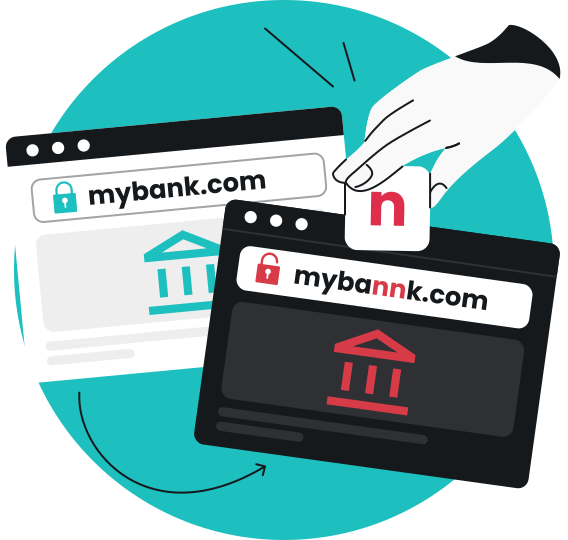
In a phishing attack, scammers create fake websites that look identical to real login pages for your bank, email provider, or other services. Cybercriminals can capture any details typed into an imposter web page.
Clicking on phishing links in emails can also trick you into downloading malware that’s disguised as legitimate files or installing fake browser extensions.
Malicious Chrome extensions
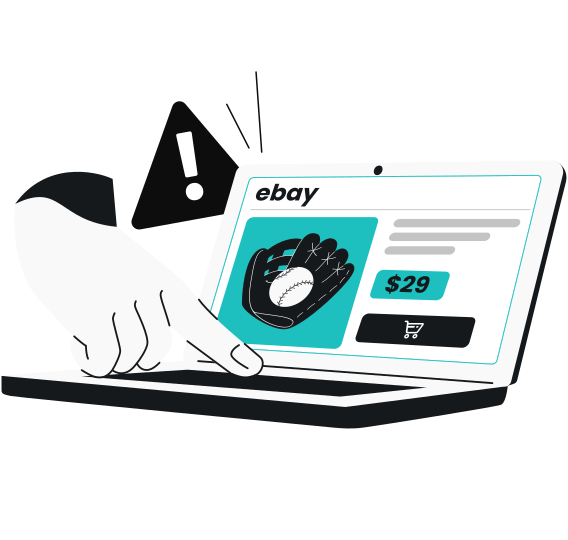
Google Chrome browser extensions from sketchy sources or ones with fake positive reviews can hijack your browser. They may redirect searches to ad-filled sites, monitor what you type, or change your homepage without permission.
Fake Chrome extensions can also collect data or inject pop-ups and other ads.
In some cases, legitimate-looking extensions change ownership after gaining a large number of users. They start pushing malicious updates and essentially turn into spyware.
Android apps
Chromebooks can run Android apps, so they may inherit some of the risks associated with Android.
Most Chromebooks support Android apps from the official Google Play Store. It’s also technically possible to install tools from third-party app stores on a Chromebook, but this is quite hard to do.
Nevertheless, Android apps — no matter where you get them — can introduce risks if they’re poorly designed or request too many permissions to access your contacts, location, or files. They may end up sending this data to remote servers without your knowledge.
Enabling Developer Mode
Turning on Developer Mode disables Verified Boot and other core security features. While this helps developers remove unverified software, it exposes casual Chromebook users to threats they’d normally be protected against.
In Developer Mode, Chromebooks are vulnerable to the same malware threats that affect regular computers, so you should use it with caution.
Cloud account breaches
If you have weak credentials or reuse the same password across multiple online accounts, attackers may get all the info they need to access your Google account — and everything synced to your Chromebook.
A compromised account bypasses all of ChromeOS’s local security and data encryption, so your saved passwords, browsing history, and Google Drive files could all be in jeopardy.
How to check for viruses on Chromebook
Catching early warnings on your Chromebook helps you remove malware before it causes real damage. Potential signs of an infection include:
- Unexpected pop-ups or redirects: look for constant ads appearing, especially on sites that don’t normally show them. Your browser might also automatically jump to suspicious websites while you search;
- Battery or CPU spikes: malware can cause your battery to drain unusually fast. Your device may also heat up as a result of hidden processes running in the background;
- New extensions you didn’t install: unknown browser extensions can show up in your Chrome toolbar, often with names that are generic or similar to those of legitimate tools;
- Slow performance or crashes: you may notice a sudden decrease in responsiveness, frequent app crashes, or pages taking much longer to load than usual;
- Built-in security warnings: if you see system alerts about unsafe sites, blocked downloads, or suspicious logins, don’t ignore them. ChromeOS has reliable safety checks in place, so these warnings can help you;
- Strange or unwanted apps and extensions: Chrome extensions or Android apps on your device that you don’t remember installing are a red flag. Malicious add-ons often sneak in with other downloads or fake updates, so review your extensions regularly;
- Unusual account activity: random logins, password change alerts, or unfamiliar emails sent from your address could mean someone’s gained unauthorized access through a compromised extension;
- Normal behavior in Guest Mode: your Chromebook might run smoothly in Guest Mode but lag in your regular account. While malware in your operating system likely isn’t to blame, this could mean the issue comes from a bad app or setting.
How to get rid of a virus on Chromebook
When you detect malware, act quickly to remove it before it spreads or steals more data. Use these steps as your guide.
1. Delete suspicious extensions
In Chrome’s Extensions page, click Remove on any suspicious or unrecognized extensions. Don’t just turn them off, as malware extensions can re-enable themselves in many cases.
Restart your browser after removal to make sure nothing unwanted is still there.
2. Uninstall rogue Android apps
Open your Chromebook Settings, select Apps, and then review your installed Android applications. Uninstall anything you don’t recognize, and consider removing anything you downloaded outside the Play Store.
If you’re not sure if something should be removed, you can also check app permissions. Legitimate apps won’t request access to unrelated features.
3. Clear browser data and site settings
In your Chrome Settings, go to Privacy and Security, and then Clear Browsing Data. Select All time as the time range and check Cookies, Cached images, and Site settings.
This step wipes out malicious code and scripts while resetting permissions that malware may have exploited.
4. Run a full antivirus scan
Use reliable antivirus software — like Surfshark Antivirus — to perform a deep system scan. Run a full scan, as this checks files and system components that a quick scan might miss.
It may take some time, but the software will automatically quarantine detected threats, which you can then permanently remove in one click.
5. Factory reset if issues persist
If malware signs continue after trying the above removal methods, a factory reset may be needed. Chromebooks offer two kinds of resets.
The first reset is called a Powerwash. This resets your Chromebook to factory settings without reinstalling any apps. Your existing ChromeOS system just gets returned to its default state.
To perform a Powerwash, back up important files to Google Drive, and then go to Settings > Advanced > Reset settings > Powerwash.
If you suspect things have gone seriously wrong, though, it may be time to use Recovery Mode. Recovery Mode reinstalls ChromeOS entirely, wiping everything from your device. This comes in handy if the system gets corrupted or Verified Boot can’t repair your problem.
Think of it as your Chromebook’s nuclear option. To enter Recovery Mode:
- Shut down your Chromebook.
- Press and hold Esc + Refresh, and then tap the Power button.
- Follow the on-screen instructions to reinstall ChromeOS. Use Google’s Chromebook Recovery Utility (available from the Chrome Web Store) to create a recovery drive and reinstall a new copy.
- Let your device reinstall and reboot with a factory-fresh version of ChromeOS.
Remember, Recovery Mode wipes everything on your Chromebook — your files, settings, and accounts. Before you start, make sure to back up anything important to Google Drive.
Tips for protecting your Chromebook from viruses
Preventing malware from ever getting on your device is much safer than having to worry about cleanup. Follow these practices to reduce your malware risk.
Keep ChromeOS updated
ChromeOS updates automatically, but you can verify you’re running the latest version in Settings > About ChromeOS > Check for updates. Each update includes critical security patches that block newly discovered vulnerabilities.
Limit extension permissions
Only install extensions from the Chrome Web Store and review requested permissions carefully. Extensions asking to “read and change all your data” have broad access that legitimate tools rarely require.
Routinely audit your extensions and remove ones you no longer use.
Avoid sideloading APKs
Only install Android apps from the Google Play Store. Sideloading an APK file from a web page bypasses Google’s security screening, significantly increasing your malware risk.
Even if a site claims an app is safe, you have no way to verify that it hasn’t been modified.
Enable 2FA
Use 2FA (Two-factor Authentication) to add a second verification step to your Google account through authenticator apps, security keys, or phone prompts. Even if malicious websites steal your password through phishing, they can’t access your account without the second factor.
Use antivirus software
Antivirus tools like Surfshark Antivirus don’t just detect and remove viruses from your device. They can scan downloaded files before you open them and block access to harmful websites.
Features like an email scam checker also helps detect phishing emails in your Gmail account, catching phishing links before they can do damage.
Key takeaway: do Chromebooks need antivirus software?
ChromeOS’s built-in protections handle most malware threats effectively, but additional antivirus software provides valuable extra layers of protection.
Dedicated tools like Surfshark Antivirus actively scan for malware signatures that ChromeOS doesn’t check for. They also monitor downloads in real time, block access to known phishing sites, and scan apps for suspicious behavior.
If you regularly install different apps, use your Chromebook for sensitive work, or frequently connect to public Wi-Fi, Surfshark Antivirus provides worthwhile protection. Get it in the Surfshark One bundle today.
Protect your Chromebook with Surfshark Antivirus
Enjoy greater peace of mind with trusted antivirus software
Get SurfsharkFAQ
How can Chromebooks get infected?
While ChromeOS is designed with strong security features, Chromebooks aren’t completely immune to viruses. They can be compromised through malicious Android apps, phishing links, or harmful browser extensions.
Do you need virus protection on a Chromebook?
Yes, antivirus software can help provide greater protection on a Chromebook. An antivirus tool adds an extra safety net against phishing, scam sites, and sneaky Android malware.
What antivirus works on Chromebook?
Most antivirus software providers offer ChromeOS-compatible apps through the Google Play Store. Look for trusted names, like Surfshark Antivirus, that include real-time web protection, phishing detection, and full system scans.
Is ChromeOS secure?
Yes, ChromeOS is one of the most secure operating systems available. It uses sandboxing, Verified Boot, and automatic updates to block most threats before they can cause trouble. Still, antivirus protection provides even greater protection from malicious apps and phishing attacks.