
Changing your location on Google is possible through adjusting your search settings, browser permissions, device location options, or by using specialized tools like a VPN. The exact steps depend on which Google service you’re using — whether it’s Google Search, Maps, Chrome, or Google Play. In this guide, you’ll learn how to change your Google location across all of them, step by step, from simple settings tweaks to more advanced methods.
Why change your location on Google?
Google uses your location to personalize search results, recommendations, and content across all of its services. While this can be helpful, there are many scenarios in which you might prefer to control that information.
One common reason for changing your location is to retain access to region-specific content, such as local news, prices, or apps, while traveling internationally. You should also consider masking your location for privacy reasons (to reduce location-based tracking and marketing personalization), as well as for work or research.
The method for changing your location depends on your goal — whether that’s adjusting Google Search settings, modifying browser permissions, or using a VPN for more comprehensive location masking.
How does Google get your location information?
To determine your approximate location, Google doesn’t rely on just one signal — it combines several data sources.
The most important factor is your IP (Internet Protocol) address, which provides Google with a general indication of your country, city, or region. On mobile devices and laptops, Google may also use GPS data, Wi-Fi networks, and nearby cell towers to get a more precise location. That’s not all — your browser settings, cookies, search history, and Google account activity can all impact location-based results.
Because Google uses multiple signals at once, changing your location in one place (e.g., your search settings) is unlikely to affect other Google services. To mask your location more broadly across Google products, you’ll need a VPN (Virtual Private Network).
How to change your location on Google Maps (step-by-step)
Google Maps uses your real-time location to show nearby places, directions, and recommendations, but you can manually adjust certain settings to focus on a different area.
While this won’t fully mask your physical location, it’s useful for planning trips, exploring other regions, or changing suggested places.
Option 1: Change your home or work address
- Open Google Maps.
- Tap your profile icon (top right).
- Tap Your places (or Saved → Labeled, depending on your app version).
- Find Home or Work.
- Tap Home or Work and choose Edit (pencil icon).
- Type the new address and select it from the suggestions.
- Tap Save.
Option 2: Stop Google Maps from using your real-time location
- Open your phone’s Settings.
- Go to Location (or Privacy & Security → Location Services on iPhone).
- Find Google Maps in the app list.
- Set location access to:
- Allow only while using (more private), or
- Deny/Never (most restrictive).
- Reopen Google Maps and search manually for places in your desired area.
Option 3: Browse Google Maps as if you’re in another city/country
- Open Google Maps.
- In the search bar, type the city/region/country you want (e.g., Berlin).
- Tap the result to jump to that location.
- Zoom in/out and explore places, restaurants, and services in that area.
- (Optional) Tap Save on places you want to bookmark for later.
Note: Changing the Home or Work address and browsing another city helps with recommendations, but if you want Google Maps (and Google more broadly) to treat you as being in another country, you’ll usually need to use a VPN (explained later in the guide).
How to change your Google Search location
Google Search lets you manually set a preferred location so your results reflect a different country or region. This method is quick and effective for changing search results, but it only affects Google Search — not your device’s actual location or other Google services.
Option 1: Change your location via Google Search settings (desktop or mobile)
- Go to google.com.
- Scroll to the bottom of the page and click Settings.
- Select Search settings.
- Scroll to the Region Settings section.
- Choose the country you want search results to be based on.
- Scroll down and click Save.
Option 2: Change the location for one Google search result page only
- Enter your search into Google.
- Scroll to the very bottom of the search results page (SERP).
- Look for the current location displayed (for example: United States).
- Click Update location or Use precise location (if available).
- Enter a city or region and confirm.
Option 3: Combine location and language settings (optional)
- Go to google.com and enter Search settings.
- Adjust the Language settings to match your desired region.
- Save changes to get more localized and relevant results.
Note: Changing your location in Google Search only affects search results. Google may still use your IP address and other signals for ads, Maps, and other services unless you change those separately or use a VPN.
How to change location on Google Play
Google Play uses your location data to determine which apps, games, movies, and subscriptions to show. While you can change your Google Play location, the options are limited and come with restrictions, so it’s important to understand how they work before proceeding.
Option 1: Change your Google Play country (official method)
- Open the Google Play Store app on your Android device.
- Tap your profile icon in the top right corner.
- Go to Settings → General → Account and device preferences.
- Under Country and profiles, tap the country you want to switch to.
- Add a payment method that matches the new country.
- Confirm the change.
Note: You can only change your Google Play country once every 12 months, and your existing balance may not carry over.
Option 2: Mask your location using a VPN
- Connect to a VPN server in the country you want.
- Open your device’s Settings → Apps → Google Play Store.
- Tap Storage and clear Cache and Data.
- Reopen the Google Play Store while connected to the VPN.
- Sign in and browse content available in that region.
This method may allow temporary access to region-specific apps, but it does not permanently change your Play Store country.
Note: Google Play has stricter location controls than other Google services. For long-term country changes, the official method is safest, while VPN-based methods are better suited for short-term access or testing.
How to change your Google Chrome location
Google Chrome doesn’t have a single setting to “change” your location, but it does let you control how websites access your location data. You can allow, block, or limit location sharing, and on desktop browsers, you can even manually override location for testing purposes.
How to change Google Chrome location on a PC or Mac
- Open Google Chrome.
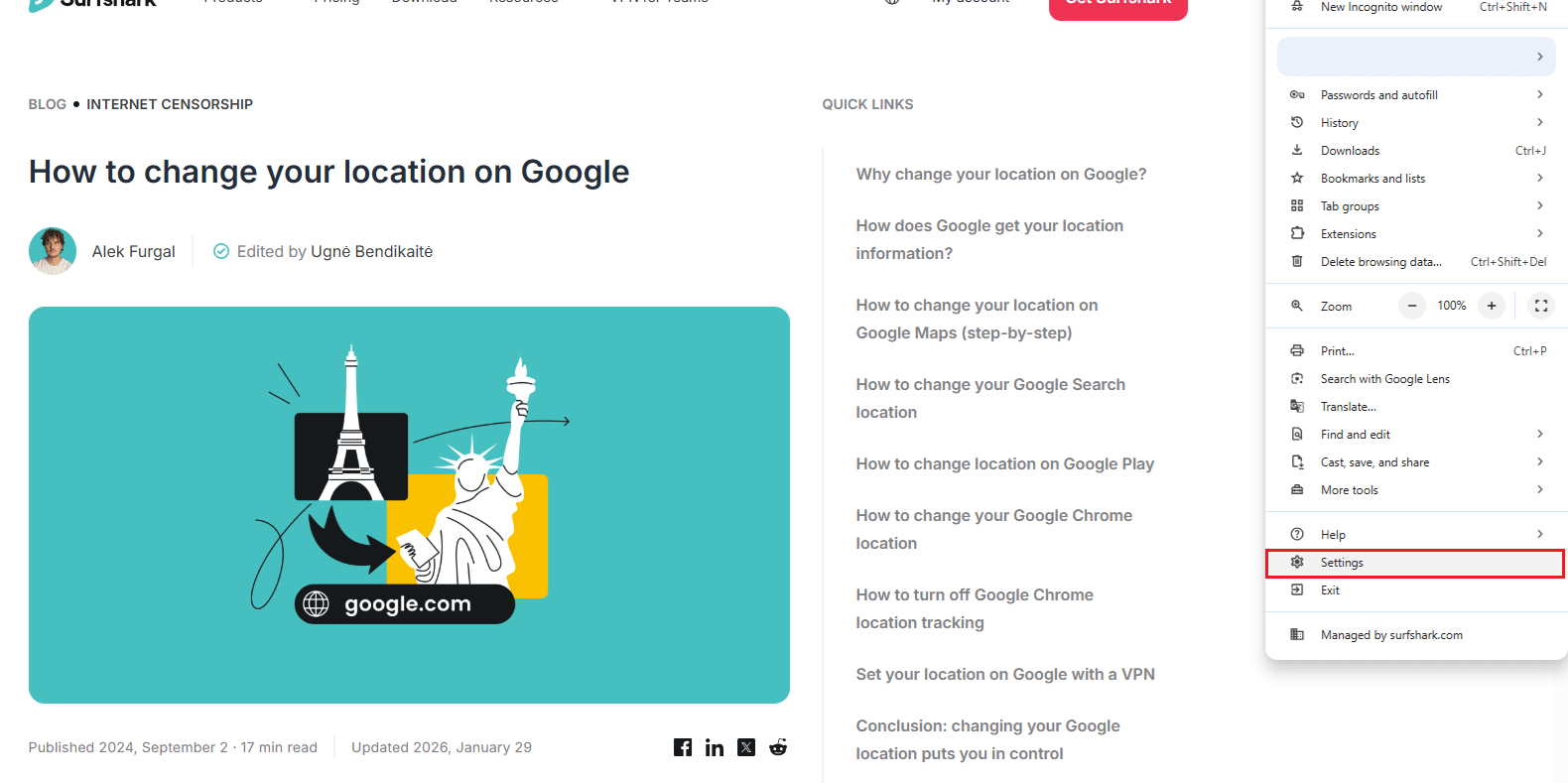
- Click the three-dot menu in the top right corner.
- Go to Settings → Privacy and security.
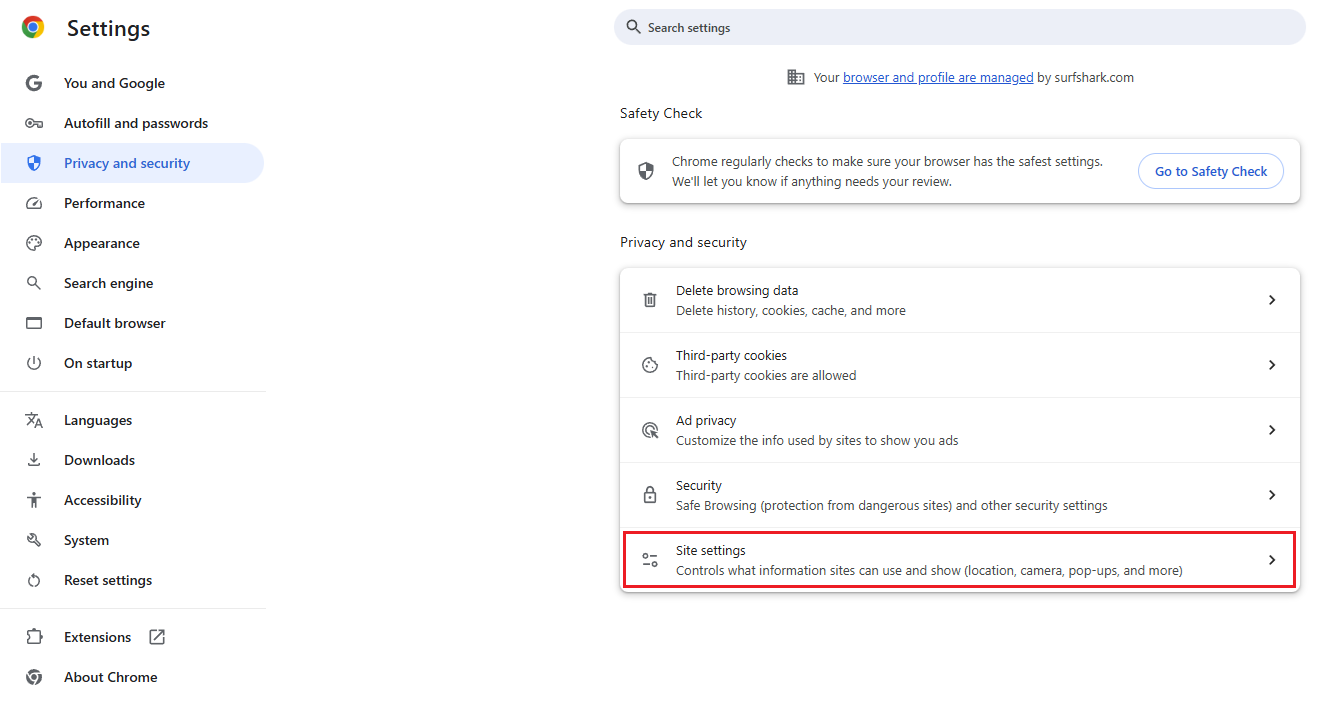
- Click Site settings.
- Select Location.
- Choose Sites can ask for your location (default) or Don’t allow sites to see your location.
- (Optional) Under Custom behavior add specific websites and set them to Allow or Block.
Note: This method controls whether sites can request your location, but it does not change your IP-based location, as a VPN for Chrome would.
How to turn off Google Chrome location tracking
Chrome’s location behavior is controlled through the device’s system location permissions and Chrome’s site-specific settings. Here’s how to control when and how websites can access your location, depending on the platform:
How to turn off Google Chrome location tracking on PC and Mac
- Open Chrome Settings.
- Go to Privacy and security and choose Site settings.
- Click Location.
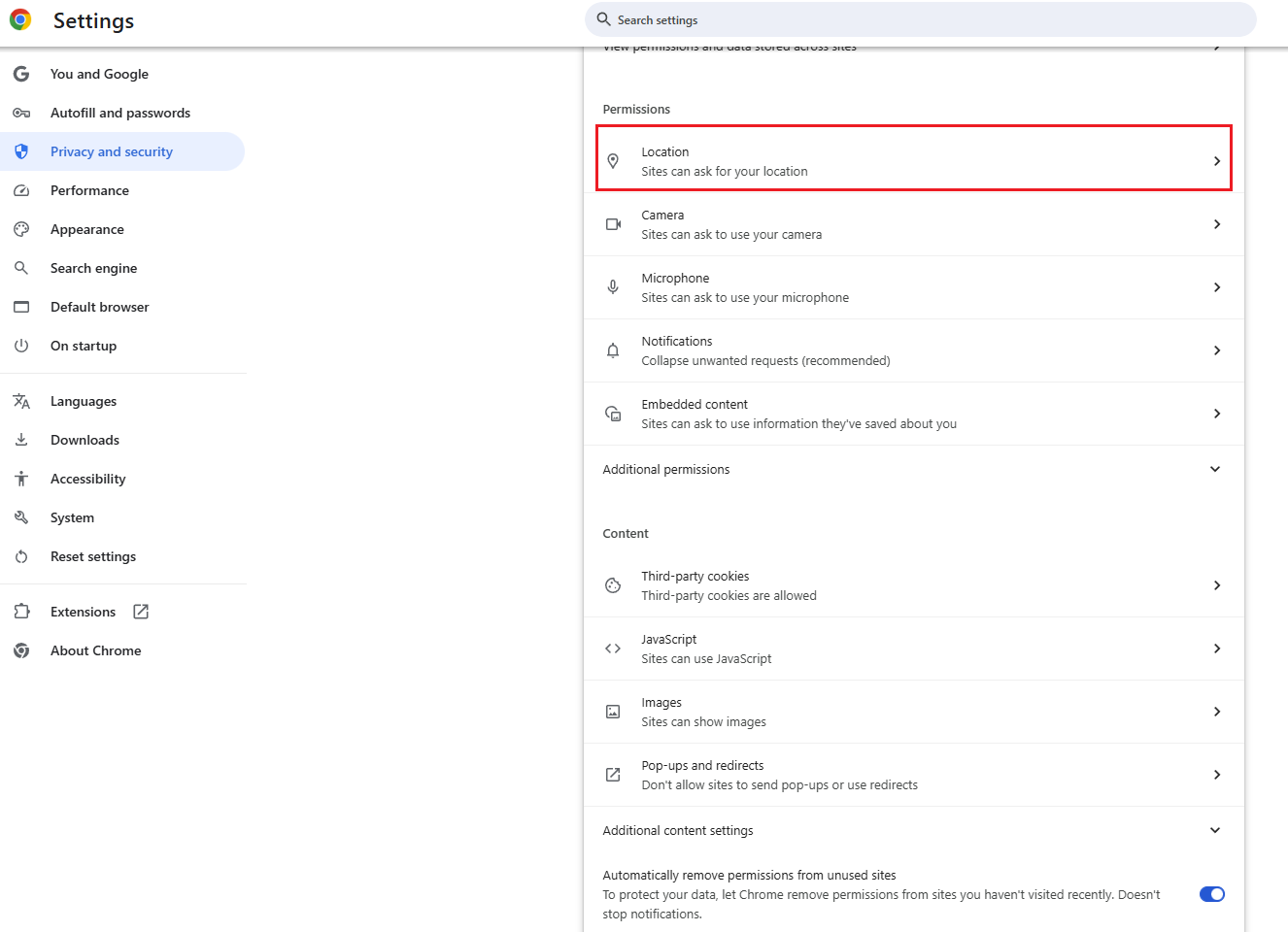
- Toggle Don’t allow sites to see your location.
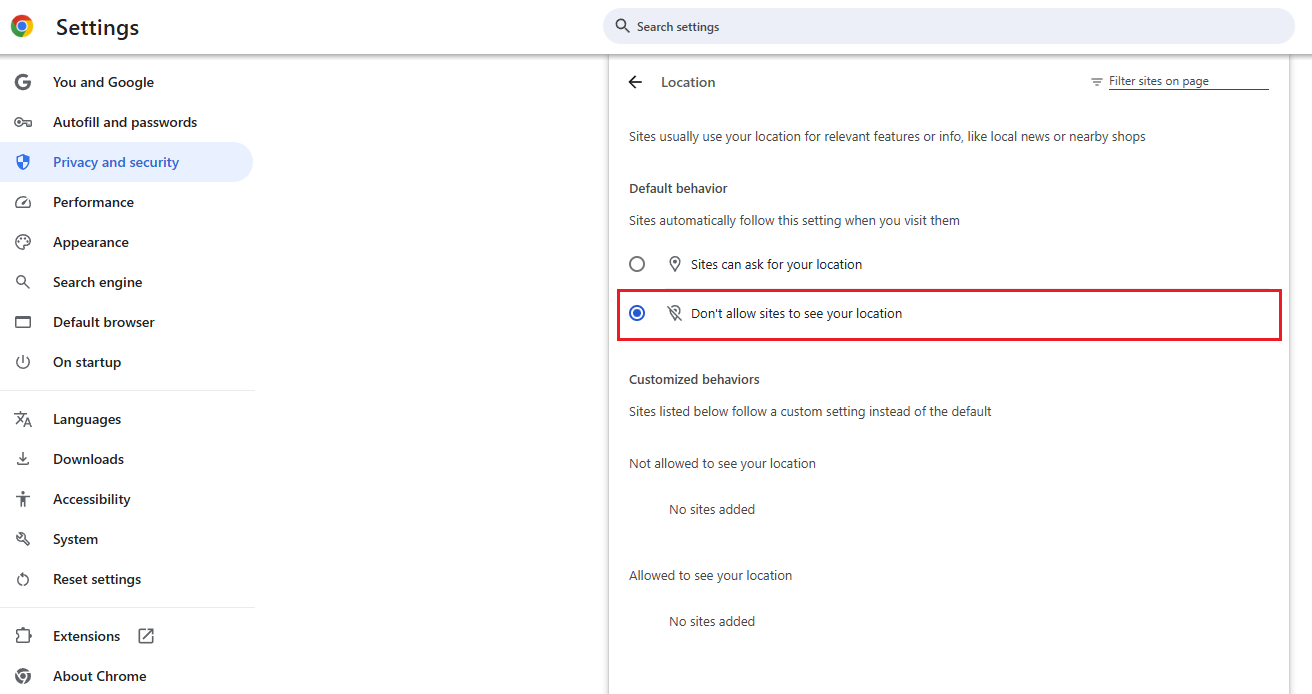
- Review the Allowed list and remove any sites you no longer trust.
This prevents websites from accessing GPS or browser-based location data, improving privacy but not masking your physical location.
How to turn off Google Chrome location tracking on Android
- Open Chrome on your Android device.
- Tap the three-dot menu and select Settings.
- Go to Site settings followed by Location.
- Toggle location access On or Off.
- (Optional) Manage permissions for individual websites.
How to turn off Google Chrome location tracking on iOS
- Open your Settings app.
- Scroll down and tap Chrome.
- Tap Location.
- Select Never, Ask Next Time, or While Using the App.
Note: On mobile devices, Chrome relies heavily on system-level location permissions. To appear in a different country or region while browsing, you’ll need to change your IP address — typically by using a VPN, which we’ll cover next.
Use Chrome Developer Tools (Sensors) to manually override location (advanced)
Chrome allows you to temporarily override your browser’s geolocation using built-in developer tools. This method is mainly useful for testing, development, or understanding how websites respond to different coordinates, but it does not change your IP-based location or affect Google Search results globally.
- Open Google Chrome on your PC or Mac.
- Visit any website (for example, google.com or Google Maps).
- Right-click anywhere on the page and select Inspect to open Developer Tools.
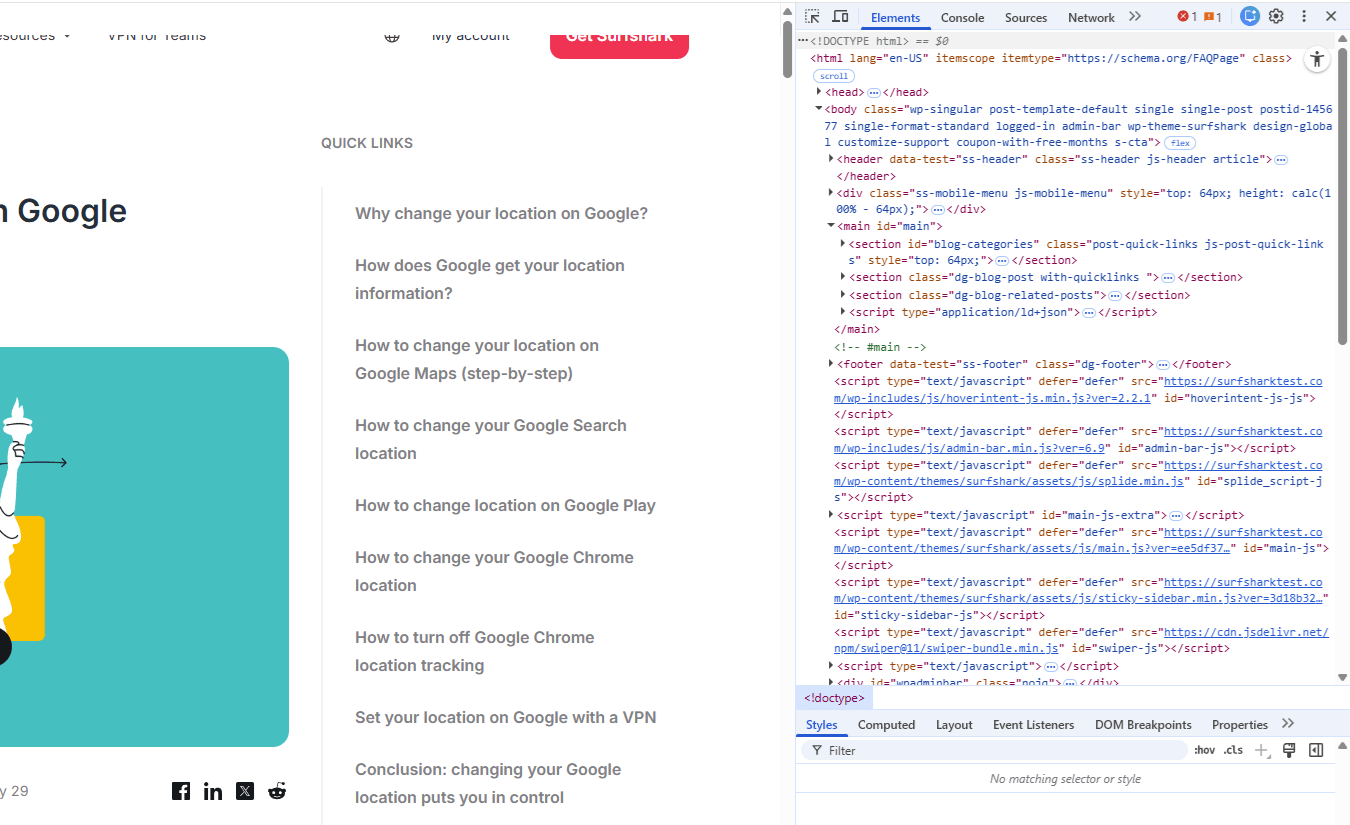
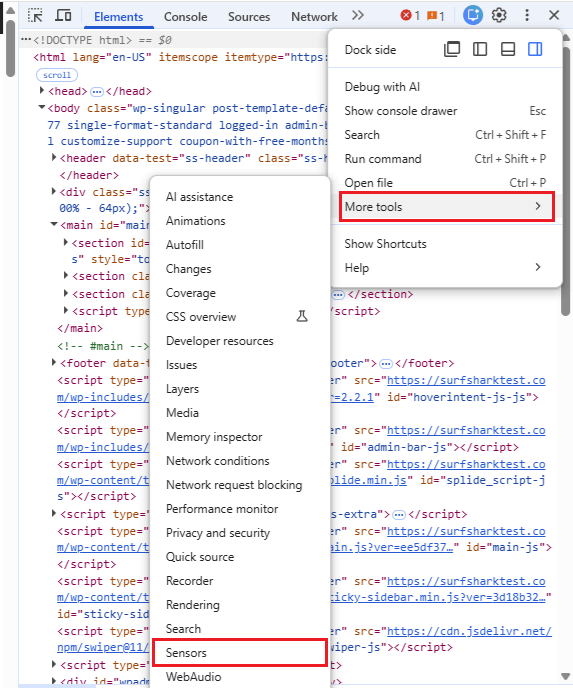
- Click the three-dot menu inside Developer Tools.
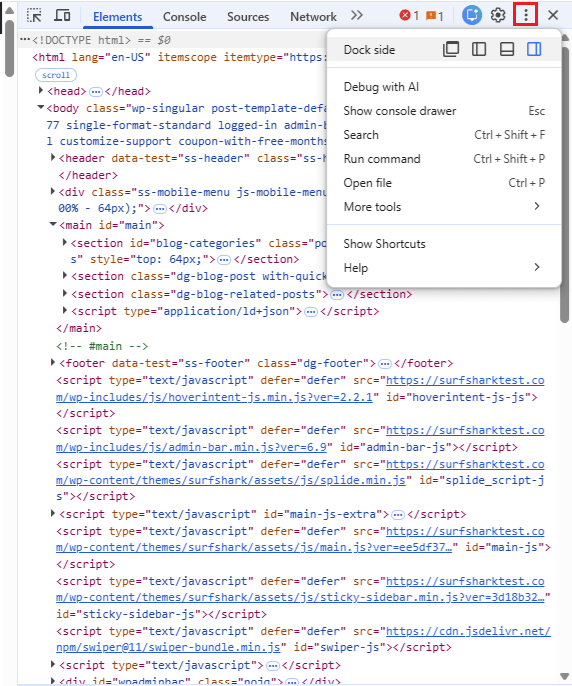
- Go to More tools and select Sensors.
- In the Geolocation dropdown, select a preset location or choose Custom.
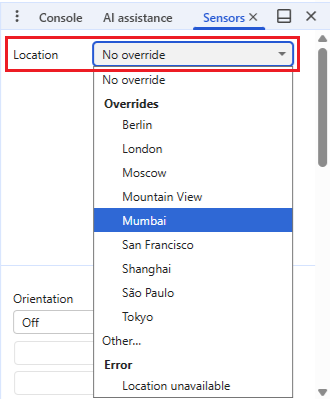
- Refresh the page to apply the new coordinates.
Set your location on Google with a VPN
If you want Google to treat you as if you’re actually in another country or region, using a VPN is the most effective method. A VPN changes your IP address, which is one of the main signals Google uses to determine your location across Search, Maps, Chrome, and other services.
Change your Google location using a VPN
- Choose a reputable VPN provider and subscribe to the service. We recommend Surfshark — see our VPN comparison page to see why.
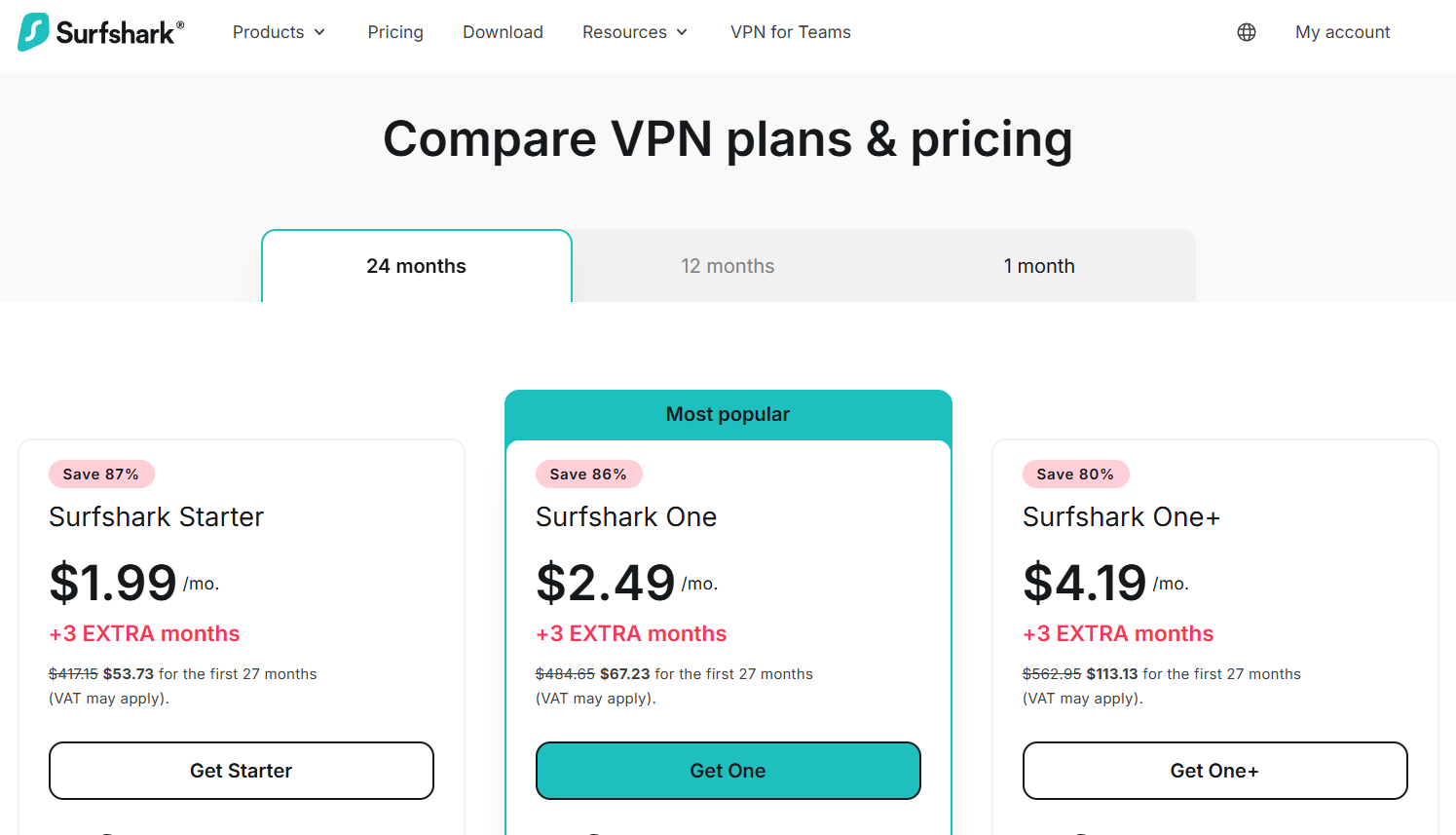
- Download and install the VPN app.
- Open the app and connect to a server in the location you want Google to see.
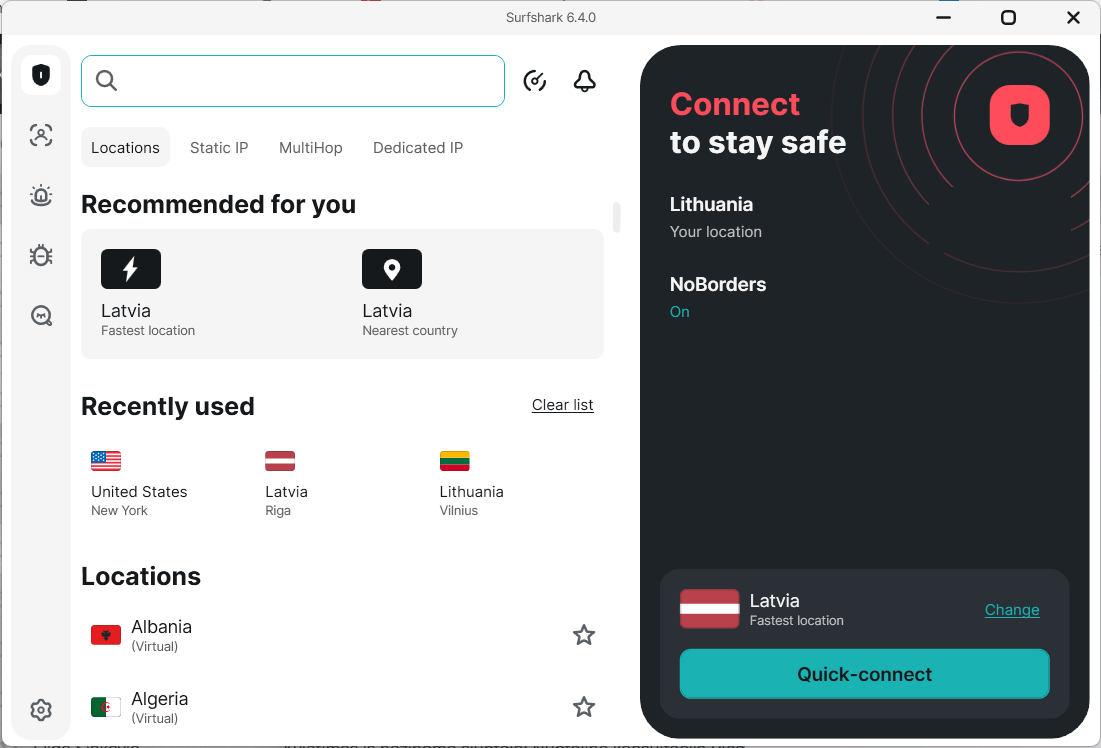
- Once connected, open google.com or any other Google service.
- Clear your browser cookies and cache, or open an Incognito or Private window.
- Perform a search or open a Google service to verify that results now match the new location.
Change Google location using a VPN browser extension
While full VPN apps change the location system-wide, you can use a VPN browser extension to target browsing traffic only.
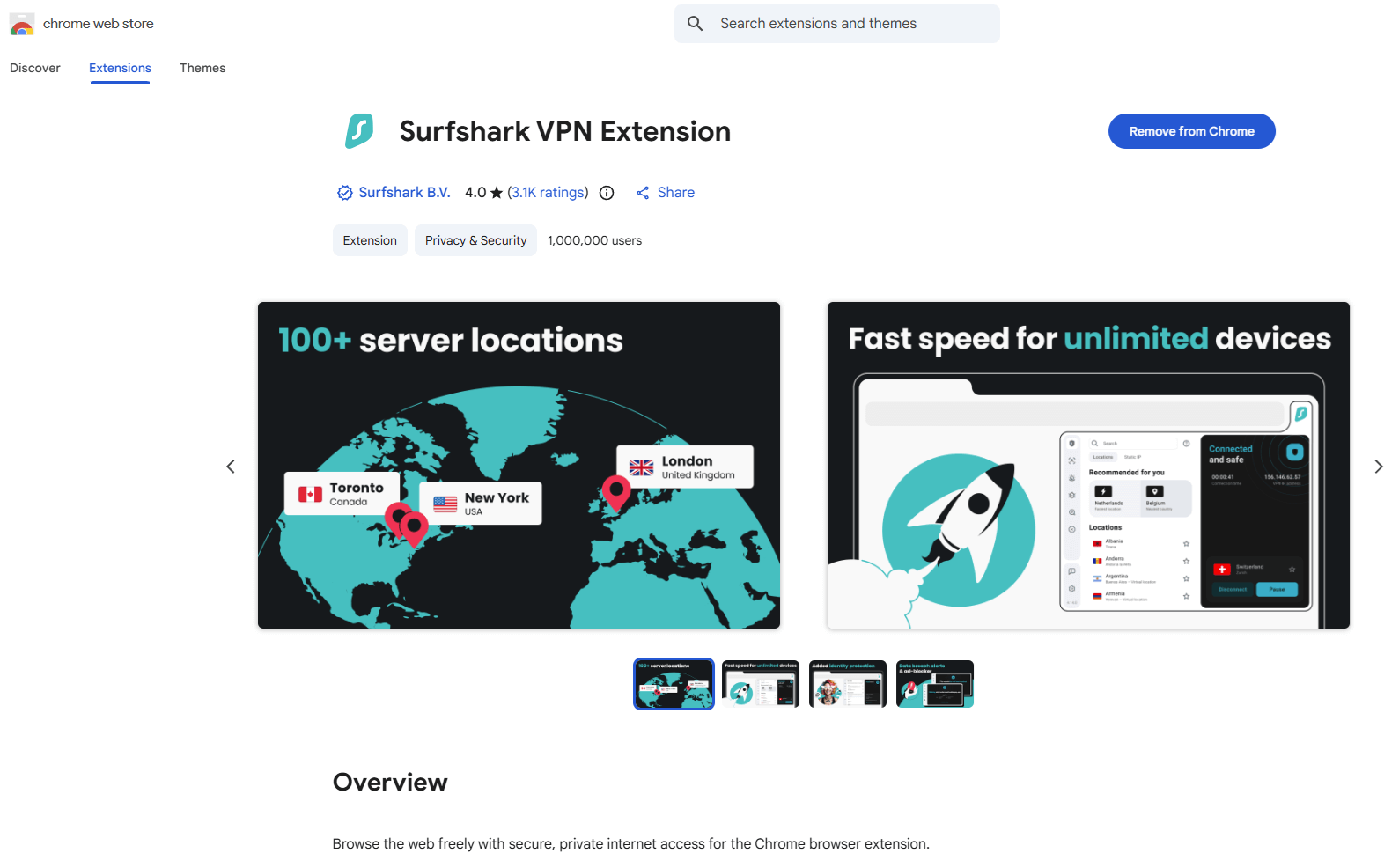
- Install the Surfshark VPN Extension for Chrome (or your preferred browser).
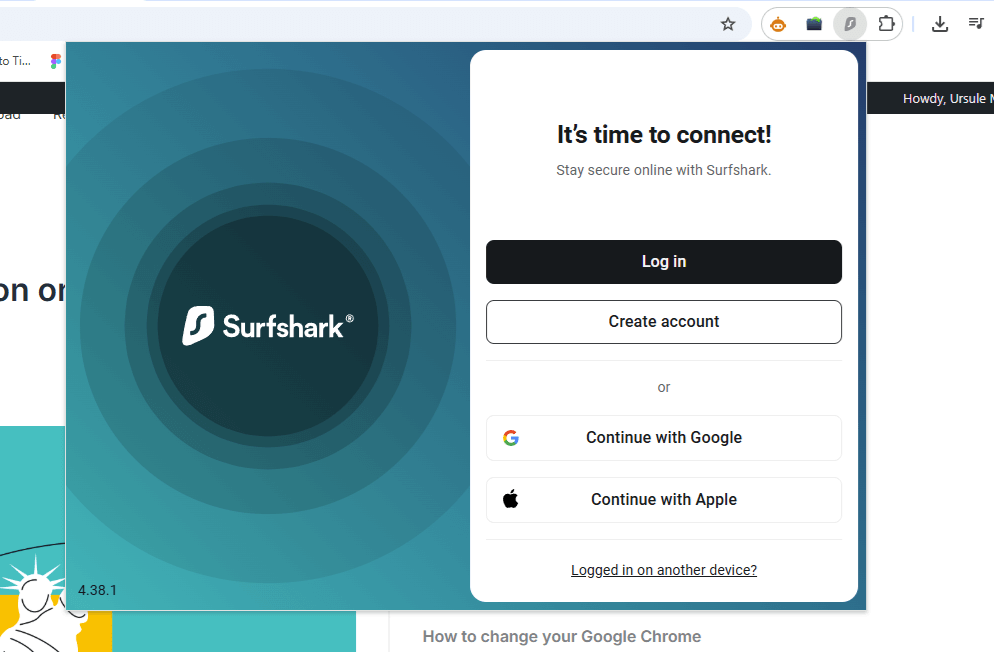
- Log in to the extension.
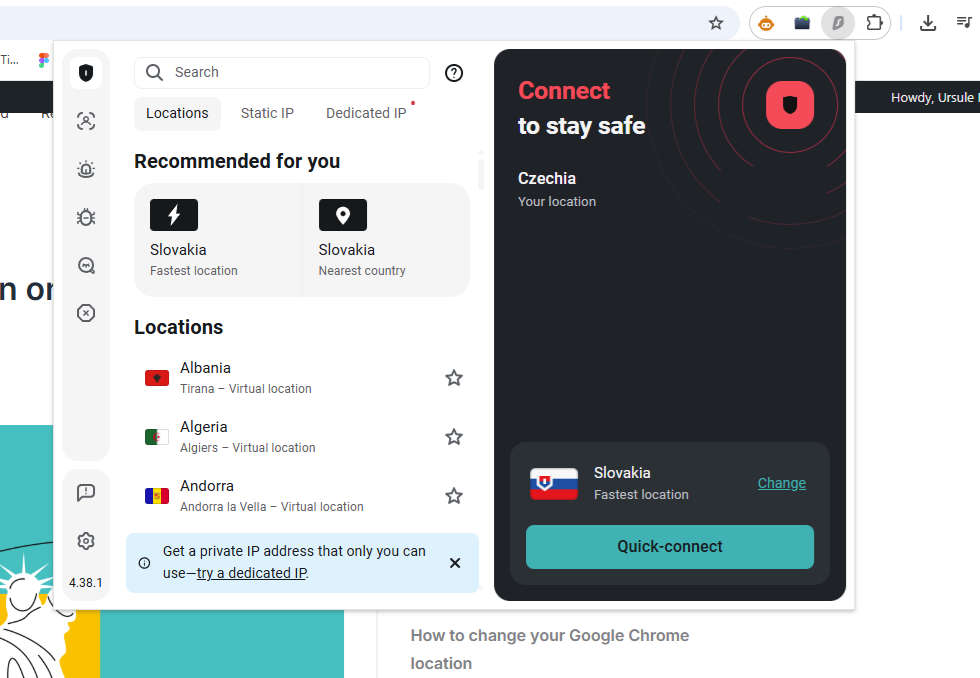
- Select a desired location.
- Refresh Google Search or open a new tab.
- Check the location shown at the bottom of the Google search results.
Verify your location change
To verify if your VPN connection is working correctly, try the following:
- Go to our What is my IP page.
- Confirm that the displayed location matches the VPN server location.
Note: For optimal results, use a VPN together with Google Search location settings and blocked browser location permissions. This prevents Google from mixing old location data with your new IP-based location.
Conclusion: changing your Google location puts you in control
Changing your location on Google can be as simple as adjusting search settings or as comprehensive as using a VPN to mask your IP address. The right method depends on whether you want different search results, better privacy, or access to home content during travel. With the right solution, changing your Google location becomes a simple way to personalize your browsing experience wherever you are.

FAQ
Why is my location wrong on Google?
Google estimates your location using signals like your IP address, Wi-Fi network, and previous activity, which aren’t always precise. This can happen if your IP is routed through another city, your location permissions are limited, or Google is relying on outdated data.
Does changing the location in Chrome affect other apps?
No, changing location settings in Chrome only affects websites accessed through that browser. Other apps and Google services rely on system-level location data or their own permissions, which must be changed separately.
Can changing my location bypass internet throttling?
Changing your location does not automatically bypass internet throttling, as throttling is usually applied by your internet service provider based on traffic type, not location alone. From a privacy perspective, some users change their location to protect their browsing activity when using public or unsecured networks.
Can I set a default location in Google Chrome?
Google Chrome does not allow you to manually set a fixed default location. You can only allow, block, or manage location access per website, unless you use advanced tools like developer settings for testing purposes.
What is the difference between changing Chrome location and device location?
Changing Chrome location controls whether websites can access your browser-based location data. Changing your device location affects all apps and services on your phone or computer that rely on system-level location signals, such as GPS.
Does Incognito mode affect changed location settings?
Incognito mode does not change your location or hide it from Google. It only prevents Chrome from saving cookies and browsing history, while location signals such as IP address and device data remain the same.