
Изменить местоположение в Google можно с помощью настройки параметров поиска, разрешений браузера, настроек геолокации на устройстве или специализированных инструментов вроде VPN. Способ зависит от того, какой сервис Google вы используете: поиск Google, карты, Chrome или Google Play. В этом руководстве вы узнаете, как пошагово изменить местоположение в Google в каждом из них — от простых настроек до более продвинутых методов.
Зачем менять свое местоположение в Google?
Google использует информацию о вашем местоположении для персонализации результатов поиска, рекомендаций и контента во всех своих сервисах. Это бывает полезно, но в некоторых ситуациях вы можете предпочесть контролировать эти данные.
Одна из распространенных причин смены местоположения — сохранение доступа к региональному контенту (местным новостям, ценам, приложениям и пр.) во время поездок за границу. Маскировка местоположения также бывает актуальна для усиления конфиденциальности (чтобы ограничить отслеживание по геолокации и персонализацию рекламы), а также для работы или исследований.
Способ изменения местоположения зависит от вашей цели — будь то изменение настроек поиска Google, редактирование разрешений браузера или использование VPN для более надежной маскировки.
Как Google получает информацию о вашем местоположении?
Для определения приблизительного местоположения Google опирается не на один сигнал, а объединяет несколько источников данных.
Главным фактором является ваш IP-адрес, по которому Google приблизительно определяет страну, город или регион. На мобильных устройствах и ноутбуках Google также может использовать данные GPS, сети Wi-Fi и вышки сотовой связи поблизости для более точного позиционирования. И это еще не все: настройки браузера, файлы cookie, история поиска и активность в аккаунте Google также могут влиять на результаты с учетом геолокации.
Поскольку Google использует несколько сигналов одновременно, изменение местоположения в одном месте (например, в настройках поиска) может не повлиять на другие сервисы Google. Для маскировки своего местоположения во всех продуктах Google вам понадобится VPN (виртуальная частная сеть).
Как изменить местоположение в картах Google (пошагово)
Google Карты используют ваше текущее местоположение в реальном времени для показа мест поблизости, маршрутов и рекомендаций, однако вы можете вручную настроить определенные параметры для отображения другой области.
Этим способом вы не замаскируете свое физическое местоположение полностью, но он пригодится для планирования поездок, изучения других регионов или изменения рекомендуемых мест.
Вариант 1. Измените домашний или рабочий адрес
- Откройте карты Google.
- Нажмите на значок профиля (в правом верхнем углу).
- Нажмите Мои места (или Сохраненные → Отмеченные в зависимости от версии приложения).
- Найдите Дом или Работа.
- Нажмите Дом или Работа и выберите Изменить (значок карандаша).
- Введите новый адрес и выберите его из предложенных вариантов.
- Нажмите Сохранить.
Вариант 2. Запретите картам Google использовать ваше текущее местоположение
- Откройте Настройки телефона.
- Перейдите в раздел Местоположение (или Конфиденциальность и безопасность → Службы геолокации на iPhone).
- Найдите карты Google в списке приложений.
- Установите доступ к местоположению:
- Разрешать только при использовании (частичное усиление конфиденциальности) или
- Запретить/Никогда (наиболее строгое ограничение).
- Снова откройте карты Google и вручную найдите места в нужной области.
Вариант 3. Просматривайте карты Google так, будто вы находитесь в другом городе или стране
- Откройте карты Google.
- В строке поиска введите нужный город, регион или страну (например, Берлин).
- Нажмите на результат, чтобы перейти к этому местоположению.
- Приближайте или отдаляйте карту и просматривайте места, рестораны и службы в этой области.
- (необязательно) Нажмите Сохранить для мест, к которым захотите вернуться позже.
Примечание. Изменение домашнего или рабочего адреса и просмотр из другого города влияют на рекомендации, но если вы хотите, чтобы карты Google (и все другие сервисы Google) считали вашим местоположением другую страну, вам нужен VPN (подробнее см. далее).
Как изменить местоположение в поиске Google
В поиске Google можно вручную задать предпочтительное местоположение, чтобы получать ориентированные на эту страну или регион результаты. Это быстрый и эффективный способ изменить результаты поиска, но он влияет только на поиск Google, а не на фактическое местоположение вашего устройства или другие сервисы Google.
Вариант 1. Измените местоположение в настройках поиска Google (на ПК или мобильном устройстве)
- Перейдите на сайт google.com.
- Прокрутите страницу вниз и нажмите Настройки.
- Выберите Настройки поиска.
- Прокрутите до раздела Настройки региона.
- Выберите страну, на которую должны быть ориентированы результаты поиска.
- Прокрутите вниз и нажмите Сохранить.
Вариант 2. Измените местоположение только для одной страницы результатов поиска Google
- Введите поисковый запрос в Google.
- Прокрутите до самого низа страницы поисковой выдачи (SERP).
- Найдите текущее отображаемое местоположение (например: США).
- Нажмите Обновить местоположение или Точное местоположение (если доступно).
- Введите город или регион и подтвердите выбор.
Вариант 3. Совместите настройки местоположения и языка (необязательно)
- Перейдите на google.com и откройте Настройки поиска.
- Измените Языковые настройки в соответствии с нужным регионом.
- Сохраните изменения, чтобы получать более локализованные и актуальные результаты.
Примечание. Изменение местоположения в поиске Google влияет только на результаты поиска. Google может продолжать использовать ваш IP-адрес и другие сигналы для рекламы, карт и прочих сервисов, если вы не измените их отдельно или не будете использовать VPN.
Как изменить местоположение в Google Play
Google Play использует данные о вашем местоположении, чтобы определять, какие приложения, игры, фильмы и подписки вам показывать. Изменить местоположение в Google Play можно, однако доступные варианты имеют ряд ограничений, поэтому перед началом важно понять, как они работают.
Вариант 1. Измените страну в Google Play (официальный способ)
- Откройте приложение Google Play Store на своем Android-устройстве.
- Нажмите на значок профиля в правом верхнем углу.
- Перейдите в Настройки → Общие → Настройки аккаунта и устройства.
- В разделе Страна и профили выберите страну, на которую хотите переключиться.
- Добавьте способ оплаты, соответствующий новой стране.
- Подтвердите изменение.
Примечание. Изменять страну в Google Play можно только один раз в 12 месяцев, при этом существующий баланс может не перенестись.
Вариант 2. Замаскируйте местоположение с помощью VPN
- Подключитесь к VPN-серверу в нужной стране.
- Откройте на устройстве Настройки → Приложения → Google Play Store.
- Нажмите «Память» и очистите кеш и данные.
- Снова откройте Google Play Store с активным VPN-подключением.
- Войдите в аккаунт и просматривайте контент, доступный в этом регионе.
Этот метод может дать временный доступ к приложениям определенного региона, но не меняет страну в Play Store навсегда.
Примечание. В Google Play действуют более строгие проверки местоположения, чем в других сервисах Google. Для долгосрочной смены страны безопаснее всего использовать официальный способ, а методы с VPN лучше подходят для краткосрочного доступа или тестирования.
Как изменить местоположение в Google Chrome
Google Chrome не имеет единой настройки для «смены» местоположения, но позволяет управлять доступом сайтов к вашим геоданным. Вы можете разрешать, блокировать или ограничивать передачу данных о местоположении, а на ПК даже вручную подменять координаты в целях тестирования.
Как изменить местоположение в Google Chrome на ПК или Mac
- Откройте Google Chrome.
- Нажмите на значок с тремя точками в правом верхнем углу.
- Перейдите в Настройки → Конфиденциальность и безопасность.
- Нажмите Настройки сайтов.
- Выберите Местоположение.
- Выберите Сайты могут запрашивать доступ к геоданным (по умолчанию) или Запретить сайтам доступ к геоданным.
- (Необязательно) В разделе Индивидуальные настройки добавьте нужные сайты и выберите для них вариант Разрешить или Блокировать.
Примечание. Этот способ определяет, могут ли сайты запрашивать ваши геоданные, но не меняет местоположение на основе IP-адреса, в отличие от VPN для Chrome.
Как отключить отслеживание местоположения в Google Chrome
Определение местоположения в Chrome регулируется как системными разрешениями устройства, так и настройками самого браузера для отдельных сайтов. Инструкции по управлению доступом веб-сайтов к вашей геолокации на разных платформах см. ниже.
Как отключить отслеживание местоположения в Google Chrome на ПК и Mac
- Откройте настройки Chrome.
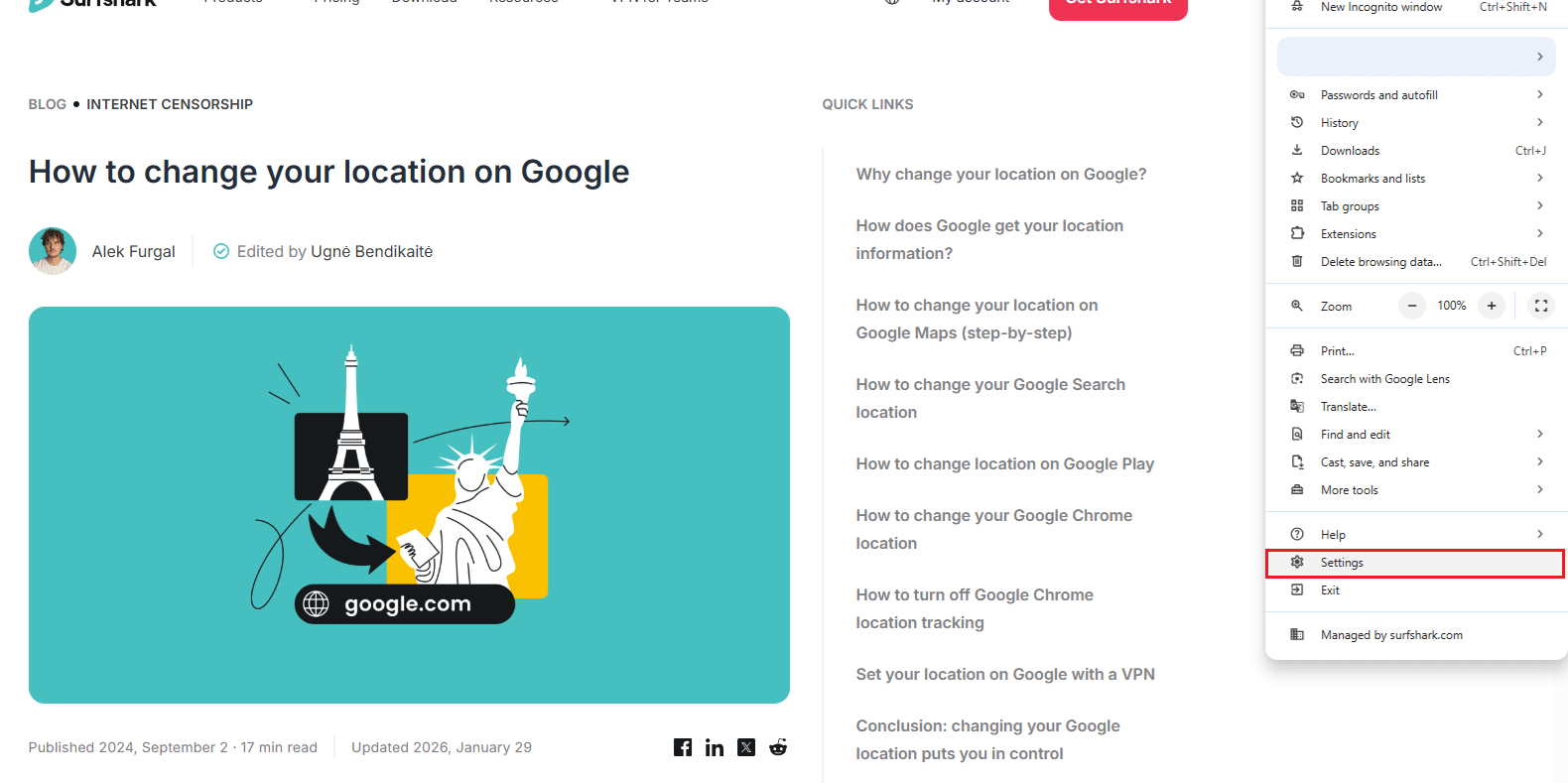
- Перейдите в Конфиденциальность и безопасность и выберите Настройки сайтов.
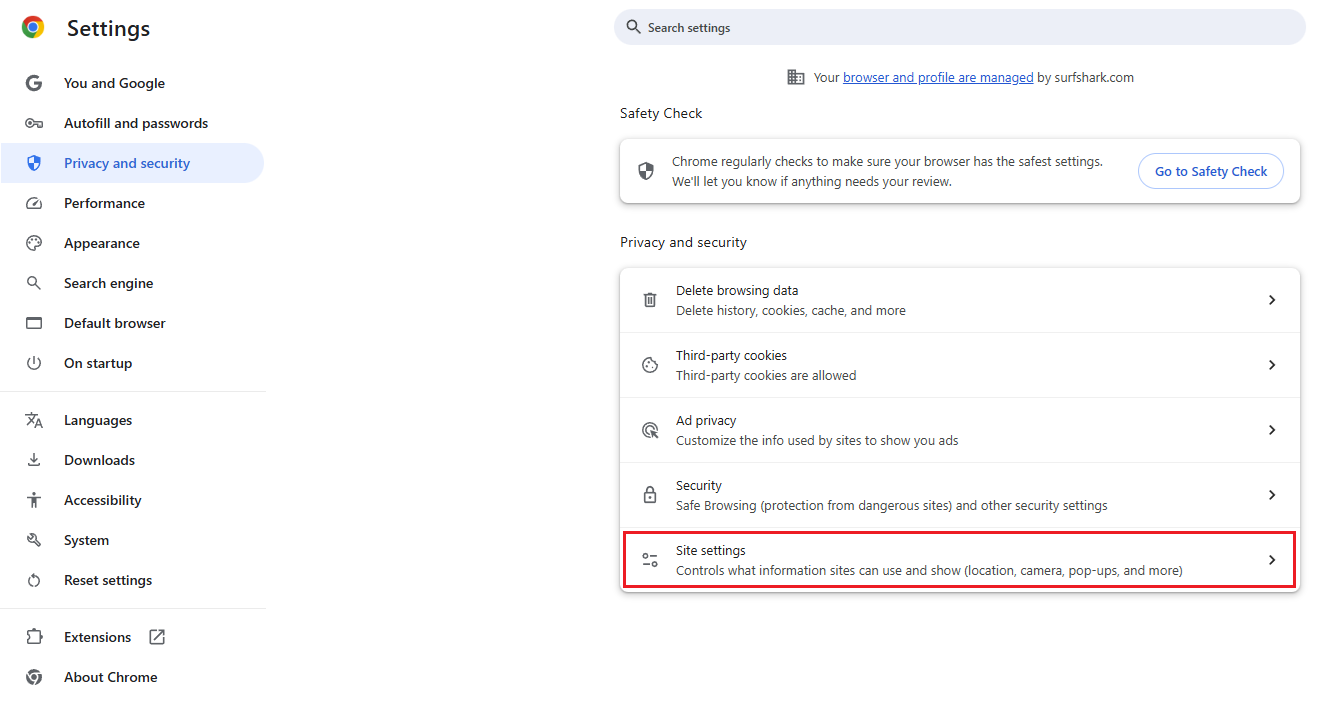
- Нажмите Местоположение.
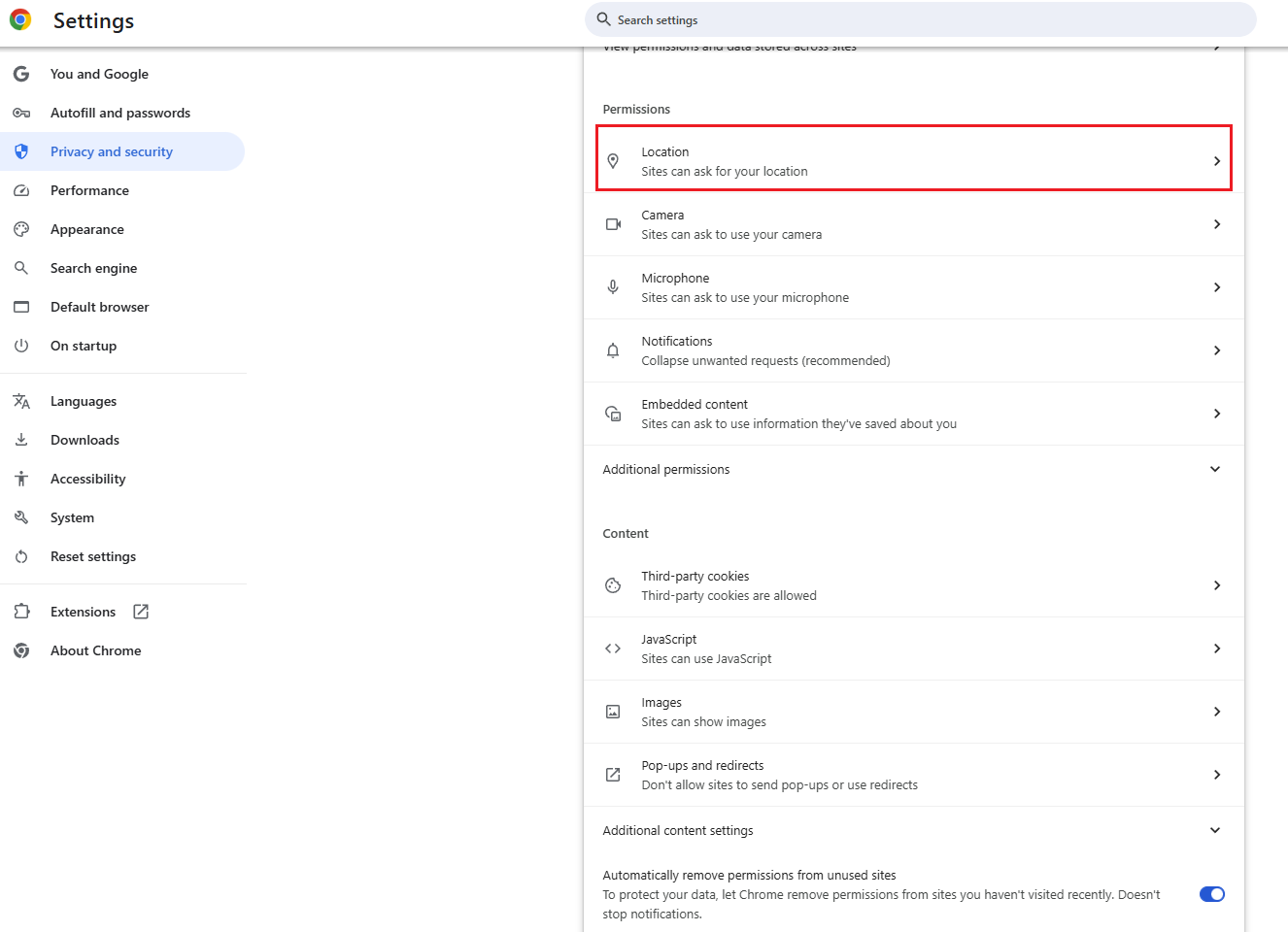
- Выберите Запретить сайтам доступ к геоданным.
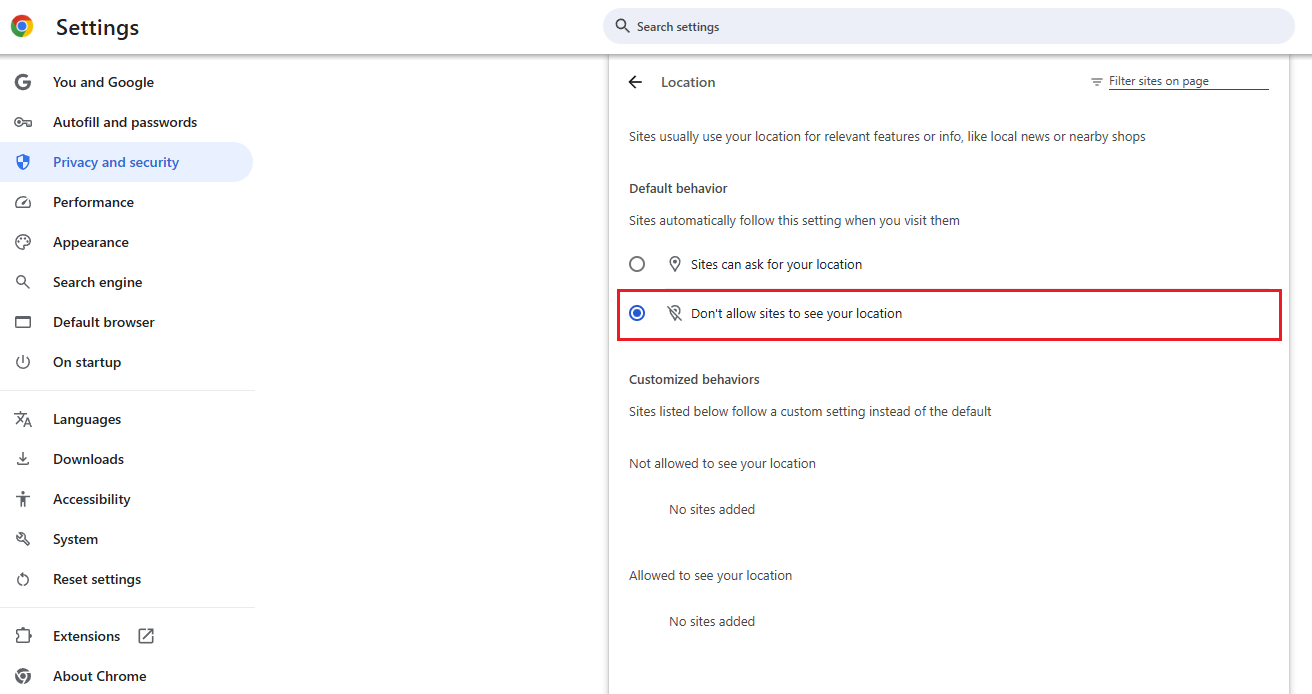
- Проверьте список разрешенных и удалите сайты, которым больше не доверяете.
Запретив таким образом доступ веб-сайтов к данным GPS или геолокации браузера, вы усилите свою конфиденциальность, но не замаскируете фактическое местоположение.
Как отключить отслеживание местоположения в Google Chrome на Android
- Откройте Chrome на устройстве Android.
- Нажмите на значок с тремя точками и выберите Настройки.
- Перейдите в Настройки сайтов, а затем в Местоположение.
- Переведите переключатель доступа к геоданным в положение Вкл. или Выкл.
- (необязательно) Настройте разрешения для отдельных веб-сайтов.
Как отключить отслеживание местоположения в Google Chrome на iOS
- Откройте Настройки.
- Прокрутите вниз и нажмите Chrome.
- Нажмите Местоположение.
- Выберите Никогда, Спросить в следующий раз или При использовании приложения.
Примечание. На мобильных устройствах Chrome во многом зависит от системных разрешений на доступ к геоданным. Чтобы при просмотре страниц отображаться в другой стране или регионе, вам потребуется сменить IP-адрес — обычно это делается с помощью VPN, о чем мы расскажем далее.
Использование инструментов разработчика Chrome (вкладка «Sensors») для ручной подмены местоположения (для опытных пользователей)
Chrome позволяет временно подменять геолокацию в браузере с помощью встроенных инструментов разработчика. Этот способ в основном используется для тестирования, разработки или проверки работы сайтов с разными координатами, но он не меняет местоположение на основе IP-адреса и не влияет на результаты поиска Google в целом.
- Откройте Google Chrome на ПК или Mac.
- Перейдите на любой сайт (например, google.com или карты Google).
- Нажмите правой кнопкой мыши в любом месте страницы и выберите Проверить, чтобы открыть Инструменты разработчика.
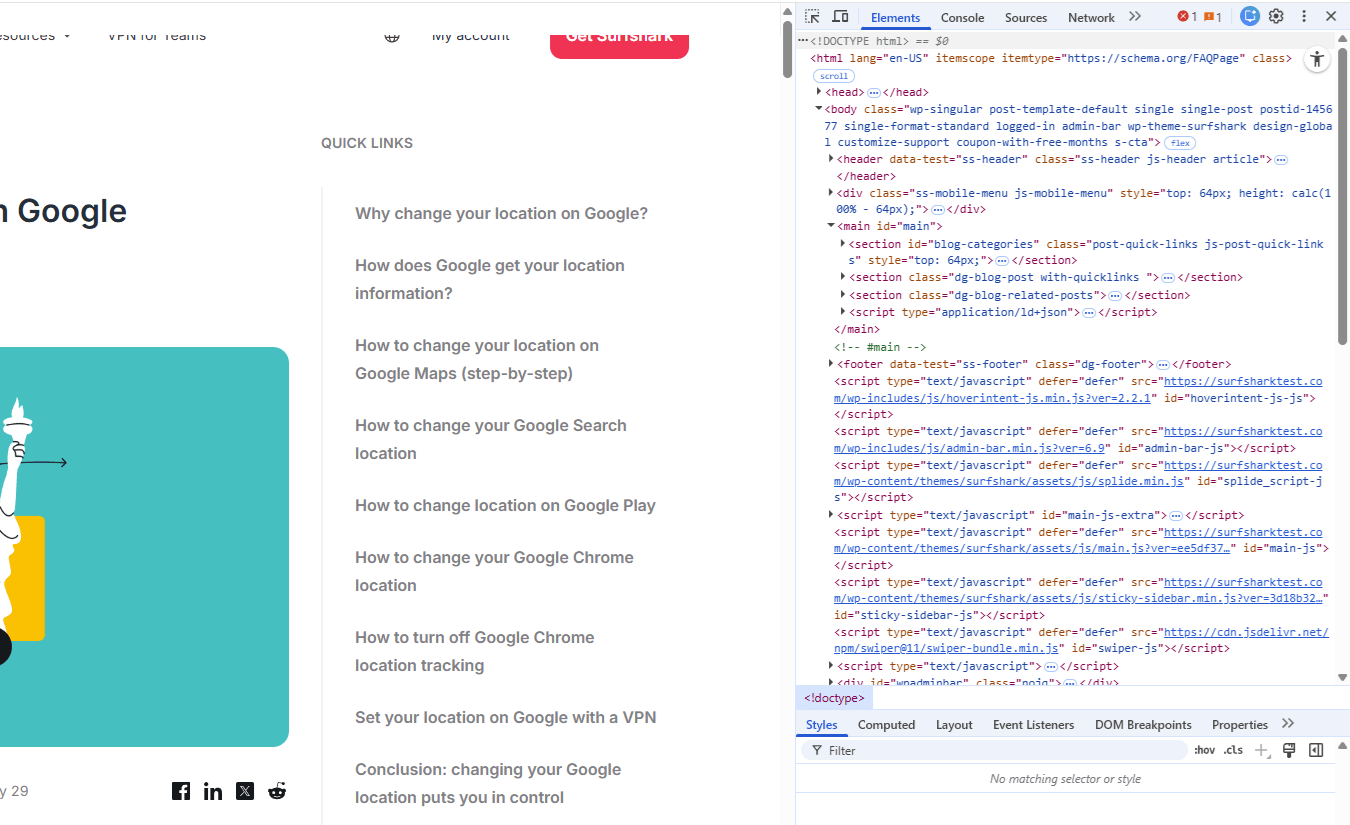
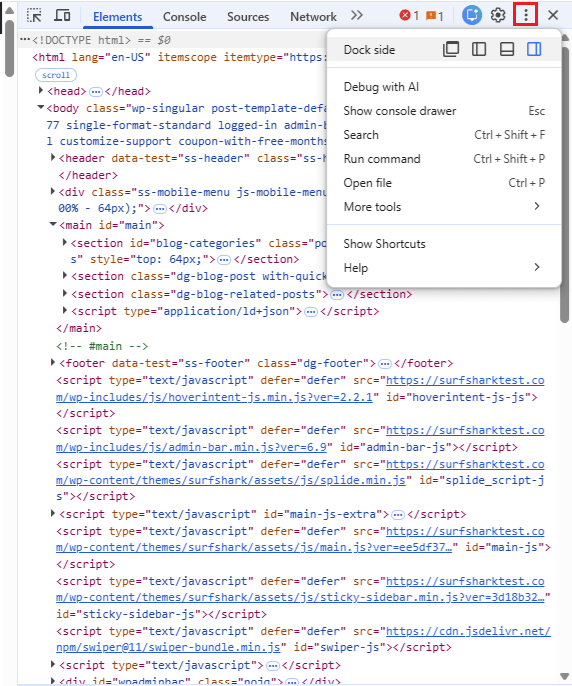
- Нажмите на меню с тремя точками в инструментах разработчика.
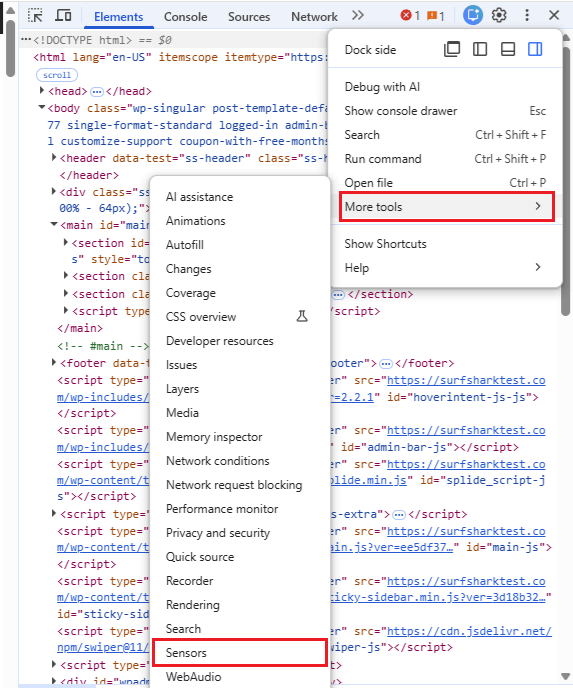
- Перейдите в раздел Другие инструменты и выберите Sensors.
- В раскрывающемся списке Геолокация выберите готовое местоположение или вариант Другое.
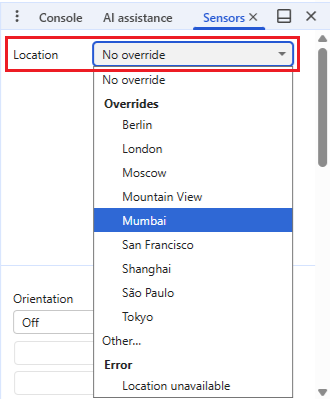
- Обновите страницу, чтобы применить новые координаты.
Настройка местоположения в Google с помощью VPN
Если вы хотите, чтобы Google считал вашим местоположением другую страну или регион, эффективнее всего будет использовать VPN. VPN изменяет IP-адрес — один из главных факторов, по которым Google определяет геолокацию пользователя в поиске, картах, Chrome и других сервисах.
Изменение местоположения в Google с помощью VPN
- Выберите надежного VPN-провайдера и оформите подписку. Мы рекомендуем Surfshark — перейдите на страницу сравнения VPN, чтобы узнать почему.
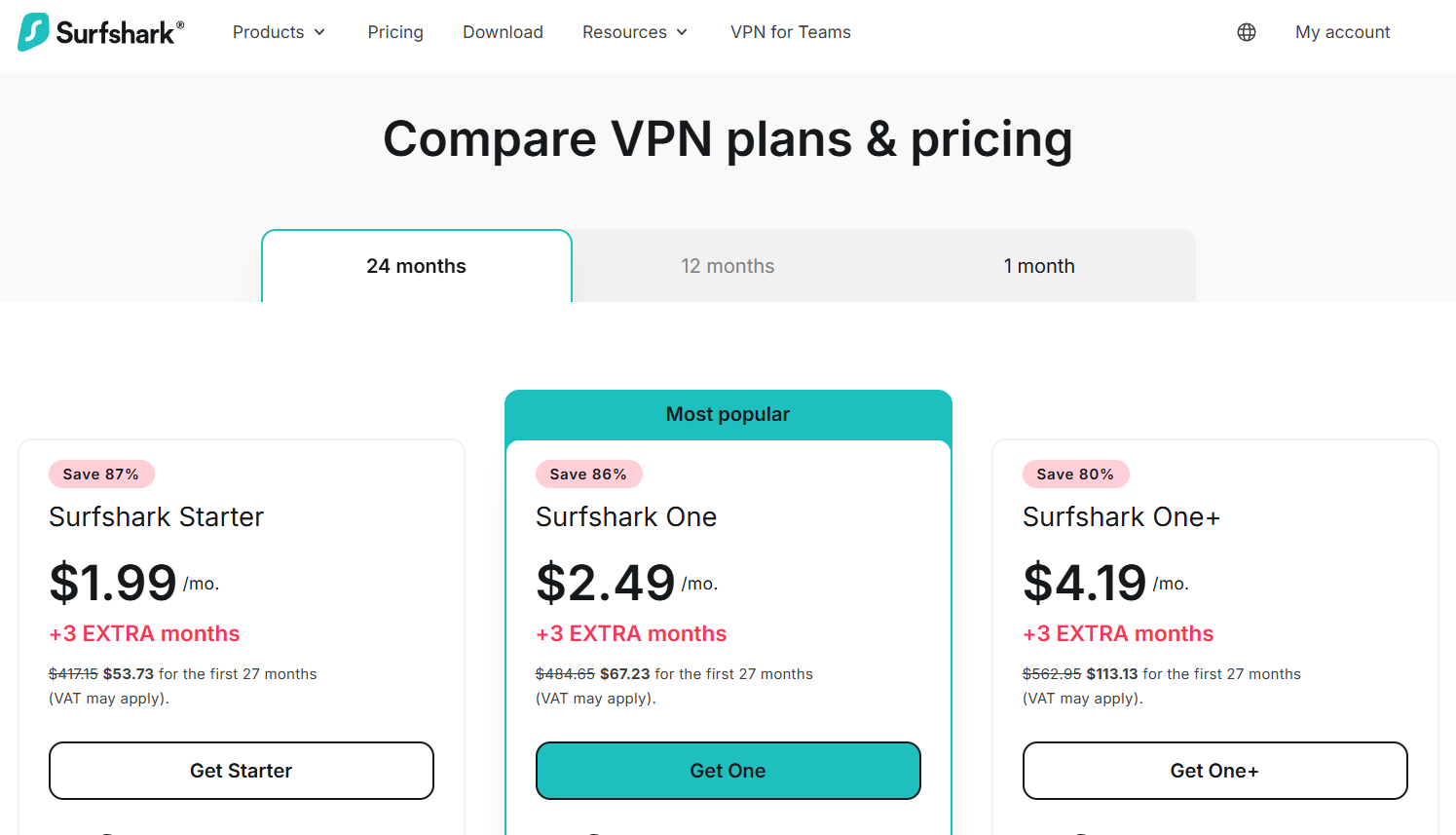
- Скачайте и установите приложение VPN.
- Откройте приложение и подключитесь к серверу в том местоположении, которое должен видеть Google.
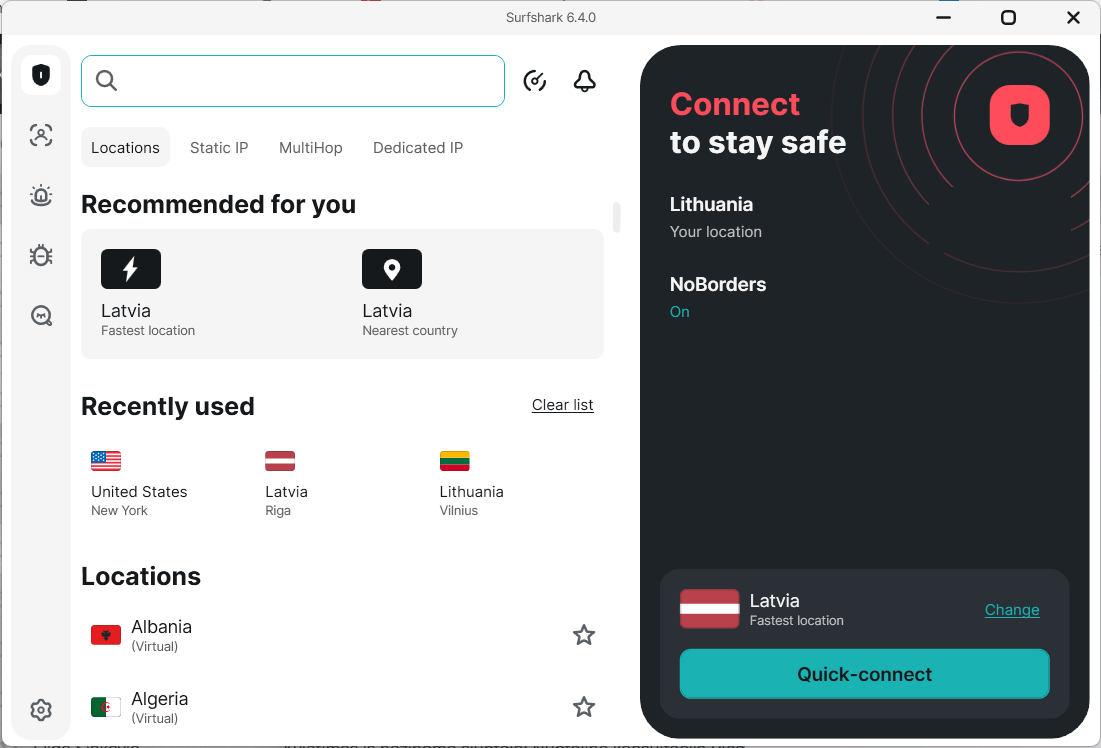
- После подключения откройте google.com или любой другой сервис Google.
- Очистите файлы cookie и кэш браузера, или откройте окно в режиме инкогнито или анонимного просмотра.
- Выполните поиск или откройте сервис Google, чтобы убедиться, что результаты теперь соответствуют новому местоположению.
Изменение местоположения в Google с помощью VPN-расширения для браузера
В отличие от полноценных VPN-приложений, изменяющих местоположение на уровне всей системы, VPN-расширение для браузера позволяет изменить его только для интернет-трафика в этом браузере. Попробуйте расширение Surfshark для Chrome с 7-дневным бесплатным пробным периодом.
- Установите расширение Surfshark VPN для Chrome (или другого вашего браузера).
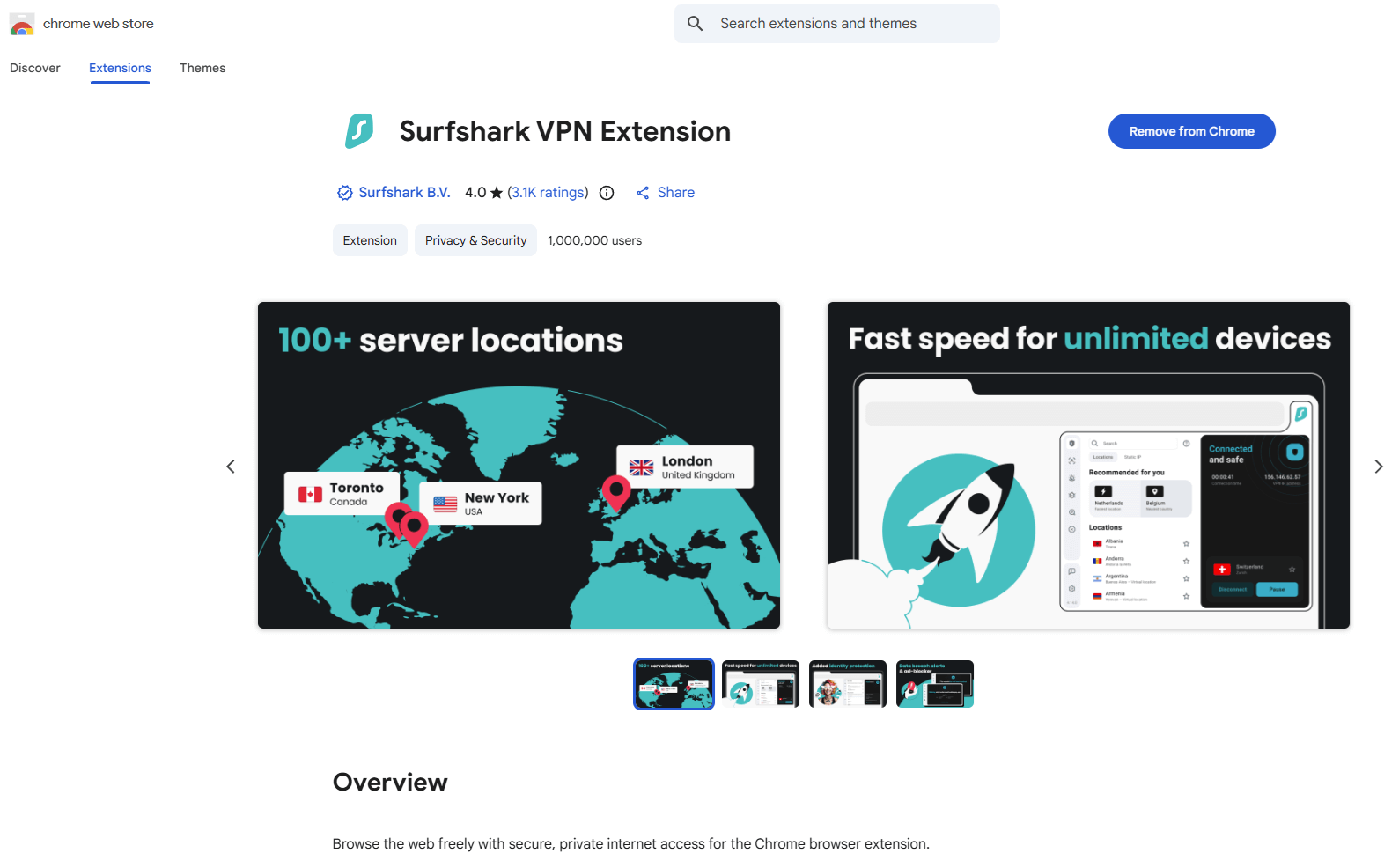
- Войдите в расширение.
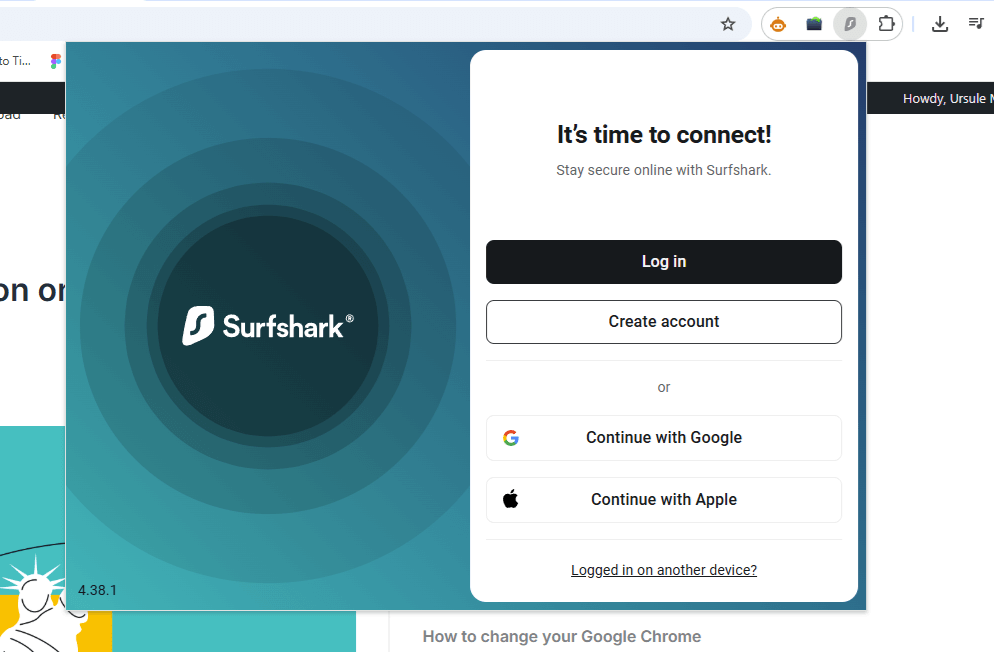
- Выберите нужное местоположение.
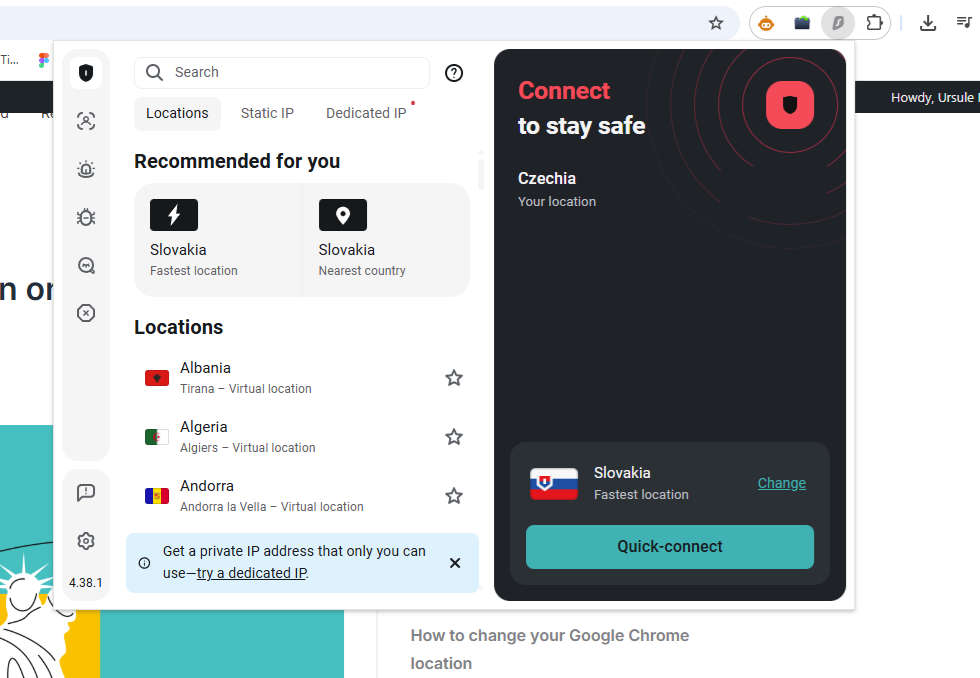
- Обновите страницу поиска Google или откройте новую вкладку.
- Проверьте местоположение, отображаемое внизу страницы с результатами поиска Google.
Проверка изменения местоположения
Чтобы проверить, правильно ли работает VPN-подключение:
- Перейдите на нашу страницу «Какой у меня IP-адрес».
- Убедитесь, что отображаемое местоположение совпадает с местоположением VPN-сервера.
Примечание. Для наилучших результатов используйте VPN в сочетании с настройками местоположения в поиске Google и блокировкой доступа к геолокации в браузере. Это не позволит Google смешивать старые геоданные с новым местоположением на основе IP.
Заключение: изменяя местоположение в Google, вы контролируете свои геоданные
Изменить свое местоположение в Google можно как простой сменой настроек поиска, так и более масштабно — с помощью VPN для маскировки IP-адреса. Выбор метода зависит от того, что вам нужно: получать другие результаты поиска, усилить конфиденциальность или сохранить доступ к домашнему контенту в поездках. Выбрав правильный способ изменения местоположения в Google, вы сможете легко настроить пользование Интернетом под свои нужды откуда угодно.

Маскируйте свое местоположение с помощью VPN
Подключитесь к серверу в другой стране
Получить SurfsharkВопросы и ответы
Почему Google неправильно определяет мое местоположение?
Google определяет примерное местоположение по таким данным, как IP-адрес, сеть Wi-Fi и история действий, которые не всегда точны. Ошибка может возникнуть, если ваш IP-трафик маршрутизируется через другой город, доступ к геолокации ограничен или Google использует устаревшие данные.
Влияет ли изменение местоположения в Chrome на другие приложения?
Нет, изменение настроек местоположения в Chrome влияет только на сайты, открываемые в этом браузере. Другие приложения и сервисы Google используют данные о местоположении на уровне системы или собственные разрешения, которые необходимо настраивать отдельно.
Помогает ли смена местоположения обойти ограничения интернет-соединения?
Смена местоположения не позволяет автоматически обойти ограничения соединения интернет-провайдерами, поскольку обычно они применяются к определенным типам трафика и зависят не только от геолокации. В целях конфиденциальности некоторые пользователи меняют свое местоположение для защиты онлайн-действий при подключении к публичным и другим незащищенным сетям.
Можно ли в Google Chrome задать местоположение по умолчанию?
В Google Chrome нельзя вручную задать фиксированное местоположение по умолчанию. Вы можете только разрешить или заблокировать доступ ко своим геоданным либо настроить его для отдельных сайтов (если только не используете специальные инструменты вроде настроек для разработчиков в целях тестирования).
В чем разница между изменением местоположения в Chrome и на устройстве?
Изменение местоположения в Chrome определяет, могут ли сайты получать данные о местоположении через браузер. Изменение местоположения устройства влияет на все приложения и службы на телефоне или компьютере, использующие системные сигналы позиционирования, такие как GPS.
Влияет ли режим инкогнито на измененные настройки местоположения?
Режим инкогнито не меняет ваше местоположение и не скрывает его от Google. Он лишь предотвращает сохранение файлов cookie и истории просмотров в Chrome, в то время как такие данные о местоположении, как IP-адрес и информация об устройстве, остаются прежними.