• Get Surfshark
  1. Home
  2. Features
  3. Split tunneling
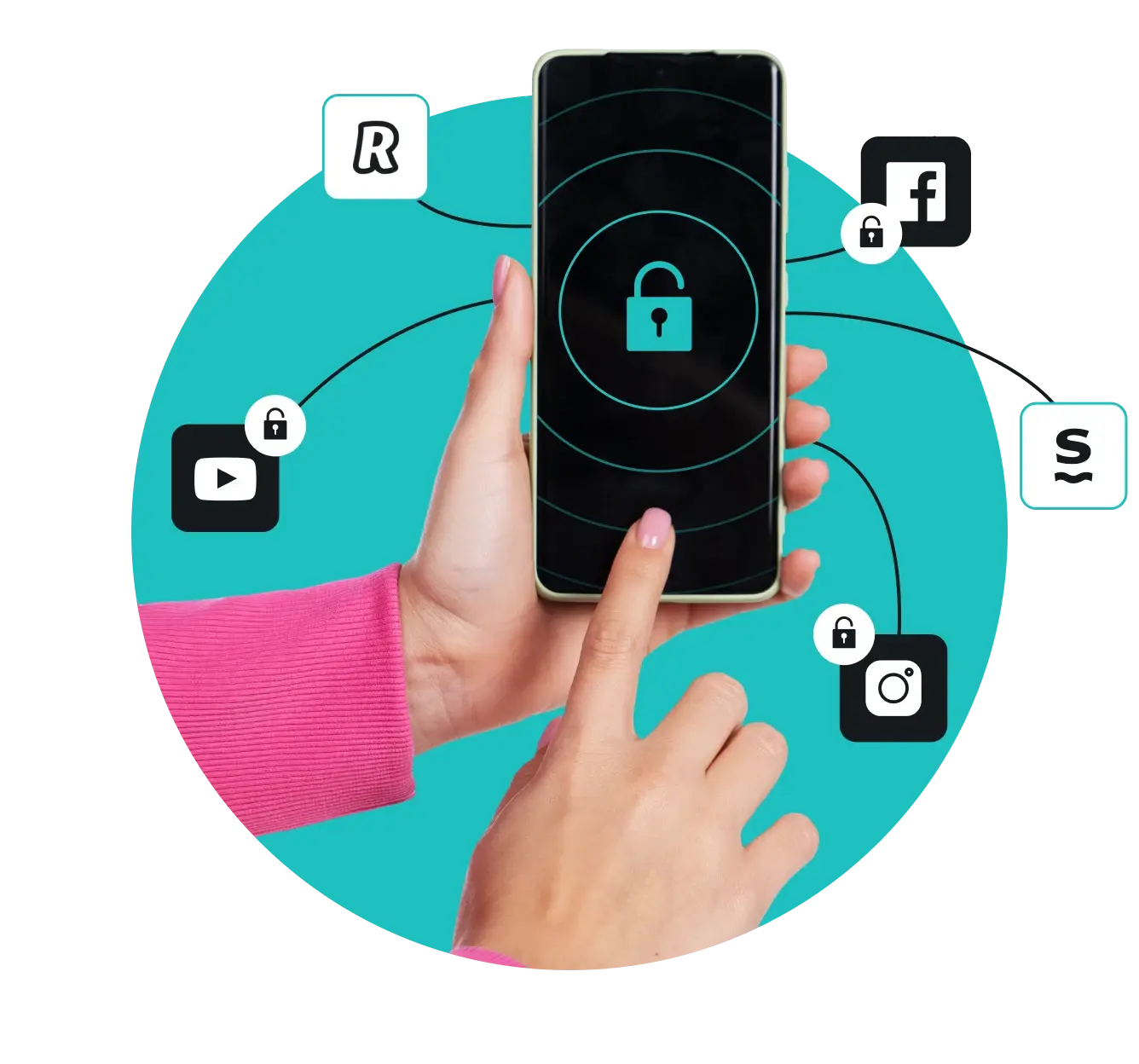
A hand holding a smartphone with an unlocked padlock icon, surrounded by app icons, some marked with unlocked padlocks.
Features

VPN split tunneling: how it works and how to use it

  • Choose which apps and websites go through your VPN
  • Use two different IP addresses at the same time
  • Keep 100% of your speed on unencrypted traffic
Pricing & plans
30-day money-back guarantee

What is VPN split tunneling?

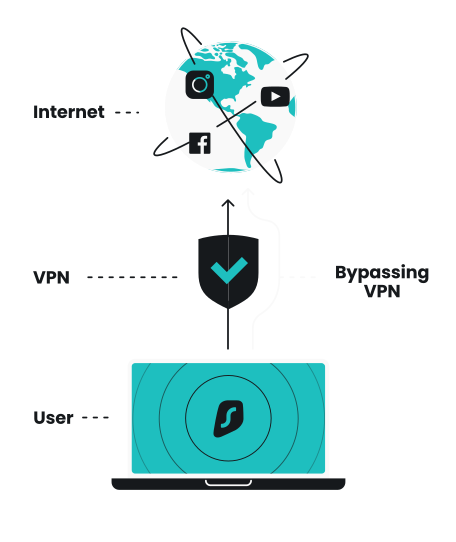
Split tunneling is a VPN (Virtual Private Network) feature that divides online traffic between direct internet access and an encrypted VPN tunnel. 

Instead of disabling your VPN completely when websites or apps require a specific IP (Internet Protocol) address, split tunneling lets you exclude them from the VPN tunnel. You can access them directly while keeping full VPN protection for all your remaining traffic.

Surfshark’s split tunneling feature is called Bypasser.

What is VPN split tunneling?

How does VPN split tunneling work?

VPN split tunneling creates two separate paths for your internet traffic. One routes through the encrypted VPN tunnel, while the other connects directly to the open internet without VPN protection. 

In your VPN client’s settings, you can choose which sites or apps use the VPN and which bypass it. This way, split tunneling allows access to apps and websites that need a local IP address while keeping the rest of your online activities secured.

How does VPN split tunneling work?

How to use VPN split tunneling

Surfshark’s Bypasser enables split tunneling on Windows, macOS, Android, and iOS operating systems, allowing you to block selected apps or websites from your VPN connection.

Get Surfshark

1. Get Surfshark

Open your Settings

2. Open your Settings

On the app’s side panel, click Settings > VPN Settings > Bypasser

Turn Bypasser on

3. Turn Bypasser on

Toggle the switches on the right side to activate your preferred Bypasser option.

Add apps and websites

4. Add apps and websites

Click Select apps or Add websites or IP addresses to choose what bypasses the VPN.

Get Surfshark

1. Get Surfshark

Sign up for Surfshark and download our macOS VPN.

Open your Settings

2. Open your Settings

On the app’s side panel, click Settings > VPN Settings > Bypasser

Add sites and apps

3. Add sites and apps

Select Add website or Add app to choose which apps and pages shouldn’t use a VPN tunnel. 

Finalize your list

4. Finalize your list

Click Add, and you’re all set. Your VPN is now disabled for your selected sites and apps.

Get Surfshark

1. Get Surfshark

Open your Settings

2. Open your Settings

On the app’s bottom bar, tap Settings > VPN Settings > Bypasser.

Turn Bypasser on

3. Turn Bypasser on

Toggle the switches on the right side to activate your preferred Bypasser option.

Add apps and websites

4. Add apps and websites

Tap 0 Apps selected or 0 websites selected to choose what bypasses the VPN.

Create a Surfshark account

1. Create a Surfshark account

Sign up for Surfshark and download our iOS VPN.

Open Settings to find Bypasser

2. Open Settings to find Bypasser

On the app’s bottom bar, tap Settings, then VPN Settings, and finally Bypasser.

Add sites

3. Add sites

Tap Add website to enter the addresses of pages where you want your VPN disabled.

Add apps and websites

4. Finalize your list

Tap Add, and you’re all set. Your VPN is now disabled for your chosen sites.

Reverse Bypasser, also known as route via VPN, is a split tunneling feature available on Android that allows you to select specific apps and websites to route exclusively through your VPN. On Windows, this feature is available only for apps.

You can also use split tunneling for websites with our browser extensions for Chrome, Firefox, and Edge.

Enjoy online security

Get Surfshark
30-day money-back guarantee

What are the different types of VPN split tunneling?

There are three main types of VPN split tunneling:

App-based split tunneling

App-based split tunneling can leave certain apps unaffected by a VPN connection. If you’re a PC user and don’t want Steam to go over your VPN, you can add it to the split tunneling list and connect directly without routing traffic from Steam through a VPN server first.

URL-based split tunneling

URL-based split tunneling operates on a website-by-website basis. If you’ve designated a specific page to use split tunneling, your normal browsing stays protected by the VPN, while anything you do on that page gets transmitted directly over the internet.

Inverse split tunneling

Unlike traditional split-exclude tunneling, inverse split tunneling encrypts only the data from selected apps or websites. All other data bypasses the VPN. Also called split-include, this lets you choose what to route through your VPN while sending the rest of your traffic directly to the internet.

Why use split tunneling?

Exclude data-heavy apps

A VPN connection may slow down your internet. While this speed drop is minor and usually goes unnoticed, it can sometimes interfere with online activities like gaming or video streaming. Split tunneling lets you exclude certain apps from encryption, helping them run at full speed.

Achieve greater control online

A split-tunnel VPN balances security and efficiency by encrypting your most vital information while allowing non-sensitive traffic to bypass VPN protection. This is helpful for remote workers who want to safely access their corporate network while keeping personal traffic on a regular connection.   

Access wireless home devices

Using a VPN can affect your phone or computer’s ability to connect to wireless local devices (e.g., printers). Enable split tunneling to keep all devices on your home network synced while enjoying a secure connection wherever you want it.

Use different IP addresses

A VPN changes your IP address to that of a VPN server. When you choose to exclude specific apps from VPN use, they’ll use your actual IP address. This allows you to use two IPs at once and access local content in some apps while staying hidden in others.

Disclaimer: Please note that using Surfshark services for any illegal activities is strictly forbidden and violates our Terms of Service. Make sure that any use of Surfshark services for your particular activities conforms to all relevant laws and regulations, including those of any service providers and websites you access using Surfshark.

Your web, your way

Own your online privacy

Get started
30-day money-back guarantee
Your web, your way

FAQ

VPN split tunneling makes your data more vulnerable, as you’re choosing not to encrypt it on certain websites or apps. You should only use split tunneling with reputable apps and websites. Keep your VPN protection on for all other online activities to keep your most sensitive data private from your ISP (Internet Service Provider) and others.

The security of VPN split tunneling depends on the VPN vendor that offers it. Paid VPN apps that follow all the latest security standards — like Surfshark — typically provide more secure split tunneling than free VPNs.

To set up split tunneling on the Surfshark app, do the following:

  1. Select Settings > VPN Settings > Bypasser.
  2. Turn on your preferred Bypasser functionality.
  3. Add the desired apps, websites, or IP addresses.

To stop VPN split tunneling in the Surfshark app:

  1. Select Settings > VPN Settings > Bypasser.
  2. Switch off any enabled split tunneling settings.

To test split tunneling with Surfshark:

  1. Make sure your VPN is disconnected.
  2. Open two IP-checking sites on two tabs on your browser, like What Is My IP Address and Surfshark’s own IP checker. You should see your real IP address on both. 
  3. Set up Bypasser in the Surfshark app to bypass one of the websites used above. 
  4. Connect to a VPN server.
  5. Refresh both IP-checker website tabs.
  6. If the website you set to be bypassed shows your real IP and the other shows the VPN server’s IP, split tunneling is working.

Surfshark is a VPN service provider that offers a VPN split tunneling feature in all of its subscription plans. Keep in mind — not all VPNs support split tunneling.

Some free VPNs offer split tunneling, but these aren’t recommended. Free VPNs often have limited features, bandwidth restrictions, and slower speeds. For better security and performance, use a reputable paid VPN service like Surfshark.

Use split tunneling when you need to connect to certain websites, apps, or devices with a local IP address. It’s also useful for data-heavy activities, such as video streaming or gaming, helping enhance performance and reduce data use.

Full tunneling means all your internet traffic is transmitted through a VPN tunnel. Your data is protected, and your online activity is encrypted through a secure VPN connection.  

With split tunneling, you can choose which data is routed through the VPN tunnel and which remains unaffected. Any data that doesn’t go through the tunnel is unencrypted and is routed through a direct internet connection. What’s more, your IP address isn’t hidden from the apps and websites you include in your split tunneling list.

VPN deal that Rocks

Get % off + mo. EXTRA
Get VPN Deal