Changing location on your iPhone can mean different things, depending on your goal: switching Apple ID country or region, changing iPhone regional settings, spoofing GPS location, or swapping your IP address.
For each of these goals, you have different options, like using a VPN (Virtual Private Network), adjusting the device’s location settings, modifying your Apple ID, and using specific apps to spoof your GPS location. In this article, I’ll walk you through each method and provide step-by-step guides for quick and easy location change.
Which location-changing method do you need?
Here’s a quick look at which method might work best for what you’re trying to achieve:
|
If you want to…
|
Use…
|
|
Download apps available in other countries
|
Change Apple ID country/region
|
|
Change language, date, or regional settings
|
Change iPhone region
|
|
Stop apps from tracking your location
|
Location Services
|
|
Browse as if you’re in another country
|
VPN
|
|
Spoof your GPS location
|
GPS location changer
|
How does your iPhone know your location?
Your iPhone knows your geolocation based on information from cellular networks, GPS, Wi-Fi, and Bluetooth. Additionally, your IP (Internet Protocol) address can help identify your regional location. By analyzing this information, your iPhone can determine your precise location.
Benefits of changing your current iPhone location
Having a different virtual location allows you to:
- Enhance privacy: you can prevent apps from tracking and sharing your actual location;
- Overcome oppressive censorship: access content restricted by oppressive governments that heavily censor internet use;
- Avoid targeted advertising: changing your iPhone’s location can help you get fewer ads targeted at your geographical location;
- Access global markets: virtually changing your location can enable you to work remotely, as certain apps, websites, and services require a local presence.
Change your Apple ID country or region
If you’re preparing for a trip or a move to another country and want to install an app that’s unavailable in your current location, you may need to change your Apple ID region.
A few things to consider before making this change. You need to spend your remaining store credit, as it can’t be transferred to your new account. You will also need to cancel your existing subscriptions and, in some cases, have a new valid payment method for your new region.
Change your Apple Store region on your iPhone or iPad
- Go to Settings and select your Apple ID profile.
- Go to Media & Purchases, and View Account.
- Select Country/Region and Change Country or Region.
- Select a new country or region from the list.
- Tap Agree.
Change your Apple Store location online
You can also change your Apple App Store region online:
- Go to account.apple.com and sign in to your account.
- Click Personal Information.
- Select Country/Region and choose your desired region and a valid payment method.
Change your region using a Mac or Windows PC
- Open the Apple Music or Apple TV app on your Mac or PC.
- On Mac: choose Account from the menu bar and click Account Settings.
On PC: click your name on the sidebar and choose View My Account. - Sign in to your Apple Account if needed.
- In the Account Information tab, click Change Country or Region.
- Choose your new country or region.
- Review and Agree with the Terms & Conditions. Click Agree again to confirm.
- Enter new payment information and billing address, and click Continue.
Note: Changing your Apple Store region does not change your GPS location; geolocation apps will still be able to determine your actual location.
Change your iPhone region
Changing your iPhone’s region adjusts your local formatting — not your device’s physical location or your IP address.
Change your iPhone’s regional settings if you want to adjust how information is displayed on your device to match different formats in a specific part of the world: language, dates, currency, etc.
To change your iPhone’s regional settings, follow these steps:
- Go to Settings.
- Select General.
- Select Language & Region.
- Tap Region.
- Select your preferred country or region from the list and confirm your choice.
Change the GPS location on an iPhone
IP location vs. GPS location: While an IP address reflects your internet connection’s regional location, your phone’s built-in GPS uses satellite signals to pinpoint your exact physical coordinates.
If you want to change your location for apps that strictly rely on physical device coordinates — such as location-based games, fitness trackers, or dating apps — a VPN will not be enough. Instead, you will need a GPS location changer to spoof these coordinates.
Two common options for spoofing your actual location are the iTools Dongle app and 3uTools. iTools is a paid service with a free trial period, while 3uTools is free software. However, keep in mind that spoofing isn’t risk-free, so proceed with caution.
Spoof your iPhone location with iTools:
- Download the iTools app.
- Connect your iPhone to your computer, open the app, navigate to Toolbox, and then Virtual Location.
- Select Developer Mode and download the iOS Developer Disk Image file.
- Enter a location in the search bar, select Go, and click Move here to spoof your GPS location.
Change your iPhone location with 3uTools:
Disclaimer: We don’t recommend this method, as we are not responsible for third-party apps and cannot guarantee their safety.
- Download the 3uTools software and launch it.
- Connect your iPhone to your computer, open the program, click Toolbox, and then Virtual Location.
- Enter a location in the search bar, adjust the location pin on the map, and click on Modify virtual location.
When you’re done spoofing your GPS location, restart your iPhone. If you don’t, all apps on your device will continue showing the fake GPS location as your actual one. Note that this method isn’t considered safe and doesn’t provide any security.
Change your IP location with a VPN
A VPN encrypts your internet traffic and masks your public IP address. By connecting to a VPN server, your traffic is routed through that server, making it look as if you’re accessing the internet from the server’s location.
Note: VPN changes your public IP address, not your device’s GPS location.
Using a VPN is the fastest, safest way to change your virtual location online. Common use cases include:
- Accessing region-specific content: overcome oppressive censorship or access websites and services that require a local IP when traveling;
- Improving privacy: prevent websites, advertisers, and third parties from tracking and sharing your online activity;
- Protecting connections on public Wi-Fi: secure your private data from snoops when connected to unsecured networks at cafes, hotels, or airports.
Follow these steps to change your iPhone’s location with a VPN:
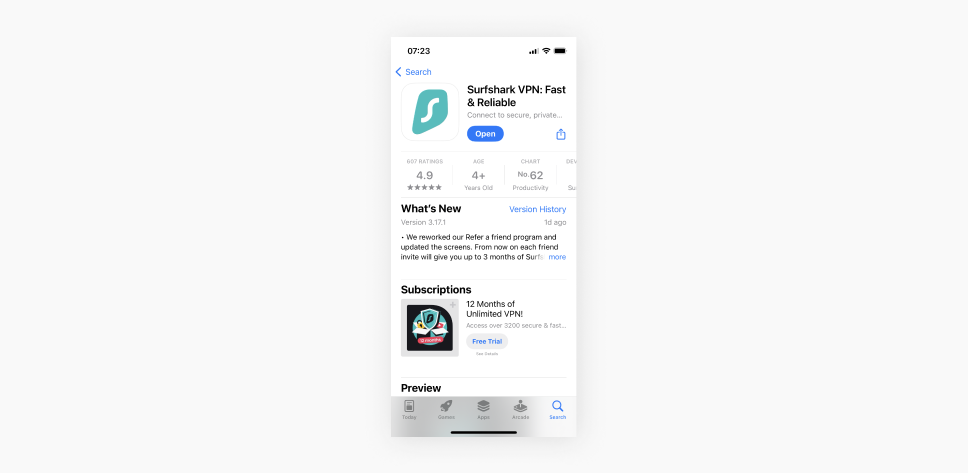
- Subscribe to Surfshark and download the app from the App Store.
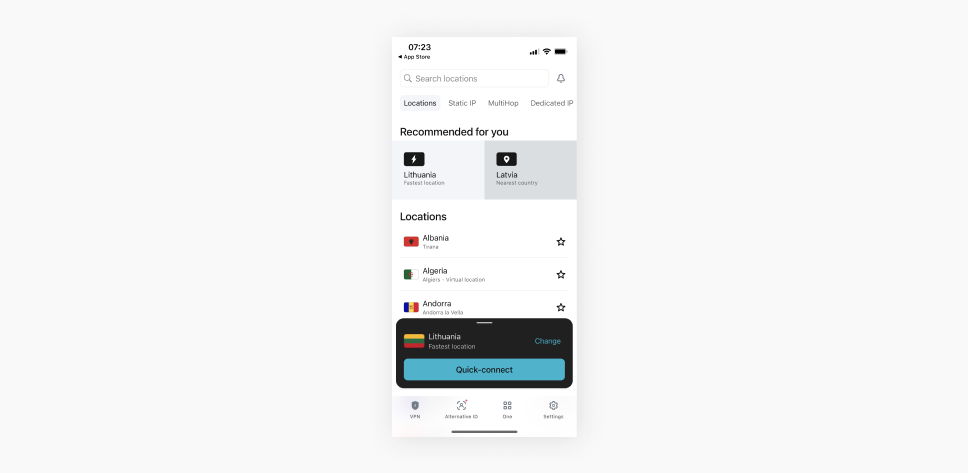
- Connect to a VPN server.
- Confirm that your VPN has been set up correctly by checking what your IP address is.
Disclaimer: Please note that using Surfshark services for any illegal activities is strictly forbidden and violates our Terms of Service. Make sure that any use of Surfshark services for your particular activities conforms to all relevant laws and regulations, including those of any service providers and websites you access using Surfshark.
VPN vs. GPS location changer: what’s the difference?
|
VPN
|
GPS location changer
|
|
Changes your IP address
|
Spoofs your device’s physical location
|
|
Used for websites and online services
|
Used for apps relying on GPS (maps, games, dating apps)
|
|
Encrypts online traffic and improves privacy
|
Simulates physical movement or fixed coordinates
|
Turn Location Services off
Some apps use multiple geolocation methods and rely on Location Services. This feature uses data from cellular networks, GPS, Bluetooth connections, and Wi-Fi. It allows location-based apps to track your device’s approximate location.
You can change the iPhone’s location settings by modifying Location Services.
Turn off Location services entirely
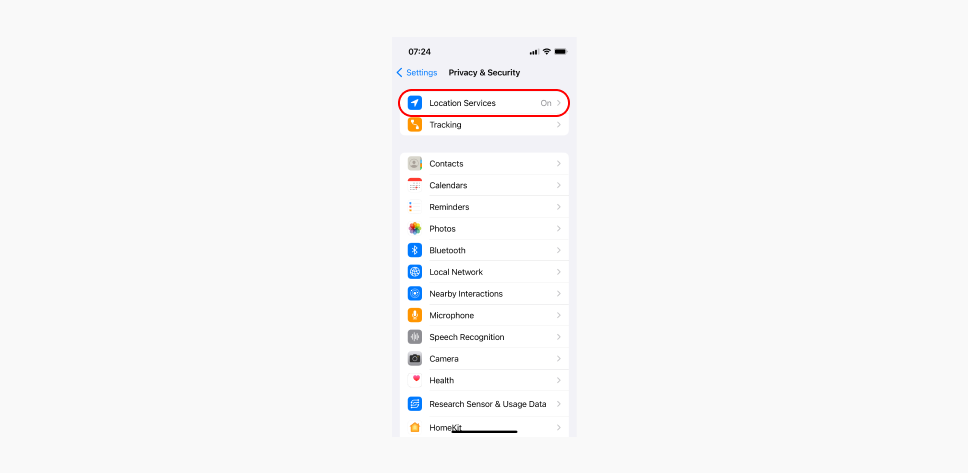
- Go to Settings.
- Tap on Privacy & Security.
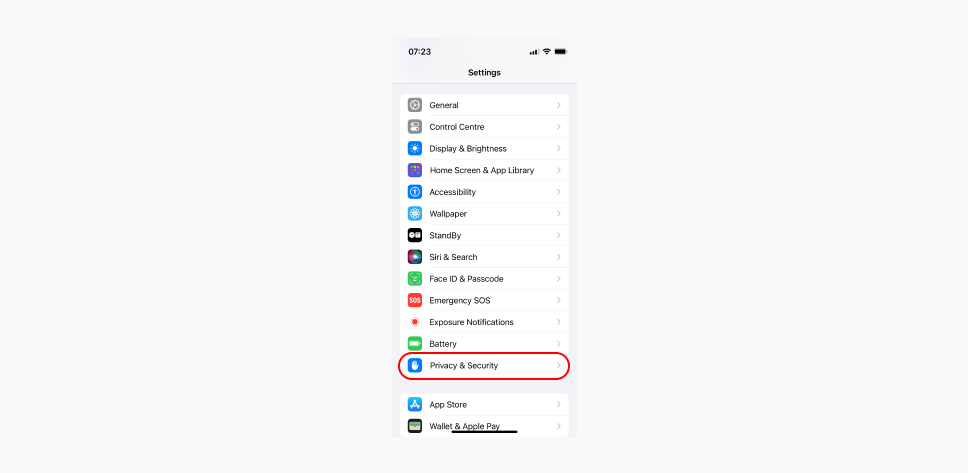
- Tap on Location Services.
- Toggle Location Services off.
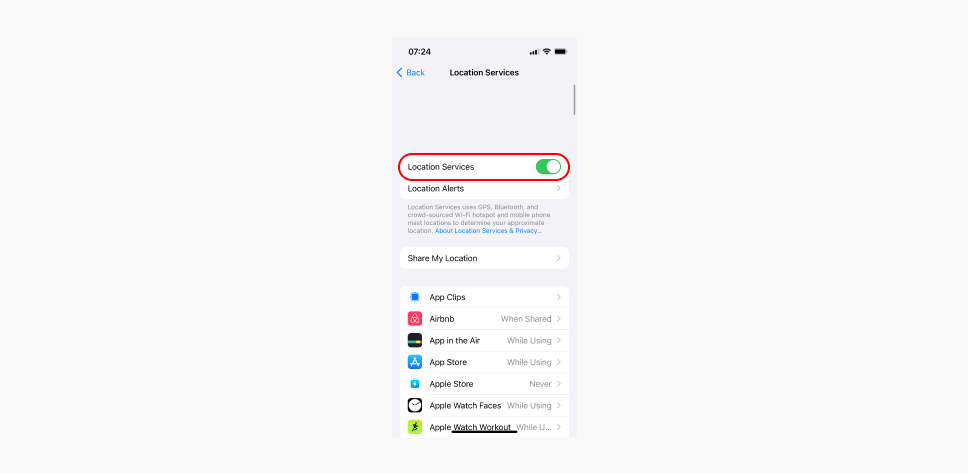
Note: Some apps and features may not work with Location Services disabled.
Turn Location Services off on a specific app
Follow these steps to block a specific app from accessing your location information:
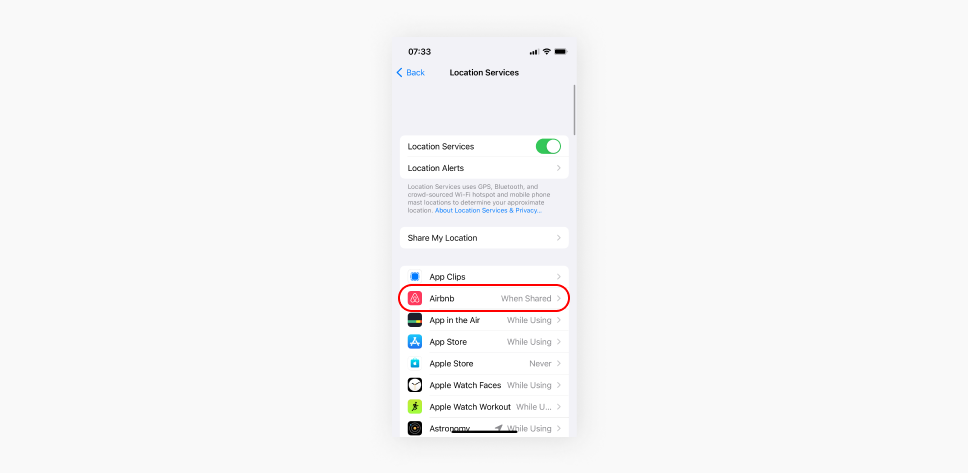
- Go to Settings.
- Tap on Privacy & Security.
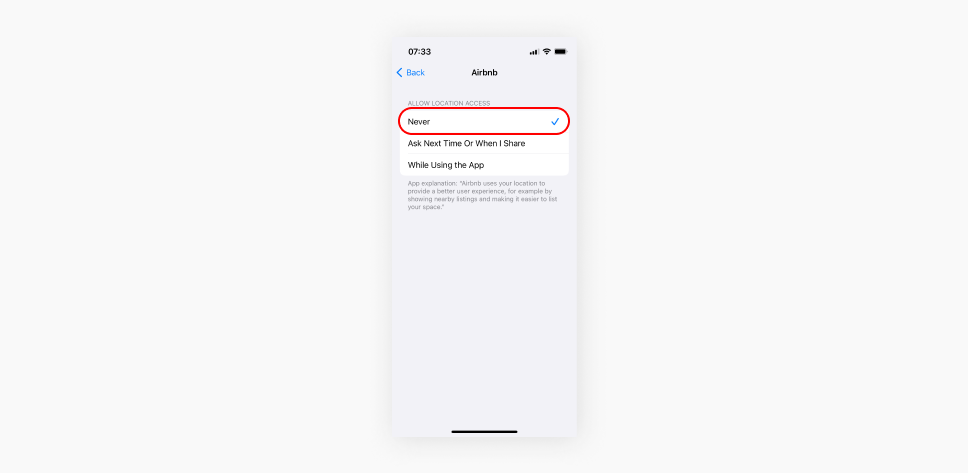
- Select an app for which you want to deny location access.
- Tap Never.
Closing thoughts: change your location and stay secure
Changing the location on your iPhone can provide a handful of benefits, from accessing various websites and services to improved online security and privacy. While you can manually change your location in your device’s settings or use GPS spoofing tools, using a VPN for iPhone to change your location is, in most cases, a faster, easier, and safer choice.
A reliable VPN like Surfshark changes your virtual location by giving you a new IP address and encrypts your internet traffic, keeping your connection private and secure.

Get a new IP and change your virtual location
Encrypt your traffic and shield your privacy with a VPN
Get SurfsharkFAQ
How do I make my iPhone location appear somewhere else?
You can change your virtual location by using a VPN to change your public IP address, switching your Apple ID region in settings, or using a computer-tethered GPS spoofing tool to alter your physical coordinates (however, we don’t recommend this last method).
Is it legal to change your location on your iPhone?
Yes, changing your location on your iPhone is legal — for privacy, personal use, or work access. However, changing your location for fraudulent purposes may violate local laws or the terms and conditions of a service you’re accessing. Always make sure you comply with all applicable laws and regulations.
Can I change my location without jailbreaking?
Yes. You can safely change your IP location using a VPN app from the App Store or change your Apple ID region directly in Settings without jailbreaking.
What is a VPN used for on an iPhone?
A VPN on an iPhone is used to encrypt internet traffic, improve online privacy, and secure data on public networks. It can also help you safely access your home content or services while traveling abroad.
Does a VPN change GPS location on iPhone?
No. A VPN masks your public IP address and alters your virtual location for websites and internet traffic, but it does not modify the physical GPS coordinates generated by your iPhone’s hardware.
Why does my iPhone still know my location?
If apps still detect your actual location while using a VPN, they are likely relying on built-in GPS, Wi-Fi positioning, or cellular network data through Location Services rather than your IP address.
Can I fake my location on Find My?
A VPN will not alter your location on Find My because the service relies on hardware GPS coordinates. To change your location on Find My, you’ll need a desktop GPS spoofing tool to override your phone’s coordinates system-wide.