No VPN apps on LG TV? No problem.
Set up Surfshark on your router or hotspot and protect your entire network.

Get a VPN for LG Smart TV
-
Enjoy buffer-free video streaming
-
Connect to 4,500+ servers worldwide
-
Keep your online activities private
How to set up a VPN on LG TV
While LG Smart TVs run on a webOS operating system that doesn’t natively support VPN (Virtual Private Network) apps, manual setup is simple.
With a few straightforward steps, you can enjoy the benefits of a VPN on your LG Smart TV in minutes. Whether you want to use a VPN-compatible router or a hotspot on your Windows computer, here’s how the process looks:
Setting up a VPN on your router secures all traffic on your home network, including devices like LG TVs that don’t support VPN apps. Set up your VPN once to protect all your household devices without needing to configure each one separately.
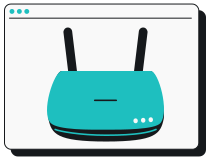
1. Check your router
See whether your router supports VPN connections by opening your router settings and looking for VPN or VPN Client. If it’s missing, consider a VPN-ready router.
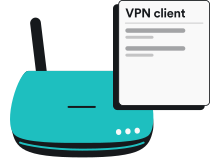
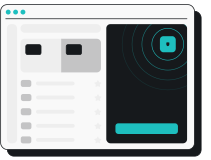
3. Connect your LG TV
Connect to one of Surfshark’s 4,500+ VPN servers and join your home Wi-Fi on your LG Smart TV. All devices on your network — including your TV — now automatically use your VPN connection.
You can check if your setup was successful with our IP (Internet Protocol) address checker. The displayed IP address should match your selected VPN server’s location. If you need more help, refer to our extensive guide on setting up a VPN on your router.
1. Download Surfshark
Download the VPN app and install it on your Windows computer.
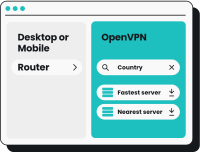
2. Configure sharing settings
Navigate to the TAP adapter settings under Network & Internet and configure your VPN adapter to allow sharing.
3. Connect to the VPN
Connect to the VPN on your Windows computer and activate the Wi-Fi hotspot. Then, connect your LG Smart TV to this hotspot to gain VPN protection.
You can find more detailed instructions for setting up a virtual router with a VPN in our VPN-protected Wi-Fi hotspot setup guide.
Why use a VPN for an LG Smart TV?
Access streaming services privately
A VPN encrypts your internet traffic and masks your IP, helping you access streaming services and other apps without third parties snooping on your activity. If you’re traveling abroad and have an LG Smart TV in your hotel or shared housing, setting up a VPN on your router or PC lets you load your favorite content, apps, and catalogs you’re used to.
Cut buffering on LG apps
By encrypting your traffic, a VPN can prevent your ISP (Internet Service Provider) from throttling your bandwidth based on your online activities. If your ISP doesn’t know what you’re up to, they can’t target an activity to throttle. This lets you enjoy reduced buffering, smoother playback, and fewer quality drops while streaming on your LG Smart TV.
Protect your LG TV and all connected devices
Enable encryption through your VPN-compatible router to reduce tracking, stop ad targeting tied to your TV usage, and shield every device on your home Wi-Fi network. Configure your VPN once and get automatic protection on your LG Smart TV, mobile devices, computers, and other devices.
What makes Surfshark a great choice for LG TV VPN?
Buffer-free streaming
Video streaming can consume a lot of data, which may lead to ISP throttling. Since a VPN hides your online activity, your ISP won’t slow down your internet speed just because you’re watching videos or engaging in other data-heavy activities.
Secure encryption
A VPN service is only as secure as the encryption it employs. Surfshark uses industry-leading encryption standards — AES-256 and ChaCha20 — paired with modern VPN protocols, ensuring your data is always protected.
No activity tracking
Surfshark VPN not only hides your activity from third parties but also doesn’t track or keep logs of your browsing history. And these aren’t just empty claims — our strict no-logs policy has been verified by Deloitte, one of the Big Four auditing firms.
Vast server network
The VPN connection speed can be influenced by server congestion and distance. Surfshark has 4,500+ RAM-only servers in 100 countries, allowing you to easily find an uncrowded server nearby, no matter where you’re located.
Unlimited simultaneous connections
You can protect all your devices under a single Surfshark subscription. With unlimited simultaneous connections, you can use the VPN for Fire Stick, Apple TV+, smartphones, PCs, tablets, and other devices without having to count your connections.
Modern VPN protocols
VPN protocols can influence the speed and security of your connection. Surfshark supports OpenVPN, IKEv2, and WireGuard protocols, all of which are designed to maintain a fast, stable, and secure connection for the best VPN experience.
Disclaimer: Please note that using Surfshark services for any illegal activities is strictly forbidden and violates our Terms of Service. Make sure that any use of Surfshark services for your particular activities conforms to all relevant laws and regulations, including those of any service providers and websites you access using Surfshark.
Surfshark vs. free VPNs
Free VPNs often compromise on security and performance. Surfshark VPN for LG Smart TV reliably offers more private, secure streaming and greater internet freedom.
|
|
Free VPNs
|
Surfshark VPN
|
|
Data collection risk
|
High: free VPN services often track your activity and share data with third parties
|
Low: Surfshark’s strict no-logs policy was independently verified by Deloitte in 2023 and 2025
|
|
Speed and bandwidth
|
Restricted: speed throttling and bandwidth limits are common
|
Unlimited: no bandwidth or internet speed caps are in place
|
|
Ads and trackers
|
Common: free VPNs may inject ads or allow trackers
|
Blocked: Clean Web offers built-in ad and tracker blocking
|
|
Customer support
|
Limited: often no live help and slow response times
|
24/7: live chat and email support are available
|
|
VPN servers and locations
|
Few: frequently have overloaded servers that slow your connection
|
Thousands: lets you connect to 4,500+ high-speed servers in 100 countries
|
|
Encryption
|
Unreliable: may lack strong encryption standards
|
Strong: AES-256 and ChaCha20 encryption standards for increased data and privacy protection
|