Protect your browsing privacy with a lightweight, easy-to-use extension
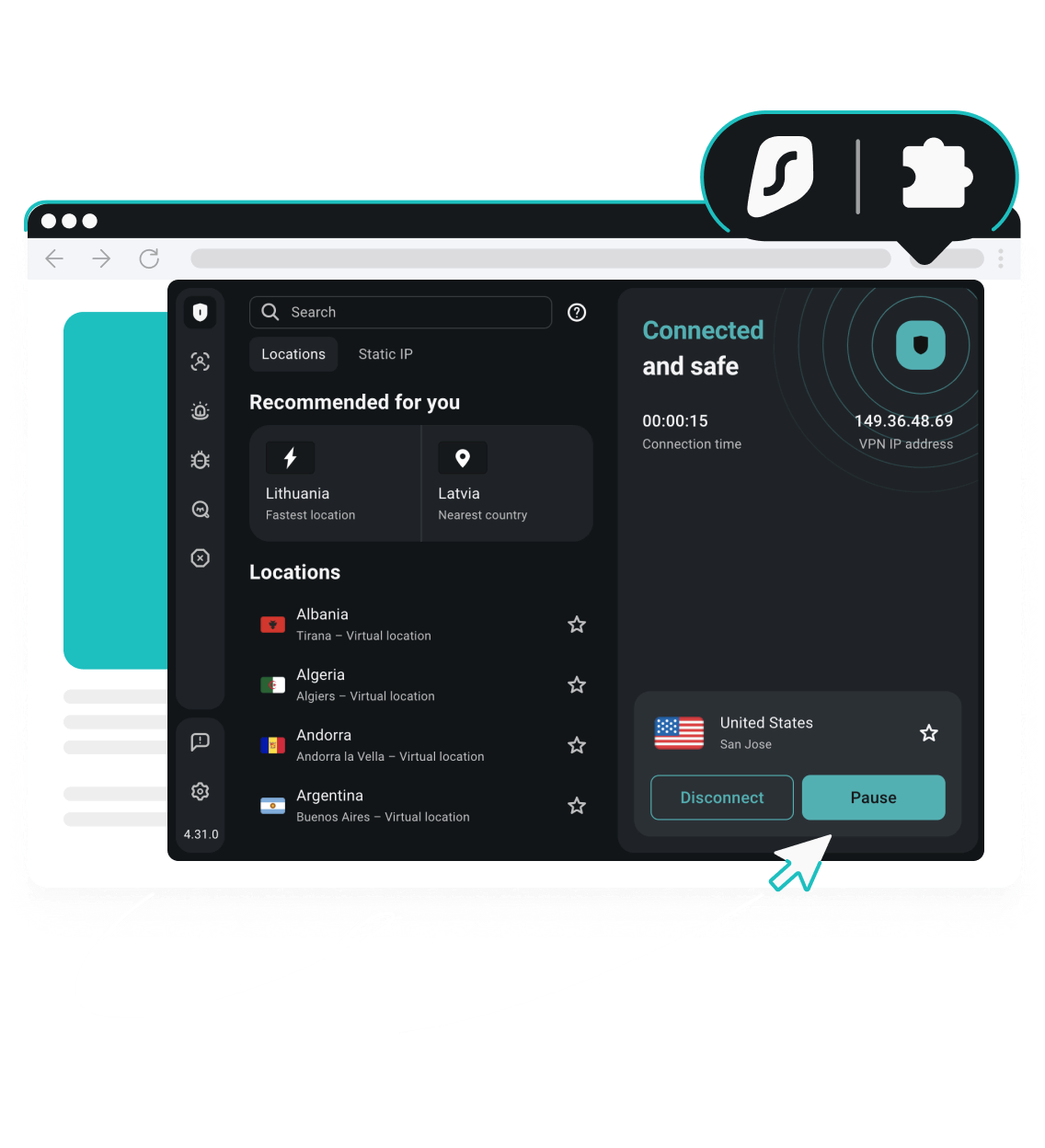
Fast & secure VPN for Microsoft Edge
-
Mask your IP with 4,500+ servers worldwide
-
Keep your activity hidden from websites and trackers
-
Encrypt your connection instantly with lightning-fast speeds
How to set up an Edge VPN extension
Get a new VPN (Virtual Private Network) extension for Microsoft Edge with these simple steps.

1. Subscribe to Surfshark
Pick the VPN pricing plan that fits you best and create a Surfshark account.

2. Add the extension
Search for the Surfshark extension in Microsoft Edge Add-ons and click Get.

3. Connect and surf
Log in to the Surfshark extension and connect to your preferred VPN server.
Check out our in-depth guide on how to set up Surfshark VPN for Edge.
From using a proxy extension on the Edge browser to setting up a router VPN for protection on smart TVs and gaming consoles, you can enjoy our VPN service wherever you surf.
Microsoft Edge VPN extension: your ticket to a secure internet
A VPN will help you stay private while accessing websites, apps, and streaming services.
Stay safe on public networks
Who says Windows and public Wi-Fi don’t mix? Our Microsoft Edge VPN enables more secure browsing, with data encryption that stops hackers, prying eyes, and ISPs (Internet Service Providers) from intercepting your online traffic.
Safely access the local coffee shop’s network, Wi-Fi on public transport, and airport hotspots!
Enjoy more private browsing
Microsoft Edge users can rely on our VPN extension to mask their real IP (Internet Protocol) address and reroute their online traffic through secure VPN servers. A VPN service keeps your actual location hidden, giving you increased privacy across all your browsing activity.
Surf with peace of mind knowing your data is better protected from sites and third-party services.
Block ads, pop-ups, and trackers
Open Microsoft Edge with our VPN extension turned on to save yourself from a world of annoying ads.
Our Clean Web feature blocks banners, trackers, and videos to bring you distraction-free browsing. Websites load faster, and cookie pop-up consent forms are automatically declined, allowing you to tap into a smoother online experience.
Get data leak alerts
Our Edge VPN extension helps keep all your data safe from accidental or malicious exposure.
Surfshark’s real-time notifications are a VPN feature that lets users know if the sites they’re visiting previously saw data leaks or were infected with malware — before any personal data ever gets entered.
Unlock unlimited VPN connections
The best VPN extension shouldn’t limit access to one device. Surfshark’s Edge extension can encrypt browser traffic on unlimited simultaneous connections with a single account.
Elevate your security on your whole home network wherever you use Edge — whether on Windows, Mac, or Linux.
Stream securely
If you value safer streaming, add a VPN service to your browser essentials.
With a VPN connection, you can encrypt your streaming traffic. Snoops won’t see what you’re doing, and ISPs can’t slow down your bandwidth based on activity type. When traveling abroad, you can also get secure access to your favorite content from home.
Disclaimer: Please note that using Surfshark services for any illegal activities is strictly forbidden and violates our Terms of Service. Make sure that any use of Surfshark services for your particular activities conforms to all relevant laws and regulations, including those of any service providers and websites you access using Surfshark.

Compare Surfshark’s plans
Surfshark Starter
Comes with a VPN & Alternative ID — essentials for your daily browsing.
- VPN: surf safely online
- Personal data masking: protect your identity
- Ad blocker: block ads & pop-ups
Surfshark One
Shields you with all-round security for your browsing, devices, and identity.
- VPN: surf safely online
- Personal data masking: protect your identity
- Ad blocker: block ads & pop-ups
- Antivirus: armor your devices
- Data leak monitoring: get notified of leaks
Surfshark One+
Keeps your online activities & devices safe, with extra focus on identity protection.
- VPN: surf safely online
- Personal data masking: protect your identity
- Ad blocker: block ads & pop-ups
- Antivirus: armor your devices
- Data leak monitoring: get notified of leaks
- Incogni: reclaim your data
See why millions trust Surfshark
Check out what users and tech experts around the world have to say about Surfshark.



The reviews highlighted in this section were selected from publicly available posts on social media platforms. They reflect the opinions of individual users at the time of posting and may not represent the full range of our product features and qualities.
The reviews quoted on this page have been published by media outlets associated with Surfshark through affiliate partnerships. Their recommendations are based on their own independent research and insights to ensure value for the readers.
I have been using Surfshark since I got it and I love it!

When I am traveling, I use Surfshark to access the internet quickly and securely, works like a treat in China.

We love Surfshark because it is an easy-to-use app that you can download on all your devices.

The reviews quoted on this page have been published by media outlets associated with Surfshark through affiliate partnerships. Their recommendations are based on their own independent research and insights to ensure value for the readers.
“This is my first year and I absolutely love it. The fact I can have a good antivirus, great VPN, and incognito for like $120 a year is great.”
“I’ve been using Surfshark for 4 years on Android and ChromeOS with zero issues, it’s an absolute bargain”
“I’ve had it for 3 years and just renewed it for the next 2 years. I never have any issues with it and get my full internet speed…”
The reviews highlighted in this section were selected from publicly available posts on social media platforms. They reflect the opinions of individual users at the time of posting and may not represent the full range of our product features and qualities.





Frequently asked questions
What are VPN extensions for Edge?
VPN extensions are add-ons supported by Microsoft Edge that provide VPN functionality in the browser. They encrypt your connection and route your traffic via a VPN server, masking your IP address in the process.
Does Microsoft Edge have a VPN?
Yes, Microsoft Edge has a built-in VPN called the Microsoft Edge Secure Network.
The Edge Secure Network feature encrypts your browsing data for extra privacy when using the Edge browser. However, it comes with data limits, fewer privacy features, and less flexibility compared to some third-party VPN extensions.
For instance, the Edge Secure Network lacks a split tunneling feature that lets you bypass VPN protection on specific sites you trust.
What is the best free VPN proxy extension for Edge?
No free VPN extension for Edge can be considered the best, as you shouldn’t rely on a free VPN in general.
A free Edge VPN is more likely to be slower and offer limited protection. Even Edge’s built-in VPN, the Edge Secure Network, lacks a split tunneling feature that lets you bypass VPN protection on select sites.
For secure browsing, the best VPN for Edge is likely a paid option with a reliable no-logs policy.
How do I set up a VPN proxy extension for Microsoft Edge?
You can set up a VPN extension for Microsoft Edge via the Microsoft Edge Add-ons page. Search for the extension you want and click Get to add it to your browser.
Once installed, open the extension, sign in with your account if needed, and select a server location to start browsing on a secure network.
How do I know if my VPN Edge extension is working?
There are several ways to check if your Microsoft Edge VPN works, like checking your IP address or performing a DNS (Domain Name System) leak test. Here’s what you should do:
- Turn your VPN off.
- Run a DNS leak test or IP address test.
- Note down the results.
- Enable your VPN extension.
- Run the tests again.
- If the results are the same as when you ran the tests the first time, your VPN extension isn’t working. If they’re different, your VPN is on, giving you greater online security.