 Surfshark
Good news for our extension users! We added a new functionality to our website safety settings. Now, you can check your Google Search results before clicking on them. Want to know more about the feature and learn how to use it? Read along!
What are website safety settings?
Surfshark’s website safety settings are a feature of our browser extension platform. This feature checks websites in Google Search results, alerting you to potential dangers. It includes two main functions:
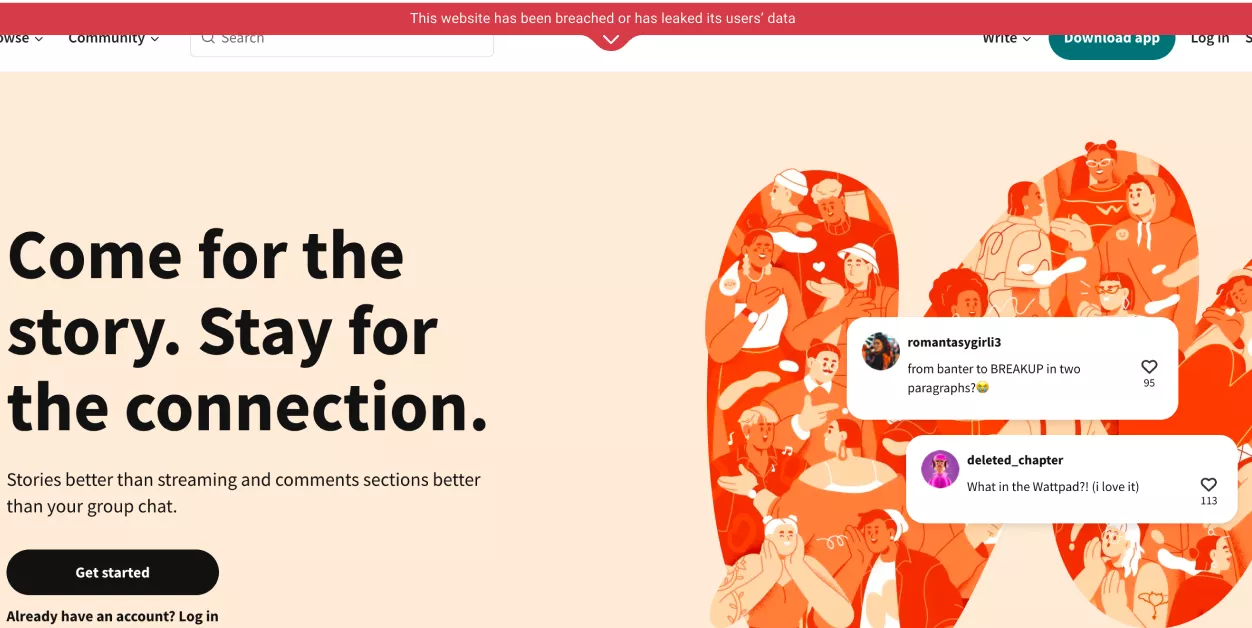
Data breach alert
Data breach alerts notify you if a website has leaked user data. You’ll see this information in a banner right under the search bar after visiting the page. You can click on it for more information about the breach.
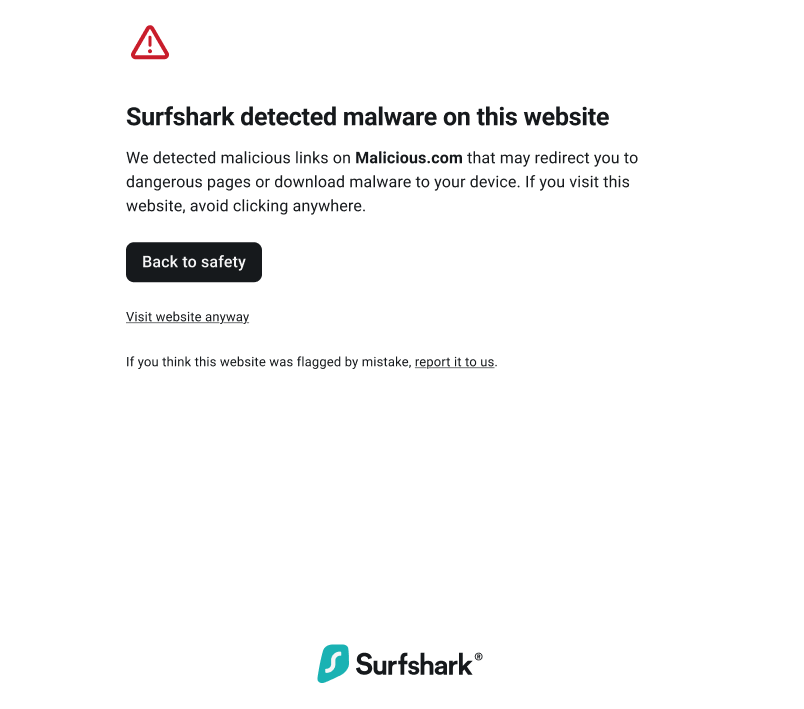
Malware alert
This functionality alerts you if a site contains malware or signs of phishing, using two types of warning badges that indicate the threat type and what to do.
What’s new?
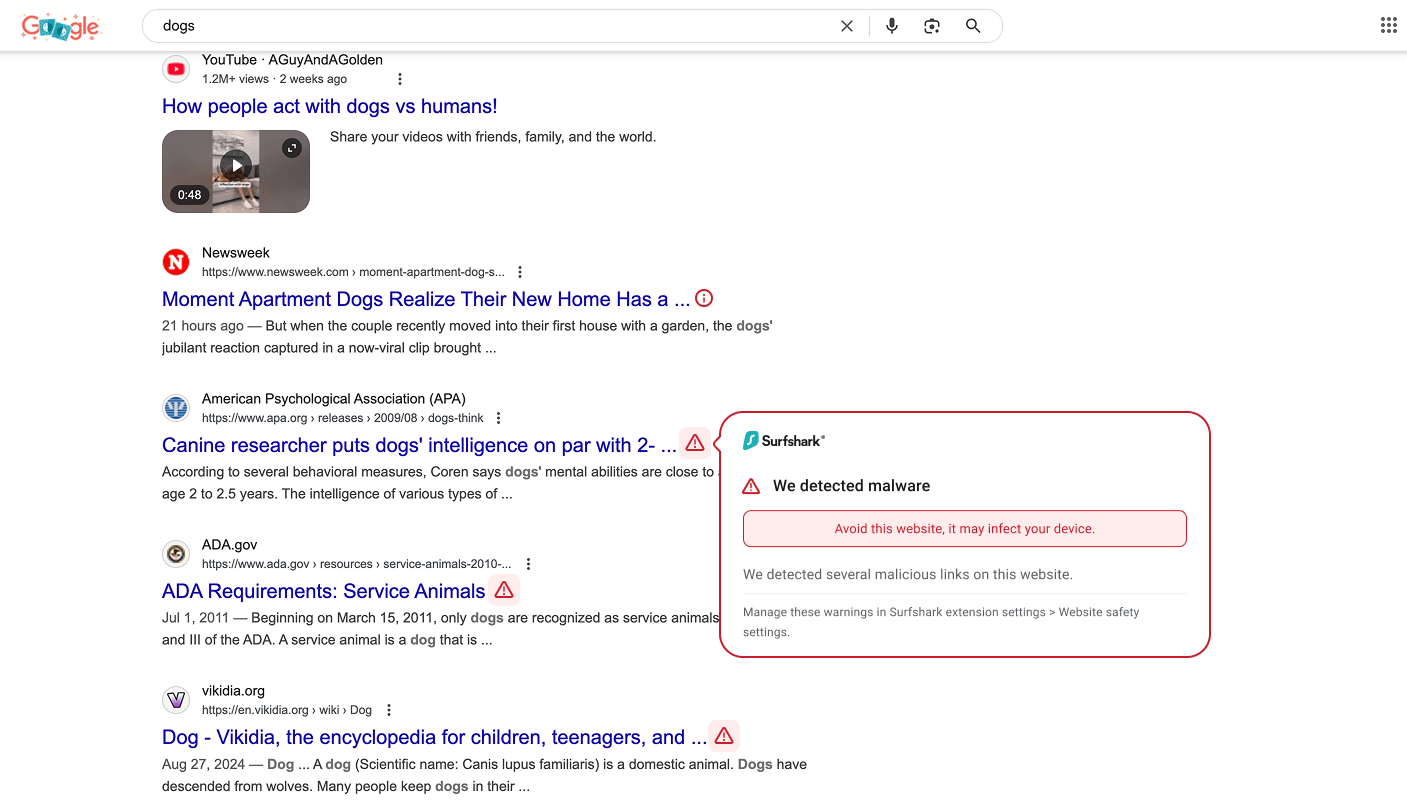
We’ve enhanced our website safety settings to provide a more seamless and secure browsing experience. Previously, you could only view safety badges after clicking on a webpage. Now, we’ve taken this a step further by showing a page’s security status directly in Google Search results.
This feature, available exclusively on Google Chrome and Google Search, uses symbols next to each link to indicate potential risks associated with the websites. They include alerts for data leaks or breaches, malware threats, and phishing attempts, ensuring you can make informed decisions before visiting a site.
What are the main benefits?
Using our website safety settings alongside your VPN boosts your security by catching threats at the earliest point in your browsing journey. In addition to that, you:
- Avoid wasting time on dangerous websites;
- Prevent potential malware infections on your device;
- Protect your personal information from being compromised;
- Save yourself from the hassle of dealing with compromised accounts, infected devices, or stolen credentials.
How to use website safety settings
You can find the website safety settings by following these steps:
- Install or open your Surfshark browser extension.
- Go to the extension settings.
- Navigate to the Website safety warnings section.
- Make sure both toggles for Data breach alert and Malware alert are turned on.
If you choose to enable only the data breach alert option within the website safety settings, Google Search results will be scanned exclusively for data breaches and leaks. Similarly, if you activate only the malware alert, the search results will focus solely on detecting malware and phishing threats.
For a more detailed guide on how to use website safety settings, check out this article.
Final note: turn on your website safety settings
Website safety settings are a simple yet effective way to enhance your online security. By activating these features, you can help protect yourself from malware, and phishing scams. So why wait? Install our browser extension, turn on website safety settings today, and enjoy a safer, more secure browsing experience.