Security tools
How to find my IP address
Public IP
How to find my public IP address
- Find your public IP at the top of this page.
- Search for What is my IP on Google or DuckDuckGo.
- Use a trusted IP lookup tool and check your IP for free.
Windows
How to find my IP address on Windows 10/11
- Open Settings.
- Go to Network & Internet.
- Select Wi-Fi or Ethernet.
- Click on your network name to view your IP address.
MacOS
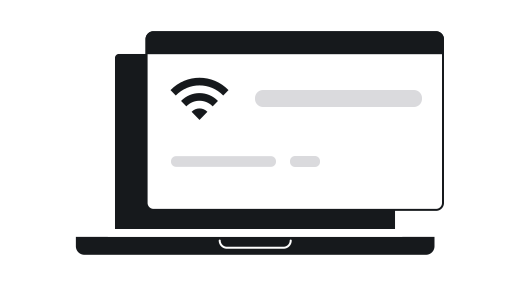
How to find my IP address on MacOS
- Click the Apple menu and select System Settings.
- Choose Network.
- Select your active network connection and click Details.
- Your IP address will be displayed on the right.
Mobile
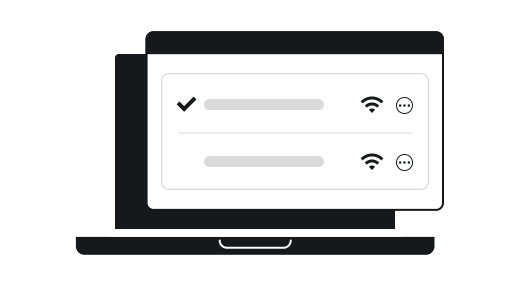
How to see the IP address on an iPhone
- Open Settings.
- Tap Wi-Fi.
- Tap the information icon (i) next to your connected network.
- Your IP address will be listed.
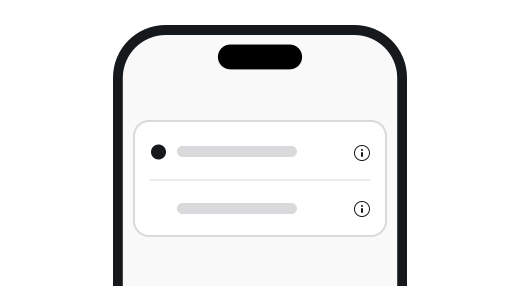
How to see the IP address on an Android
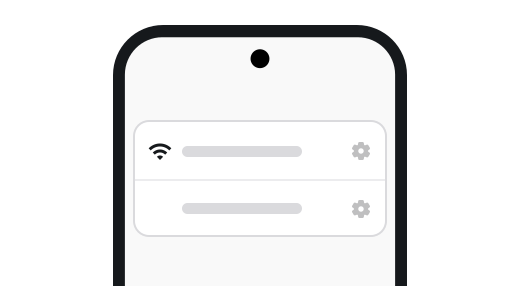
- Open Settings.
- Tap Network & Internet.
- Select Wi-Fi and tap your connected network.
- Your IP address will be displayed.
Linux
How to find the IP address on Linux/Raspberry Pi
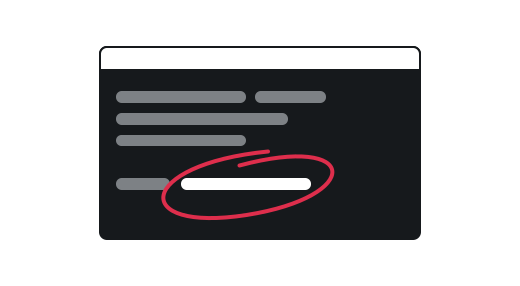
- Open a terminal.
- Type hostname -I and press Enter.
- Your IP address will be shown.
Gaming
How to find the IP address on PlayStation
- Go to Settings.
- Select Network.
- Choose View Connection Status.
- Your IP address will be shown.
How to find the IP address on a Xbox
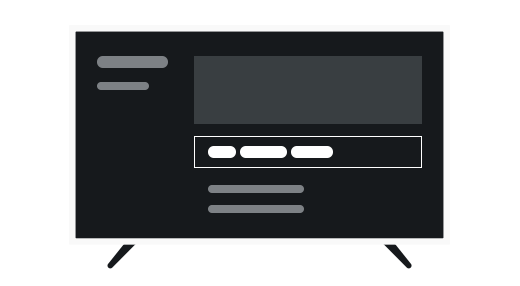
- Press the Xbox button to open the guide.
- Go to Profile & system > Settings.
- Select General > Network settings.
- Choose Advanced settings to see your IP address.
How to find the IP address on Nintendo Switch
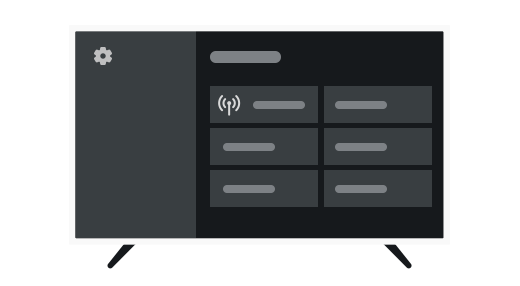
- From the Home Menu, select System Settings (the gear icon).
- Scroll down, select Internet and Test Connection.
- Wait for the connection test to complete.
- Your IP address will be displayed.
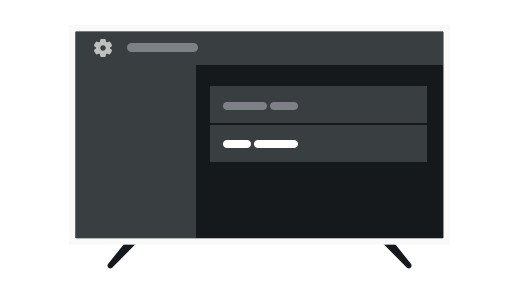
TVs
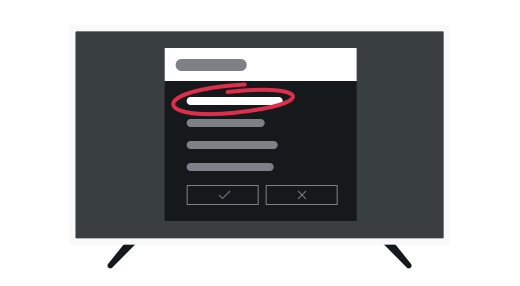
How to find my IP address on Smart TVs
- Open Settings on your TV.
- Navigate to Network or Connections.
- Select Network Status or Network Information.
- Your IP address will be displayed.
Want to keep your IP private?
Get a trusted VPN with a 30-day money-back guarantee!
What does IP and ISP mean?
An IP address, or Internet Protocol address, is a unique number assigned to every device on a network, acting like its online home address. When you visit a website, your device sends a request using its IP address, and the website's server responds by sending data back to your device, allowing you to view the site.
Your Internet Service Provider (ISP) assigns your device an IP address, similar to how a postal service delivers mail. Just as the postal service can see where your letters go, your ISP can track your online activity. Without encryption, your ISP can monitor the websites you visit and the data you exchange.
Why should I change my IP?
Because your IP is like a home address online. Malicious actors can use your IP to reveal personal details and misuse it, causing many risks:
Revealed location
Exposed ISP
Online tracking
Targeted attacks
Profiling
Data selling
Stop IP tracking today with Surfshark VPN
And enjoy a safe, smooth, and ad-free browsing experience even on public Wi-Fi.
How to change your IP address and hide your location
You can easily change your IP and mask your location with a VPN (Virtual Private Network). It works by connecting you to a server in another place, making it look like you're browsing from there.
For example, if you're in New York and use a VPN server in London, websites will think you're in London. VPNs also encrypt your internet traffic, so your Internet Service Provider (ISP) can't see what you're doing online. This keeps your browsing private and secure.
Change your IP in 3 easy steps
1. Get a VPN
2. Pick a server
3. Enjoy safety online
The difference between IPv4 vs. IPv6 addresses
IPv4 and IPv6 are both types of IP addresses, and help route information to the right place, much like a postal address.

IPv4
- Uses a 32-bit format (e.g., 192.168.1.1);
- Provides about 4.3 billion unique addresses;
- We are running out of IPv4 addresses due to the growing number of internet-connected devices.
It's like an old phone book with limited numbers.
IPv6
- Uses a 128-bit format (e.g., 2001:0db8:85a3:0000:0000:8a2e:0370:7334);
- Offers a nearly unlimited number of addresses;
- Provides better security and efficiency compared to IPv4.
It's like a massive directory with plenty of room for everyone.
Public vs. private IP addresses
Public and private IP addresses are both types of IP addresses, which are unique identifiers for devices on the internet.

Public IP
- Assigned by your internet service provider (ISP);
- Used to identify your network on the internet;
- Unique across the entire internet, allowing devices to communicate globally.

Private IP
- Used within a local network (e.g., home or office);
- Not unique globally. Can be reused in different networks;
- Allows devices within the same network to communicate with each other.
What is a dedicated IP address?
A dedicated IP is a unique IP address only you can use. Every time you connect to your designated VPN server, you get the same IP address. It’s like your own private parking spot on the internet, providing consistent access.
Why choose Surfshark for your IP protection?
Because Surfshark VPN offers top-notch security and more:
Unlimited simultaneous devices
Industry-standard AES-256-GCM encryption
Third-party audited no-logs policy
4500+ servers in 100 locations
Integrated ad blocker and ad blocker extension
30-day money-back guarantee
Learn more about IP addresses and how to change them
Try our other online security tools
Don’t leave your IP exposed
Frequently asked questions
How can I see what devices are using my IP address?
Your public IP address is shared by all devices connected to your home or office network, so checking which devices are using it means looking at your local network rather than the IP itself. Here’s how:
Check your router’s device list:- Log in to your router’s admin panel (usually accessible via 192.168.1.1 or 192.168.0.1 in your browser).
- Navigate to the Connected Devices, Device List, or DHCP Client List section.
- You’ll see all devices currently using your network, along with their MAC addresses and local IP addresses.
Can you tell if someone is tracking your IP?
Can an IP address track my device?
What is my IP address, and how is it assigned?
An IP address is a unique identifier assigned to each device connected to a network, allowing it to communicate over the internet.
Your internet service provider (ISP) typically assigns a dynamic IP address, which can change over time. Alternatively, a static IP address is manually set and remains constant, often used for devices like servers. Public IP addresses identify your network on the internet, while private IP addresses are used within local networks, assigned by your router.
What is my ISP, and how can I find it?
Can my IP reveal my exact location?
Is it legal to hide my IP?
Yes, it is generally legal to hide your IP address. Many people use VPNs, proxy servers, or the Tor network to conceal their IP addresses for privacy and security reasons.
However, while hiding your IP is legal, it is essential to use these tools responsibly and not for illegal activities. Always ensure that your actions comply with your country’s laws and regulations.